
Adding Debtors Email Mailing List
CRM Module> Activity> Email Mailing List
- Click "Add"
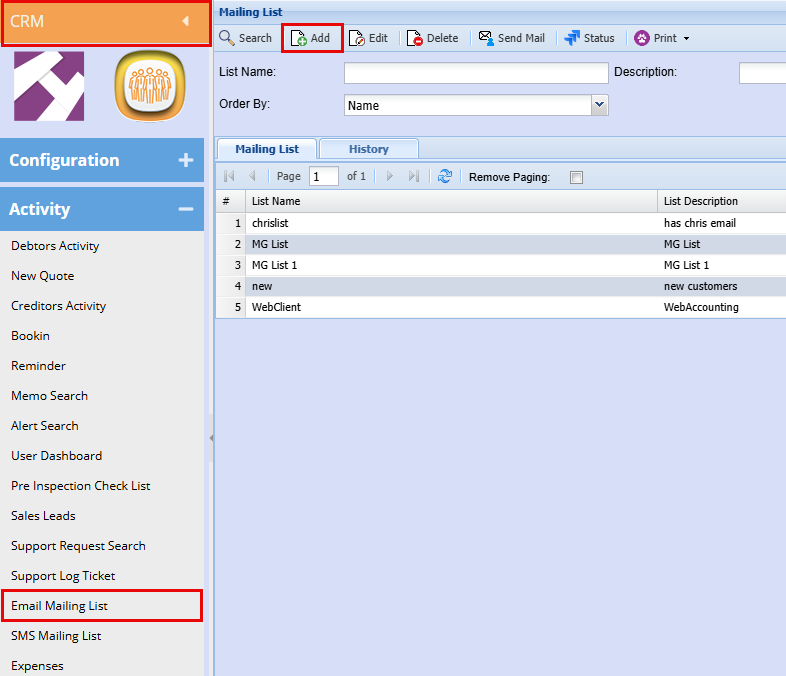
- Add the Mailing List Name and a Description
- Click "Save"
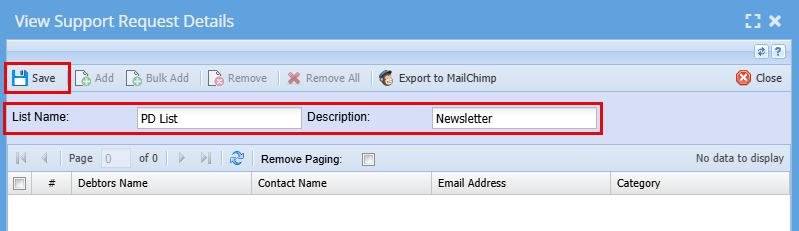
Click Save a new a window will open
Here you can start adding your contact for the mail.
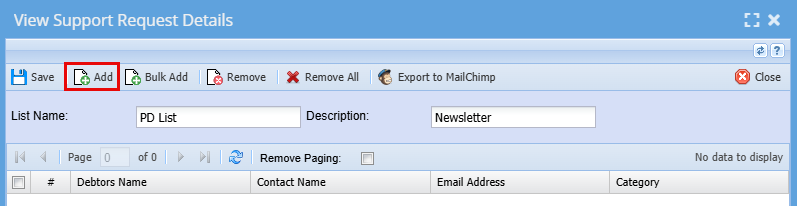
- Click "Add"
- Use the filters to limit your search results
- Click "Search" - The contacts grid will populate with Contacts
- Either double click on the contact you want to add to the Selected column or use the Arrows to move these contacts over.
- Click "Close" when you are happy with your list
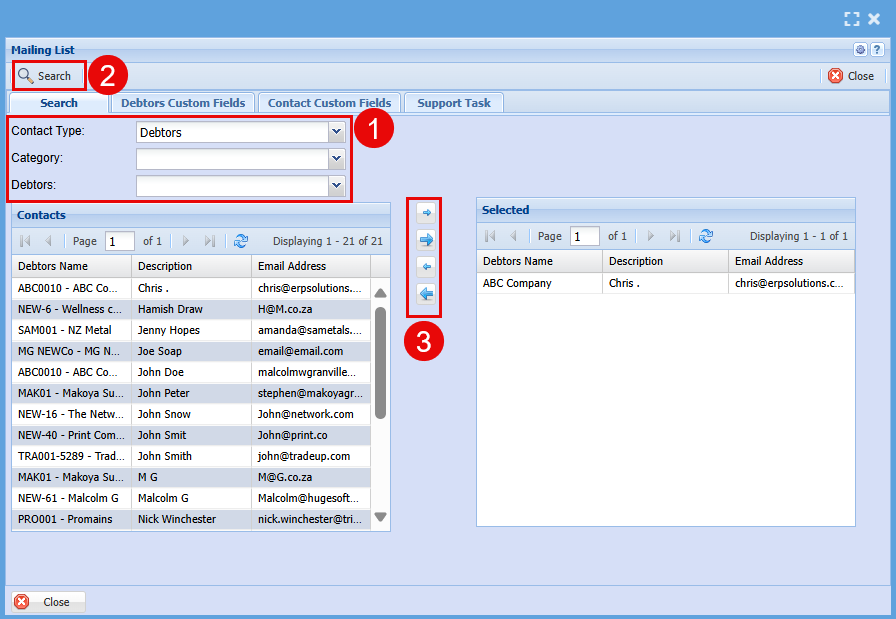
| Contact Type | Select the Contact Type you wish to add contact from (Debtors, Prospects, Opportunities, Users, Employees) These may be different depending on what has been setup. |
| Category | Select the Category you would like to add contact from, these will also depend on what has been setup (Purchasing, Sales, Marketing, Finance, Executive) |
| Debtors | Select one debtor to add to your mailing list |
When you click "Close", you will see your mailing list that you created in the list and will be available for selection when you have a mail to send out.
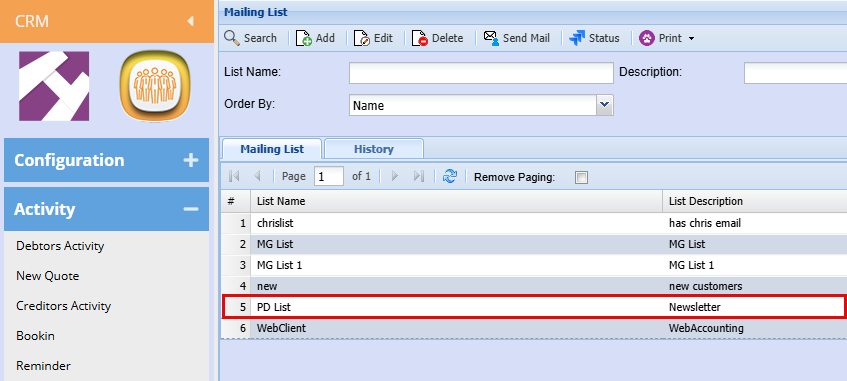
From here you can double click to open the list to make any changes needed.
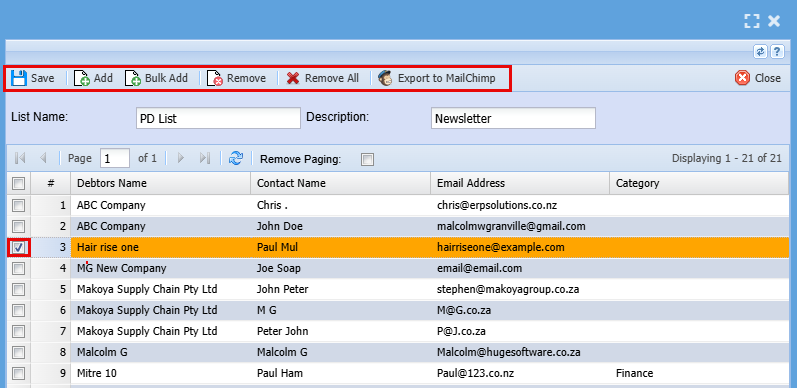
| Save | Click Save to save any changes made |
| Add | Click Add to add a contact that may have been missed |
| Bulk Add | Click Bulk Add to add a bulk amount of Contact to the mailing list (Maybe from a different Contact Type or Category.) |
| Remove | Highlight the line you want to remove by clicking on the line and clicking Remove. |
| Remove All | Click Remove All if you want to delete all contacts in the mailing list |
| Export to Mail Chimp | Click Export to Mail chimp to create this mail list in Mail Chimp. |
Bulk Add
You can add an Email mailing list in bulk or by group like all debtors or creditors.
- Click "Bulk Add" and the below screen will open
- By using the filters, you can create a quick mailing list
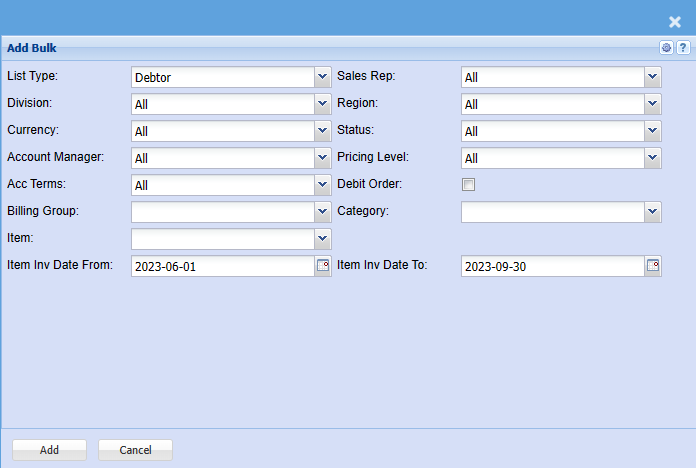
| List Type |
Select the list type you would like to add from (Debtors, Prospect, Opportunities) |
| Division | If you have set up divisions for your debtors, you can pull the report for all your debtors or you can select a specific Division from the drop-down menu. |
| Currency | If you are using multi-currency you can select it here |
| Account Manager | You can pull the report for all your debtors, or you can select a specific Account manager from the drop-down menu if you have set up Account Managers for your debtors. |
| Acc Terms | You can filter for specific Account Terms (30 Days, 60 Days, 90 Days etc.) |
| Billing Group | If you have billing groups like, Subscriptions, you can pull a report for these specific groups, or you can pull a report that will include all transactions. |
| Item | You can filter for Debtors/Customers who have purchased a specific inventory item |
| Item Inv Date From / Item Inv Date to | You can select the date range you want to filter for of a specific inventory item that has been purchased |
| Sales Rep | If you want to run a report by a specific sales rep, then you will need to select the sales rep on the drop-down menu. If you leave the sales rep on all the report will run by all sales rep. |
| Region | You can pull the report for all your debtors, or you can select a specific Region from the drop-down menu if you have set up Regions for your debtors. |
| Status | If you select all the report will pull all statuses. If you want to view report by status, select the status on the drop-down menu |
| Pricing Level | You can filter for specific Pricing Levels (In Season, Out of Season, Specials) |
| Debit Order | Tick the box if you would like to filter for Debit orders |
| Category | To generate the report, the user has to select the category from the drop-down menu |
No Comments