
GoDex Printer Setup
Steps for setting up Godex printer
- Don't plug USB cable into printer until you have downloaded the driver
- Install the Ribbon and Label
- Calibrate Printer with new labels
- Driver software for Godex Printer download
- Install the driver software
- At some point you will be asked to plug the USB cable into the computer
- Download Golabel software
- Install GoLabel software
- Log into Golabel
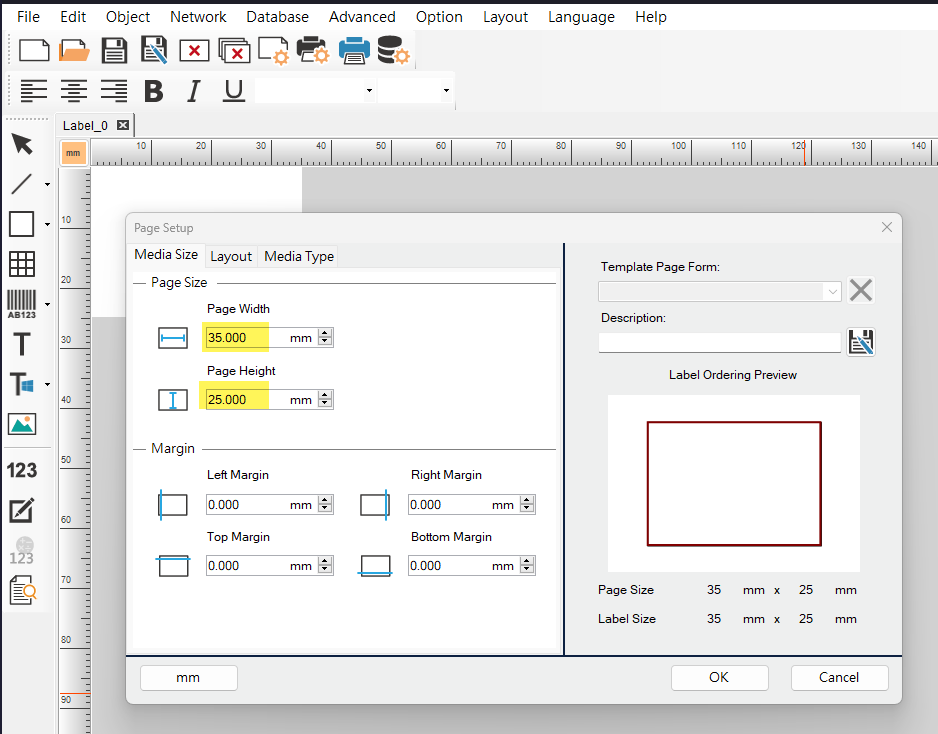
- Setup label size
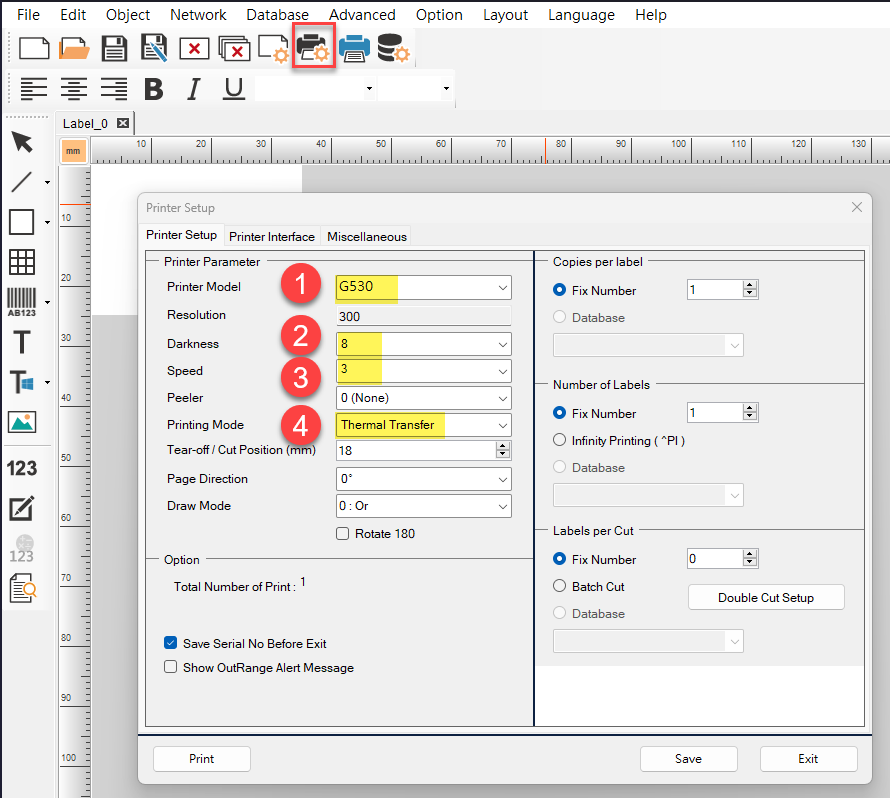
- Setup label settings
- Type TT (Thermal Transfer) - with ribbon
- Type DT (Direct Thermal) - No ribbon
- Darkness
- Speed
Install Ribbon and Label
For Video - Click Here
Calibrate the printer
For Video - Click Here
Installing Godex Printer
For Video - Click Here
Download the software for the Godex model you have purchased
Download Software - Click Here
Choose your printer then click download

You will need to complete the fields with your details to register to download the latest version of the Driver.
Click Download Latest Version
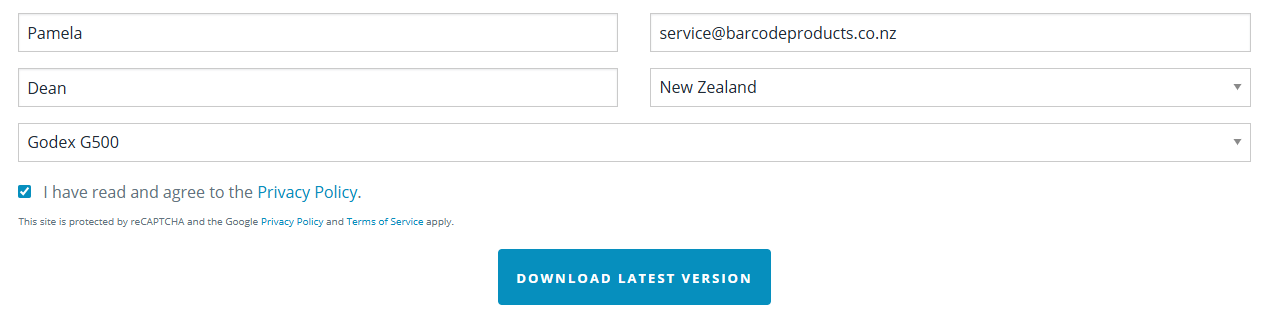
If your computer does not autonatucally start to download the driver click on the "Click Here" to start downloading the software.

At the top of your screen you should see the below box, click Open File.

Click I accept the terms in the license agreement, click next, and then click Run.
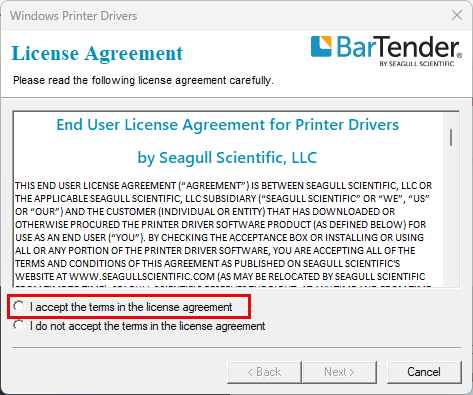
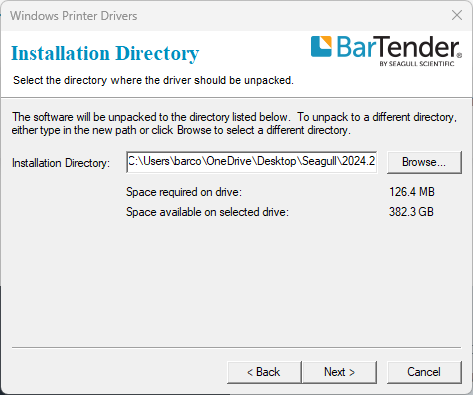
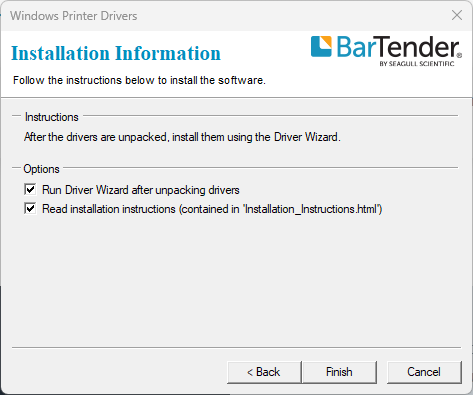
You will then need to say yes to allowing the software to make changes to your computer.
Then you will need to connect the printer to your computer.
Installing the GoLabel Software
To download the Golabel software - Click Here
Scroll down to find the downloads
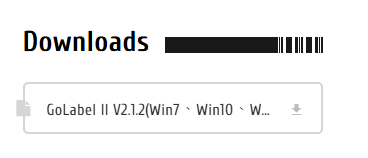
Click download
At the top of your screen or under downloads you will see the file.
Click to show in folder
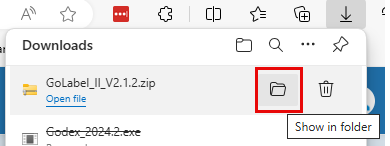
Go to your downloads and Right click on the folder, unzip file then click extract file.
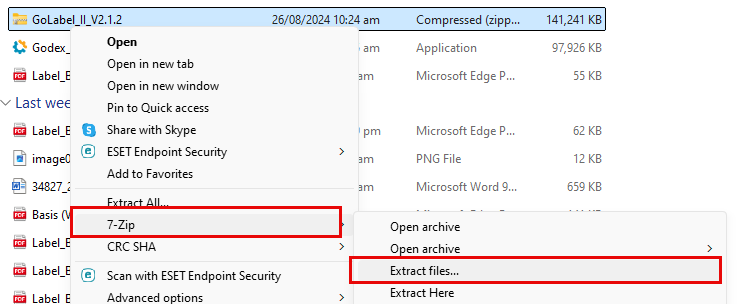
Once you click extract it will create another folder that looks identical, but it will have the unzipped files

Open the file and run the Setup

Click Next through the steps of the Wizard and allow the software to make changes to your computer.
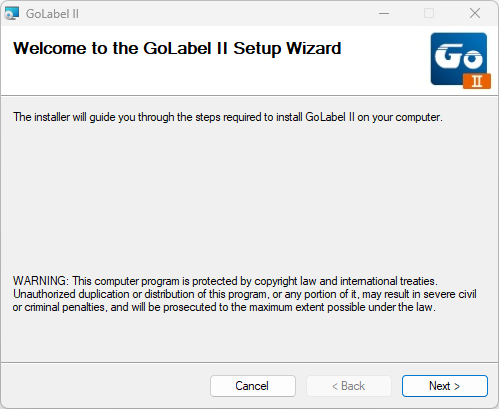
Setup label size
Setup Label Settings
If you have the G500, select this under the Printer Model
Webprint download
Click here to download webprint if you are using Huge ERP Software - download
Proceed to the installation manual for Webprint - Click here to continue
No Comments