
Barcode Printer Command Template Placeholders
The document applies to GoDEX printers and to Zebra printers.
Placeholders allow label formats saved as Command Templates in System Defaults to be reused for printing multiple labels with the data changed in each. Before printing a label format, each of its placeholders is replaced with data from the document or form where the print job originates.
The available placeholders and the data they correspond to are listed in the Valid Placeholders section, in the table that applies to the Command Template's Label Type (e.g. "Inventory"). Alternative placeholders that reference the same data may be included in the "Alternative Placeholders" column.
GoDEX Printer placehodlers
The GoDEX/EZPL commands that support placeholder substitution are listed in the table Printer commands checked for Placeholders. A placeholder is not considered valid unless it occupies the entire data field parameter and contains no whitespace except for trailing spaces.
Because of how placeholder substitution currently works, each command must be placed on its own line in the template. If placeholder text appears inside a command that does not support placeholder substitution (i.e. not At, Bt or Wx), it remains unchanged as part of that command.
If the data for a valid placeholder is missing, then the command containing that placeholder is removed from the printed label.
If the command’s field data parameter is not listed in the relevant table, it is treated as ordinary barcode or label data and left unchanged.
GoDEX Printer commands checked for Placeholders
| Description | Syntax | Notes |
|---|---|---|
| Printer Text | At,x,y,x_mul,y_mul,gap,rotationInverse,data |
Unformatted text |
| 1D Barcode | Bt,x,y,narrow,wide,height,rotation,readable,data |
Includes Code39 and Code128 |
| QR Code | Wx,y,mode,type,ec,mask,mul,len,roatae<CR>data |
len must be the length of the placeholder. Data starts at new line |
Zebra Printer placeholders
The placeholders for Zebra printers are the same as those used by GoDEX, which are listed in the Valid Placeholders section, except that they are enclosed in double square brackets. For example [[BAR1]], [[%QCODE%]] and [[%QTY%]] are equivalent to the GoDEX/EZPL placeholders BAR1, %QCODE% and %QTY%. Unlike with GoDEX placeholders there are no restrictions where they can occur in the label format. Any text matching a placeholder should be replaced by the value the placeholder references, or is otherwise removed.
Not all placeholders which are supported for GoDEX/EZPL printing are supported for Zebra/ZPL printing. Placeholders which are not supported are documented with "Zebra unavailable" in the Notes column of the tables in the Valid Placeholder section, or if this applies to all the rows of a table, in a note above that table. Currently this only includes Accessory Grid placeholders.
Valid Placeholders
Zebra/ZPL placeholders are the same except they are enclosed in double square brackets. Not all placeholders are available for Zebra printers.
General
| Placeholder | Alternative Placeholders | Description | Notes |
|---|---|---|---|
BAR1 |
Barcode | ||
DESCR1 |
DESC1 SDESCR SDESC |
Short Description | |
CAT1 |
Category | Not used | |
REF1 |
Reference | ||
JOB1 |
JOBNO1 |
Job Number | |
VER1 |
Version | Not used | |
ORDER1 |
ORDNO1 |
Order Number | |
CUST1 |
Customer Name | ||
DOC-DESC1 |
F-DESCR1 |
Document Description | |
DOC-REF1 |
F-REF1 |
Document Reference | |
DOC-JOBNO1 |
F-JOB1 |
Document Job | |
ADDR1 |
Address Line 1 | ||
ADDR2 |
Address Line 2 | ||
ADDR3 |
Address Line 3 | ||
ADDR4 |
Address Line 4 | ||
POST1 |
Postcode |
Assets
| Placeholder | Alternative Placeholders | Description | Notes |
|---|---|---|---|
BAR1 |
Asset Number (Default) OR Barcode (See Notes 3) |
[3] | |
BAR2 |
Barcode (Default) OR Asset Number (See Notes 3) |
[3] | |
CODE1 |
Stock Item Code | ||
DESCR1 |
DESC1 |
Asset Name | |
DESCR2 |
DESC2 |
Description | |
PDATE1 |
Purchase Date | ||
REF1 |
Reference |
Inventory – General
| Placeholder | Alternative Placeholders | Description | Notes |
|---|---|---|---|
BAR1 |
Barcode | ||
CODE1 |
Stock Item Code | ||
DESCR1 |
DESC1 SDESCR SDESC %STKDESCR% %STKSDESCR% |
Stock Item Short Description | |
LBL1 |
Label | ||
WGT1 |
WEIGHT1 |
Weight in units | |
SELLEX1 |
SELLEXCL1 SELL-EXCL1 |
Selling Price Excluding | |
SELLINC1 |
SELLINCL1 SELL-INCL1 |
Selling Price Including | |
%PRED% |
Predicted | ||
%FACTS% |
Facts |
Inventory – Accessory Grid
| Placeholder | Alternative Placeholders | Description | Notes |
|---|---|---|---|
ACCESSORIES_GRID11 |
ACC_GRID1 ACC_GRID(CODE,DESCR,QTY) |
Accessories Grid Type 1 Columns: Code, Description, Qty |
[1] |
|
|
ACC-GRID2 ACC_GRID(DESCR,QTY) |
Accessories Grid Type 2 Columns: Description, Qty |
[1] |
ACCESSORIES_GRID31 |
ACC_GRID3 ACC_GRID(QTY,DESCR) |
Accessories Grid Type 3 Columns: Qty, Description |
[1] |
ACC_CODE_0N2 |
Accessories Grid Code Row N | [2] | |
ACC_DESCR_0N2 |
Accessories Grid Description Row N | [2] | |
ACC_QTY_0N2 |
Accessories Grid Quantity Description Row N | [2] | |
ACC_REF_0N2 |
Accessories Grid Line Reference Row N | [2] |
Inventory – Additional Properties
| Placeholder | Alternative Placeholders | Description | Notes |
|---|---|---|---|
%PROP1% |
%P1% %PROP1C% %P1C% |
Additional Property 1 Code | |
%PROP2% |
%P2% %PROP2C%%P2C% |
Additional Property 2 Code | |
%PROP3% |
%P3% %PROP3C% %P3C% |
Additional Property 3 Code | |
%PROP1D% |
%P1D% |
Additional Property 1 Description | |
%PROP2D% |
%P2D% |
Additional Property 2 Description | |
%PROP3D% |
%P3D% |
Additional Property 3 Description | |
%PROP4% |
%P4% |
Additional Property 4 | |
%PROP5% |
%P5% |
Additional Property 5 | |
%PROP6% |
%P6% |
Additional Property 6 | |
%PROP7% |
%P7% |
Additional Property 7 | |
%PROP8% |
%P8% |
Additional Property 8 | |
%PROP9% |
%P9% |
Additional Property 9 | |
%PROP10% |
%P10% |
Additional Property 10 |
Inventory – Print Warehouse Label
| Placeholder | Alternative Placeholders | Description | Notes |
|---|---|---|---|
%PRNWHSCODE%4 |
%PRINT-WHS-CODE% |
Warehouse Code for Warehouses with "Print on Label" enabled when "Print WHS Label" enabled for the Inventory Item. | [4] |
%PRNWHSNAME%4 |
%PRINT-WHS-NAME% |
Warehouse Name for Warehouses with "Print on Label" enabled when "Print WHS Label" is enabled for the Inventory Item. | [4] |
Inventory – Wastage Item
| Placeholder | Alternative Placeholders | Description | Notes |
|---|---|---|---|
BAR1 |
%BAR% |
Wastage Item Code | |
%CODE% |
Wastage Item Code | ||
%DESCR% |
%DESCRIPTION% |
Wastage Item Description | |
%LEN% |
%LENGTH% |
Wastage Item Length | |
%WDTH% |
%WIDTH% |
Wastage Item Width | |
%HGT% |
%HEIGHT% |
Wastage Item Height | |
%WGT% |
%WEIGHT% |
Wastage Item Weight | |
%STKCODE% |
%STOCKCODE% |
Code of the Inventory Item for the Wastage Item | |
%STKDESCR% |
%STOCKDESCRIPTION% DESCR1 DESC1 SDESCR SDESC %STKSDESCR% |
Short Description of the Inventory Item for the Wastage Item |
Inventory – Batch Serial Numbers
| Placeholder | Alternative Placeholders | Description | Notes |
|---|---|---|---|
%SERIAL% |
%BAR% |
Serial Number formatted with the Separators field from the form or without separators if the field is blank. | |
%STKCODE% |
%ITEMCODE% |
Stock Item Code | |
%STKDESCR% |
%ITEMDESCR% DESCR1 DESC1 SDESCR SDESC %STKSDESCR% |
Stock Item Description | |
%PCODE% |
%PROD% |
Production Code. This is the Production Date in YYMMDD format by default. |
|
%BBDATE-NZ% |
Best Before Date New Zealand format. DD/MM/YYYY |
||
%BBDATE-INT% |
%BBDATE% |
Best Before Date International format. YYYY-MM-DD |
|
%FRESH% |
"Fresh" if the Fresh checkbox from the form is checked, otherwise blank. | ||
%FRESH-U% |
"FRESH" if the Fresh checkbox from the form is checked, otherwise blank. | ||
%FRESH-FRZN% |
"Fresh" if the Fresh checkbox from the for is checked, otherwise "Frozen". | ||
%FRESH-FRZN-U% |
"FRESH" if the Fresh checkbox from the for is checked, otherwise "FROZEN". | ||
%FRESH-YN% |
"Y" if the Fresh checkbox from the for is checked, otherwise "N". | ||
%STKWGT-2DP% |
%ITEMWGT-2DP% |
Weight of the stock item fixed to two decimal places. | |
%STKWGT% |
%ITEMWGT% |
Weight of the stock item to up two decimal places. |
Inventory – Batch Tracking
| Placeholder | Alternative Placeholders | Description | Notes |
|---|---|---|---|
%BATCHNO% |
%BATCHNUMBER% %BN% |
Batch Number | |
BAR1 |
%STKBAR% |
Stock Item Barcode | |
%STKCODE% |
CODE1 |
Stock Item Code | |
%STKDESCR% |
DESCR1 DESC1 SDESCR SDESC %STKSDESCR% |
Stock Item Short Description | |
%BATDESCR% |
Batch Description | ||
%PCODE% |
Production Code. This is the Production Date in YYMMDD format by default. |
||
%BBDATE-NZ% |
Best Before Date New Zealand format. DD/MM/YYYY |
Batch specific | |
%BBDATE-INT% |
%BBDATE% |
Best Before Date International format. YYYY-MM-DD |
Batch specific |
%STKWGT-2DP% |
%ITEMWGT-2DP% |
Weight of the stock item fixed to two decimal places. | |
%STKWGT% |
WEIGHT1 WGT1 |
Weight of the stock item to up two decimal places. | |
LBL1 |
Stock Item Label | ||
SELLEX1 |
SELLEXCL1 SELL-EXCL1 |
Stock Item Selling Price Excluding | |
SELLINC1 |
SELLINCL1 SELL-INCL1 |
Stock Item Selling Price Including | |
%PRED% |
Stock Item Predicted | ||
%FACTS% |
Stock Item Facts | ||
%PROP1% |
%P1% %PROP1C% %P1C% |
Stock Item Additional Property 1 Code | |
%PROP2% |
%P2% %PROP2C%%P2C% |
Stock Item Additional Property 2 Code | |
%PROP3% |
%P3% %PROP3C% %P3C% |
Stock Item Additional Property 3 Code | |
%PROP1D% |
%P1D% |
Stock Item Additional Property 1 Description | |
%PROP2D% |
%P2D% |
Stock Item Additional Property 2 Description | |
%PROP3D% |
%P3D% |
Stock Item Additional Property 3 Description | |
%PROP4% |
%P4% |
Stock Item Additional Property 4 | |
%PROP5% |
%P5% |
Stock Item Additional Property 5 | |
%PROP6% |
%P6% |
Stock Item Additional Property 6 | |
%PROP7% |
%P7% |
Stock Item Additional Property 7 | |
%PROP8% |
%P8% |
Stock Item Additional Property 8 | |
%PROP9% |
%P9% |
Stock Item Additional Property 9 | |
%PROP10% |
%P10% |
Stock Item Additional Property 10 |
Lab Samples
| Placeholder | Alternative Placeholders | Description | Notes |
|---|---|---|---|
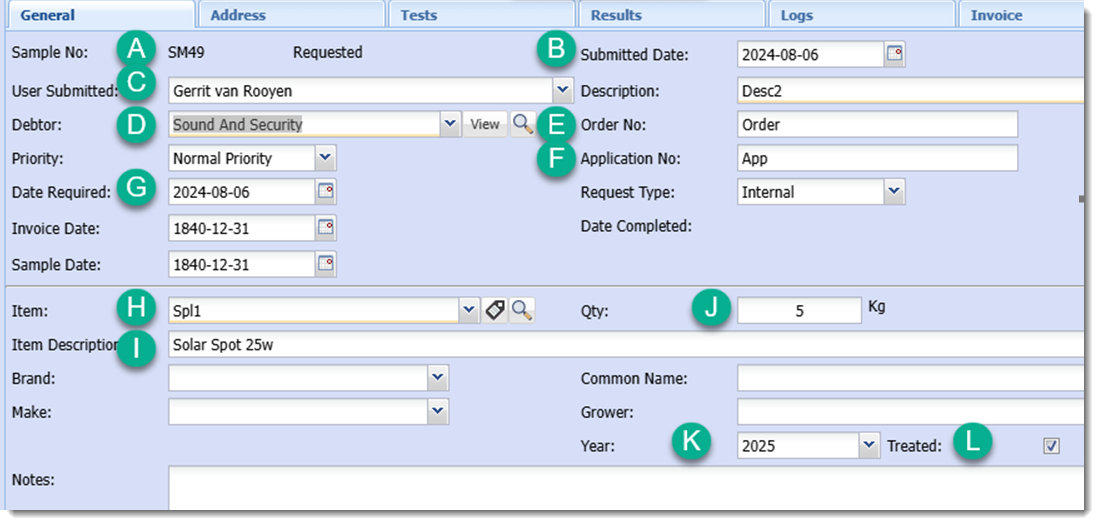
%SAMPLENO% |
%FIELD-A% %A% |
Sample Number | |
%SUBMITDATE% |
%FIELD-B% %B% |
Submitted Date | YYYY-MM-DD format |
%USER% |
%FIELD-C% %C% |
User Submitted | First and Last name |
%DEBTOR% |
%FIELD-D% %D% |
Debtor Name | |
%ORDERNO% |
%FIELD-E% %E% |
Order Number | |
%APPNO% |
%FIELD-F% %F% |
Application Number | |
%REQDATE% |
%FIELD-G% %G% |
Date Required | YYYY-MM-DD format |
%ITEM% |
%FIELD-H% %H% |
Item Code | |
%ITEMDESCR% |
%FIELD-I% %I% |
Item Description | |
%QTY% |
%FIELD-J% %J% |
Quantity | |
%QTYWUNIT% |
%FIELD-J2% %J2% %QTY-WITH-UNIT% |
Quantity with unit appended | |
%YEAR% |
%FIELD-K% %K% |
Year | |
%TREATED% |
%FIELD-L% %L% |
Treated | Shows as "Treated" if checkbox is ticked, otherwise blank |
Lab Tests
| Placeholder | Alternative Placeholders | Description | Notes |
|---|---|---|---|
%TEST% |
%FIELD-A% %BAR% %TEST-NUM% %TESTNO% |
Test Number | |
%DESCR% |
%FIELD-B% |
Description | |
%DATE% |
%FIELD-C% |
Test Date | YYYY-MM-DD format |
%DUE% |
%FIELD-D% %DUEDATE% |
Debtor Name | YYYY-MM-DD format |
PT Job Item
| Placeholder | Alternative Placeholders | Description | Notes |
|---|---|---|---|
%PBAR% |
%PBARCODE% %PB% %PB1% |
Primary Barcode |
The value used depends on which Barcode Print button in the form is clicked. The Job Item Number is used when the button next to it is clicked, and the Barcode is used when the button next to it is clicked. |
%JOBITEM% |
%JOBITEM-NAME% %JI-NAME% %JI% %JI1% |
Job Item Name | |
%JOBITEMNUM% |
%JOBITEM-NUM% %JOBITEMNO% %JI-NUM% %JI2% |
Job Item Number | |
%LOC% |
%LOCATION% %L% %L1% |
Location Description | |
%LOCCODE% |
%LOCATION-CODE% %L2% |
Location Code | |
%QC% |
%QC-NAME% %QC1% |
Quality Control Description | |
%QCCODE% |
%QC-CODE% %QC2% |
Quality Control Code | |
%INSPBY% |
%INSPECTED-BY% %I% %I1% |
Inspected By Full Name | |
%INSPBYFN% |
%INSPECTED-BY-FNAME% %I2% |
Inspected By First Name | |
%INSPBYLN% |
%INSPECTED-BY-LNAME% %I3% |
Inspected By Last Name | |
%CUST% |
%CUSTOMER% %C% %C1% |
Customer Name | |
%CUSTCODE% |
%CUSTOMER-CODE% %C2% |
Customer Code | |
%DOCNUM% |
%DOCUMENT-NUM% %DOCNO% %DN% %DN1% |
Document Number | |
%LPLAN% |
%LPLANNING%%LP% %LP1% |
Location Planning Description | |
%LPLANCODE% |
%LPLANNING-CODE%%LP2% |
Location Planning Code | |
%GROUP% |
%G% %G1% |
Group Description | |
%GROUPCODE% |
%GCODE% %G2% |
Group Code | |
%REF% |
%REFERENCE% %R% %R1% |
Reference | |
%DESCR% |
%DESCRIPTION% %D% %D1% |
Description | |
%BAR% |
%BARCODE% %B% %B1% |
Barcode | |
%SERIAL% |
%SERIAL-NUM% %SERIALNO% %SN% %SN1% |
Serial Number |
Sales Order - Shipping
| Placeholder | Alternative Placeholders | Description | Notes |
|---|---|---|---|
%SONO% |
%SO% %SALESORDER% |
Sales Order Number | |
%ORDERNO% |
Order Number | ||
%CUST% |
%D% |
Customer Name | |
%PCL-CT% |
Parcel Count | ||
%PCL-N% |
Parcel Number |
||
%ADDR1% |
Address Line 1 | ||
%ADDR2% |
Address Line 2 | ||
%ADDR3% |
Address Line 3 | ||
%ADDR4% |
Address Line 4 | ||
%POST% |
Address Postcode | ||
%ADDR+1% |
Filled in Address Line 1 | Ignores preceding blank lines | |
%ADDR+2% |
Filled in Address Line 2 | Ignores preceding blank lines | |
%ADDR+3% |
Filled in Address Line 3 | Ignores preceding blank lines | |
%ADDR+4% |
Filled in Address Line 4 | Ignores preceding blank lines |
Notes
1. Accessories Grid size and layout
Sizing and layout can be determined by a sequence of table graphic commands directly following the command containing the placeholder. The size of the font in the table will be the size of the placeholder font. See the section Accessory Grid Printing for more details about Accessory Grid Printing.
2. Accessories Grid column placeholders
Placeholders for column values of the Accessories grid can be set in the template instead of setting ACCESORIES_GRID. The N is replaced with a number referencing the row in the grid, for instance ACC_CODE_01 references the Code value in first row.
3. Assets barcode placeholder
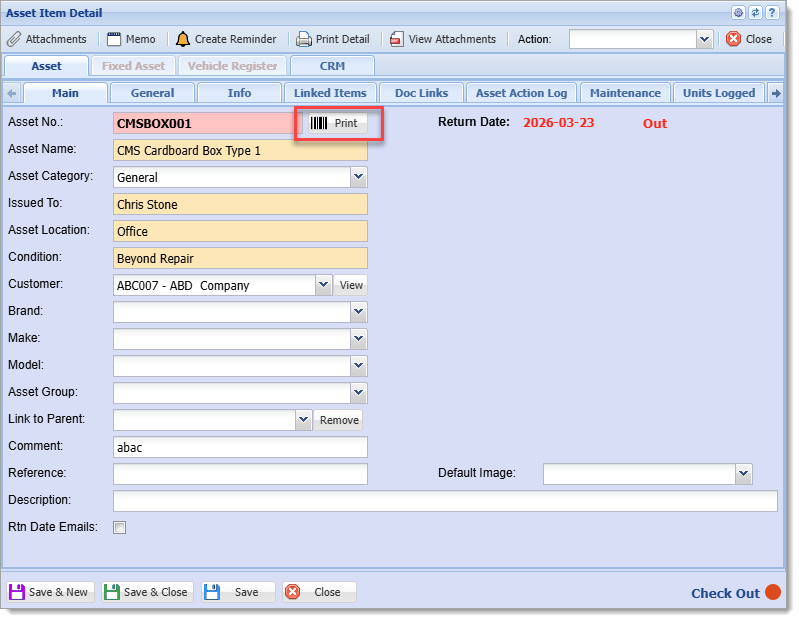
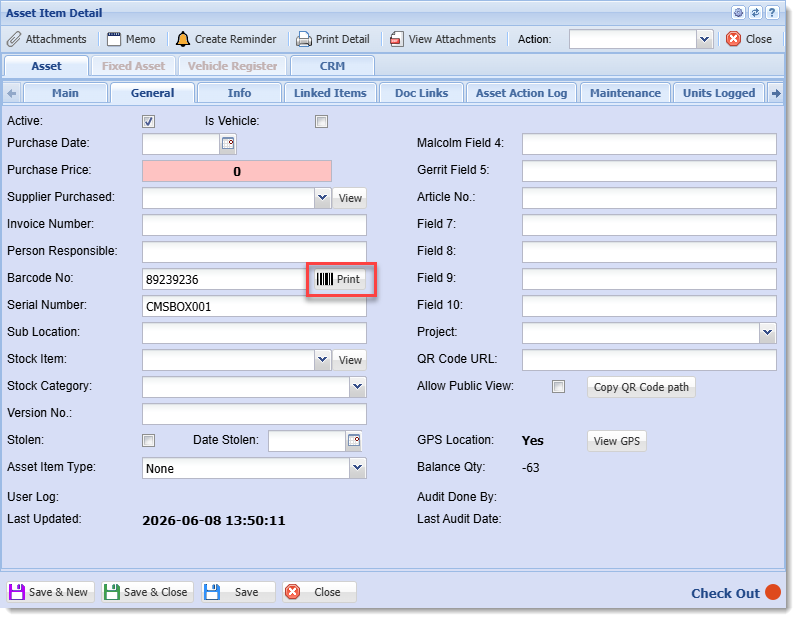
For barcode printing in the Assets Module the by default the placeholder BAR1 references the Asset Number of the item and the placeholder BAR2 references its Barcode. However, if the Print Barcode button in the General Tab of the Asset Details form is clicked, the values are interchanged, with BAR2 referencing the Asset Number.
Printing from Main Tab in Asset Details Form
Printing from General Tab in in Asset Details Form
4. Print WHS Label option
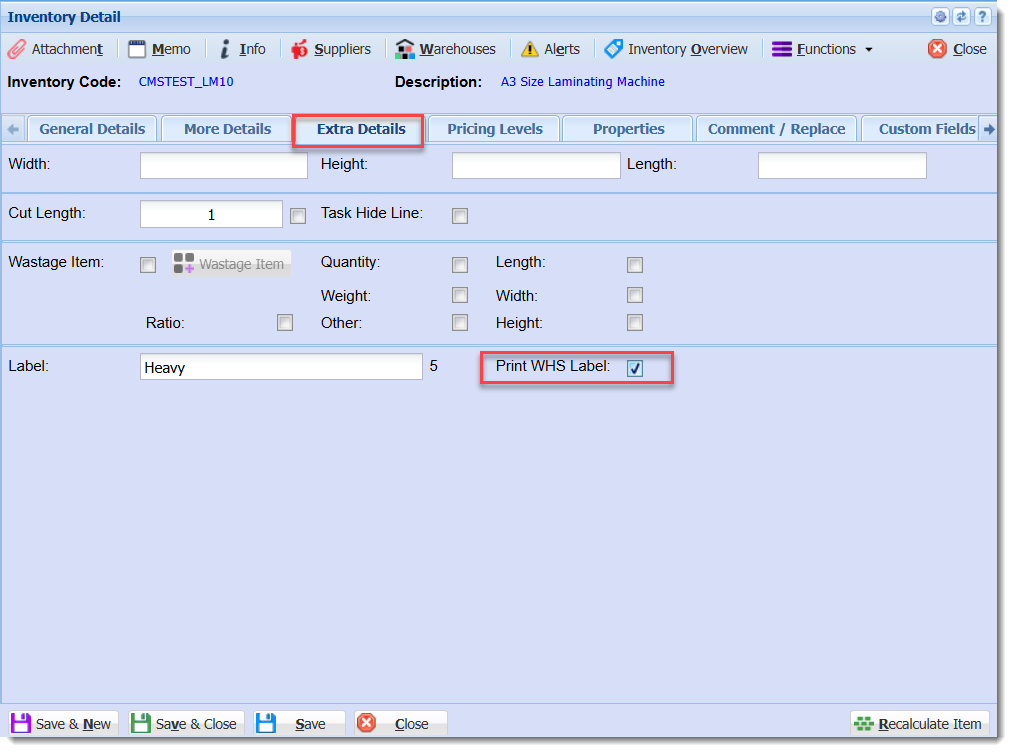
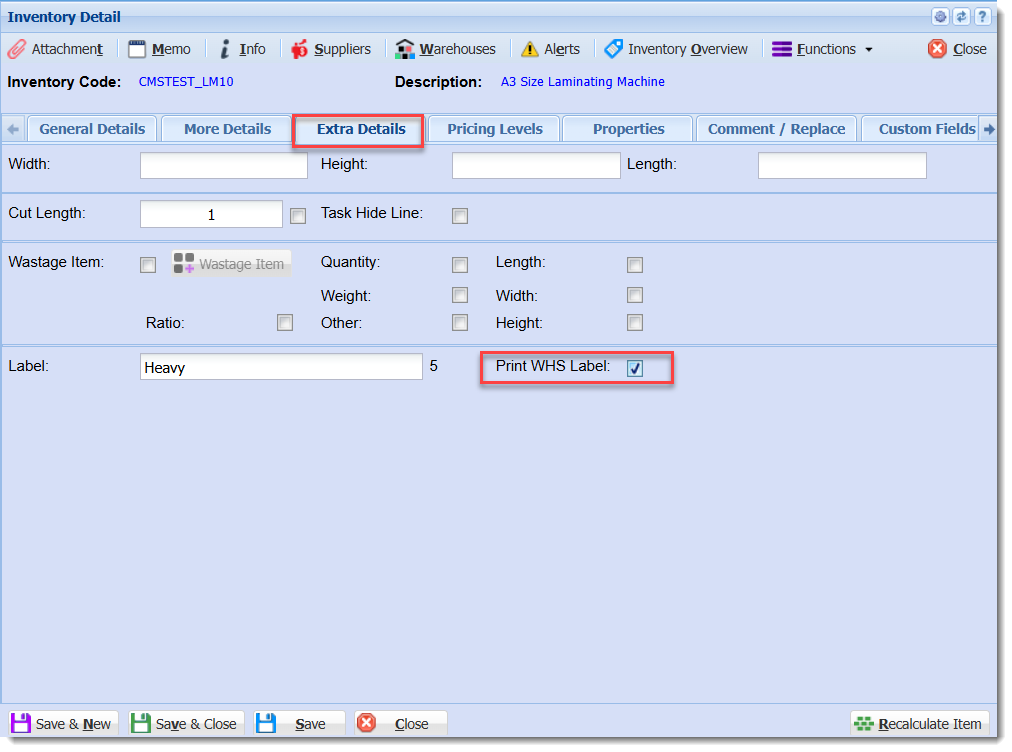
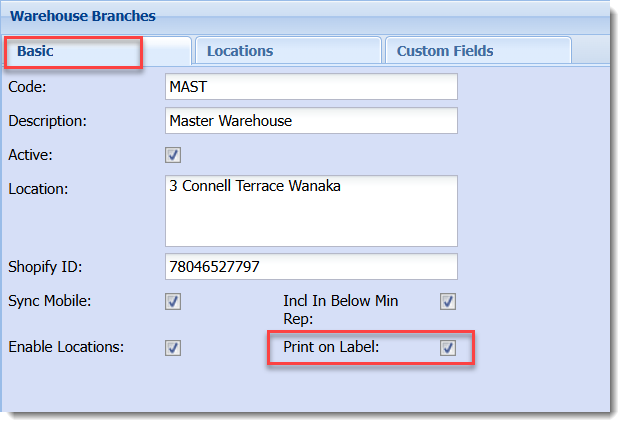
The placeholders %PRNWHSCODE% and %PRNWHSNAME% will have no effect unless the Inventory Item has the option "Print WHS Label" enabled in its setup form and there is at least one Warehouse with the option "Print On Label" enabled in its setup form, as shown.
Location of "Print WHS Label" option in Inventory Setup form
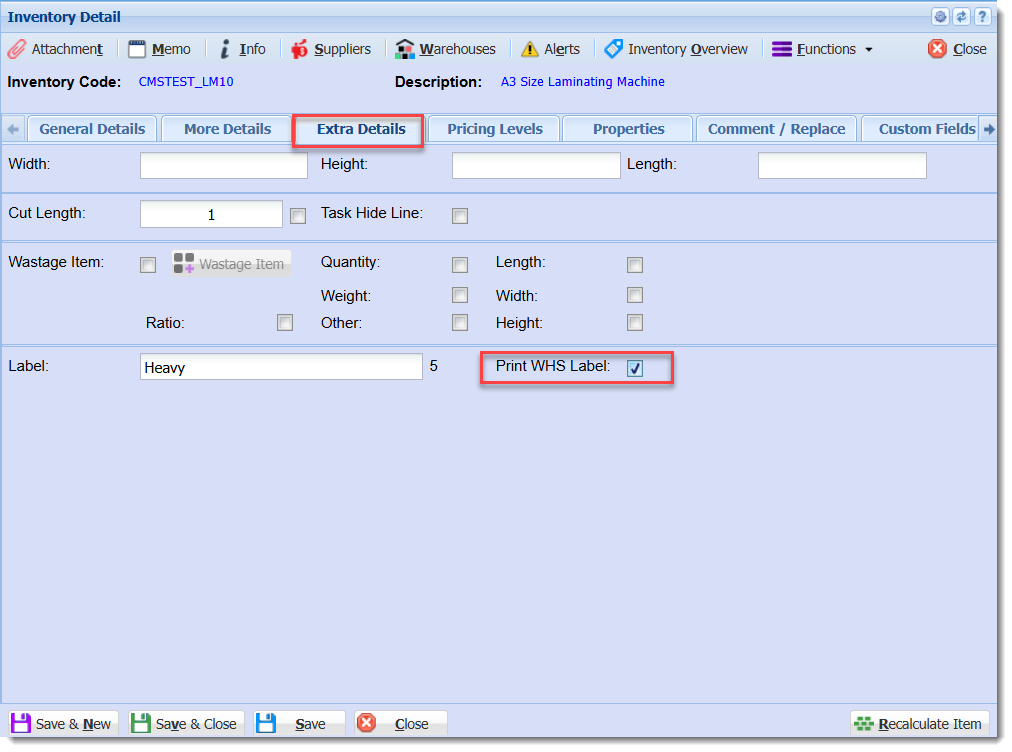
Location of "Print on Label" option in Warehouse Setup form
With both options enabled, the placeholders are substituted with values from the Warehouses, with additional labels being printed if there is more than one Warehouse with the "Print On Label" option enabled.
Lab Samples Markers
Accessory Grid Printing
To include a table with accessory data for an inventory item a placeholder that begins ACCESORIES_GRID is used or one of the alternate placeholders for it. Alternatively individual values can be referenced with the ACC_CODE_0N, ACC_DESCR_0N, ACC_QTY_0N, and ACC_REF_0N placeholders, where N is replaced with the row number of the table.
There is currently one type of accessories table available.
The data for the grid is found in the Inventory Setup window for an item, in the Manage Accessories form which is opened through the Functions menu.
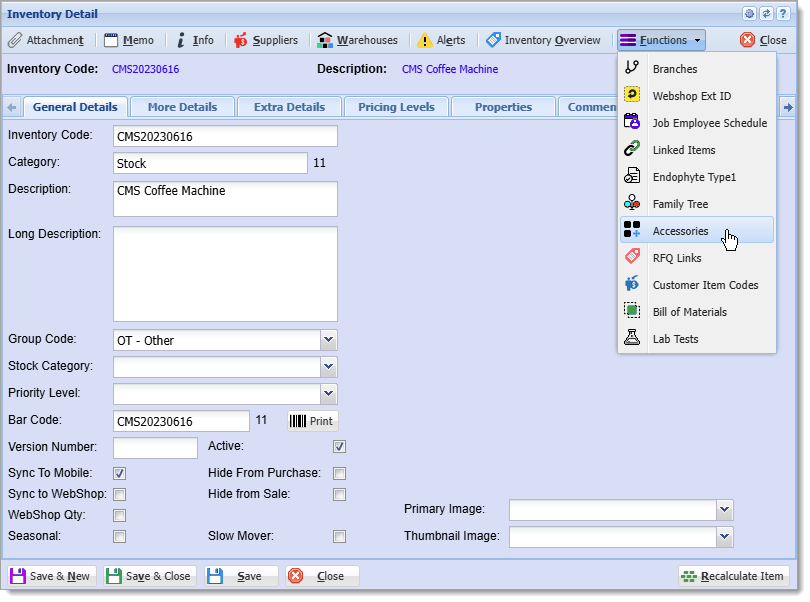
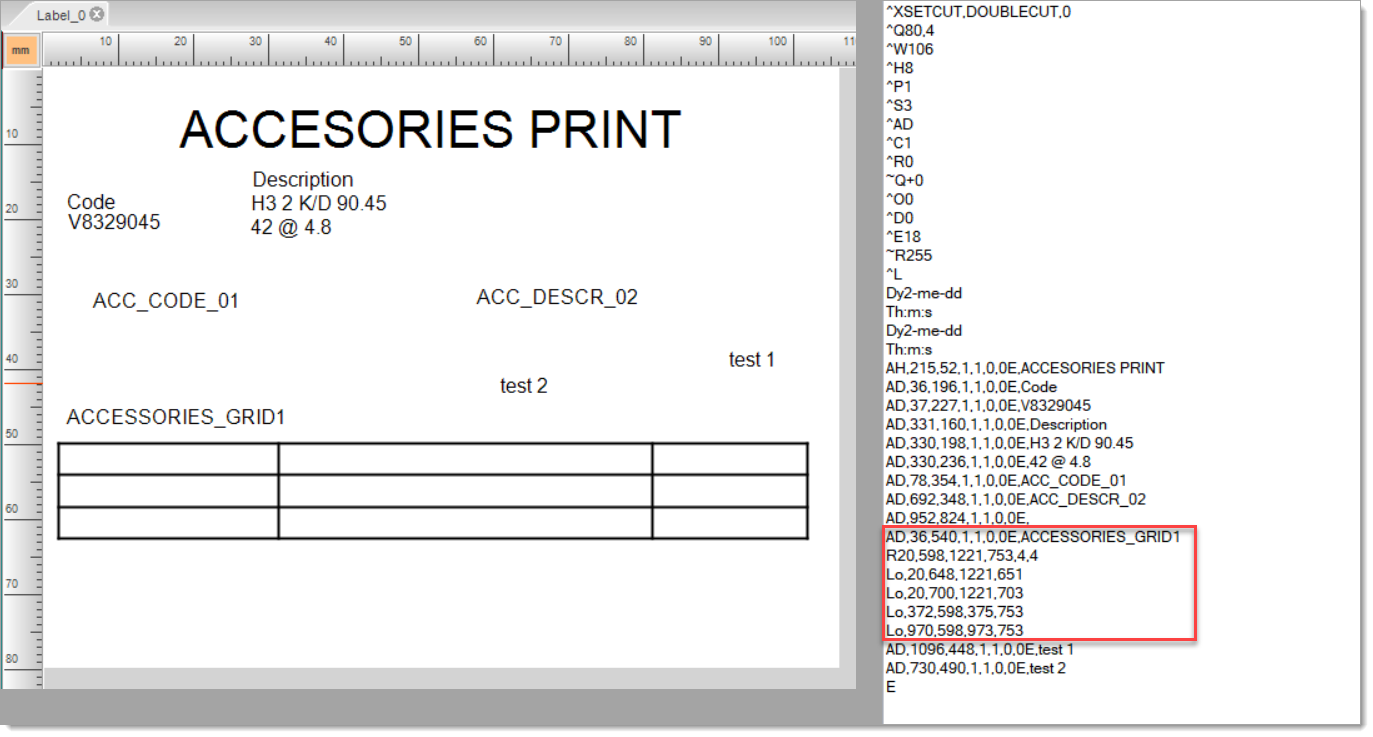
For the label commands of the table data to be generated successfully it is important that the table drawing commands in the template appear immediately after the ACCESSORIES_GRID1 placeholder label command.
The spacing of the table is determined by the layout of the lines of the table in the template. The table can be drawn with the table drawing tool located in the left side bar in GoLabel II. When printing labels are automatically placed at the top left corner of their corresponding cell. Headers are added automatically and are one font size larger than the font for the table data. There is by default a 20 dot indentation for the table values. Quantity values are right aligned, using white space characters, within the space of the widest quantity value.
If there is more data than there are rows drawn in the template table then the additional rows are added automatically based on the size of the last row.
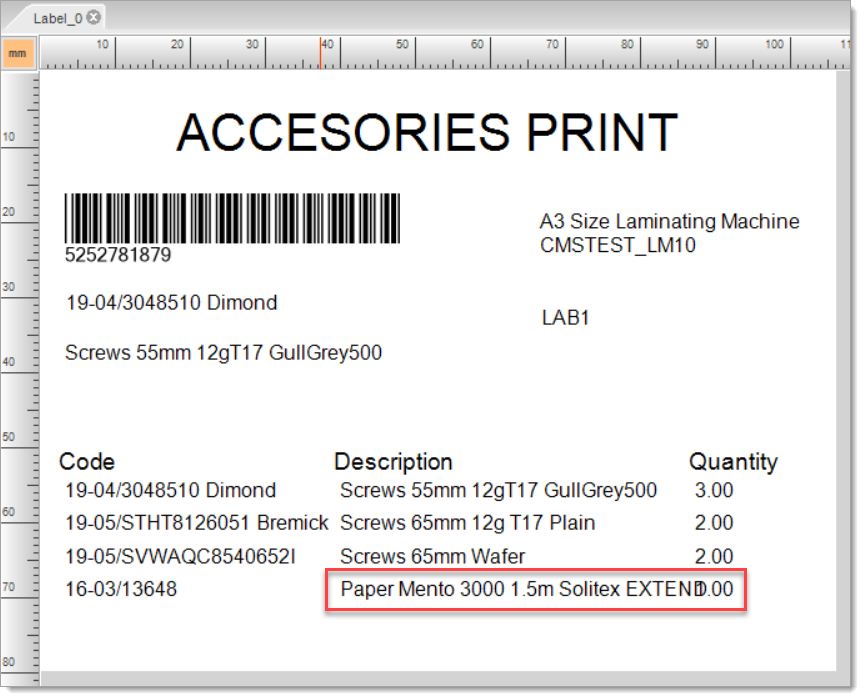
Without enough horizontal spacing the values in the table may overlap. Having extra horizontal space will help mitigate this issue.
No Comments