
Barcode Printers supported
Huge ERP supports GoDex Barcode Printers
Dependent on the volume of labels to be printed, you will either have a desktop or industrial printer.
Here are some basic setups to be done to have the printer working
Steps to setting up printer
- Unbox printer
- Insert Ribbon
- Insert Labels
- Calibrate labels
- Download Godex drivers and install
- When asked, plug in USB so software can pick up printer and complete driver install
- Install Go Label V2 software
- Setup settings in printer
- Options for prompt for print
- Printer setup to correct printer
- Set Darkness and speed
- Resin ribbon (about 13 on Darkness)
- Wax Resin (about 8 on Darkness)
- Wax (about 4 to 5 on Darkness)
Example of Godex G500
| Media Loading | https://youtu.be/hqFqbXMV_Yo | Video on how to load media into printer |
| Calibration | https://youtu.be/hKt1ihqIu38 | Video on how to Calibrate printer |
| GoDex printer driver | https://www.seagullscientific.com/support/downloads/drivers/godex/download | Godex printer drivers |
| GoLabel V2 | https://hugeerp.co.nz/csp/WebHelp/files/GoLabel_II_V2.1.msi | GoLabel design labels |
| Microsoft 2007 Office system driver | Microsoft 2007 Office System Driver (Only when linking database to Excel with errors) |
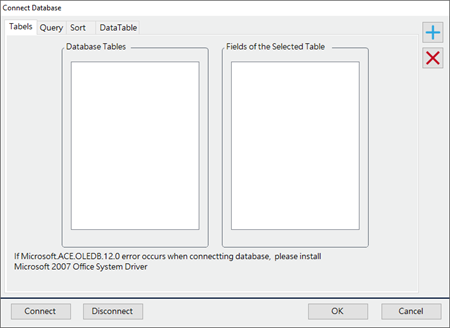
When linking an Excel database to the GoLabel and an error comes up, you will need to install the Microsoft 2007 Office system driver
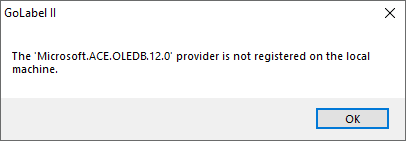
Database link
No Comments