
Stock Transfer
Stock Transfer (warehouse transfer)
stock can be transferred from one warehouse to another using Stock Transfer within the Webatar App
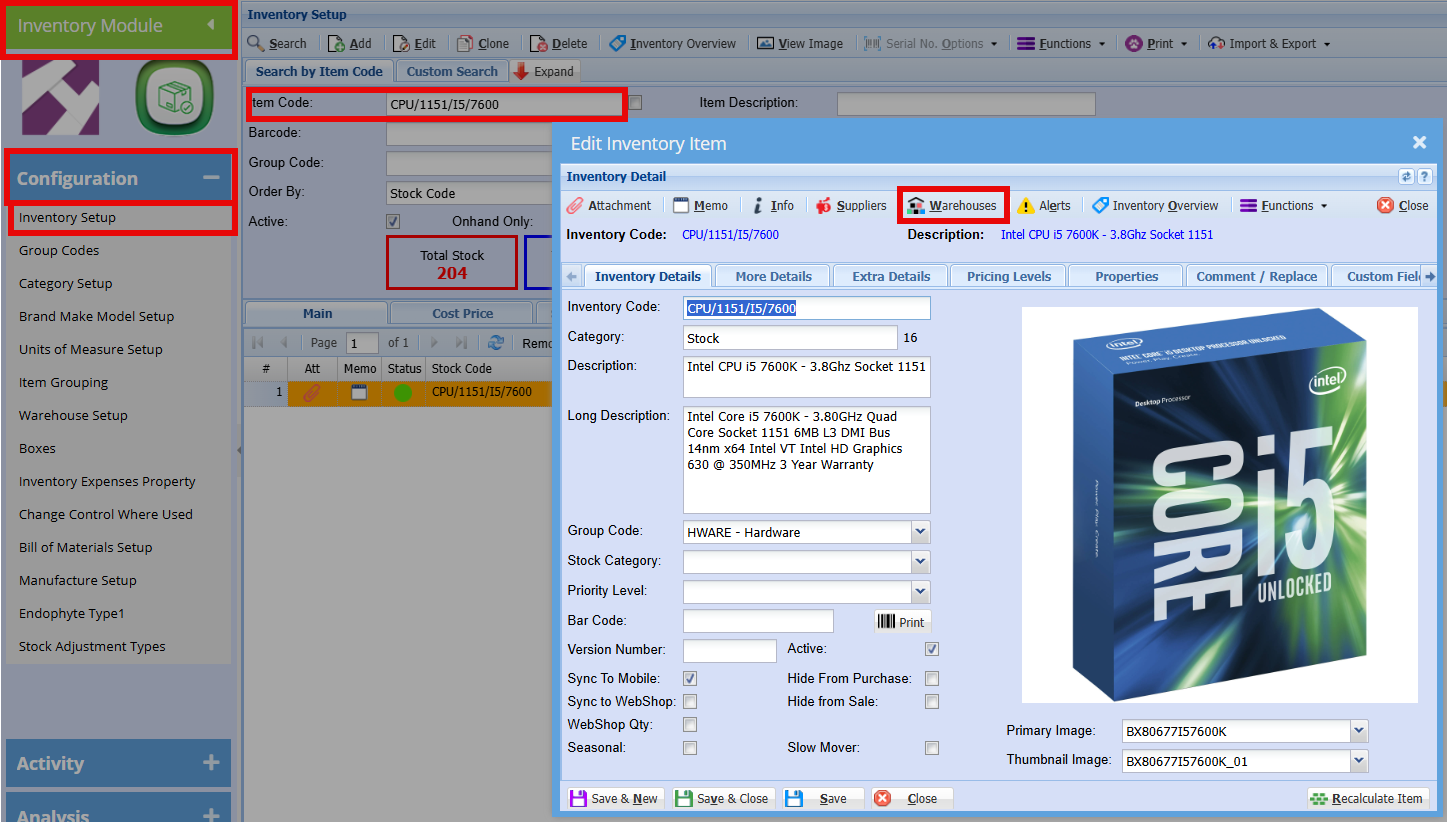
Before you can transfer a stock item from one warehouse to another, the item must be linked to both warehouses. This is completed during the item setup process.
Inventory Module > Configuration > Inventory Setup
- Double click on the item
- Click on "Warehouses" tab at the top
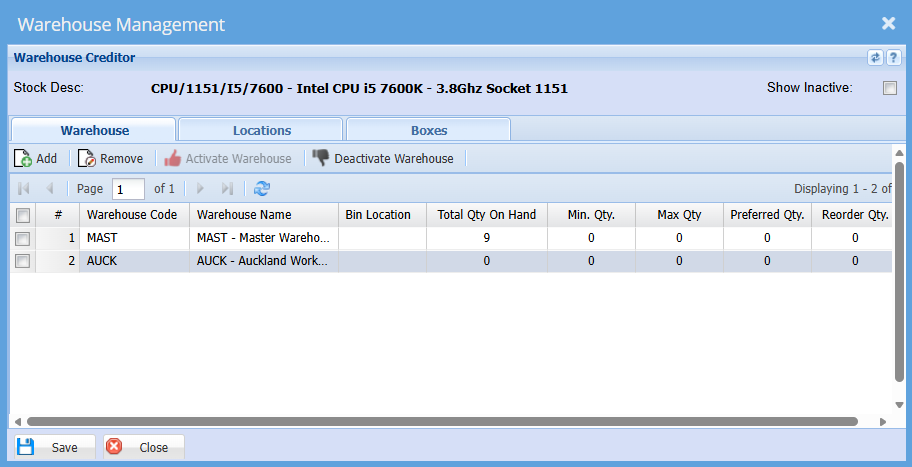
Here you can add the warehouses where this item is currently stored or could potentially be stored.
Create a Stock Transfer Document
- Tap on the + sign in the top right-hand corner.
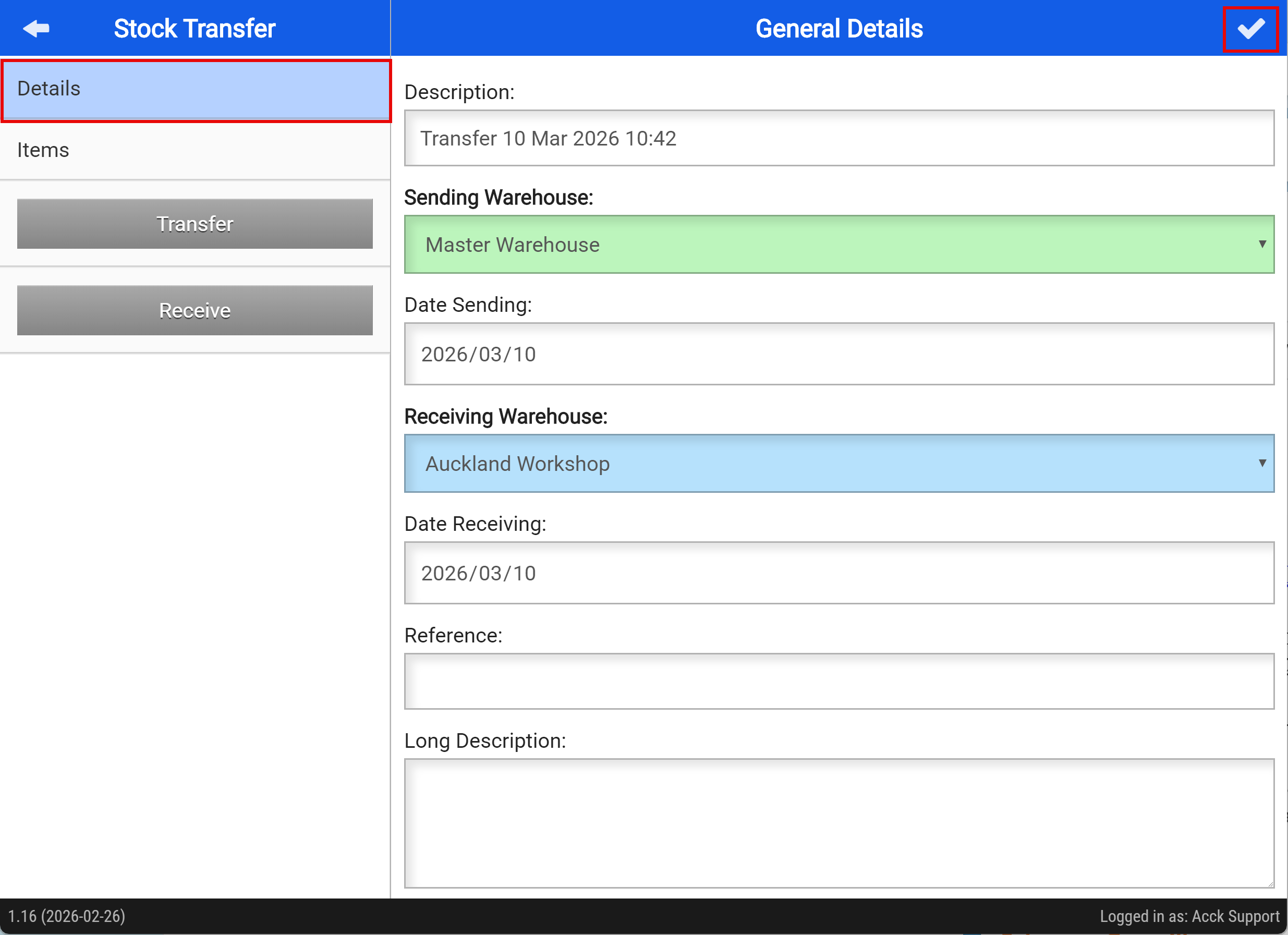
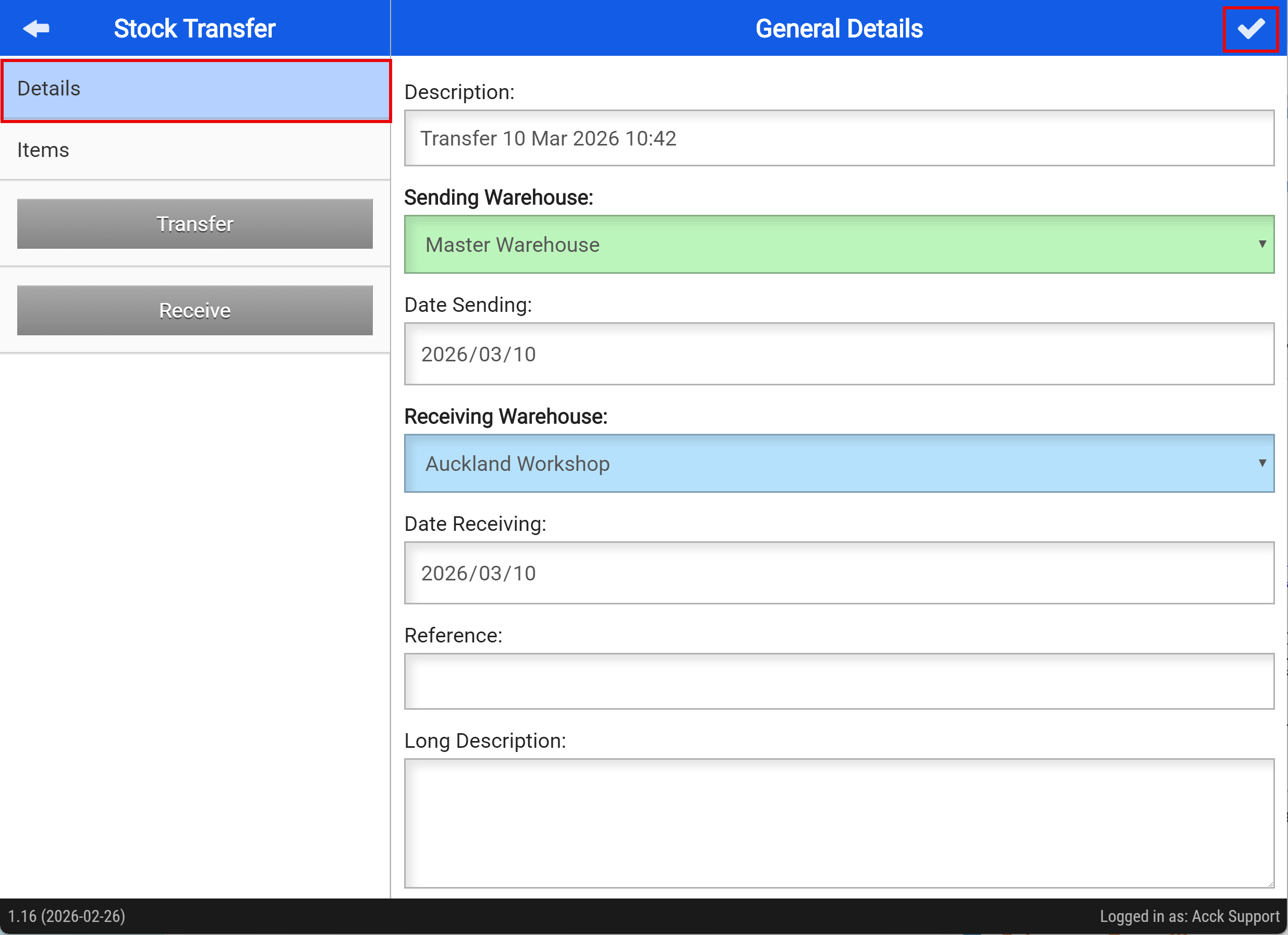
Add the Details for the Stock Transfer
- Add a description for the stock transfer
- Select the warehouse you are sending the stock from
- Choose the date for the stock transfer
- Select the warehouse that will receive the stock
- Enter a reference, if required
- Add an additional description, if needed
- Save your changes by tapping the tick button at the top right
Add Items to your Stock transfer
- Click on the items tab
- Scan the items you are wanting to transfer
- Tap "Sync to Server" when you have added all the items to be transferred
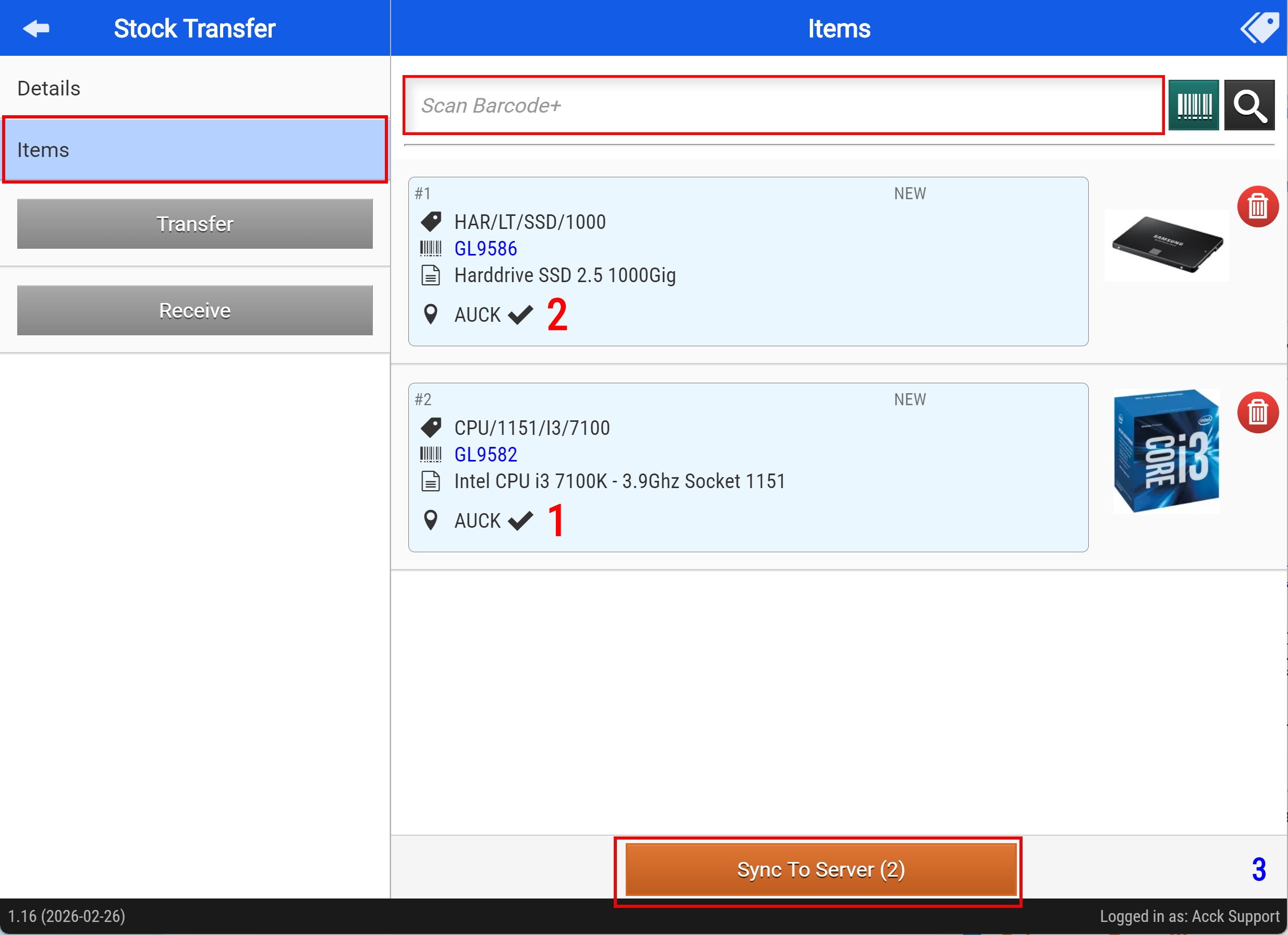
Clicking "Sync to Server" will activate the "Transfer" button
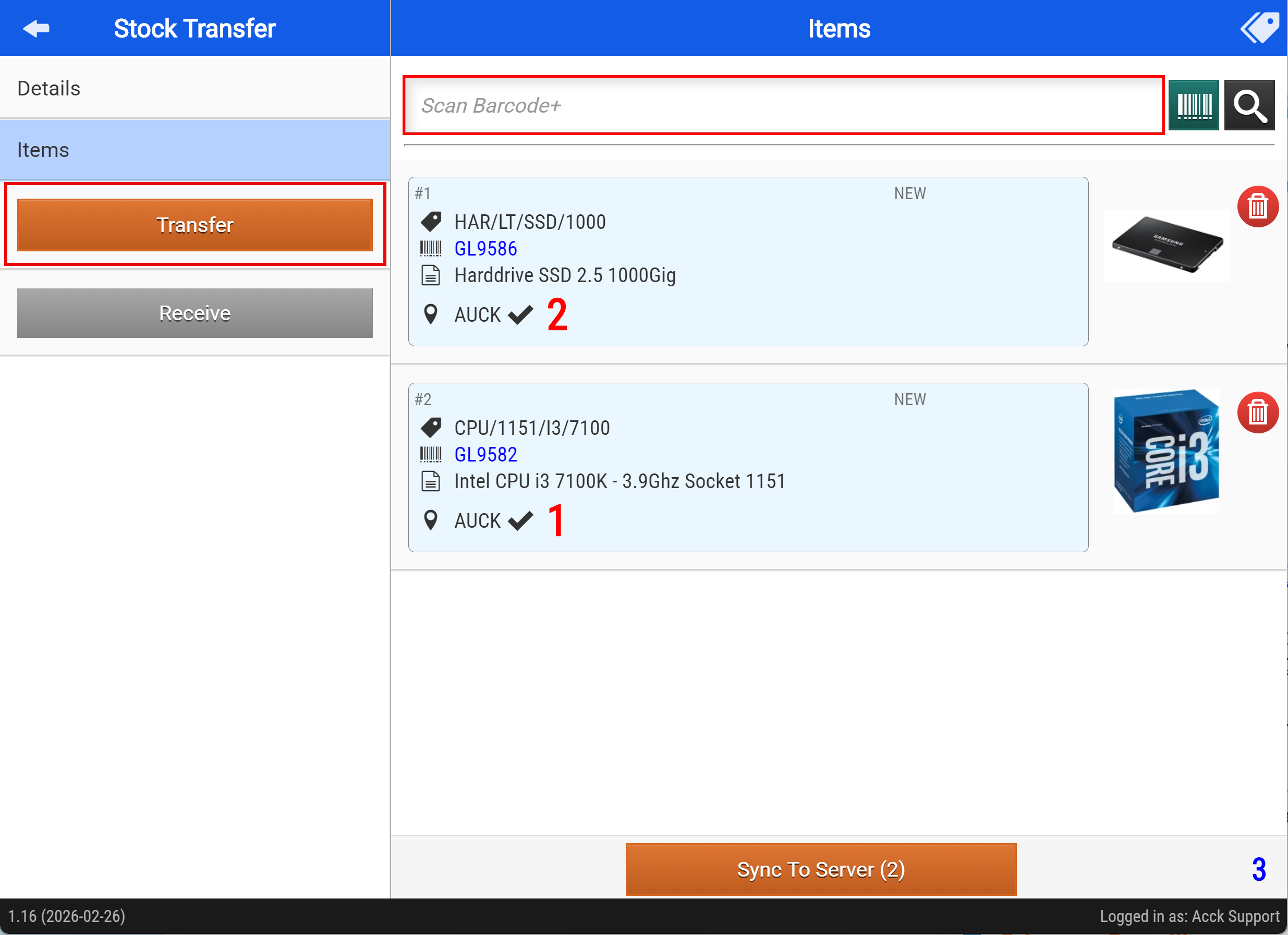
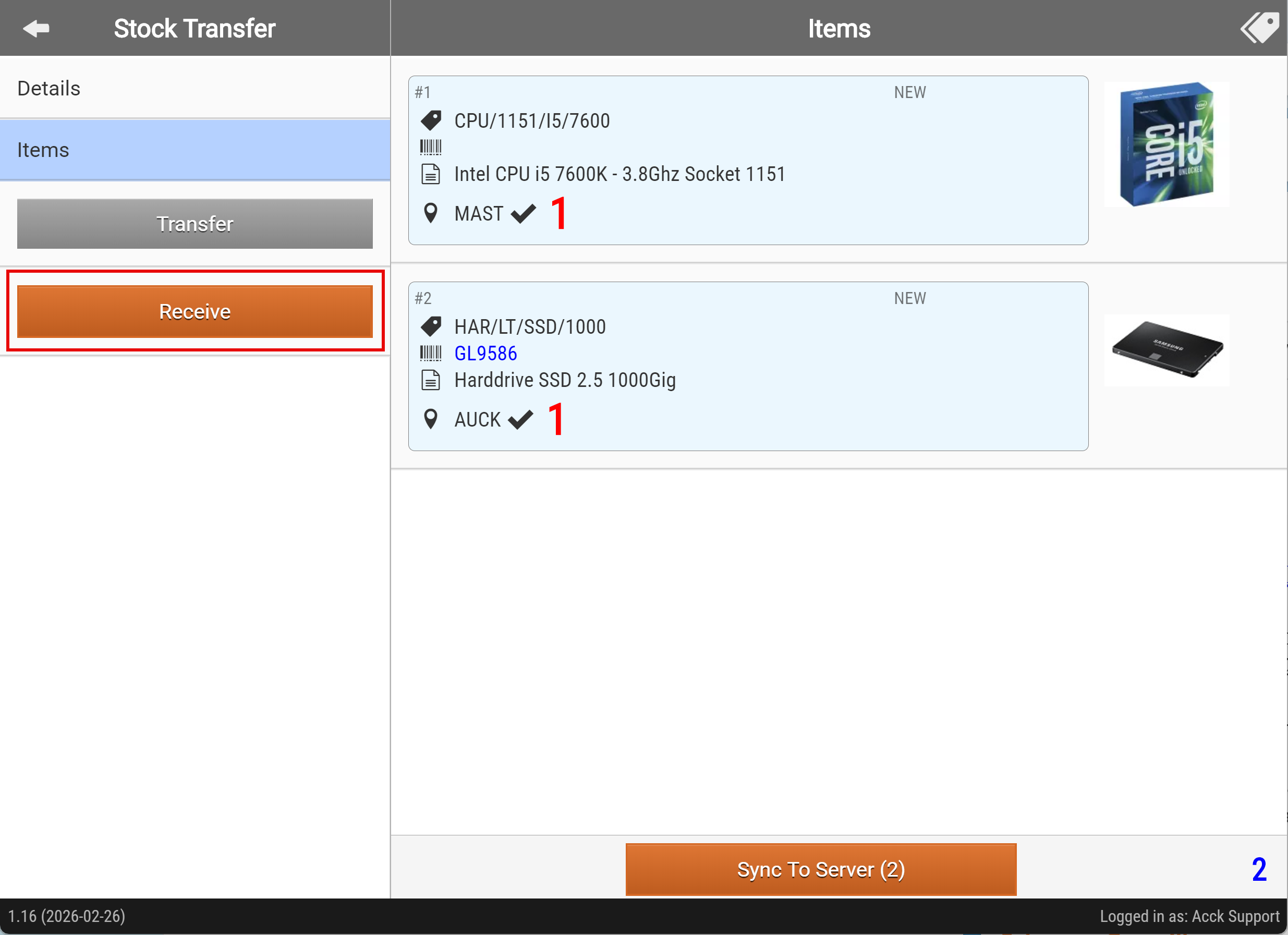
- Clicking "Transfer" will activate the "Receive" button
Once the stock arrives at the receiving warehouse, they can confirm the delivery by clicking the “Receive” button.
No Comments