# Stock Transfer
##### Stock Transfer (warehouse transfer)
stock can be transferred from one warehouse to another using **Stock Transfer** within the Webatar App
[](https://hugeerp10.co.za/hsofmanual/uploads/images/gallery/2026-03/dGMimage.png)
Before you can transfer a stock item from one warehouse to another, the item must be linked to both warehouses. This is completed during the item setup process.
**Inventory Module > Configuration > Inventory Setup**
- Double click on the item
- Click on "**Warehouses**" tab at the top
[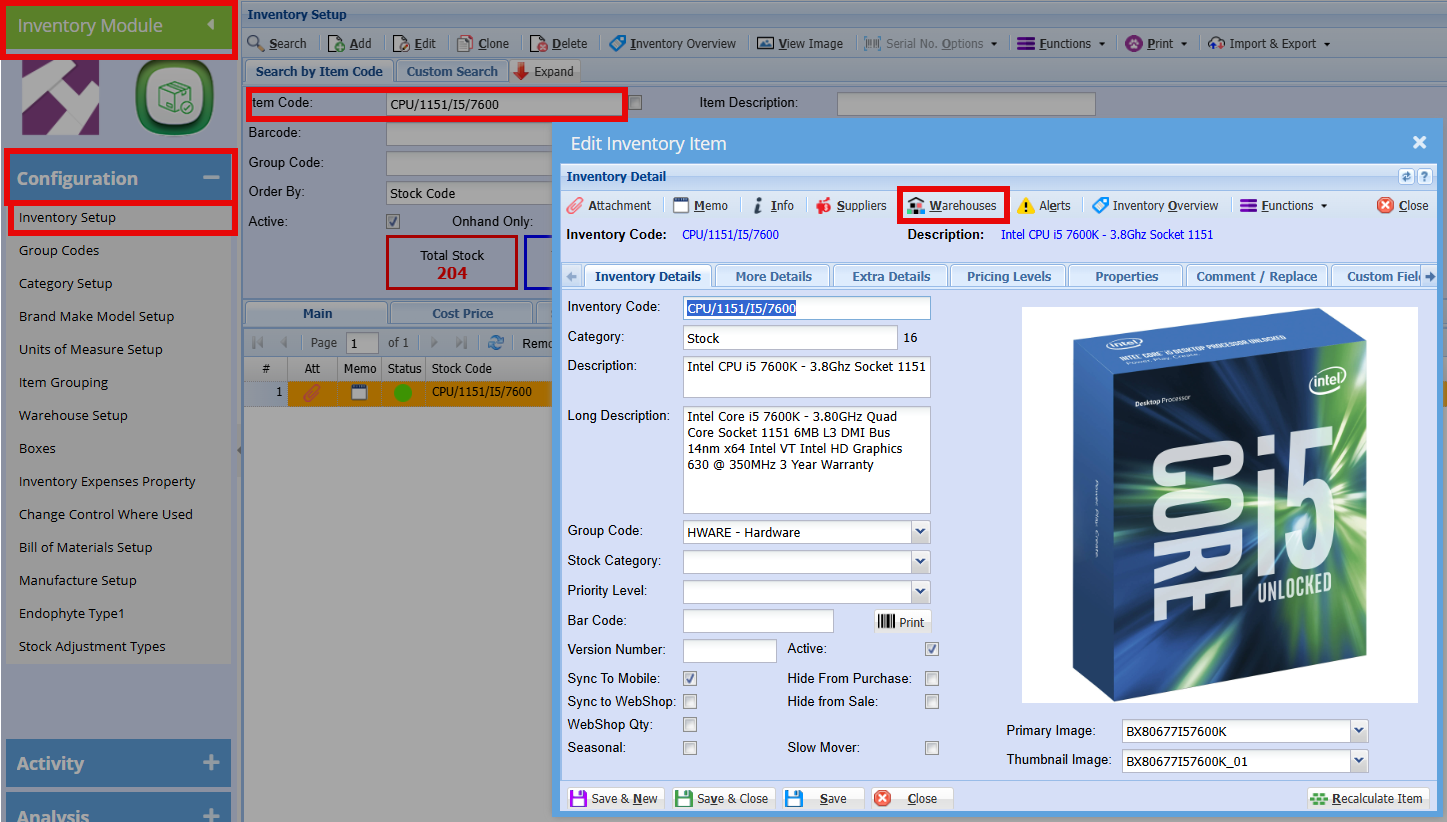](https://hugeerp10.co.za/hsofmanual/uploads/images/gallery/2026-03/kFwimage.png)
Here you can add the warehouses where this item is currently stored or could potentially be stored.
[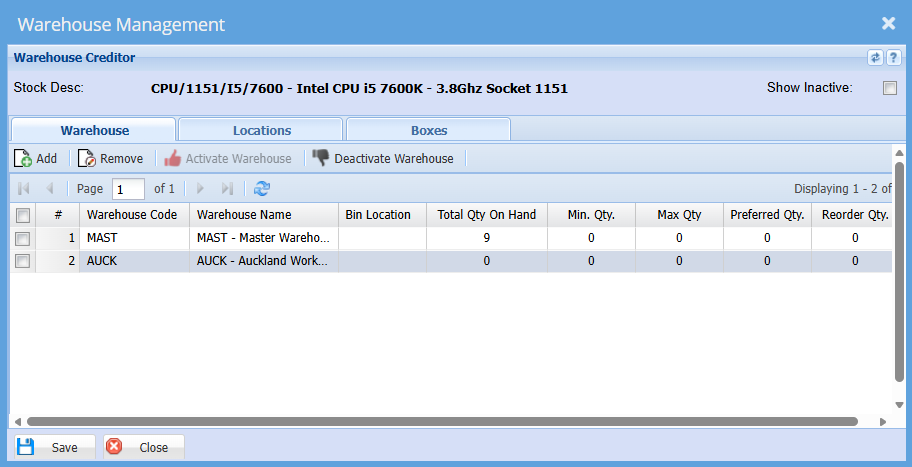](https://hugeerp10.co.za/hsofmanual/uploads/images/gallery/2026-03/qddimage.png)
##### Create a Stock Transfer Document
- Tap on the + sign in the top right-hand corner.
[](https://hugeerp10.co.za/hsofmanual/uploads/images/gallery/2026-03/6cKimage.png)
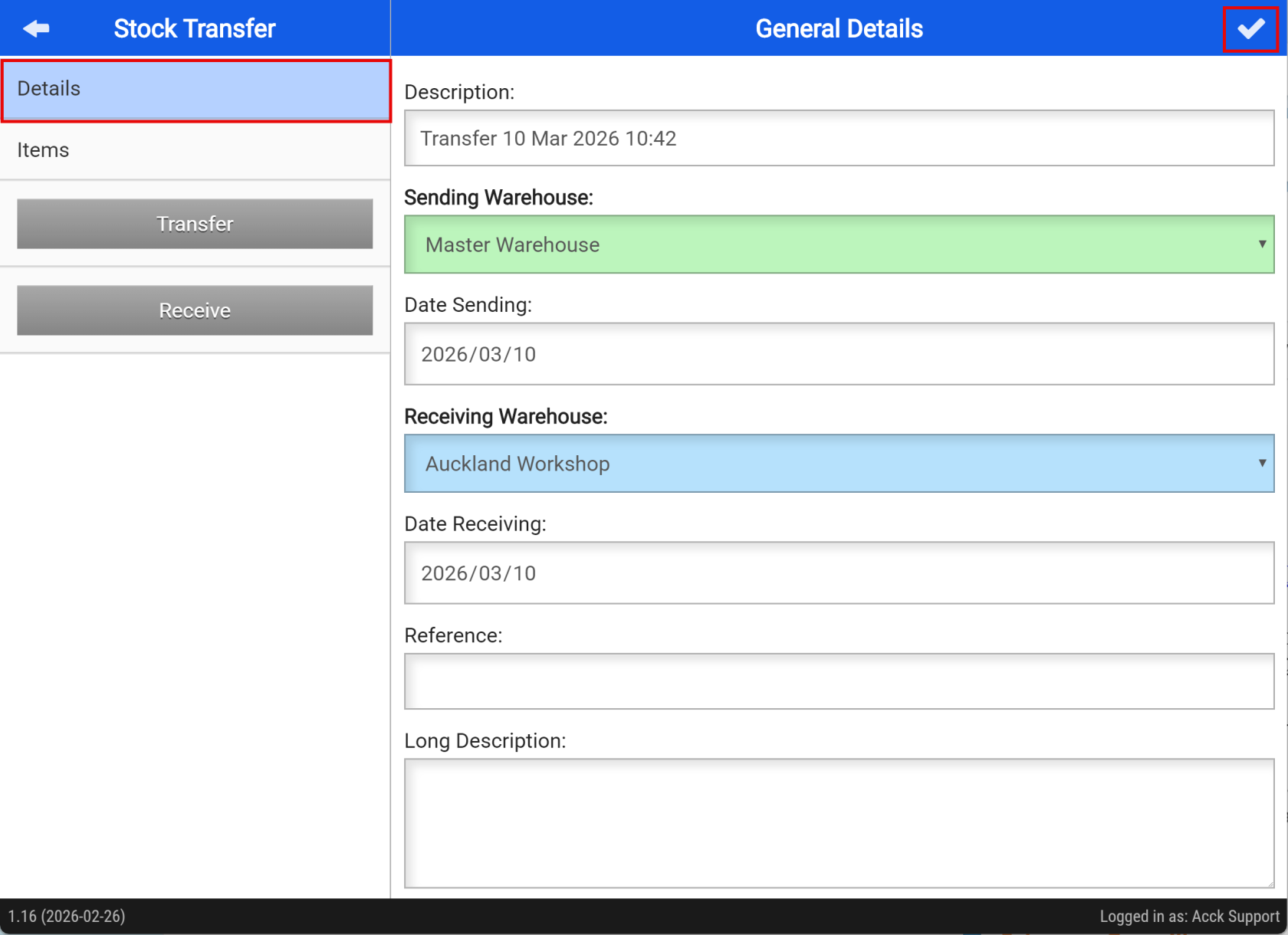
##### Add the Details for the Stock Transfer
- Add a **description** for the stock transfer
- Select the warehouse you are sending the stock from
- Choose the date for the stock transfer
- Select the warehouse that will receive the stock
- Enter a reference, if required
- Add an additional description, if needed
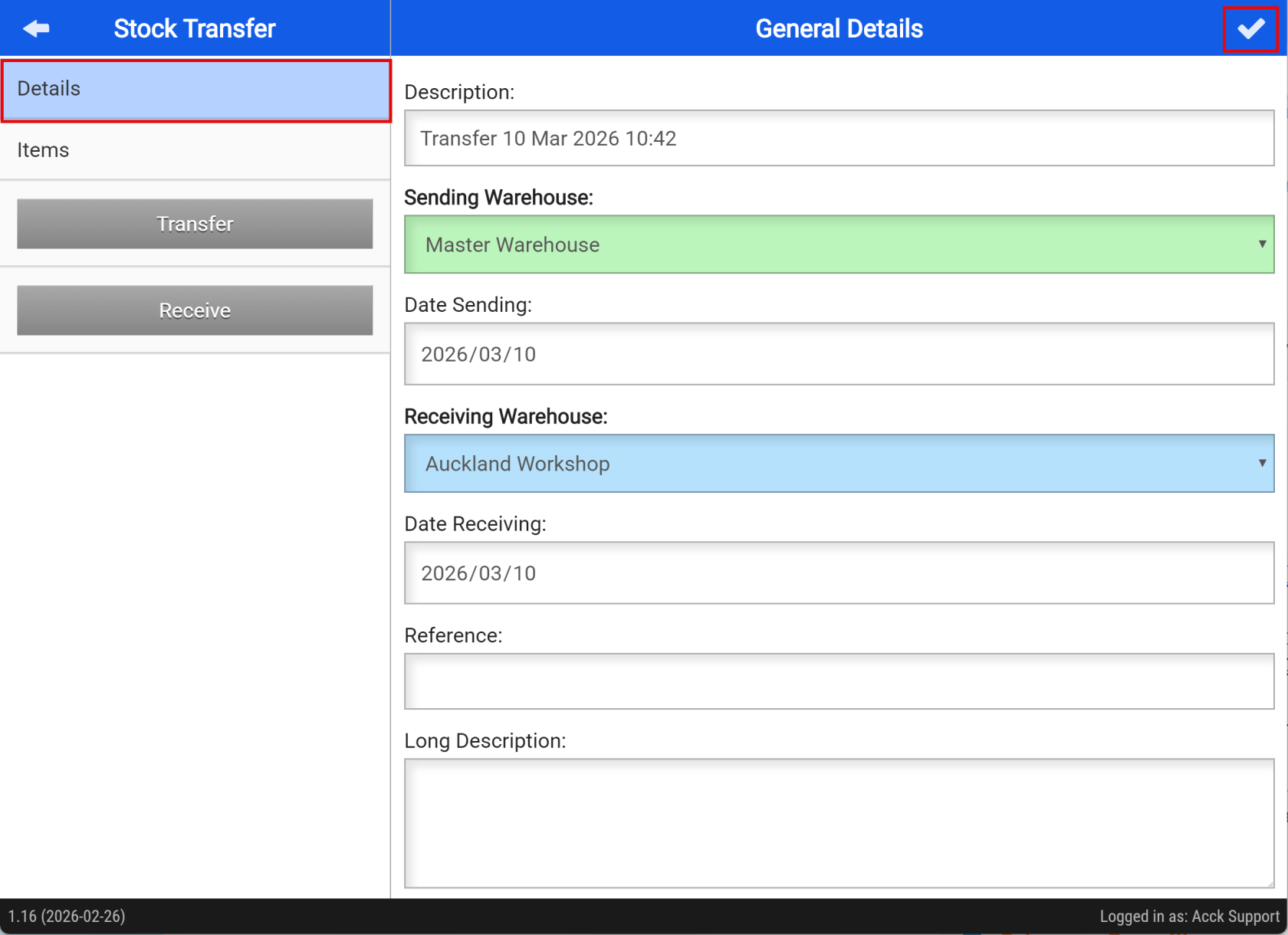
- Save your changes by tapping the tick button at the top right
[](https://hugeerp10.co.za/hsofmanual/uploads/images/gallery/2026-03/pivimage.png)
##### Add Items to your Stock transfer
- Click on the items tab
- Scan the items you are wanting to transfer
- Tap "**Sync to Server**" when you have added all the items to be transferred
[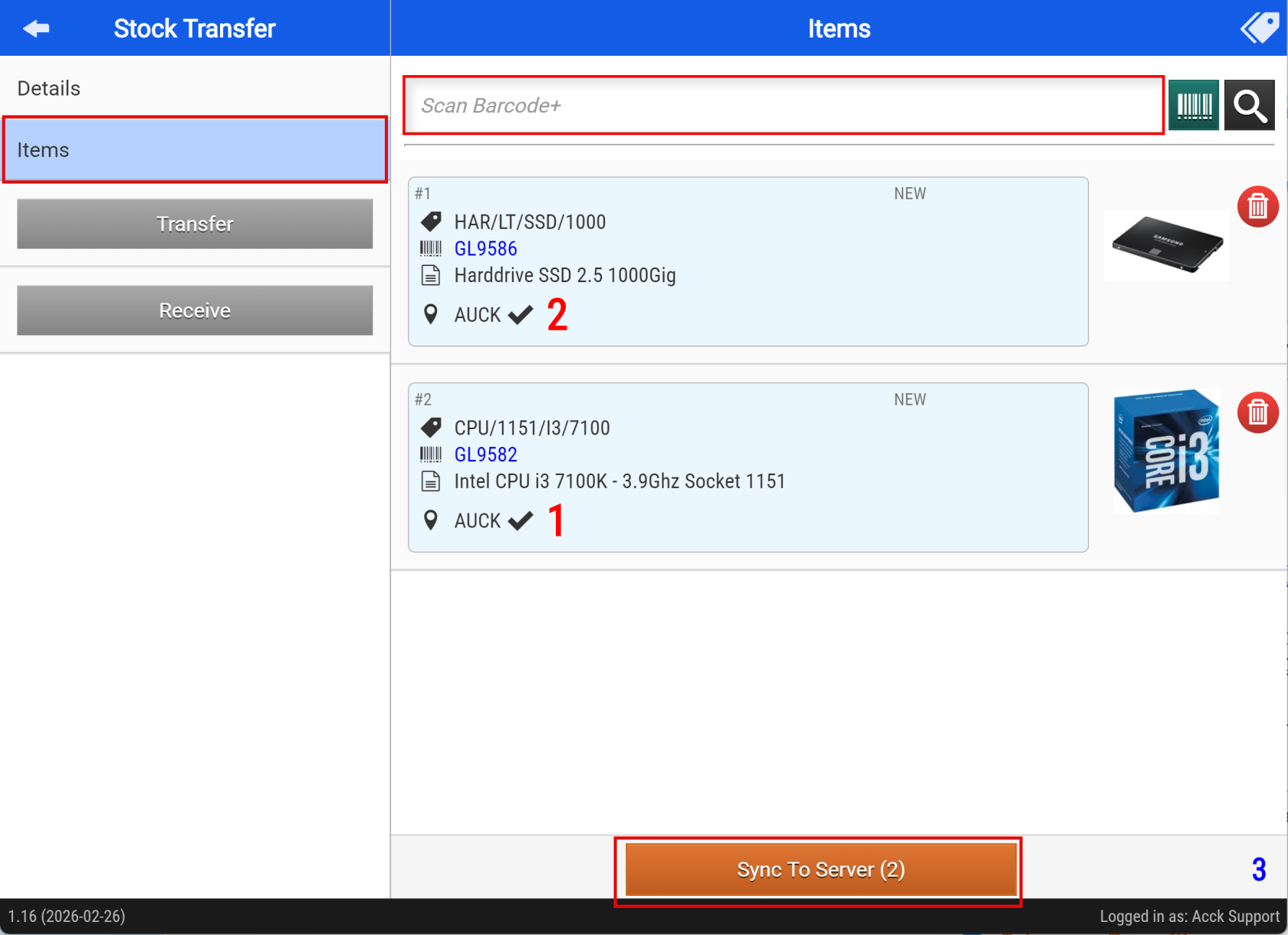](https://hugeerp10.co.za/hsofmanual/uploads/images/gallery/2026-03/PQqimage.png)
Clicking "**Sync to Server**" will activate the "**Transfer**" button
[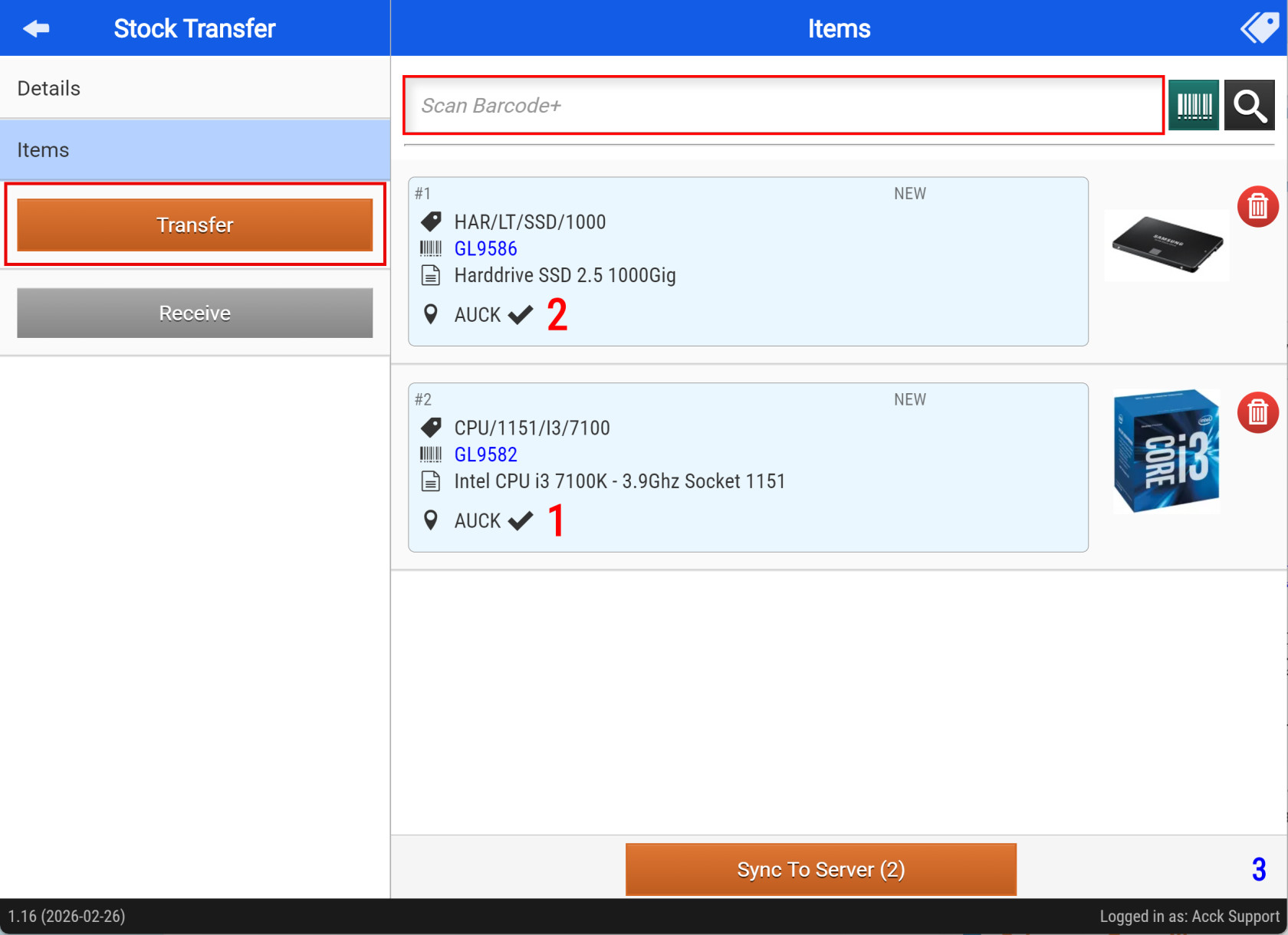](https://hugeerp10.co.za/hsofmanual/uploads/images/gallery/2026-03/Y4cimage.png)
- Clicking "**Transfer**" will activate the "**Receive**" button
Once the stock arrives at the receiving warehouse, they can confirm the delivery by clicking the “**Receive**” button.
[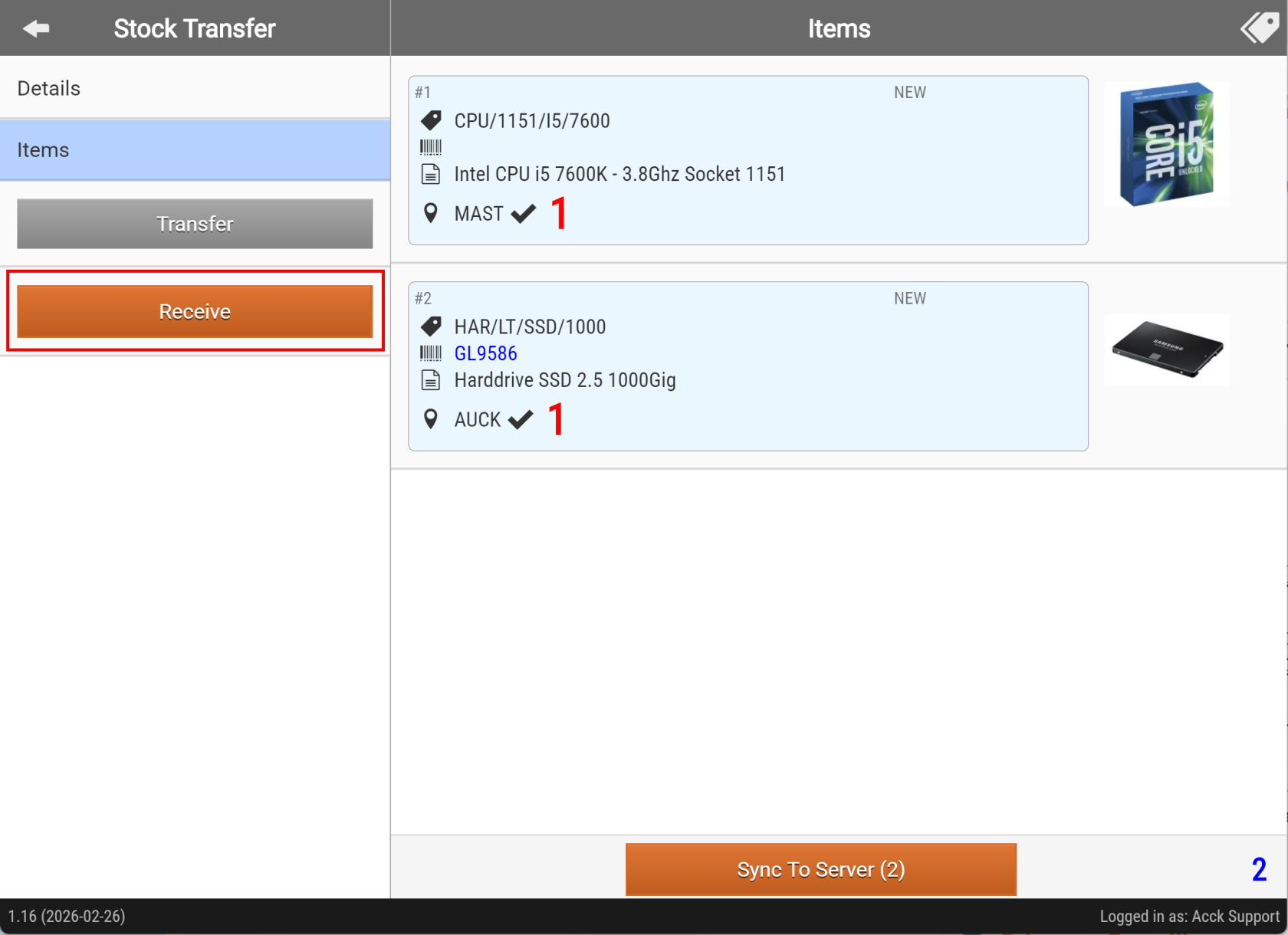](https://hugeerp10.co.za/hsofmanual/uploads/images/gallery/2026-03/kxAimage.png)