
Stock Take
Running a Stock Take with the Webatar app
Video training manual 202311 - Stock_Take_Webatar.mp4
Some basic steps are required
- Create and activate a stock take
- Open up the Webatar app and sync
- Scan and count stock
- Complete stock take
- Close and Open the Webatar app and sync
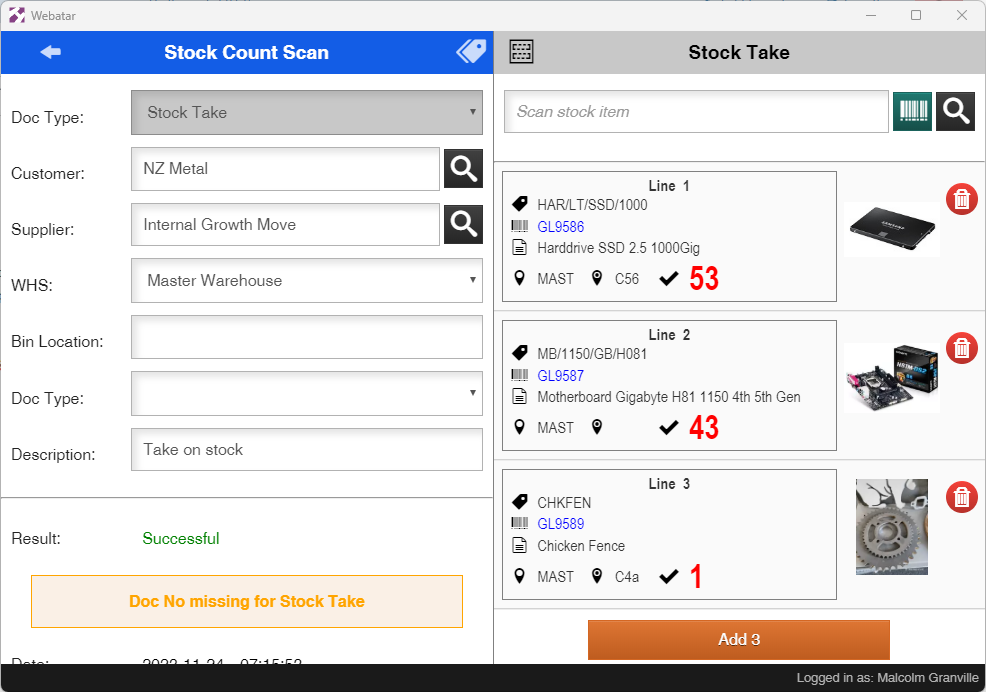
Create and activate a stock take
Go to main system to activate stock take
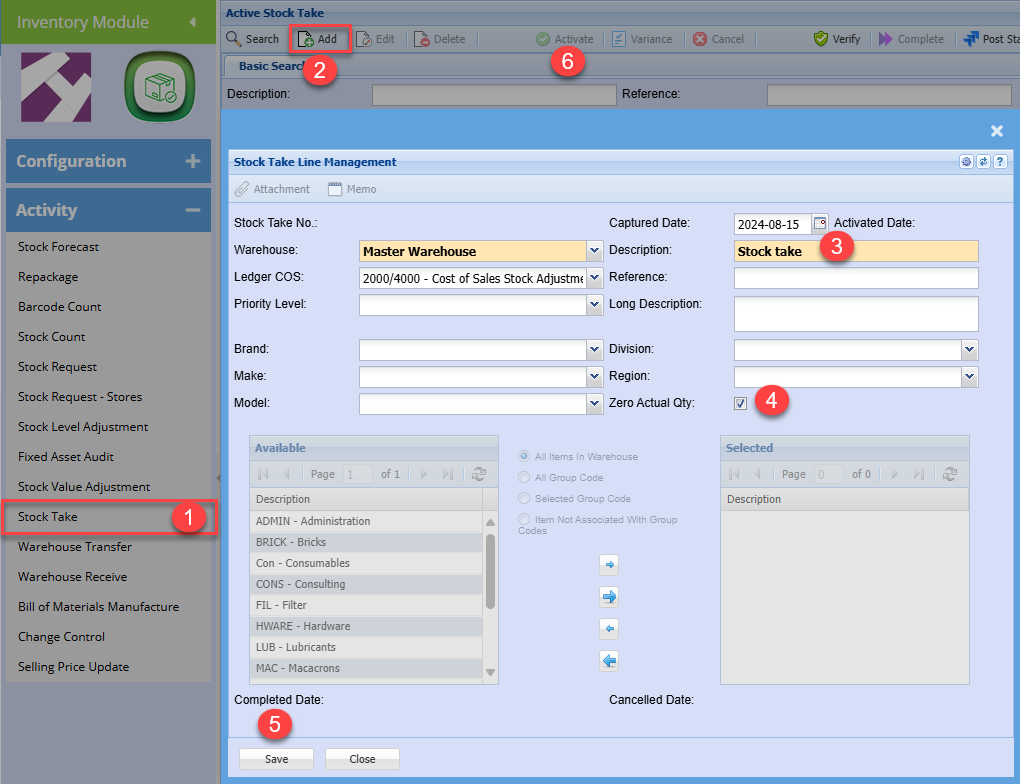
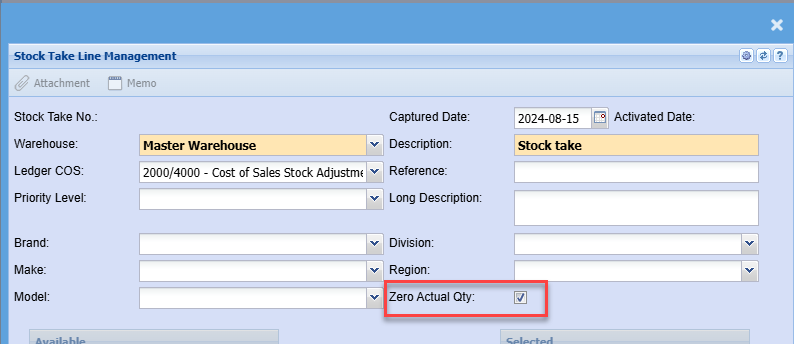
When activating the stock take in main system, it is recommended to tick the zero actual Qty.
Zero actual quantity sets all stock to zero quantity forcing one to count all stock
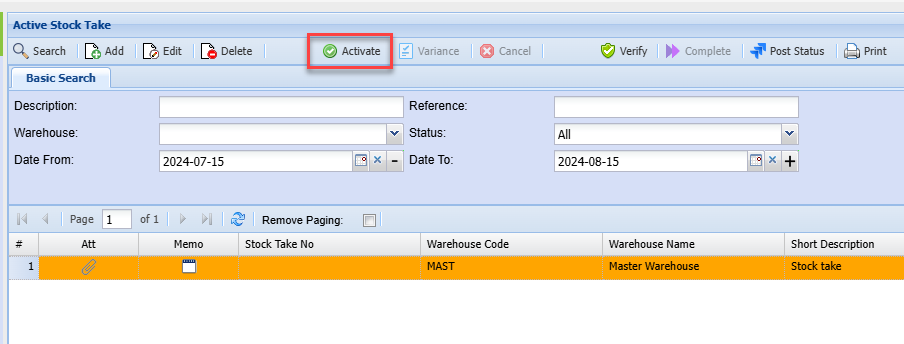
Activate the stock take
On the Webatar app, sync to server to retrieve the stock take active number
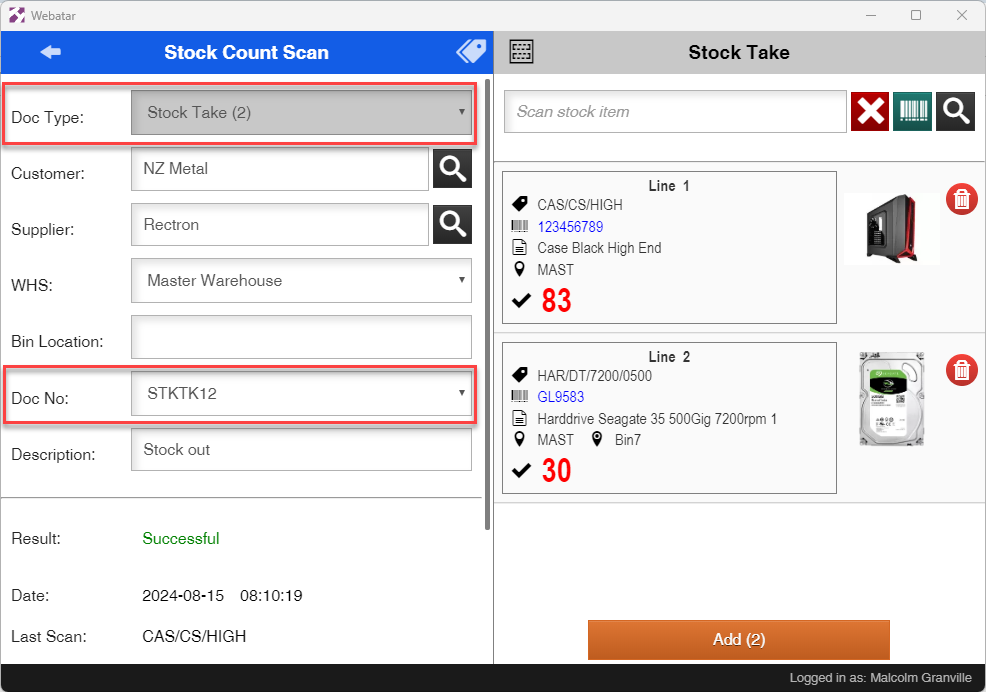
Setting a document number for stock take allows the count to update the stock take directly after sync.
stock take counts will always increment quantities on the stock take.
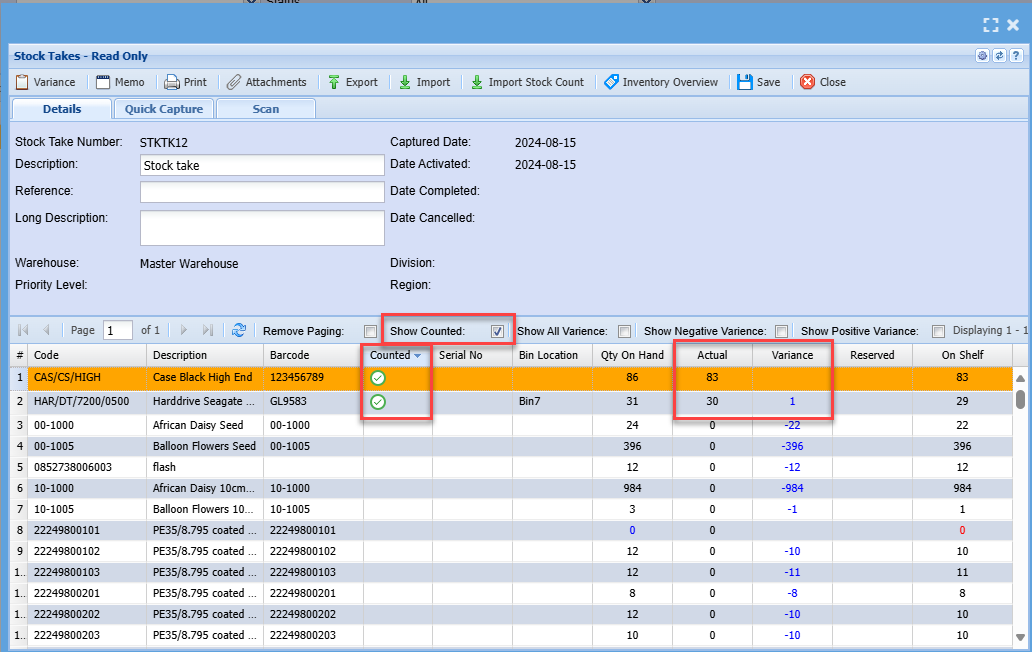
View counts in stock take
To view counts, click on show countered tick box.
By default counted items will disappear off the list.
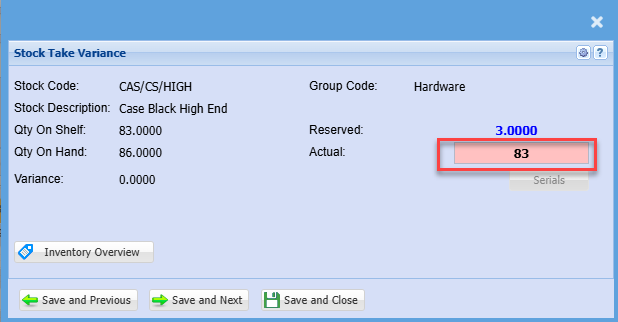
If a count is incorrect corrected in the stock take by double clicking on the line.
Correcting a count
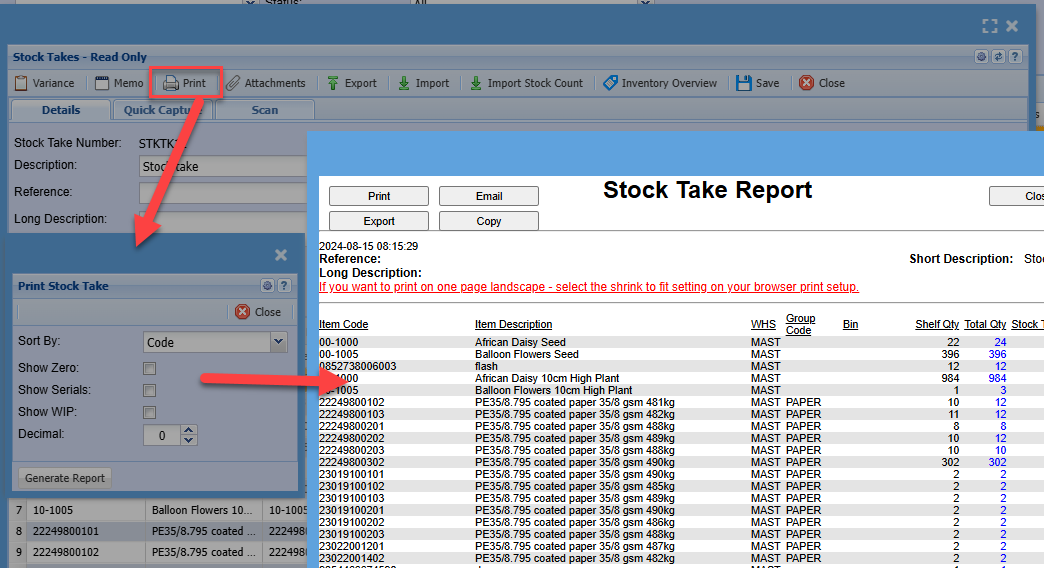
Print out the count to view what has changed
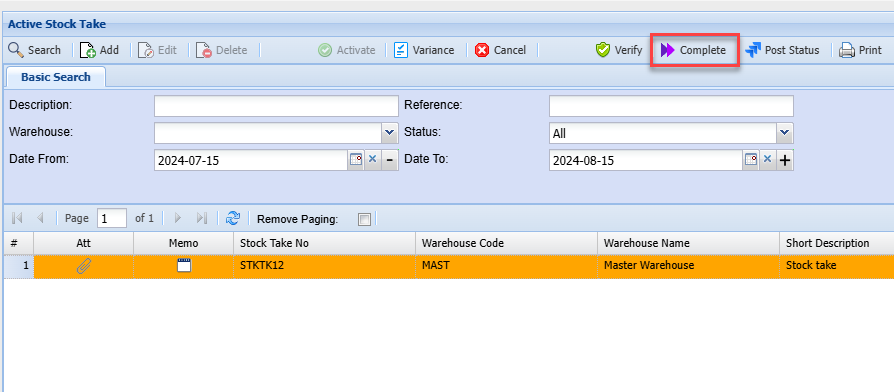
Complete the stock take by clicking on process
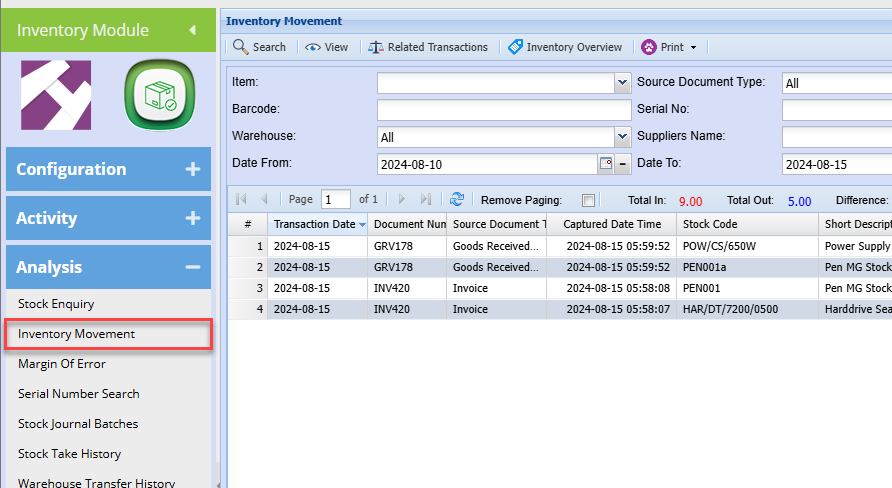
View all movement taken place
No Comments