# Stock Take

Running a Stock Take with the Webatar app

Video training manual 202311 - [Stock\_Take\_Webatar.mp4](https://hugeerp10.co.za/hsofmanual/attachments/8)

Some basic steps are required

1. Create and activate a stock take
2. Open up the Webatar app and sync
3. Scan and count stock
4. Complete stock take
5. Close and Open the Webatar app and sync

[![image.png](https://hugeerp10.co.za/hsofmanual/uploads/images/gallery/2023-11/scaled-1680-/qwdimage.png)](https://hugeerp10.co.za/hsofmanual/uploads/images/gallery/2023-11/qwdimage.png)

---

#### Create and activate a stock take

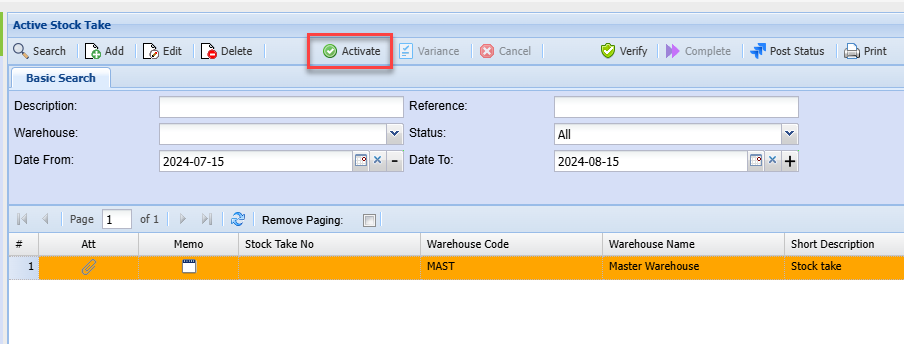
Go to main system to activate stock take

[![image.png](https://hugeerp10.co.za/hsofmanual/uploads/images/gallery/2024-08/scaled-1680-/TmIimage.png)](https://hugeerp10.co.za/hsofmanual/uploads/images/gallery/2024-08/TmIimage.png)

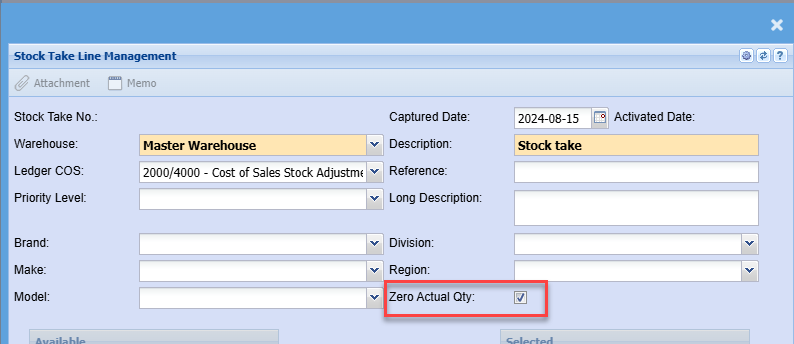
When activating the stock take in main system, it is recommended to tick the zero actual Qty.

<p class="callout info">Zero actual quantity sets all stock to zero quantity forcing one to count all stock</p>

[![image.png](https://hugeerp10.co.za/hsofmanual/uploads/images/gallery/2024-08/scaled-1680-/8s1image.png)](https://hugeerp10.co.za/hsofmanual/uploads/images/gallery/2024-08/8s1image.png)

Activate the stock take

[![image.png](https://hugeerp10.co.za/hsofmanual/uploads/images/gallery/2024-08/scaled-1680-/YVhimage.png)](https://hugeerp10.co.za/hsofmanual/uploads/images/gallery/2024-08/YVhimage.png)
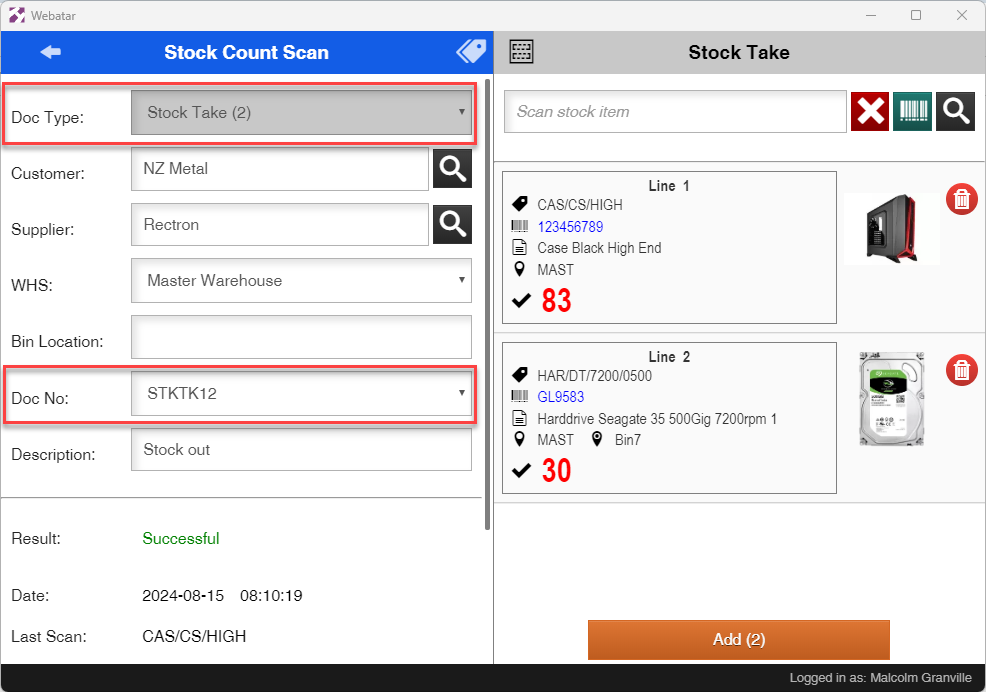
On the Webatar app, sync to server to retrieve the stock take active number

Setting a document number for stock take allows the count to update the stock take directly after sync.

<p class="callout info">stock take counts will always increment quantities on the stock take.</p>

[![image.png](https://hugeerp10.co.za/hsofmanual/uploads/images/gallery/2024-08/scaled-1680-/Lesimage.png)](https://hugeerp10.co.za/hsofmanual/uploads/images/gallery/2024-08/Lesimage.png)

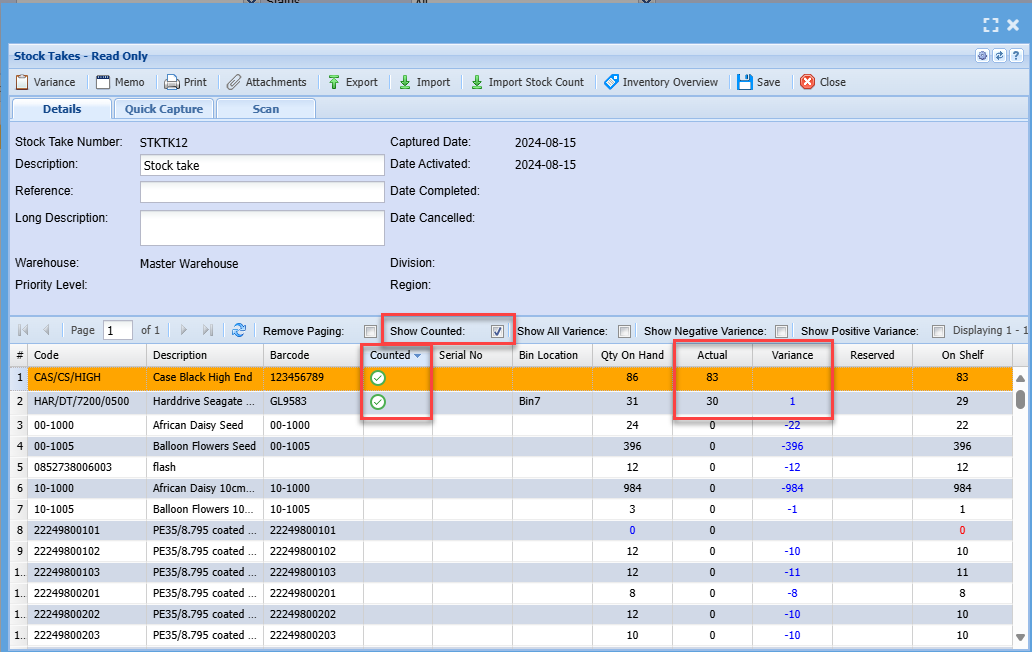
View counts in stock take

To view counts, click on show countered tick box.

By default counted items will disappear off the list.

<p class="callout success">If a count is incorrect corrected in the stock take by double clicking on the line.</p>

[![image.png](https://hugeerp10.co.za/hsofmanual/uploads/images/gallery/2024-08/scaled-1680-/kGPimage.png)](https://hugeerp10.co.za/hsofmanual/uploads/images/gallery/2024-08/kGPimage.png)

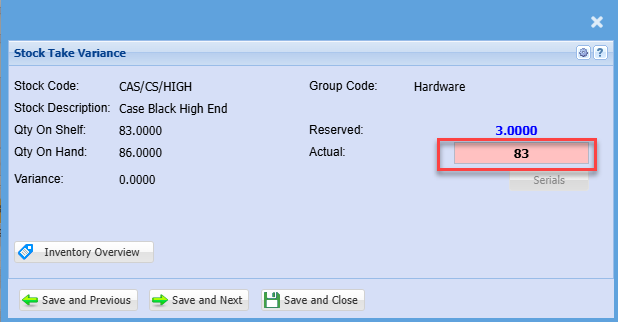
Correcting a count

[![image.png](https://hugeerp10.co.za/hsofmanual/uploads/images/gallery/2024-08/scaled-1680-/Hdzimage.png)](https://hugeerp10.co.za/hsofmanual/uploads/images/gallery/2024-08/Hdzimage.png)
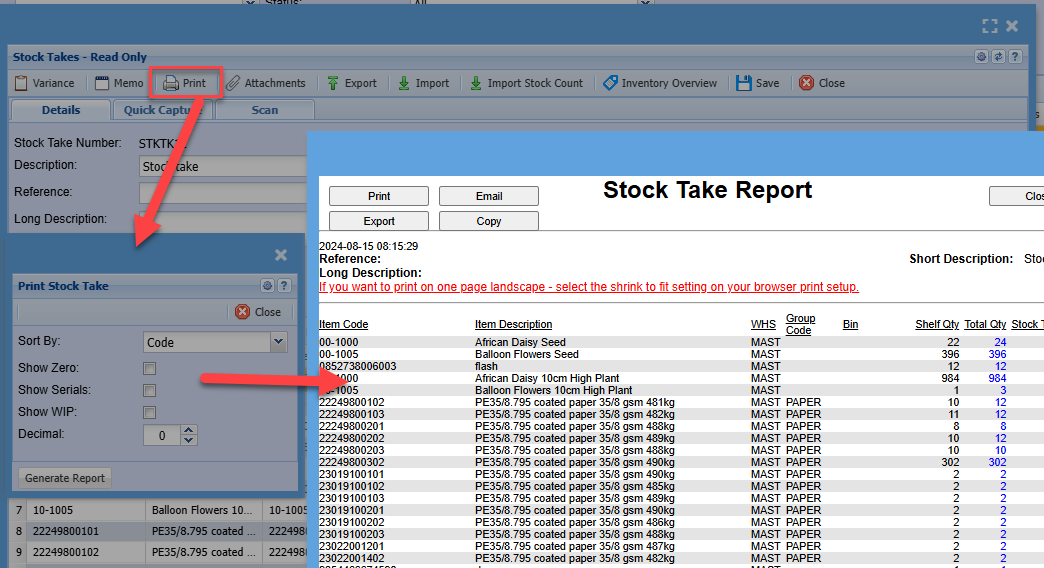
Print out the count to view what has changed

[![image.png](https://hugeerp10.co.za/hsofmanual/uploads/images/gallery/2024-08/scaled-1680-/Jplimage.png)](https://hugeerp10.co.za/hsofmanual/uploads/images/gallery/2024-08/Jplimage.png)
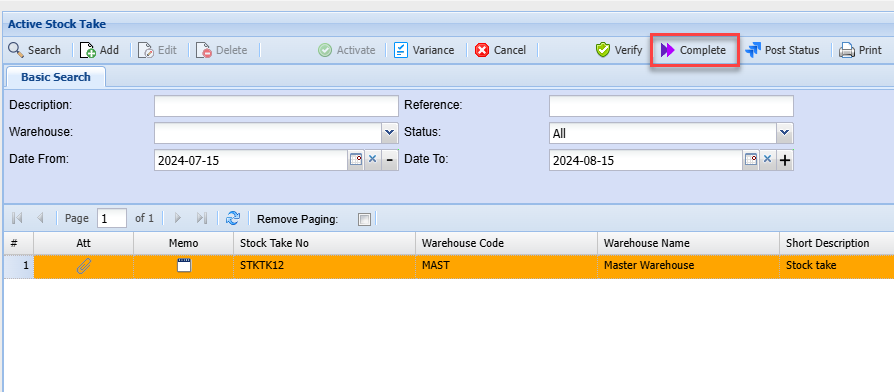
Complete the stock take by clicking on process

[![image.png](https://hugeerp10.co.za/hsofmanual/uploads/images/gallery/2024-08/scaled-1680-/tx9image.png)](https://hugeerp10.co.za/hsofmanual/uploads/images/gallery/2024-08/tx9image.png)
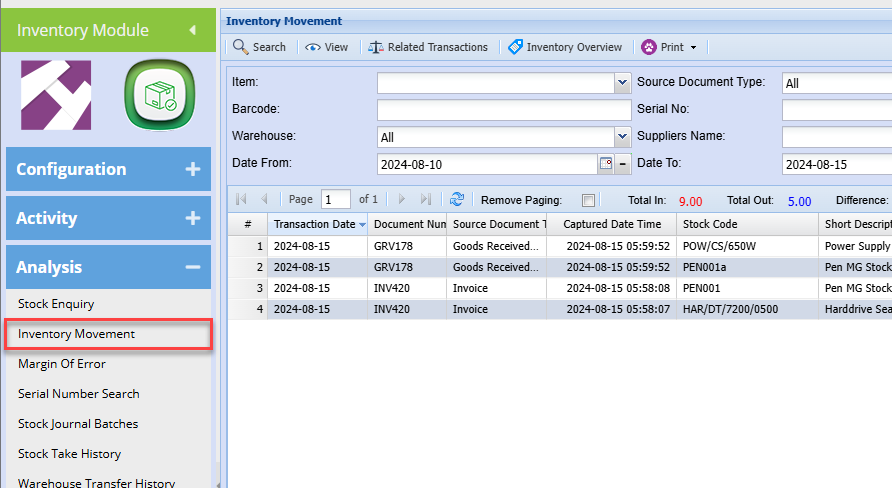
View all movement taken place

[![image.png](https://hugeerp10.co.za/hsofmanual/uploads/images/gallery/2024-08/scaled-1680-/iUlimage.png)](https://hugeerp10.co.za/hsofmanual/uploads/images/gallery/2024-08/iUlimage.png)