
Manage Job Screen
Manage Job Screen
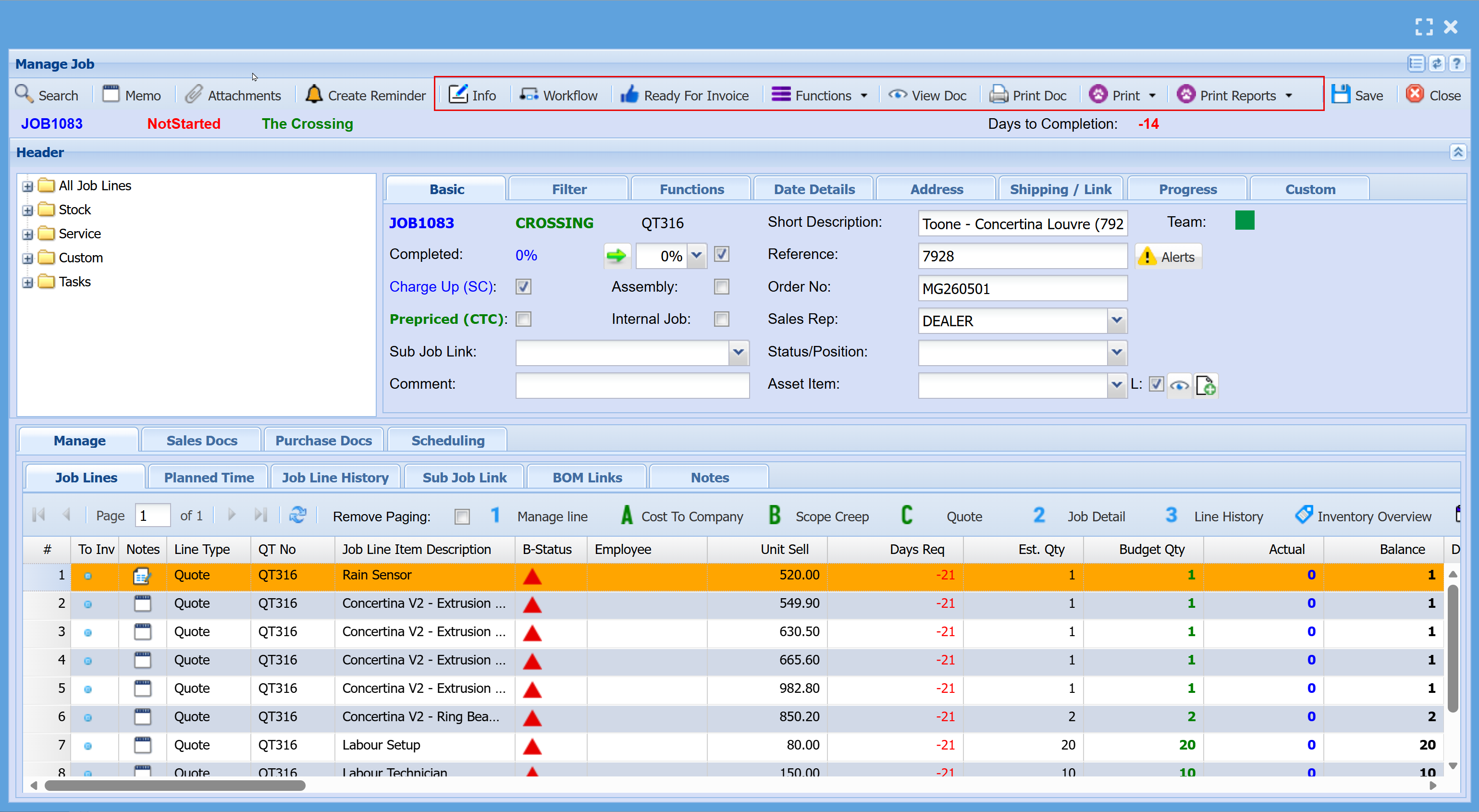
| Info |
Used for internal notes only
|
| Workflow | |
| Ready for Invoice | |
| Functions | |
| View Doc | |
| Print Doc | |
| Print Reports |
Basic Tab
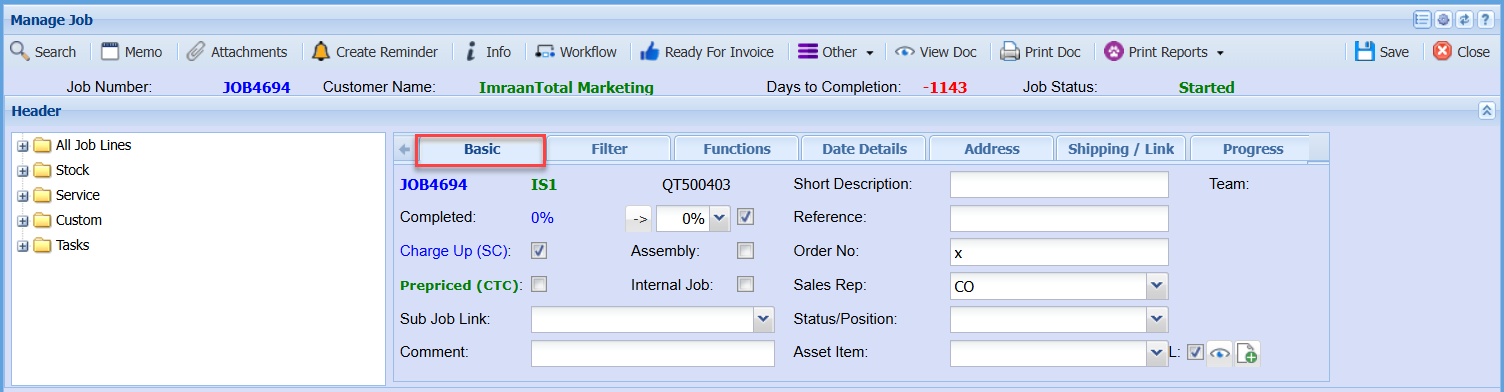
| Completed | |
| Charge Up (SC) Tick | |
| Assembly Tick | |
| Prepriced (CTC) Tick | |
| Internal Job Tick | |
| Sub Job Link | |
| Comment | |
| Short Description | |
| Reference | |
| Order No | |
| Sales Rep | |
| Status/Position | |
| Asset Item |
Job Percentage Complete
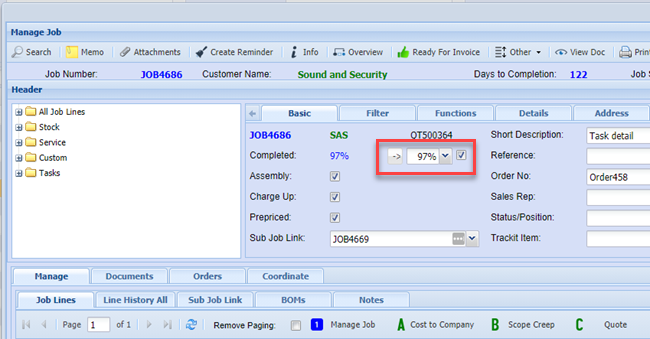
The job completion percentage is calculated by comparing the total budgeted quantity to the total actual quantity completed.
This value is displayed in blue; however, it may not always accurately reflect the true completion status. In such cases, the user may need to adjust it manually.
The percentage can be updated by clicking the arrow button or selecting a value from the dropdown menu.
If the tick box is enabled, the percentage will automatically update each time the job is saved. If the tick box is disabled, the percentage will remain unchanged and must be updated manually by the user.
.png)
This function will only apply to jobs where the tick box is enabled. Jobs with the tick box disabled will not be updated automatically and must be adjusted manually by the user.
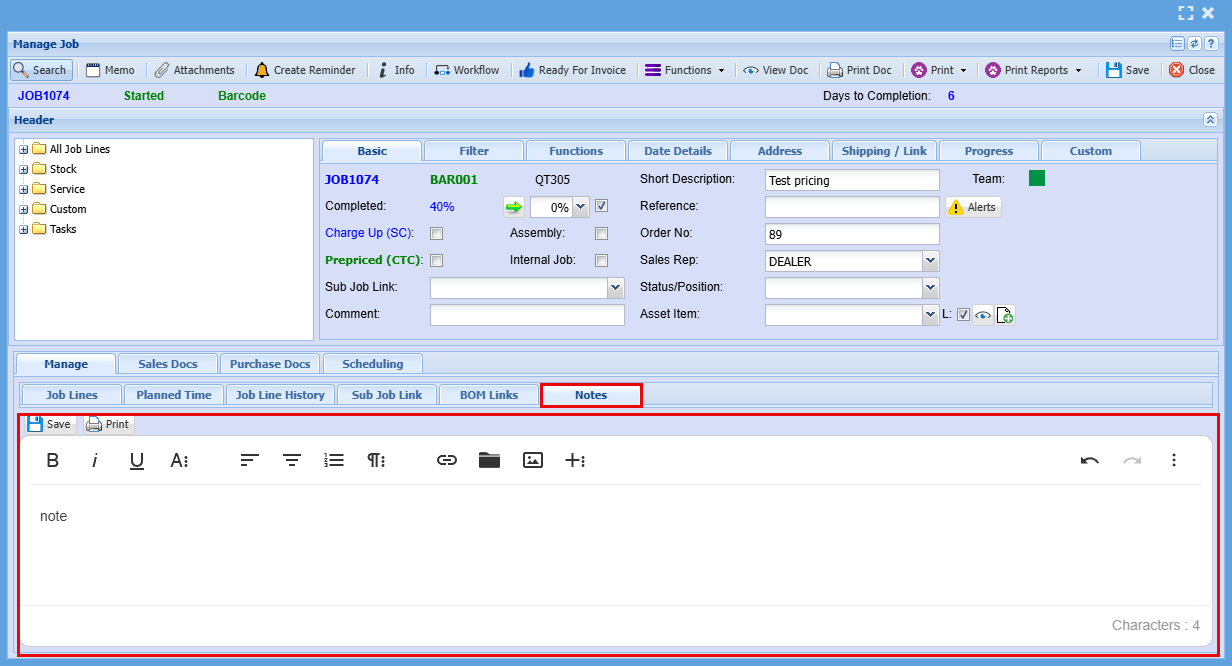
Manage Job Notes
The Notes for Manage Job has been upgraded to the new text format
Filter Tab
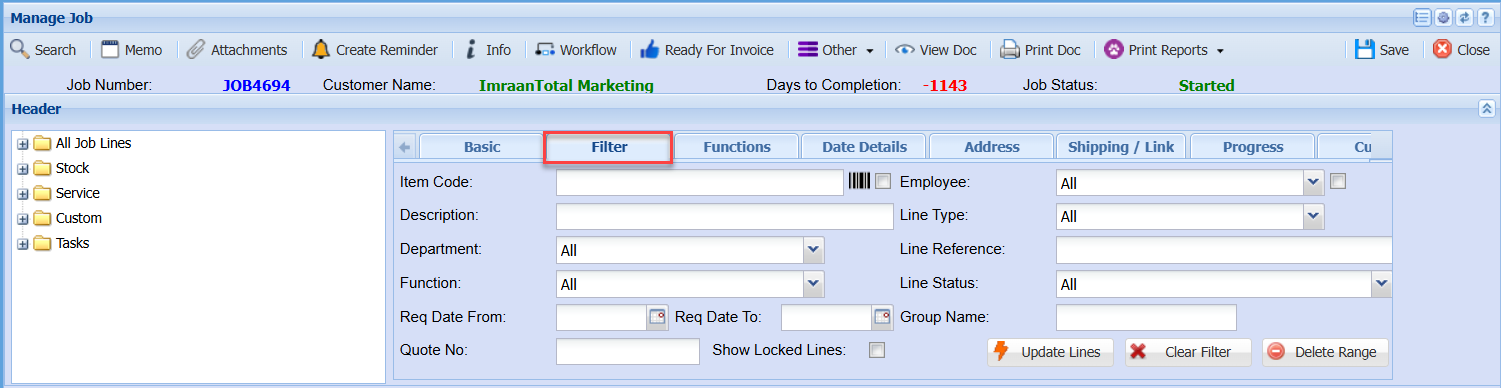
| Item Code | |
| Description | |
| Department | |
| Function | |
| Req Date From and To | |
| Quote No | |
| Show Locked Lines Tick | |
| Employee | |
| Line Type | |
| Line Reference | |
| Line Status | |
| Group Name | |
| Update Lines | |
| Clear Filter | |
| Delete Range |
No Comments