
Quote Screen
Extras Tab
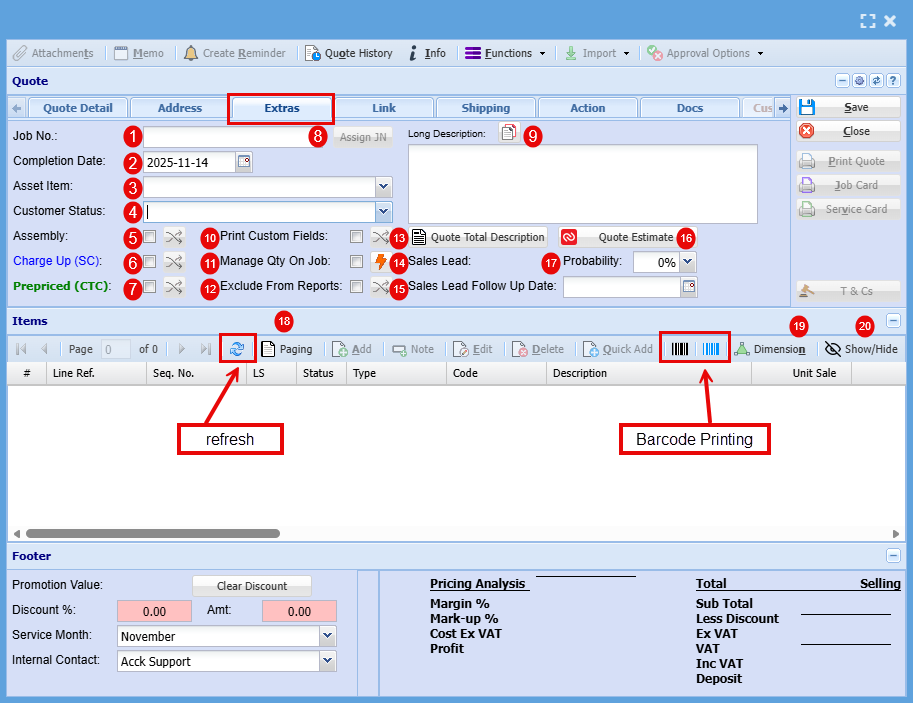
| 1 | Job Number | Clicking 'Assign JN' at this stage will generate a Job Number for the quote, which will automatically carry over once the quote is approved and converted into a actual job. |
| 2 | Completion Date | This is the date that you are expected to be able to complete this Job |
| 3 | Asset Item | |
| 4 | Customer Status | |
| 5 | Assembly | “Assembly” refers to an internal process where components or materials are prepared, combined, or staged before installation or delivery. It’s not billed separately to the customer but contributes to your overall job cost. |
| 6 | Charge Up (SC) | Charge Up (SC)” means the customer is billed for actual time and materials used, including any extras beyond the initial scope. Charge Up allows you to invoice for additional costs incurred during the job. |
| 7 | Prepaid (Cost to Company) | "Prepaid” refers to the quoted amount for the job, the fixed charge agreed to by the customer. You can’t invoice beyond this amount, so any extra time, materials, or costs that exceed the quote become your internal expense, or ‘Cost to Company (CTC) |
| 8 | Assign JN | Clicking 'Assign JN' at this stage will generate a Job Number for the quote, which will automatically carry over once the quote is approved and converted into a actual job. |
| 9 | Long Description | Here you can write a description of the job being done. |
| 10 | Print Custom Fields | |
| 11 | Manage Qty on Job | |
| 12 | Exclude from Reports | |
| 13 | Quote Total Description | |
| 14 | Sales Lead | If this quote originated from a tracked Sales Lead, the associated Sales Lead number will be displayed here. Updating the Probability percentage will automatically sync the change with the corresponding Sales Lead. |
| 15 | Sales Lead Follow up Date | Updating the Follow up the system will automatically sync the change with the corresponding Sales Lead follow up date. |
| 16 | Quote Estimate | |
| 17 | Probability | If this quote originated from a tracked Sales Lead, the associated Sales Lead number will be displayed here. Updating the Probability percentage will automatically sync the change with the corresponding Sales Lead. |
| 18 | Paging | If your line items span multiple pages and require navigation using the page up/down arrows, clicking the Paging Box will disable paging, allowing you to scroll through all items in a continuous view. |
| 19 | Dimension | |
| 20 | Show/Hide |
Link Tab
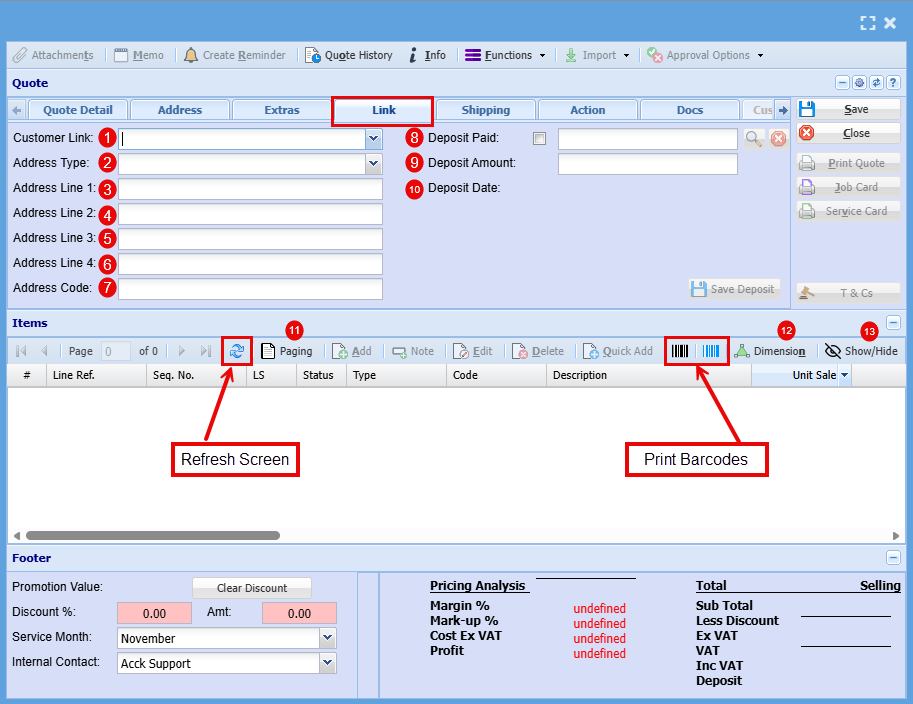
| 1 | Customer Link |
|
| 2 | Address Type | |
| 3-6 | Address line 1-4 | |
| 7 | Address code | |
| 8 | Deposit Paid | If a customer has paid a deposit, this can be added to the quote and taken off of the total cost of the job. |
| 9 | Deposit Amount | |
| 10 | Deposit Date | |
| 11 | Paging | If your line items span multiple pages and require navigation using the page up/down arrows, clicking the Paging Box will disable paging, allowing you to scroll through all items in a continuous view. |
| 12 | Dimension | |
| 13 | Show/Hide |
Shipping Tab

| 1 | Shipping Method | |
| 2 | Shipping Date | |
| 3 | Send Email | |
| 4 | Shipping Location | |
| 5 | Internal Delivery | |
| 6 | Delivery Company | |
| 7 | Tracking Number | |
| 8 | Frozen | |
| 9 | Paging | If your line items span multiple pages and require navigation using the page up/down arrows, clicking the Paging Box will disable paging, allowing you to scroll through all items in a continuous view. |
| 10 | Dimension | |
| 11 | Show/Hide |
Action Tab
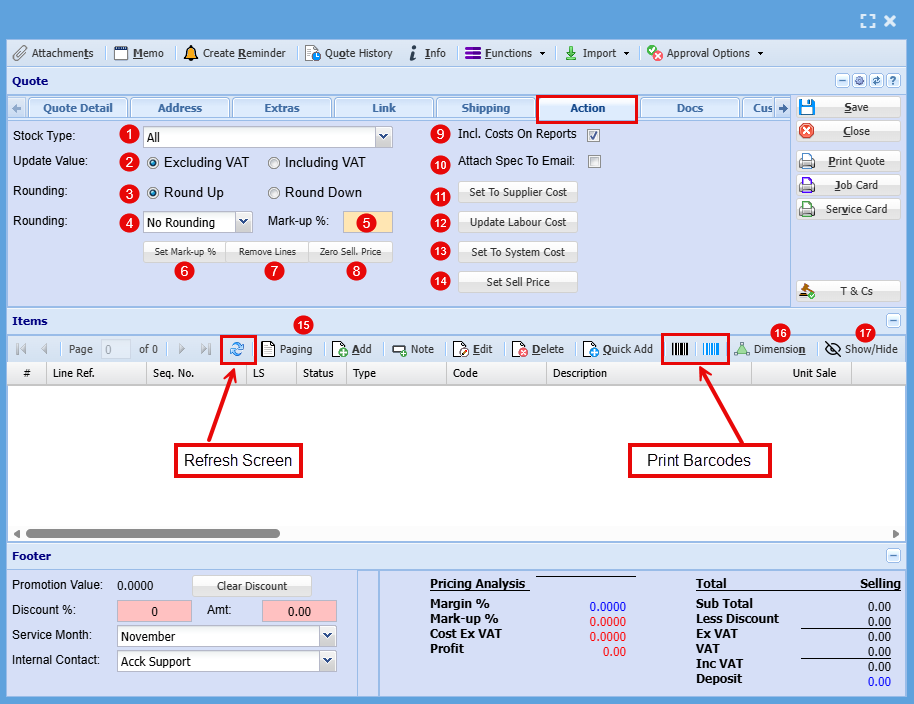
| 1 | Stock Type | |
| 2 | Update Value | |
| 3 | Rounding | |
| 4 | Rounding | |
| 5 | Mark-Up % | |
| 6 | Set Mark-Up % | |
| 7 | Remove Lines | |
| 8 | Zero Sell, Price | |
| 9 | Incl. Cost on Reports | |
| 10 | Attach Specs to Email | |
| 11 | Set to Supplier Costs | |
| 12 | Update Labour Cost | |
| 13 | Set to System cost | |
| 14 | Set Sell Price | |
| 15 | Paging | If your line items span multiple pages and require navigation using the page up/down arrows, clicking the Paging Box will disable paging, allowing you to scroll through all items in a continuous view. |
| 16 | Dimension | |
| 17 | Show/Hide |
Docs Tab
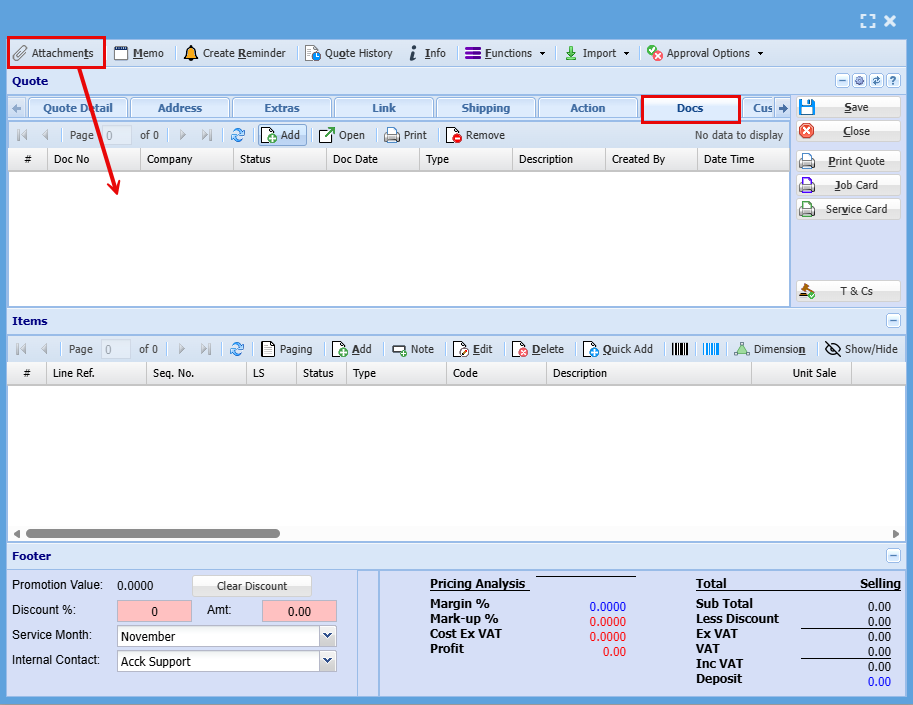
This tab provides instant access to upload documents in any format (PDF, Word, Excel, etc.) or retrieve relevant files previously attached to this quote.
No Comments