
Quote Item Screen
Additional options on a Quote Item
This screen also allows you to capture key information for each job or task line.
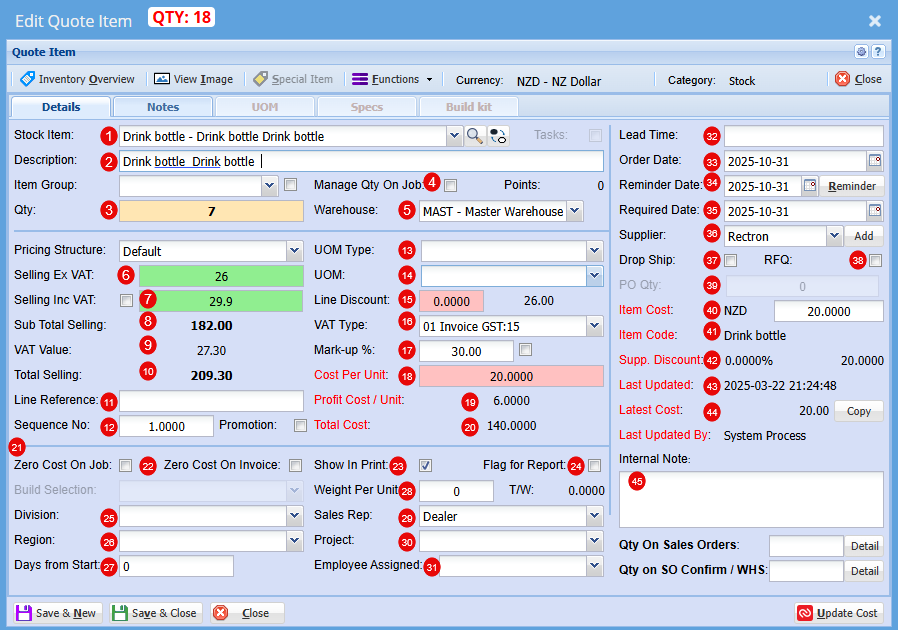
| 1 | Stock Item |
Select your stock item from the drop-down menu |
| 2 | Description |
At this stage you can change the Description if needed |
| 3 | Qty |
Add the Quantity you require of this item |
| 4 | Manage Qty on Job |
|
| 5 | Warehouse |
Select the Warehouse you wish to sell this item form |
| 6 | Selling Ex GST |
Price per item does not include the 15% Goods and Services Tax. You add GST on top of the listed amount. |
| 7 | Selling Inc GST |
Price per item includes the 15% Goods and Services Tax. The GST is already built into the total amount shown. |
| 8 | Sub Total Selling |
Total price of total quantity of item that does not include the 15% Goods and Services Tax. You add GST on top of the listed amount. |
| 9 | VAT (GST) Value |
Total GST only on total quantity of items |
| 10 | Selling Total |
Total price of total quantity of item includes the 15% Goods and Services Tax. The GST is already built into the total amount shown. |
| 11 | Line Reference |
|
| 12 | Sequence No. |
You can change the Sequence in the quote for this item |
| 13 | UOM Type |
These are custom configuration settings applied during setup, tailored specifically to your product formats (e.g., Per Roll, Per Unit, Pack). |
| 14 | UOM |
These are custom configuration settings applied during setup, tailored specifically to your product formats (e.g., 1000 per roll, 6 per pack). |
| 15 | Line Discount |
You can apply a discount to this item |
| 16 | VAT (GST)Type |
If this item is GST exempt or a Non-GST item it can be changed here |
| 17 | Mark up % |
At this stage you can increase your profit % |
| 18 | Cost Per Unit |
This is the total cost to produce or buy one item. It helps you set prices and track profitability. |
| 19 | Profit Cost/Unit | This is how much profit you make on each item sold after subtracting its cost. |
| 20 | Total Cost | This s the full amount spent to produce or purchase a set of items or complete a job. |
| 21 | Zero Cost on Job |
These ticks will be automatically on or off based on the setup if the item. When the item is promoted to a Job, its initial cost is cleared and recalculated progressively as the job is built—ensuring you have an accurate final cost at completion. |
| 22 | Zero Cost on Invoice |
As with the Cost on job, these ticks will be automatically on or off based on the setup if the item. When the item is promoted to a Job, its initial cost is cleared and recalculated progressively as the job is built—ensuring you have an accurate final cost at completion. |
| 23 | Show on Print |
|
| 24 | Flag for Report |
|
| 25 | Division |
Select a division within of a company that focuses on one area of work. |
| 26 | Region |
Select a region the job will fall under, it can include multiple cities or towns and often has its own local government or identity. |
| 27 | Days from Start | Use this field to schedule when this item should begin—set as a number of days from the job’s start date. |
| 28 | Weight Per Unit | This is determined at setup |
| 29 | Sales Rep | You are able to allocate someone who promotes and sells a company’s products or services to customers. They often handle quotes, follow-ups, and customer relationships, helping drive revenue and build trust. |
| 30 | Project | You can Link a quote to a specific project |
| 31 | Employee Assigned | Refers to the specific person responsible for completing a task or project. It helps track accountability, scheduling, and communication. |
| 32 | Lead Time | This is the amount of time between starting a process and completing it. It usually refers to how long it takes from placing an order to receiving the goods or service. |
| 33 | Order Date | This is the day a customer places an order for goods or services. |
| 34 | Reminder Date | This is the day you plan to check in after sending the quote. |
| 35 | Required Date | This is the day the customer wants the goods or service delivered |
| 36 | Supplier | This is the company that provides goods or services to another business |
| 37 | Drop Ship |
Ticking this box enables you to generate a Purchase Order on the fly—complete with all relevant details, so you don’t need to build one from scratch when drop-shipping an item. |
| 38 | RFQ (Request for Quote) |
Ticking this box allows you to generate a Request for Quote on the fly—pre-filled with all relevant details, so you don’t need to start from scratch when requesting updated pricing for an item. |
| 39 | PO Qty |
Enter the quantity here for which you want to generate a Purchase Order or Request for Quote. |
| 40 | Item Cost |
This shows the actual cost of the item |
| 41 | Item Code |
This is the suppliers item code |
| 42 | Supplier Discount |
Shows if you received a discount on this item when purchased form supplier |
| 43 | Last Updated |
This is the date the cost was last updated for this item |
| 44 | Latest Cost |
Similar to Item cost, this shows the actual cost of the item at that date |
| 45 | Internal Note | Here you can include private comment or detail added to a job, quote, or project that’s meant for your team, not the customer. |
No Comments