
Troubleshooting
Trouble Processing a Transaction
If you are trying to process an invoice, Credit Note, GRV or a Stock Return and you get an error, you can disconnect Huge ERP from Xero.
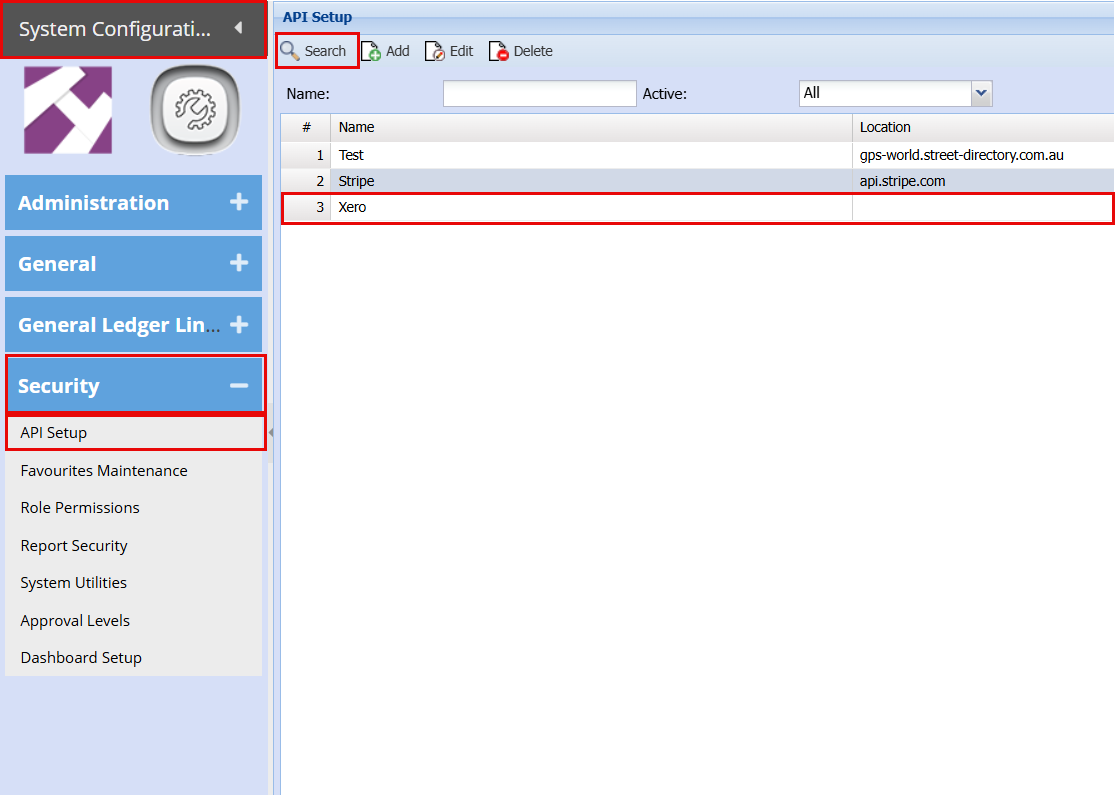
System Configuration > Security >API Setup
Click Search
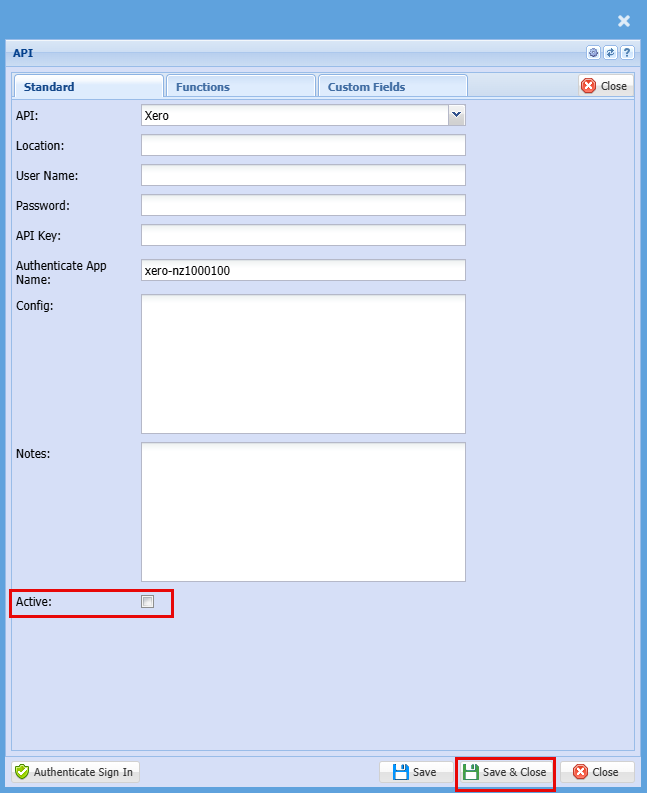
Double click on Xero to open
Untick the Active Box and click save and close
Failed to post to Xero
Invoice
Debtors Module > Activity > Invoice
When you have an invoice that Fails to push through to Xero, you can process this manually.
Open your invoice
Click the "Action" Tab, you will see the button "Push to Xero" by clicking this button the transaction will be pushed to Xero.

Credit Note
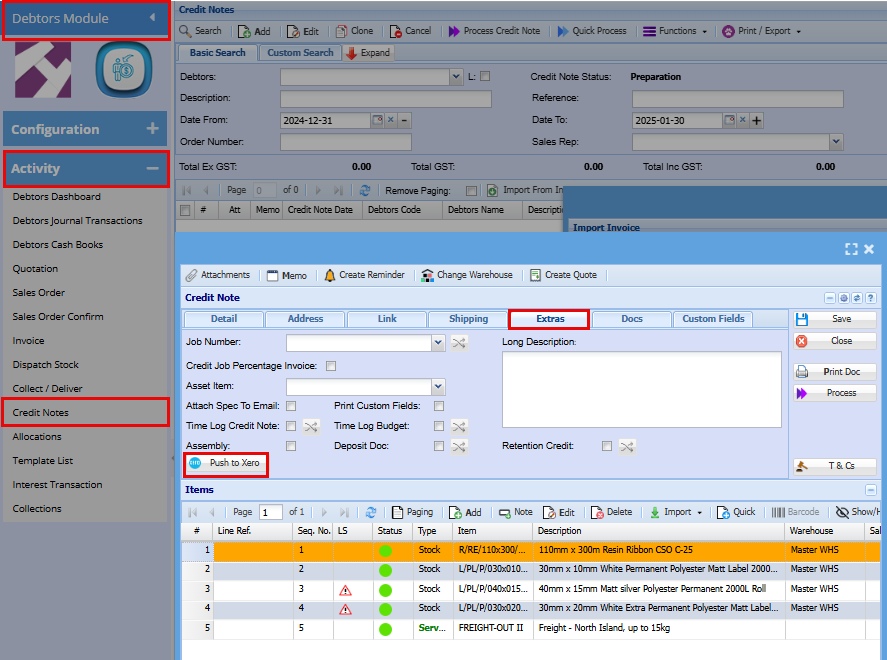
Debtors Module > Activity > Credit Note
When you have a Credit Note that Fails to push through to Xero, you can process this manually.
Open your Credit Note
Click the "Action" Tab, you will see the button "Push to Xero" by clicking this button the transaction will be pushed to Xero.
GRV
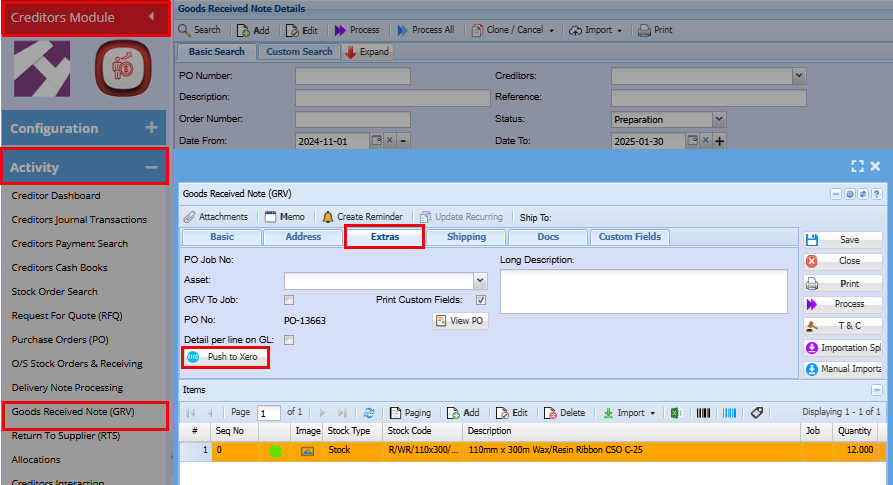
Creditors Module > Activity > Goods Received Note (GRV)
When you have a GRV that Fails to push through to Xero, you can process this manually.
Open your GRV
Click the "Extras" Tab, you will see the button "Push to Xero" by clicking this button the transaction will be pushed to Xero.
Stock Return
Creditors Module > Activity > Return to Supplier (RTS)
When you have a Stock Return that Fails to push through to Xero, you can process this manually.
Open your Stock Return
Click the "Action" Tab, you will see the button "Push to Xero" by clicking this button the transaction will be pushed to Xero.
View Posted and Non posted Transactions
Debtors
Debtors Module > Analysis >Debtors Document History
In the column "Posted to Xero" you will see either Yes which means it was posted to Xero or blank which means it has not been posted to Xero
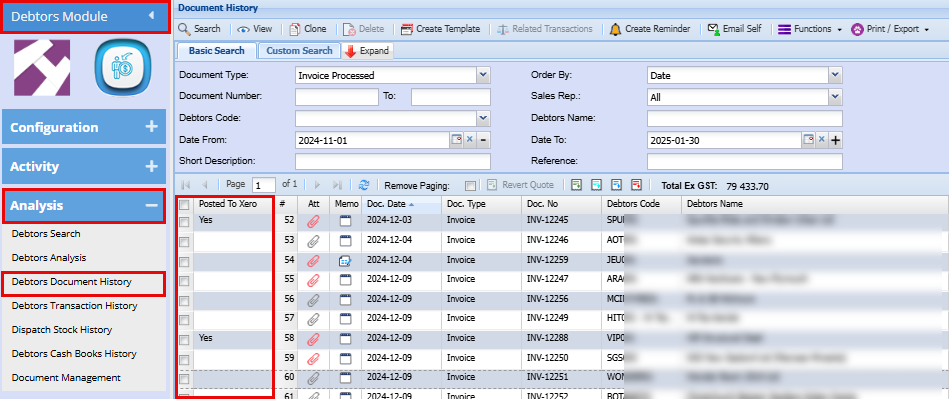
To post to Xero double click to open the transaction
Click the "Action" Tab, you will see the button "Push to Xero" by clicking this button the transaction will be pushed to Xero.
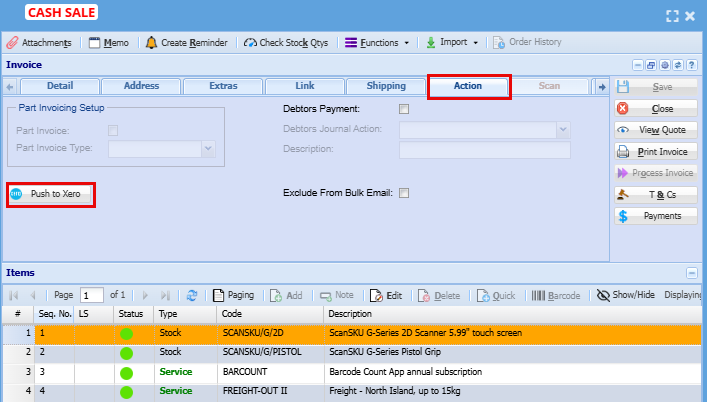
Double check your transaction is not already in Xero as clicking this will duplicate the transaction if it was already posted
Creditors
Creditors Module > Analysis >Creditors Document History
In the column "Posted to Xero" you will see either Yes which means it was posted to Xero or blank which means it has not been posted to Xero
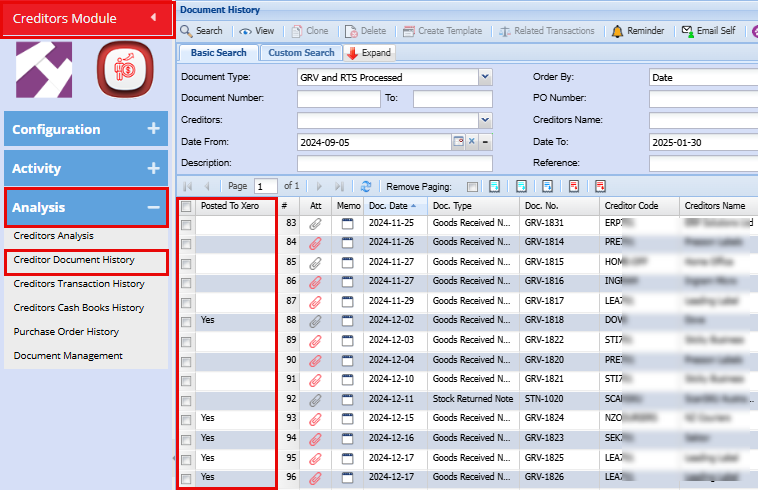
To post to Xero double click to open the transaction
Click the "Extras" Tab, you will see the button "Push to Xero" by clicking this button the transaction will be pushed to Xero.
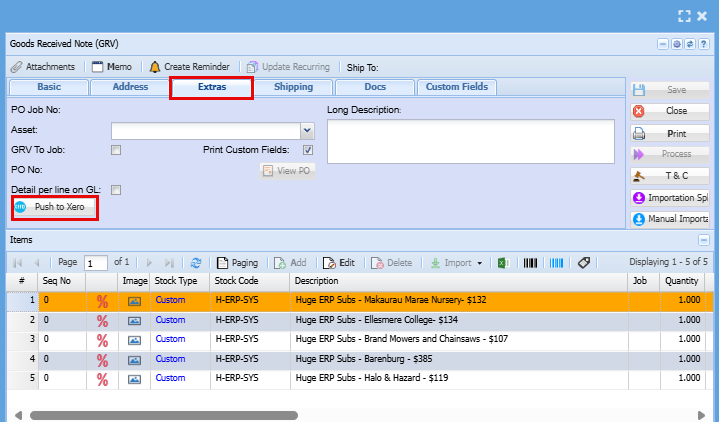
Double check your transaction is not already in Xero as clicking this will duplicate the transaction if it was already posted
No Comments