# Troubleshooting
#### Trouble Processing a Transaction
If you are trying to process an invoice, Credit Note, GRV or a Stock Return and you get an error, you can disconnect Huge ERP from Xero.
**System Configuration > Security >API Setup**
Click Search
Double click on Xero to open
[](https://hugeerp10.co.za/hsofmanual/uploads/images/gallery/2025-01/On7image.png)
Untick the Active Box and click save and close
[](https://hugeerp10.co.za/hsofmanual/uploads/images/gallery/2025-01/PPpimage.png)
---
#### Failed to post to Xero
##### Invoice
**Debtors Module > Activity > Invoice**
When you have an invoice that Fails to push through to Xero, you can process this manually.
Open your invoice
Click the "Action" Tab, you will see the button "Push to Xero" by clicking this button the transaction will be pushed to Xero.
[](https://hugeerp10.co.za/hsofmanual/uploads/images/gallery/2025-01/kT0image.png)
##### Credit Note
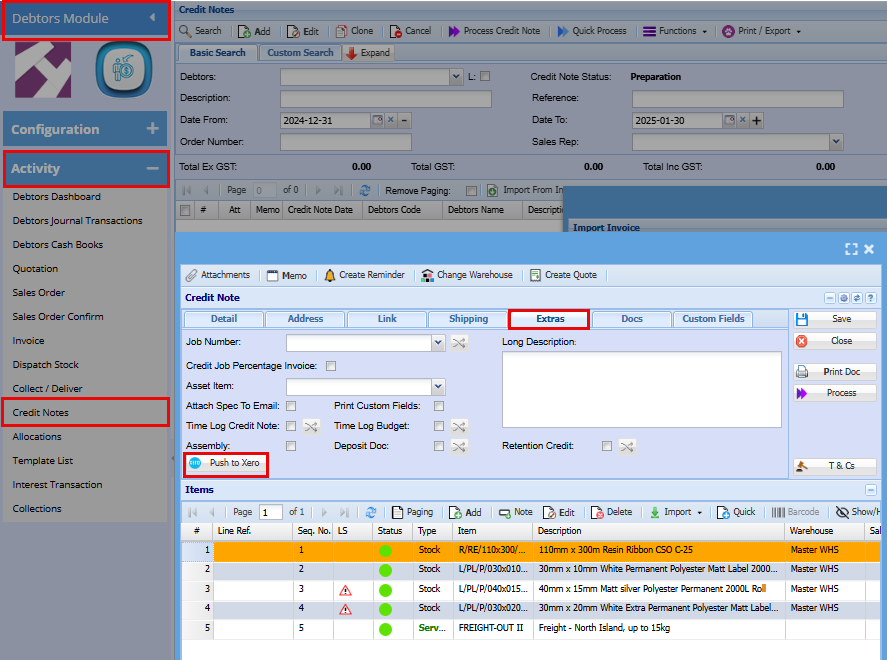
**Debtors Module > Activity > Credit Note**
When you have a Credit Note that Fails to push through to Xero, you can process this manually.
Open your Credit Note
Click the "Action" Tab, you will see the button "Push to Xero" by clicking this button the transaction will be pushed to Xero.
[](https://hugeerp10.co.za/hsofmanual/uploads/images/gallery/2025-01/9ptimage.png)
#####
##### GRV
**Creditors Module > Activity > Goods Received Note (GRV)**
When you have a GRV that Fails to push through to Xero, you can process this manually.
Open your GRV
Click the "Extras" Tab, you will see the button "Push to Xero" by clicking this button the transaction will be pushed to Xero.
[](https://hugeerp10.co.za/hsofmanual/uploads/images/gallery/2025-01/JQyimage.png)
#####
##### Stock Return
**Creditors Module > Activity > Return to Supplier (RTS)**
When you have a Stock Return that Fails to push through to Xero, you can process this manually.
Open your Stock Return
Click the "Action" Tab, you will see the button "Push to Xero" by clicking this button the transaction will be pushed to Xero.
---
#### View Posted and Non posted Transactions
##### Debtors
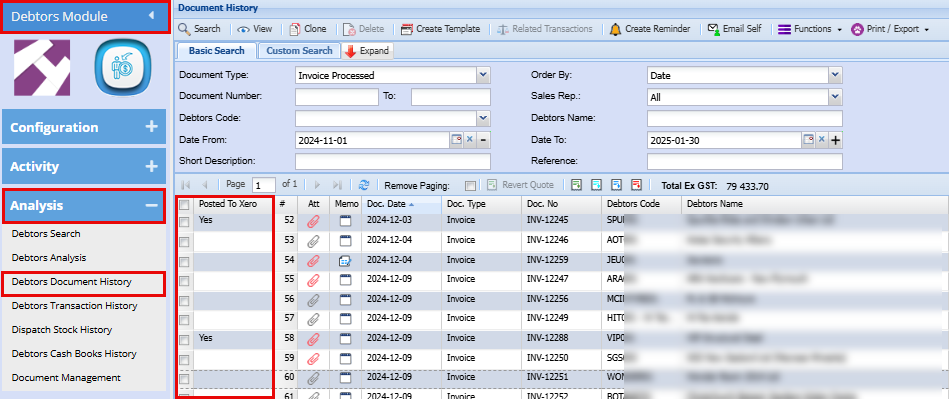
**Debtors Module > Analysis >Debtors Document History**
In the column "Posted to Xero" you will see either Yes which means it was posted to Xero or blank which means it has not been posted to Xero
[](https://hugeerp10.co.za/hsofmanual/uploads/images/gallery/2025-01/38Cimage.png)
To post to Xero double click to open the transaction
Click the "Action" Tab, you will see the button "Push to Xero" by clicking this button the transaction will be pushed to Xero.
[](https://hugeerp10.co.za/hsofmanual/uploads/images/gallery/2025-01/lDZimage.png)
Double check your transaction is not already in Xero as clicking this will duplicate the transaction if it was already posted
##### Creditors
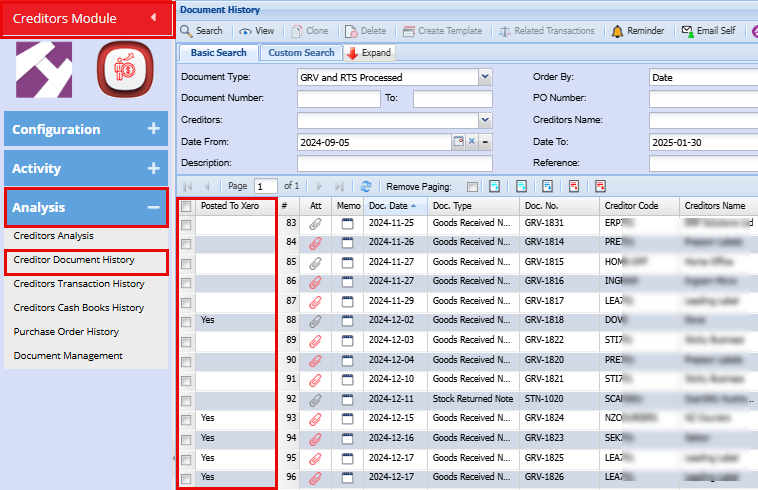
**Creditors Module > Analysis >Creditors Document History**
In the column "Posted to Xero" you will see either Yes which means it was posted to Xero or blank which means it has not been posted to Xero
[](https://hugeerp10.co.za/hsofmanual/uploads/images/gallery/2025-01/Yneimage.png)
To post to Xero double click to open the transaction
Click the "Extras" Tab, you will see the button "Push to Xero" by clicking this button the transaction will be pushed to Xero.
[](https://hugeerp10.co.za/hsofmanual/uploads/images/gallery/2025-01/JLdimage.png)
Double check your transaction is not already in Xero as clicking this will duplicate the transaction if it was already posted