
Setup of GoSweetSpot
Register your company with GoSweetSpot and login.
-
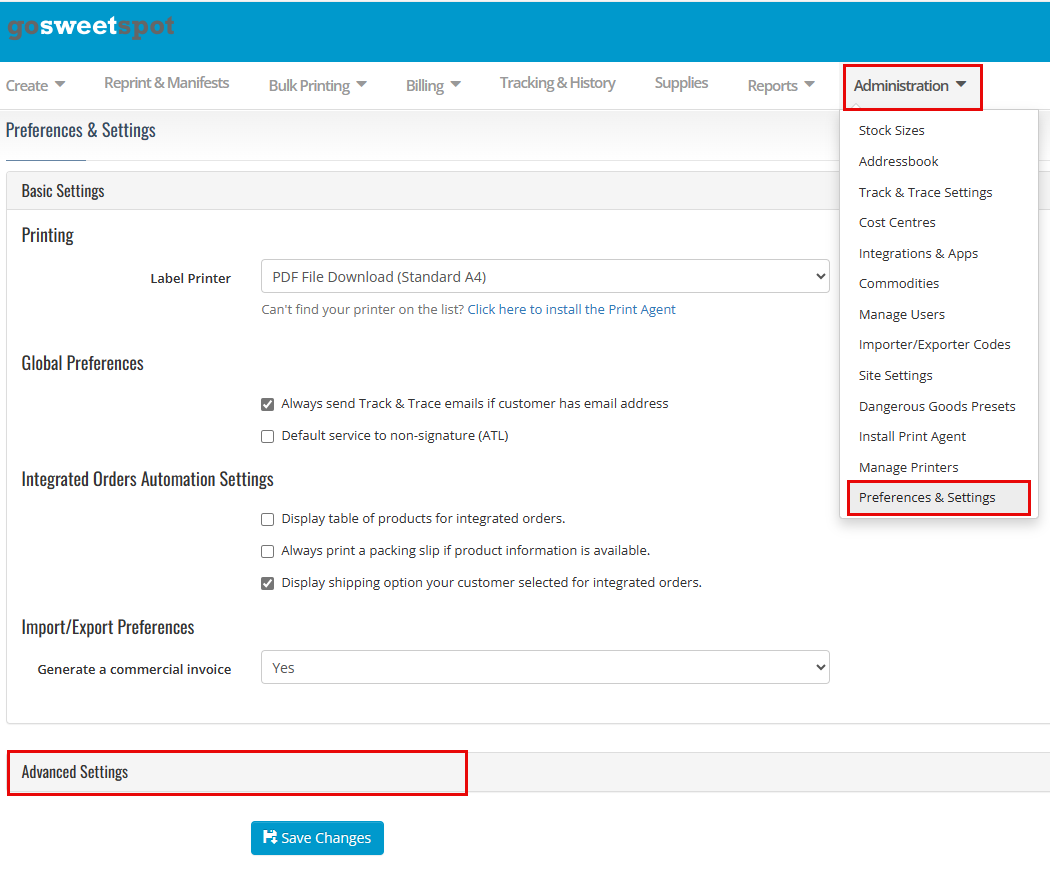
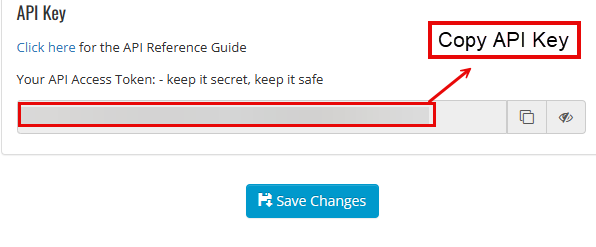
Get the API Key from the GoSweetSpot account page in Administraton; Preferences & Settings; Advanced Settings; API Key [TODO screenshot]
-
Copy it into the API Key field
API Setup
- Log into the Huge ERP System
-
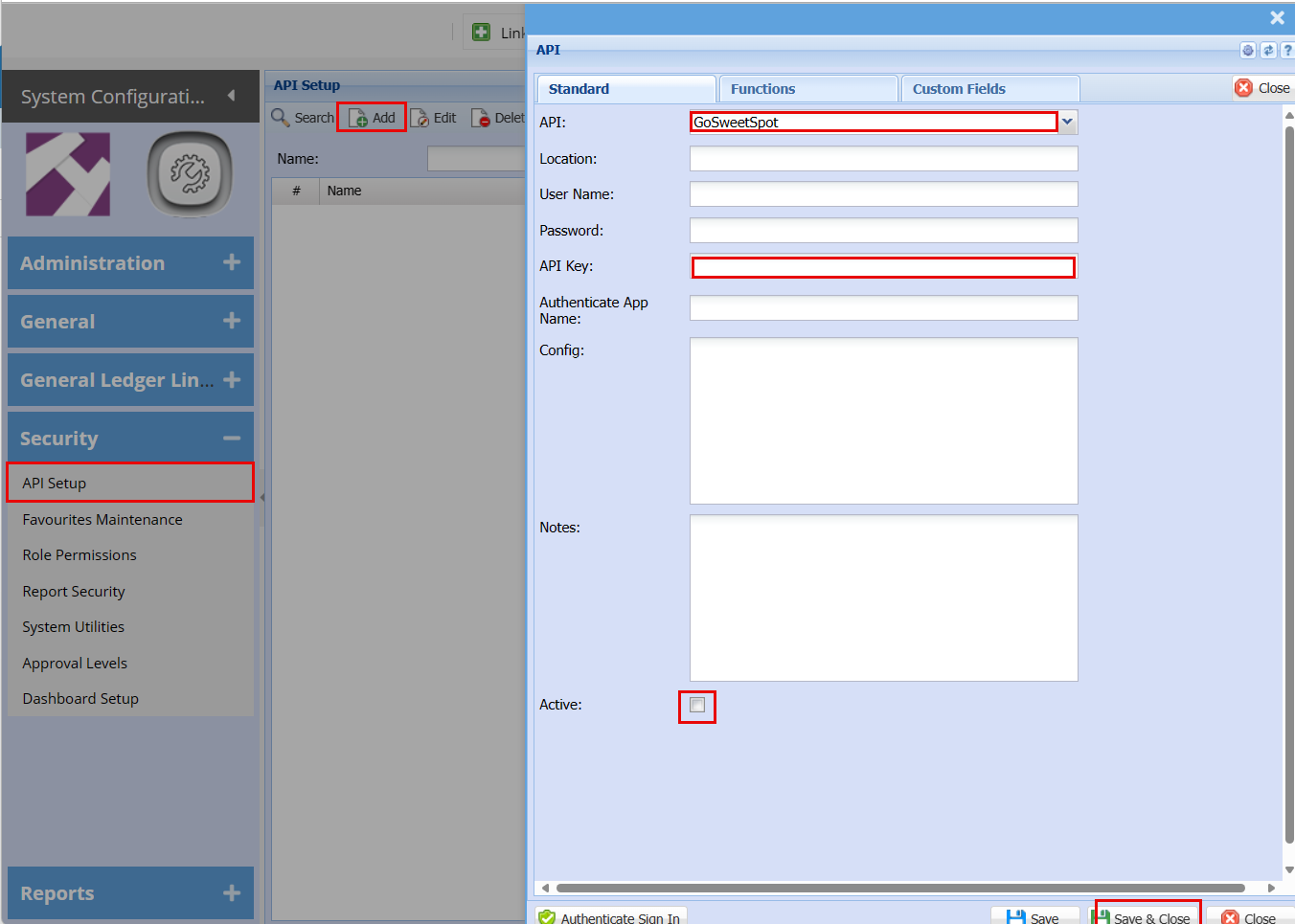
Go to the API Setup search grid in SCM User actions: SCM; Security; API Setup;
-
Click Add
-
In the API combo box select "GoSweetSpot" (Remove all other user name and passwords that may be populated )
- Paste API Key in API Key field.
- Tick Activate
- Click Save and close
-
Create a Creditor for GoSweetSpot
-
User actions: Creditors; Configuration; Creditors Setup; Creditors Setup: Add;
-
Fill out fields in Details Tab:
-
Creditors Code – e.g. "GOSWEET"
-
Name – e.g. "GoSweetSpot"
-
Short Name – e.g. "GOSWEET"
-
-
Uncheck in Details Tab: (optional)
-
Print Statement
-
Email Statement
-
Sync to Mobile
-
-
In the Info Tab select "GoSweetSpot" in the Use Courier API combo box field.
-
Click Save & Close
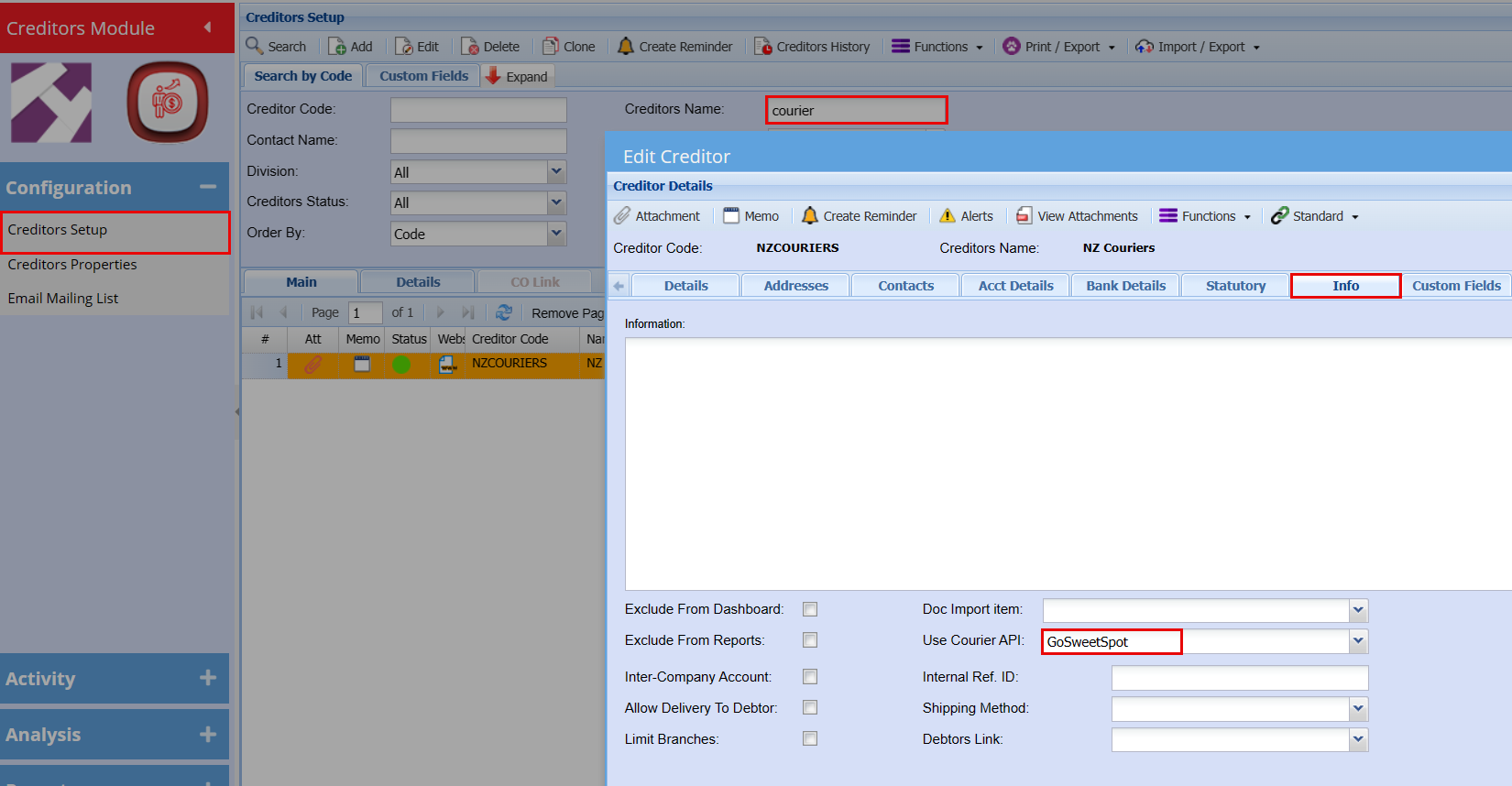
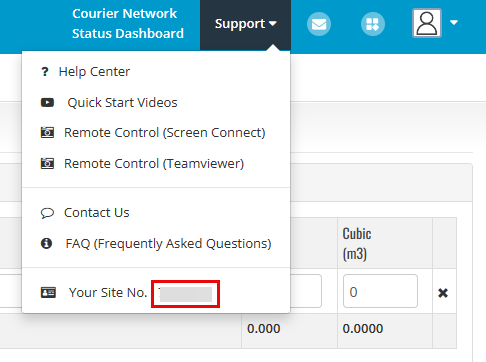
On GoSweetSpot get your site No. which you will find under Support
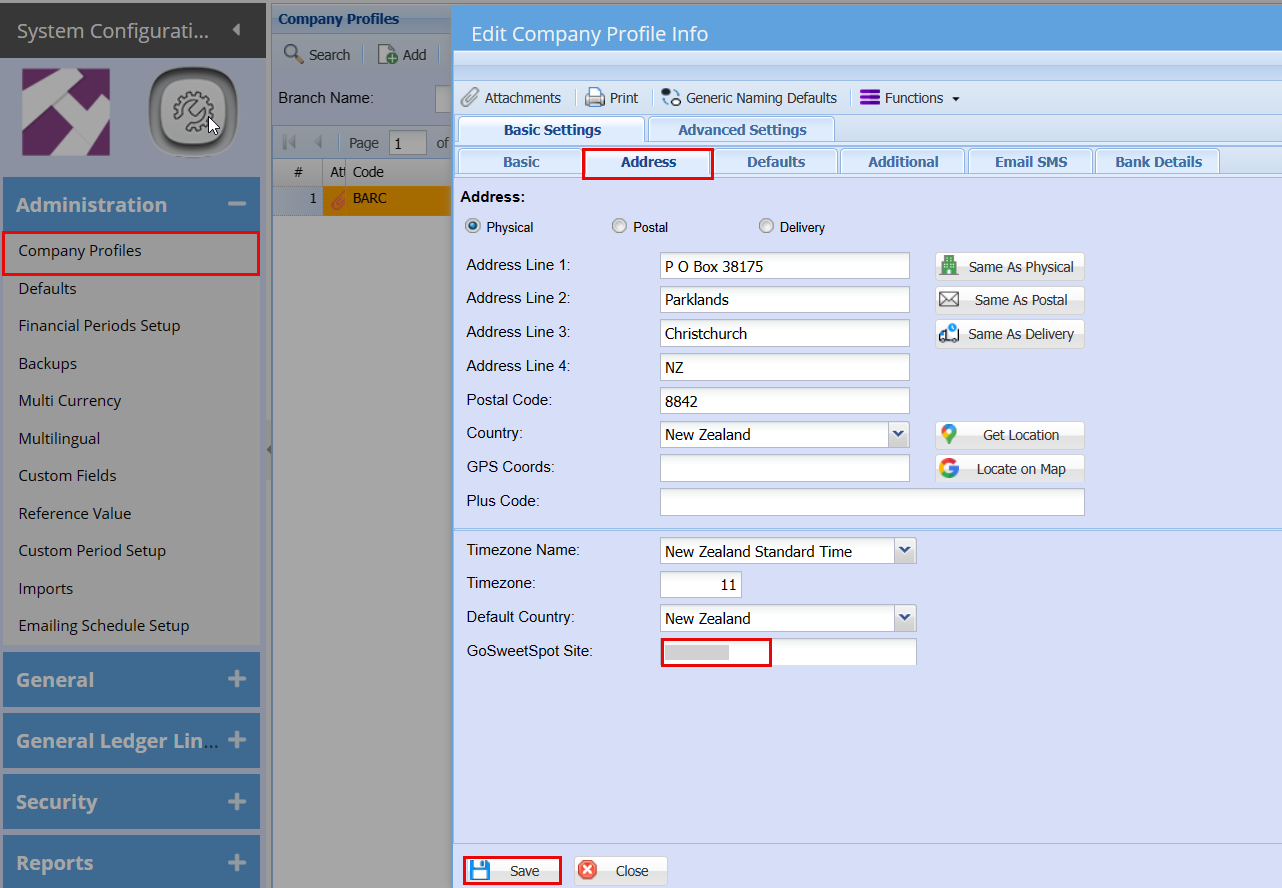
Add your Site No. to your company profile
1. Company Profile: Search in SCM; Administration; Company Profile; double click to edit Company Profile; Address; Add Site No. to GoSweetSpot field; Save
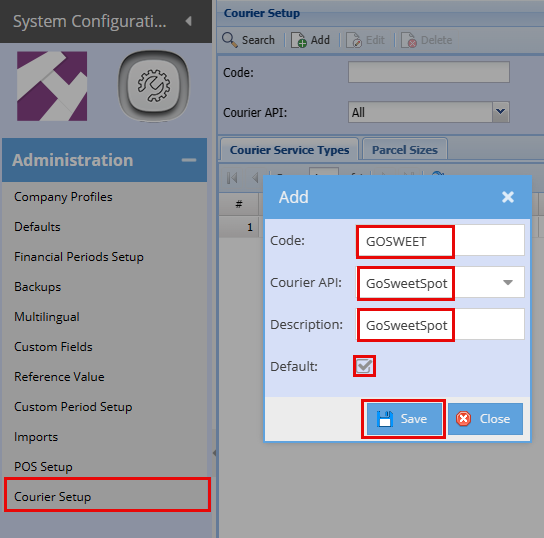
Courier Setup
1. Search in SCM; Administration; Courier Setup; Click Add; Add Code, Courier API, Select GoSweetSpot; Add description, Click Default, Save
Parcel Setup
GoSweetSpot allows pre-defined parcel sizes to be referenced in new shipments.
you can find your standard parcel sizes in Go SweetSpot.
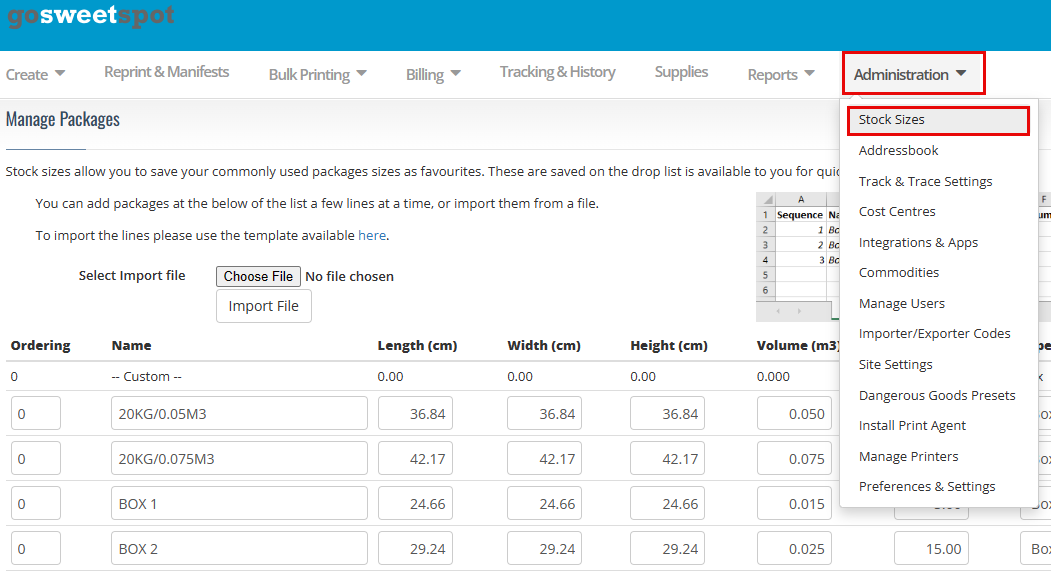
To setup parcel sizes go to
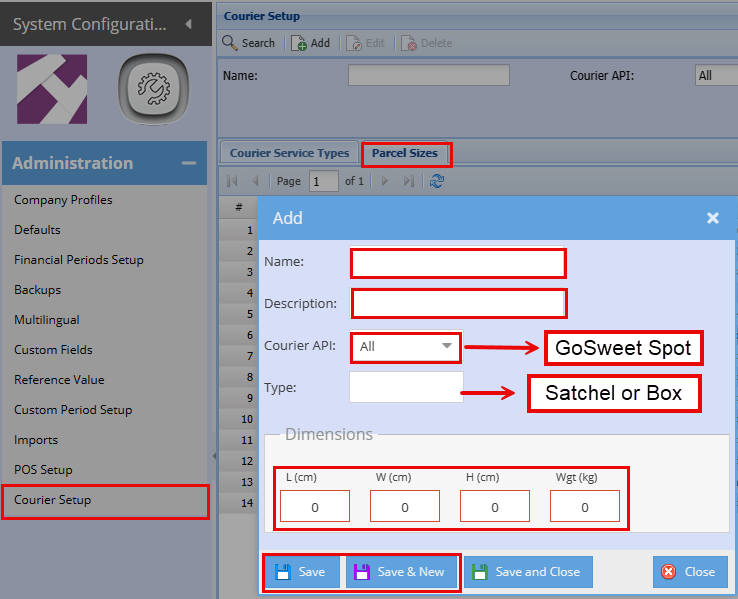
- Go to the Courier Setup search grid in SCM User actions: SCM; Administration; Courier Setup; Parcel Sizes
- These can be added to reflect your personal box or satchel sizes.
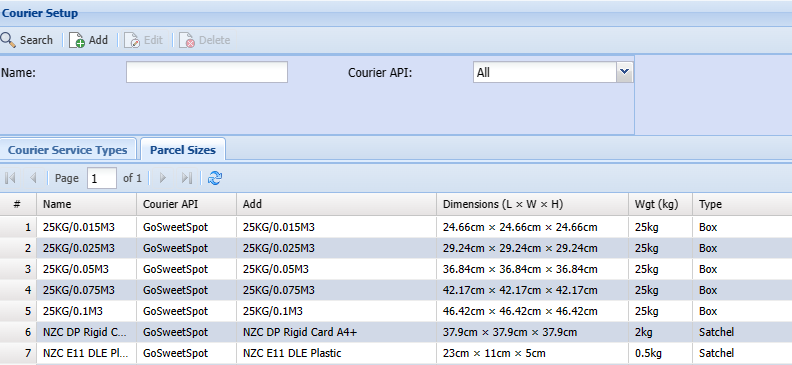
This is what it should look like once added in.
No Comments