
Clear Internet Cache
Clearing internet cache for MS Edge and Google Chrome
Clearing internet cache is recommended after updates have been done on the system or if errors are occurring in the system.
Note: Close all open windows, then open one window to clear internet cache. Close browser window and reopen after clearing internet cache
See sections for MS Edge and Google Chrome
Microsoft Edge Browser
Open up your browser
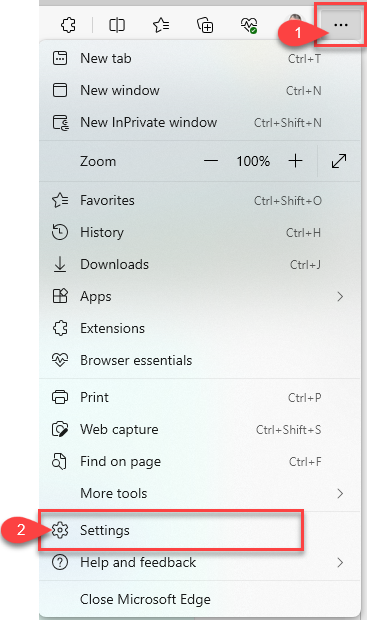
Click on the three dots to open up settings
Click on settings
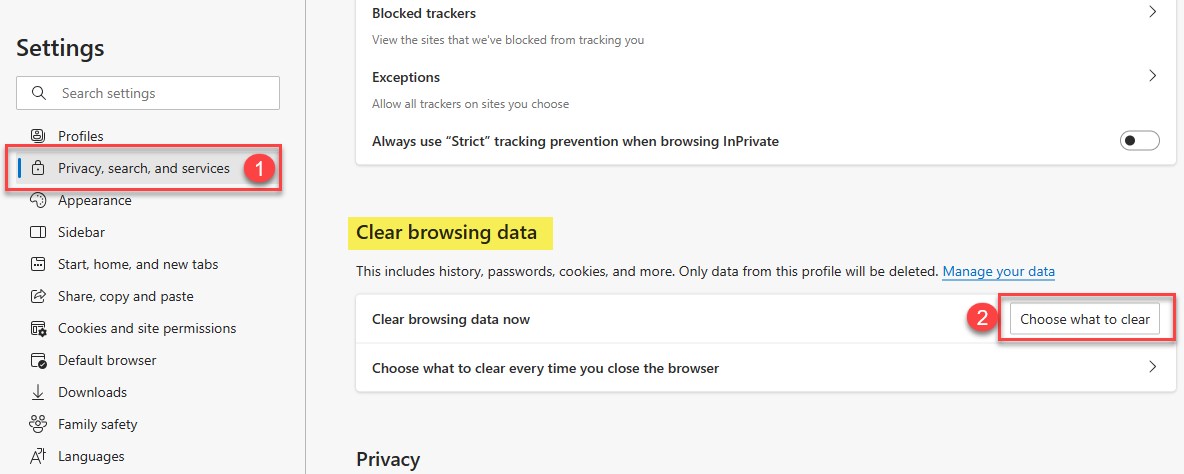
Click on privacy, search and services
Click on Choose what to clear button
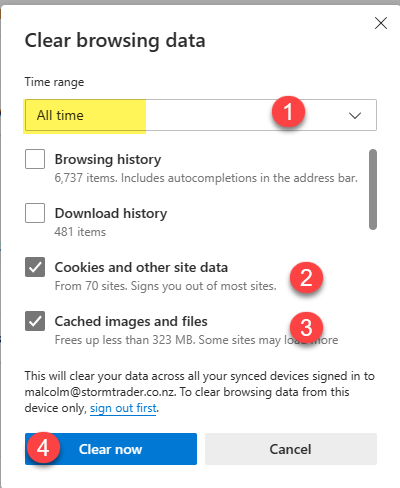
Clear internet cache
Ensure that the Time range is set to All Time
Ticks need to be put on for:
Optional is the browsing history and download history
Click on Clear now button
Important note: Close all browsers and log onto the system
Google Chrome Browser
Open up your browser
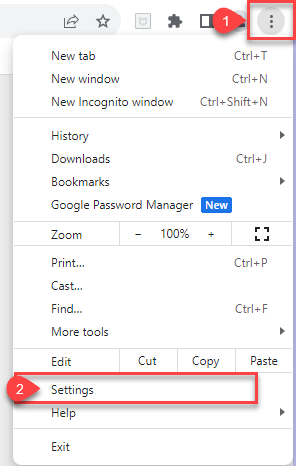
Click on the three dots to open up settings
Click on settings
Click on Privacy and Security
Click on Clear browsing data

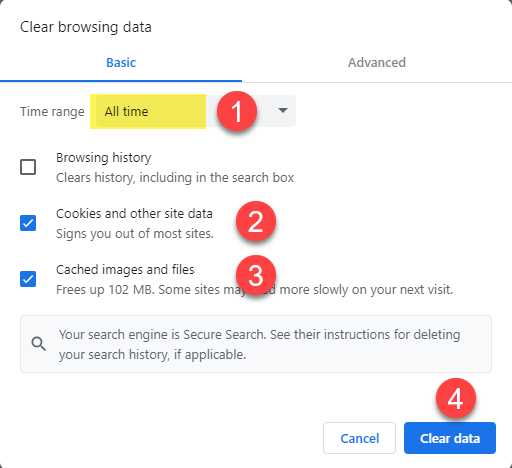
Clear internet cache
Ensure that the Time range is set to All Time
Ticks need to be put on for:
Optional is the browsing history and download history
Click on Clear data button
Important note: Close all browsers and log onto the system
No Comments