
Webatar Sync
Synchronising the information to the mobile app
Click on the hamburger menu and click on Sync menu item
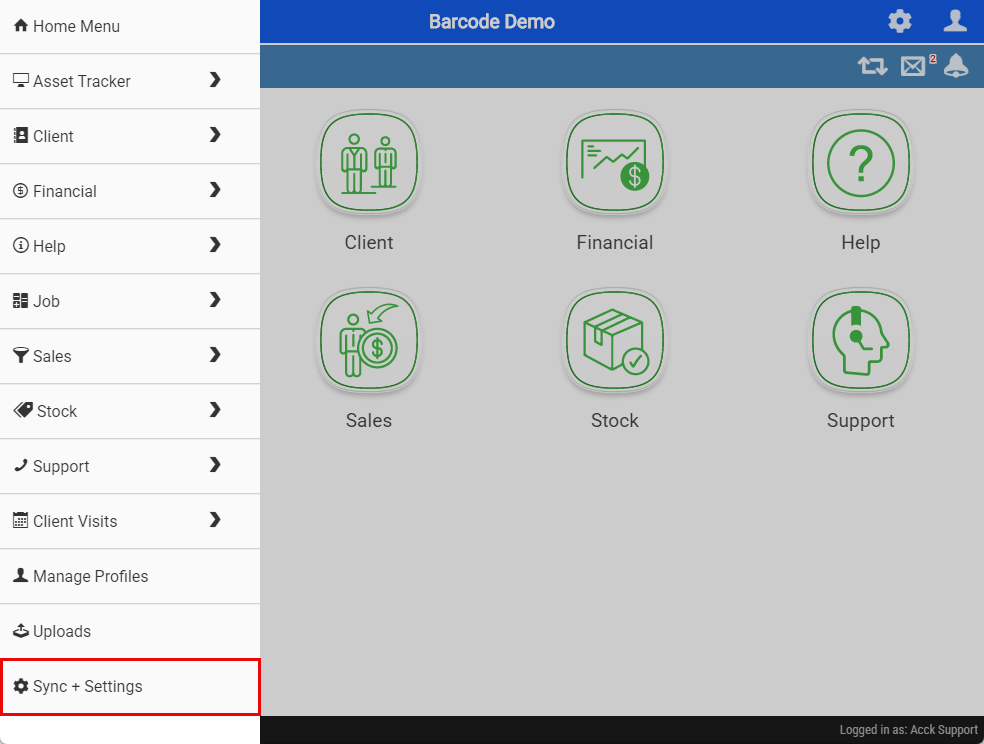
This will take you to the window to sync the data
There is several bits of information the app needs to work correctly
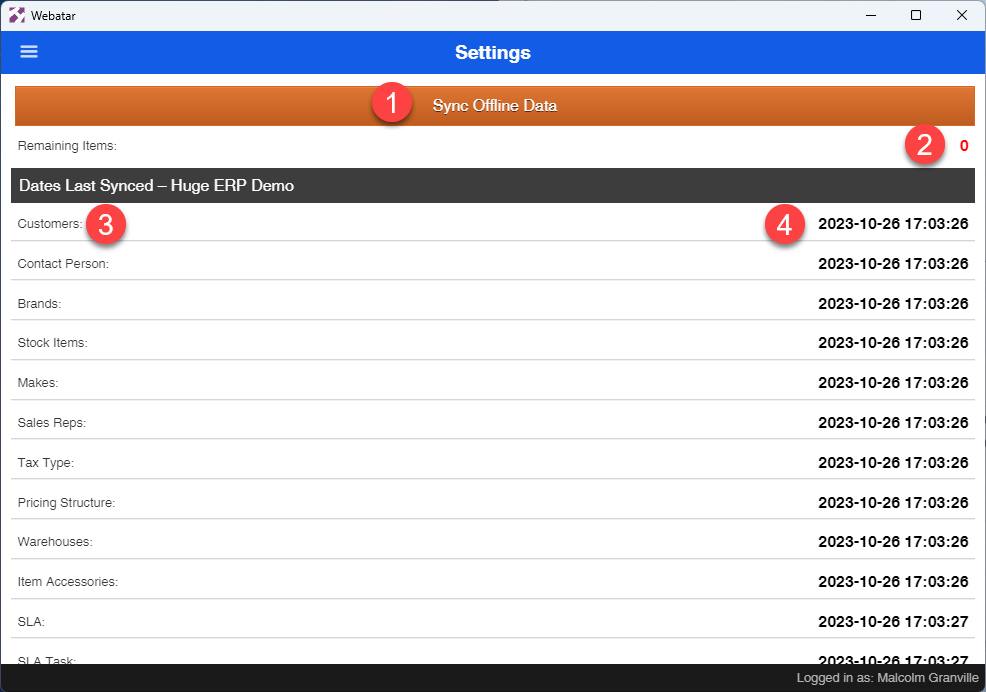
Sync Data
Click on the Sync Offline Data button to start sync
The data will start a count down and process bar
If everything is successful, then a date and time will appear next to each data group.
If you get an error, check on what the error reports
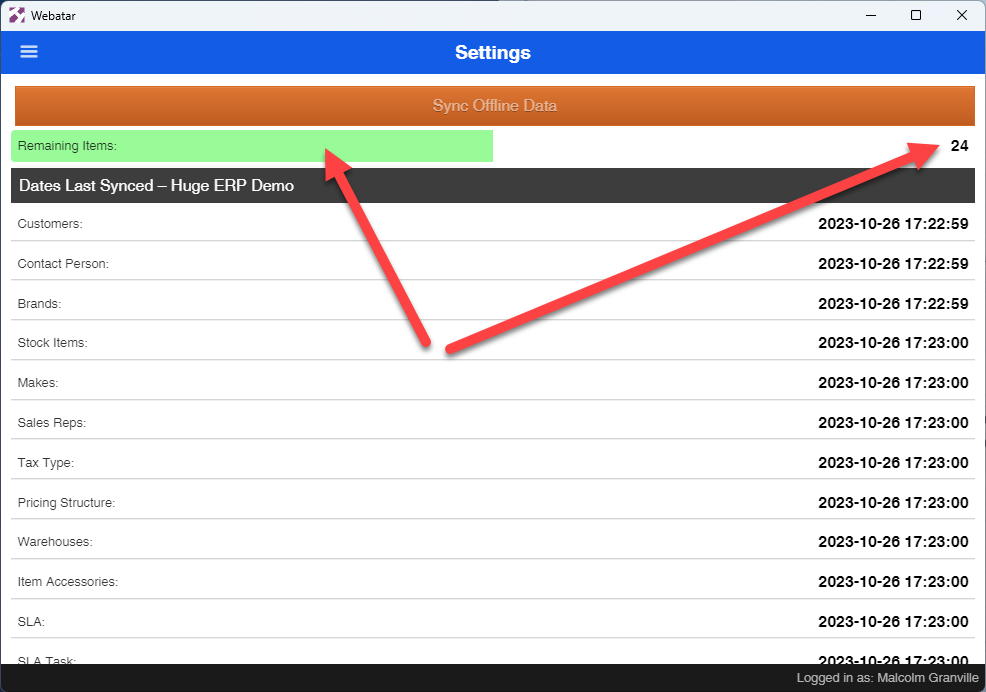
Sync Errors
Most common errors
| Http error 400 |
This error means that the company setup has not been configured for Webatar access. This can only be fixed by your consultant on the server |
| Error |
Issue with spelling of Server Remote Issue with company number wrong |
| SSL Error | SSL is not active on profile |
| Wrong Username or password |
Wrong username or password Both username and password are case sensitive |
No Comments