
Stock/Inventory Report
Video training manual 2019 - Click Here
Check on the column with the tick box with the report that you'd like to add to your favourites list.
Go to the category and select favourites to view and filter all the selected reports that you have chosen.
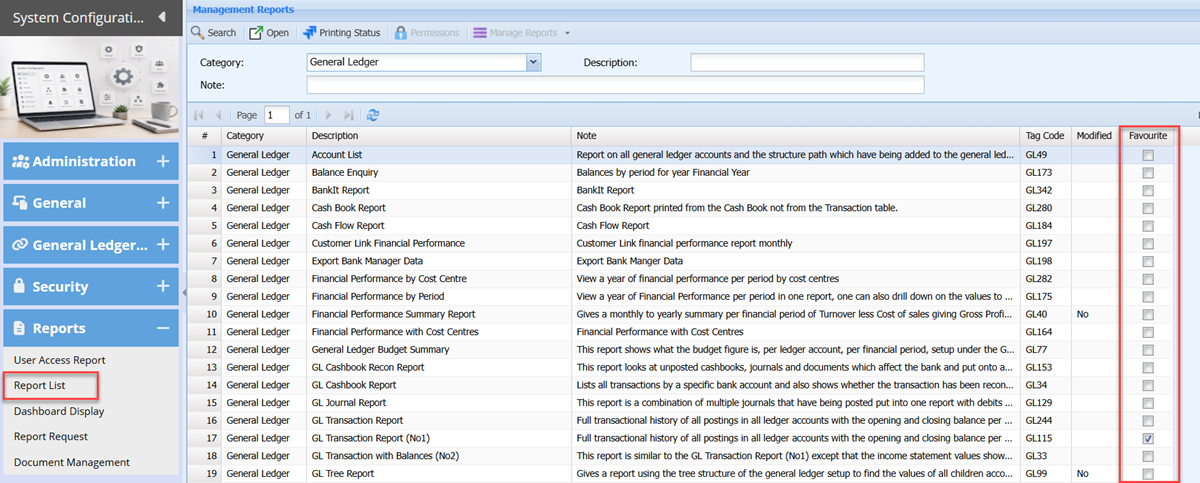
|
Search |
|
|
Open |
|
|
Printing Status |
|
|
Permissions |
|
|
Manage Reports (Drop-down) |
|
|
Category |
|
|
Description |
|
|
Note |
Original Content Click Here
Inventory Count
Report displays a list of items which show what quantity is on hand currently and a space where the person counting can indicate the quantity actually counted.
Generally, a count is done without giving what the quantity is on hand, however if you want to see the quantity on hand, remove the tick off the option called "Ignore system quantity"
Inventory module> Reports> Reports List
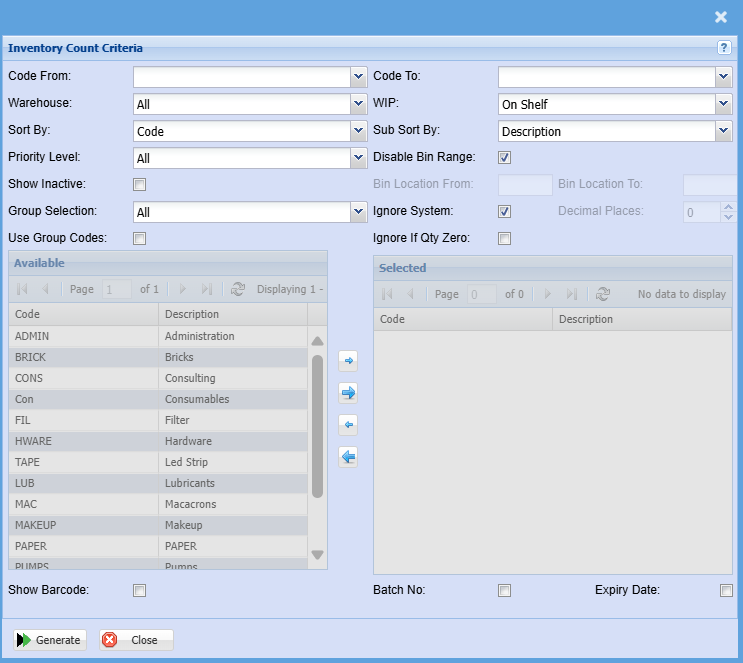
| Code from / Code To |
Select the from item in your list, this looks at the code in order to determine the from and to. |
| Warehouse | If you select all warehouses the report will fetch data from all warehouses. If you want to search by a specific warehouse, select the warehouse from the menu. |
| WIP (Work in progress) |
Run the count for working progress items, On Shelf, All, Invoice, Sales Orders, Jobs and Bill of Materials. Most counts are done on the on-shelf option |
| Sort by | Choose from the drop-down menu how you would like your report sorted, your options are by Description, Code, Description, Group Code or Bin Location. |
| Sub sort by | Sub Sort the report by selecting one option from the drop-down menu allows the user to pull a report with a secondary criteria that will be sorted by either, Code, Description, Warehouse or Bin location. |
| Priority level | Count based on the Priority level of marked items |
| Disable bin range |
Disable bin range is on by default which means the order is by code. Enable this which allows you to print count by bin location from and to |
| Bin location from / To | Select which bin to print from and to |
| Show inactive | Show inactive items on printout (Default option is off) |
| Group selection |
Print a selected group selection of your group codes This is defined in the group code setup which allows you to count for specific groups automatically |
| Ignore system Qty |
This option is on by default to ignore the system quantity on report. if you want the system on hand value, remove the tick |
| Decimal places | It is advisable to set decimals to two places. You can View the report with any number of decimal places. |
| Ignore if quantity zero | Tick this box if you would like to exclude Inventory items with Zero Quantity. |
| Use group codes |
Double click on the code from the list to move the group codes you wish to filter your report by to the selected window. |
| Available group codes | Displays a list of available group codes |
| Selected group codes | Shows the list of selected group codes for the report |
| Show barcode | Show the barcode on the printout |
| Batch number | Display the batch number of the stock item |
| Expiry Date | Display the default expiry date of the item |
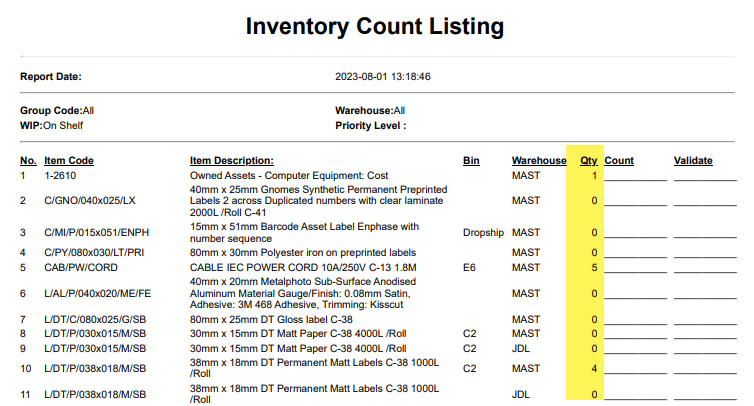
Print count with on hand quantity
To print the report with the displayed on-hand quantity, remove the tick for "Ignore system quantity" on the criteria

Report with count, showing on hand quantity
Original Content Click Here
Inventory Transactions
Gives a total movement per inventory item by quantity or value for a specified date range.
Inventory module> Reports> Reports List
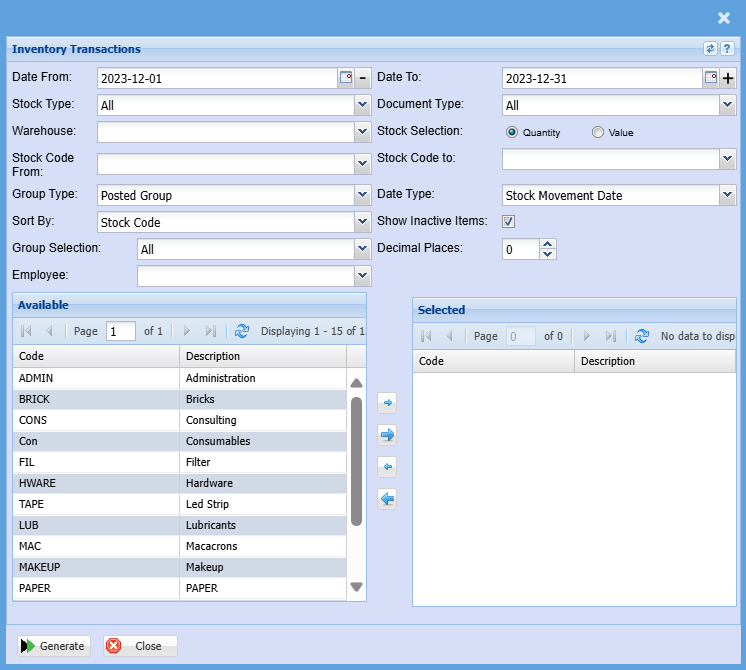
To generate the report, please select from the following fields:
| Date From / Date To |
Choose the date range for which you want to view the report from Select a date range of when you want to see the report to |
| Stock Type |
Allows you to select a stock type from the drop-down Menu |
| Warehouse |
If you select all warehouses the report will fetch data from all warehouses. |
| Stock Code From / Stock Code To |
If you leave the stock item fields blank, all stock items will be displayed on the report. If you choose specific stock items, the report will sort information by stock item code rather than description. Select a stock Item on the drop-down menu. |
| Group Type |
Select the group type from the drop-down menu. |
| Sort By |
Sort the report by selecting one option from the drop-down menu |
| Group Selection |
Double click on the code from the list to move the group codes you wish to filter your report by to the selected window. |
| Employee |
Select an employee you wish to filter the report by on the drop-down menu |
| Document Type |
Select the document type from the drop-down menu |
| Stock Selection |
Select either a quality or value option for the report |
| Date Type |
Select a date type on the drop-down menu |
| Show Inactive Items |
This option will show inactive items on the report if selected |
| Decimal Places |
It is advisable to set decimals to two places You can view the report with any number of decimal places. |
| Generate Button |
Click the "Generate" button to open the report You will have options to copy, email, or print the report To view the report in an Excel document, click copy on the report and past it into an Excel file |
Original Content Click Here
Inventory Transactions
Inventory module> Reports> Reports List

| Customer |
Select a customer you wish to filter the report by on the drop-down menu. If the customer/ debtor doesn't have any stock count under their name for the selected count date the generate and export for quote buttons will be greyed out |
| Sales Rep | If you want to run a report by a specific sales rep, then you will need to select the sales rep on the drop-down menu. If you leave the sales rep on all the report will run by all sales rep. |
| Count Date | Select the count date you would like to pull the report for |
| Last Count Date | Select the last count date |
| Copy Last Count Date | Copy last count date automatically fills the last stock count date for the selected customer/ debtor |
| Group By | The report can be grouped by selecting one option from the drop-down menu |
| Group Selection | Select a group selection on the drop down and move group codes you wish to filter your report by to selected window |
| Generate |
Click the "Generate" button to open the report You will have options to copy, email, or print the report To view the report in an Excel document, copy the report and paste it into an Excel file |
| Export for Quote | Export for quote allows you to export the stock count to excel and to import as a quote without having to make any edits to the document |
Original Content Click Here
Stock Movement Per Month
Inventory> Reports> Report List
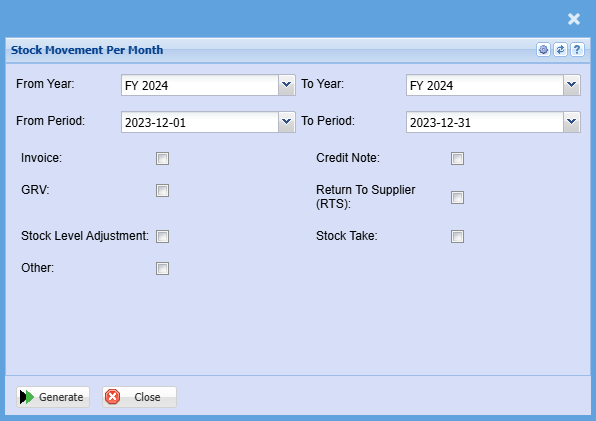
| From Year / To Year | Select the year From and Year To Dates from the drop-down menus will show results specific to the period you have selected. |
| From Period / To Period | Select the period From and The Period To from the drop-down menus |
| Invoice | Put a tick if you would like to view the value of invoices for a period you have selected |
| GRV | Put a tick if you would like to view the value of Goods received vouchers -GRV for a period you have selected |
| Stock Level Adjustment | Put a tick if you would like to view the value of stock level adjustments for a period you have selected |
| Other | Put a tick if you would like to view the value of other transactions for a period you have selected |
| Credit Note | Put a tick if you would like to view the value of credit notes for a period you have selected |
| Return to Supplier (RTS) | Put a tick if you would like to view the value of return to the supplier (RTS) for a period you have selected |
| Stock Take | Put a tick if you would like to view the value of stock takes for a period you have selected |
Original Content Click Here
No Comments