
Debtor Analysis Search
Analysis of all the posted customer/ debtor information in one place
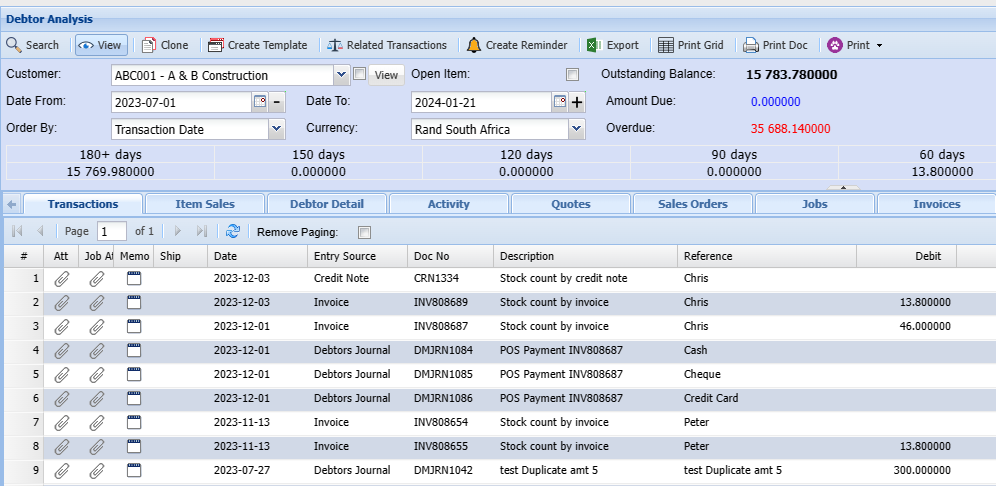
| Search | The search button will search for the items you selected for the search |
| View | The View button allows the user to see the details of a quote or invoice etc. |
| Clone | This button allows you to create a duplicate copy of a transaction |
| Create Template | Save transaction documents as a template to use for similar transactions later |
| Related Transactions | This will show the related transaction of an invoice Quote etc. |
| Create Reminder | A reminder can be created in this field for this debtor or yourself depending on what the purpose of the reminder is for. |
| Export | The export button allows the exporting of data to an Excel spreadsheet |
| Print Grid | The print button will open a quote print selection window and that will allow you to select what you want to have on your printout |
| Print Doc | |
| Customer | This is where you enter the details of your customer. |
| Outstanding Balances | This is the monies owed to you by this client. |
| Date From and date to | This is the date range that governs the display of transactions against this client. |
| Order By | This is the directive in which you want the information to be displayed. |
| Currency | This is the currency used for this debtor as setup in the debtor’s setup. |
| Total, current, 30 days etc. | This displays the total monies due and at certain periods 4 |
Print Drop Down
The print drop down allows you to print customer/ debtor or customer information by the information below:
- Statement PDF
- Allocation Report
- Linked Serial Numbers
- Debtor Enquiry
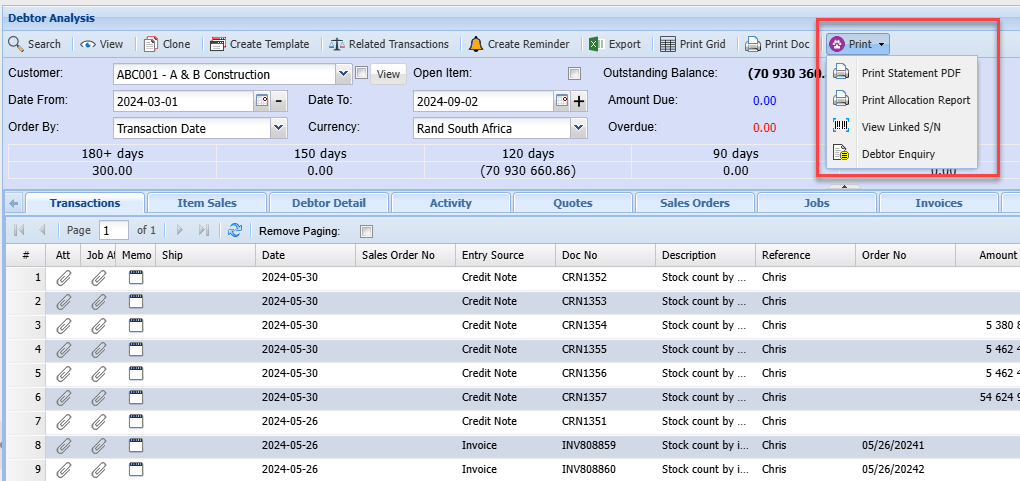
| Print Statement PDF | A PDF statement for this debtor can be printed |
| Print Allocation Report | From here an allocation report for this debtor can be generated. |
| View Linked S/N | This allows the user to view serial numbers that are linked to items |
| Debtor/ Customer Enquiry |
Related Transactions
This part shows the accounts involved in a transaction
.png)
| Transaction List Tab | Shows a list of transactions involved |
| View Accounts Tab | To view the t-accounts |
| Print Grid button | To print the transactions |
| Print T Account button | To print the T accounts |
Tabs defined
The following tabs work like dashboard tabs where the user gets to have an overall view of the transactions against the selected Client.
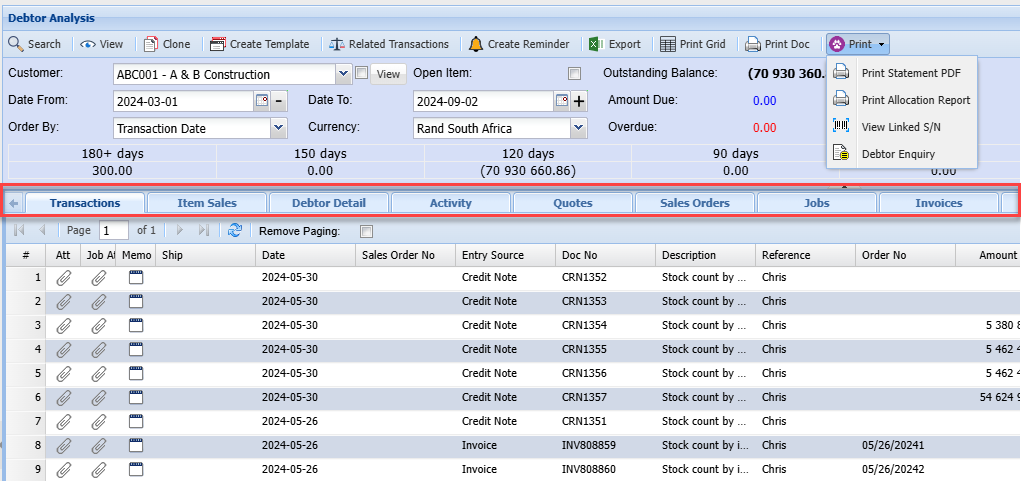
| Transactions Tab | Will list all the transactions for this debtor (date range inconsideration) |
| Debtor Detail | Will display the company information for the selected client |
| Quotes | will show all the quotes |
| Jobs | Shows all the Jobs |
| Invoices | Shows All the Invoices |
| Credit Notes | Any Available Credit Notes |
| Debit Allocations | Shows Debit allocations |
| Credit Allocations | Shows Credit allocations |
| Cashbooks | Shows you the available processed cashbooks |
| Journals | Will display all the processed Journals for this Debtor |
No Comments