
User Management – User Search
Video Training Manual 2016 - Click Here
Systems Configuration Module> General> User Setup
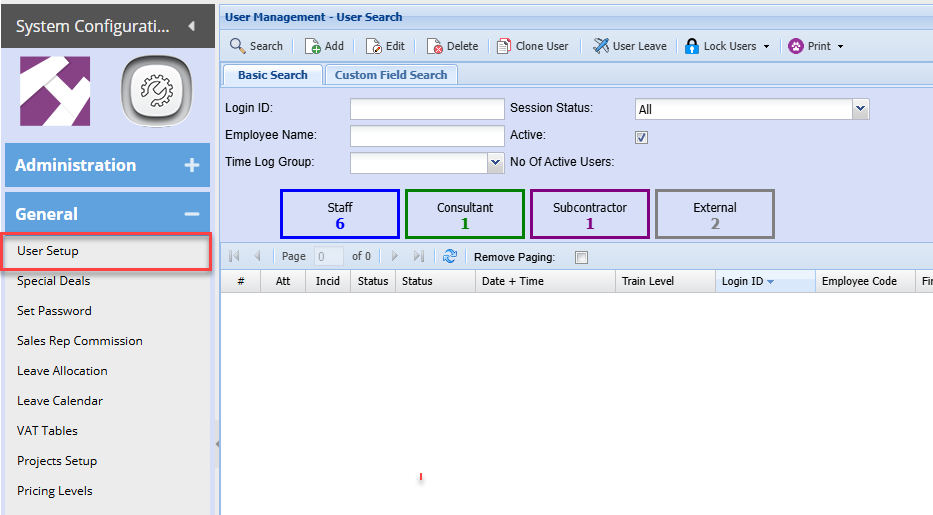
You can search for a user using the following criteria:
- Login Id
- Employee Name
- Time Log Group
- Session Status
- Or by active or inactive
User management - User search buttons explained
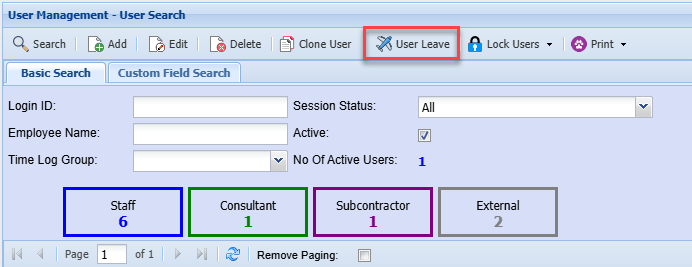
| User Leave | Shows the leave allocated to that specific User. |
| Log User Off | Logs the currently selected Employee out. |
| Lock User | Locks the currently selected Employee. |
| Unlock User | Unlocks the currently selected Employee. |
| Lock All Users | Locks all Employees. |
| Unlock All Users | Unlocks all Employees. |
Leave User
Huge ERP has a basic leave approval and tracking system
Staff can request leave and then email managers
Managers can then approve or deny the request
Leave is then tracked and can also be printed out if needed
Lock Users
Lock users allows you to lock and unlock a user from the system
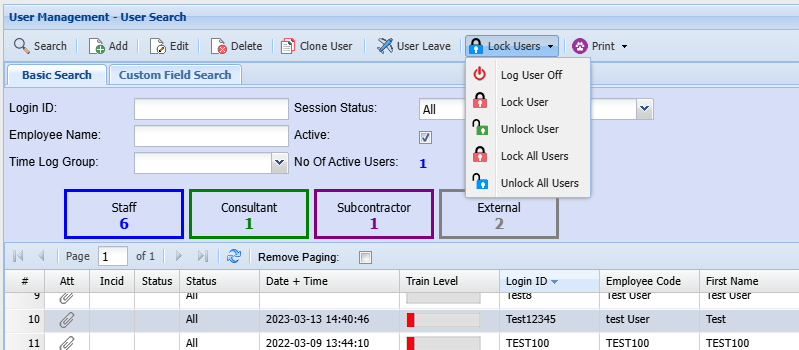
| Log User Off |
This allows the admin user to log out users who logged off abnormally or who forgot to log off |
| Lock User | This allows the admin user to lock out a user from entering the system |
| Unlock User |
This allows the admin user to unlock users locked out of the system or lock themselves from the system Sometimes users try to log onto the system multiple times and receive error code 7 Once a user has error code 7 this is where the admin user can unlock the user |
| Lock All Users | In case it is month end and staff is busy with stock counts or there is a major system update the users are not allowed to sign or log into the system we can lock all users here |
|
Unlock All Users |
Once done with the maintenance or stock takes you can unlock all users by clicking inlock all users |
No Comments