Sales Order Confirm Qty
Confirming your quantity on the sales order can be done in multiple ways.
- Receive quantity single check items
- Receive all quantity
- Barcode scan products to check the correct stock picked and quantity
- Import ScanSKU barcode scan order
Once a sales order is under confirmed status
Go to Debtors Module> Activity> Sales Order Confirm
To confirm quantity click start

Confirm Qty
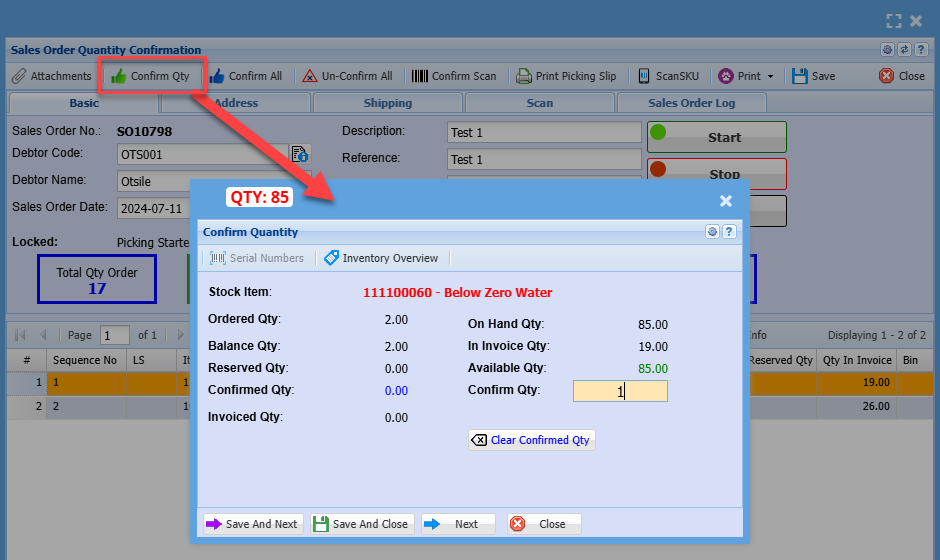
Confirm qty allows you to confirm each stock item based on how much stock needs to be invoiced out or is available to be picked
Click confirm qty
The screen below will pop up
Then confirm all quantities, click next if you do not wish to confirm qty
If you add a number you wish to confirm and click next, the confirmed qty won't save
Click qty add the quantity you want to confirm then save and new to confirm a new stock item
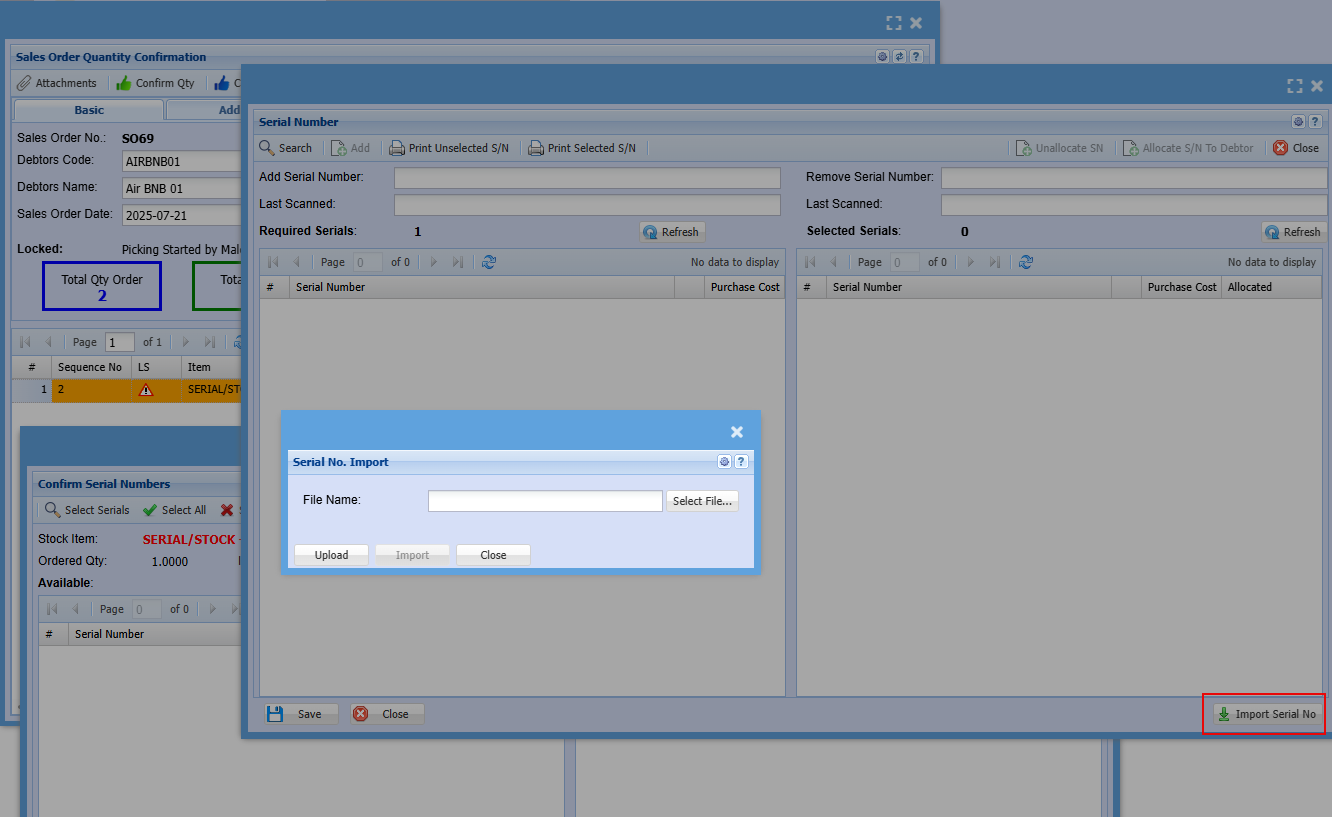
Serial number confirm and import
File is a .csv file layout
First column is SerialNumber
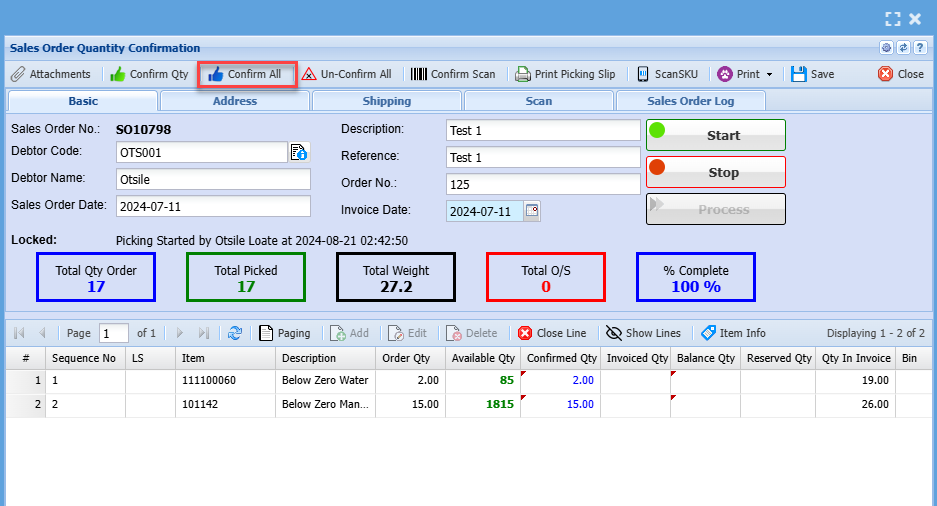
Confirm All
This is a quick button to confirm that all quantities on the sales order are fully received.
Click here for a step-by-step manual on un-confirm All
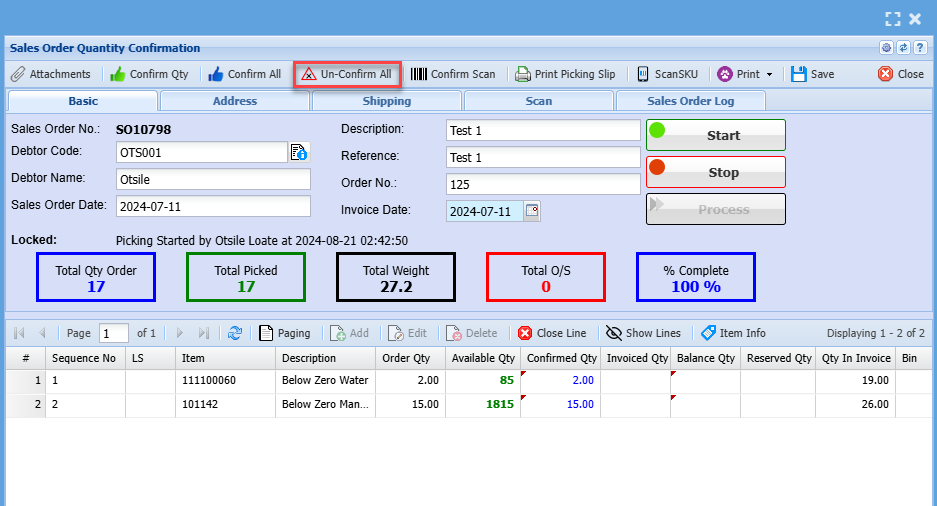
Un-Confirm All
Un-Confirm All allows you to clear all confirmed quantities on a sales order
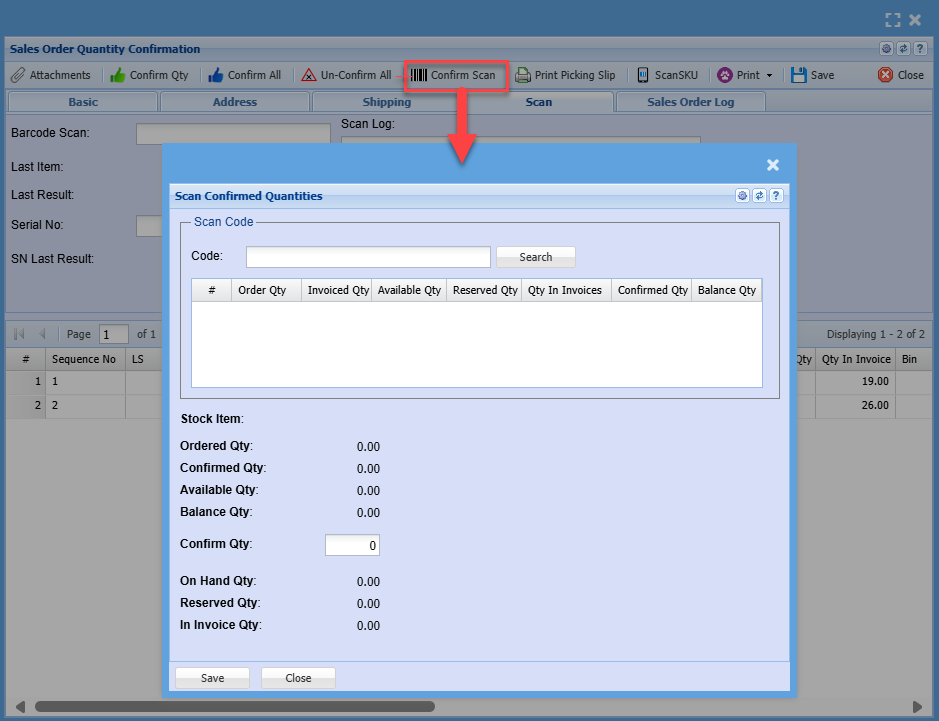
Barcode Confirm Scan
Using a barcode scanner, scan each item to confirm that it is the correct item with the correct picked stock item