
Attachment and Linkit (hyper links)
Attachment Grid Access
The system allows for attachments and hyperlinks to be added to documents.
Everywhere in the system, there is either a button or paper clip symbol on the grid.
.png)
The grid will display a paper clip which will have different colours indicating whether there is an attachment or hyperlink or both
| Paper clip Grey | No attachments or hyper-links |
| Paper clip red | attachments present |
| Paper clip green | hyper-links present |
| Paper clip blue | both attachments and hyper-links present |
Attachment Button
The attachment button can be found across the system where there is a clipboard access.
It allows you to add additional information on a window that you are currently working on in the form of an attachment.
This can be additional documentation, for example, contracts, invoices from suppliers or documentation regarding a stock/ inventory item.
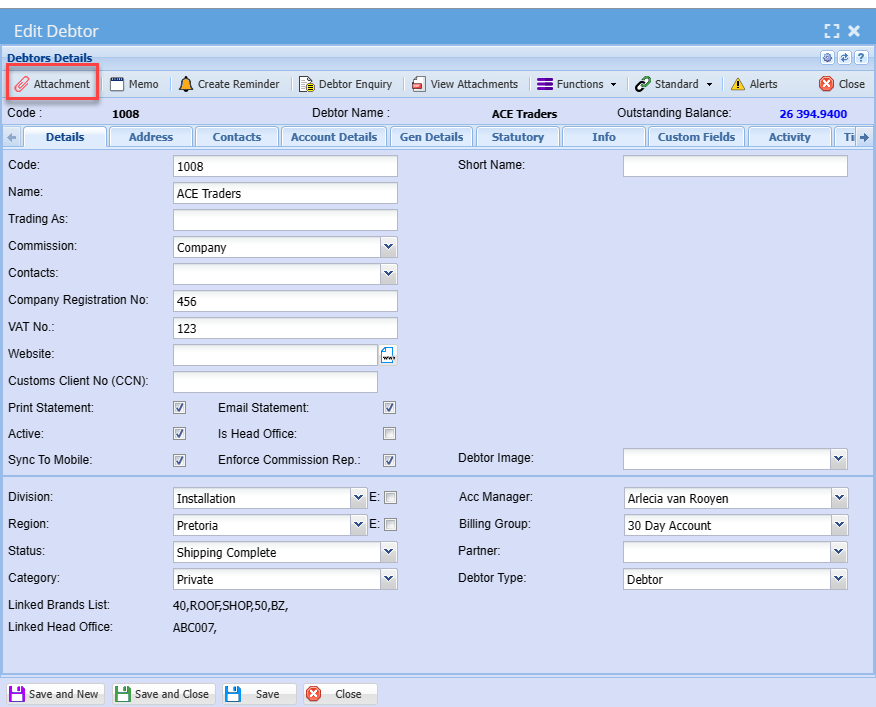
Attachment
After clicking the attachment on the grid or on a specific window on the system it will take you to the window below.
This is where you will be able to add an actual attachment or a hyperlink
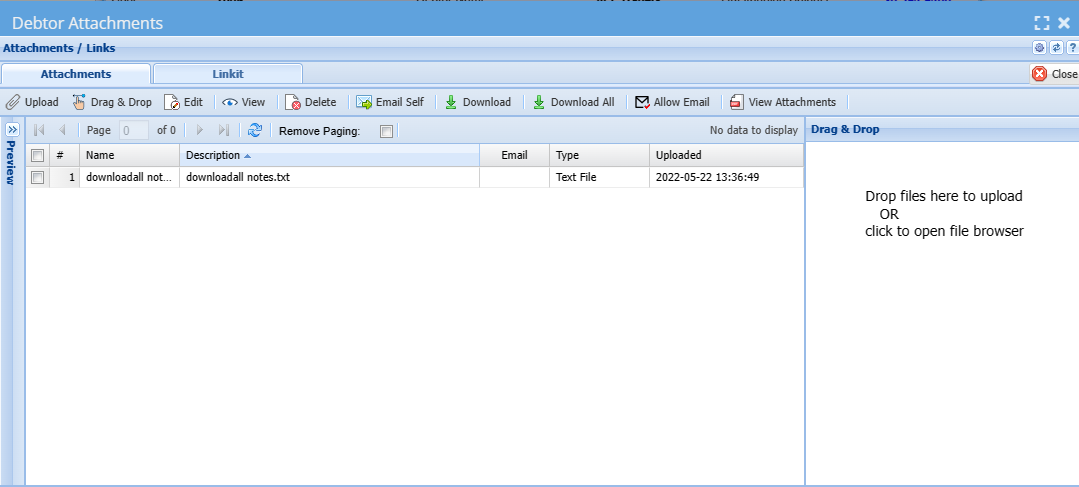
| Upload | This allows you to load an image by selecting it from your computer |
| Drag & Drop | This function allows you to drag and drop an image where it is saved or directly from outlook |
| Edit | This allows you to edit image name, description or file type |
| View | You can click view to view an attachment |
| Delete | This button allows you to delete an attachment id you no longer need to see it |
| Email Self | This will email the attachment directly to your outlook |
| Download | This allows you to download the image directly to your computer |
| Download All | If they are multiple attachments to load you can click on download all |
| Allow Email | This button allows you to put a flag on the attachment to allow email or not allow email |
|
View Attachment |
View Attachment shows a preview of the attachment |
Linkit (hyper-links)
This allows you to add a hyperlink to across the system.
This can be links to more information on the debtor/ customer, Creditor/Supplier or Inventory/ Stock Item or any other document accross the system
.png)
No Comments