Stock Transfer
Stock Transfer (warehouse transfer)
stock can be transferred from one warehouse to another using Stock Transfer within the Webatar App
Create stocka transferStock documentTransfer Document
- Tap on the + sign in the top right-hand corner.
.png)
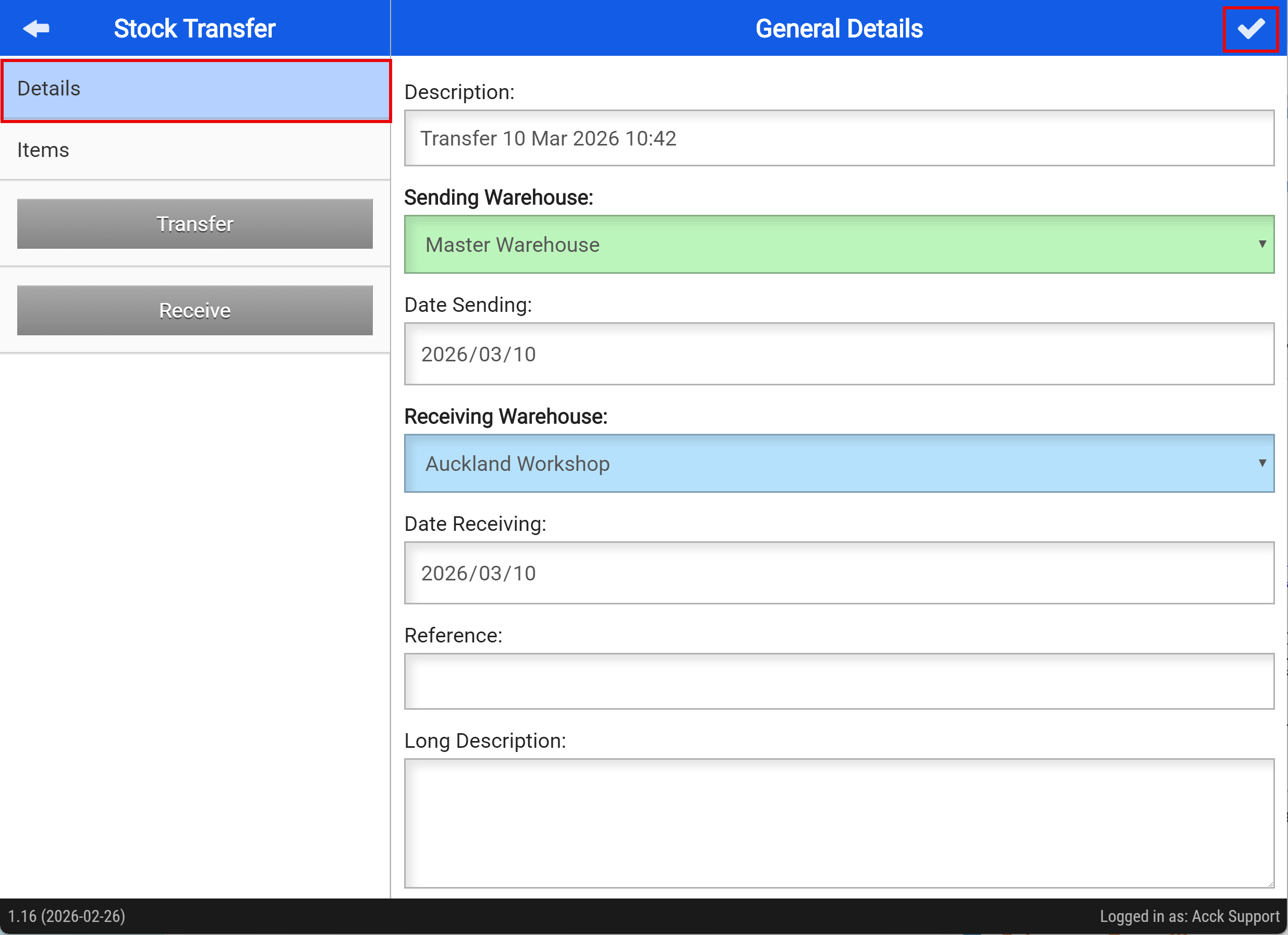
Details:
- Add a description for the stock transfer
- Select the warehouse you are sending the stock from
- Choose the date for the stock transfer
- Select the warehouse that will receive the stock
- Enter a reference, if required
- Add an additional description, if needed
- Save your changes by tapping the tick button at the top right
Add Items to your Stock transfer
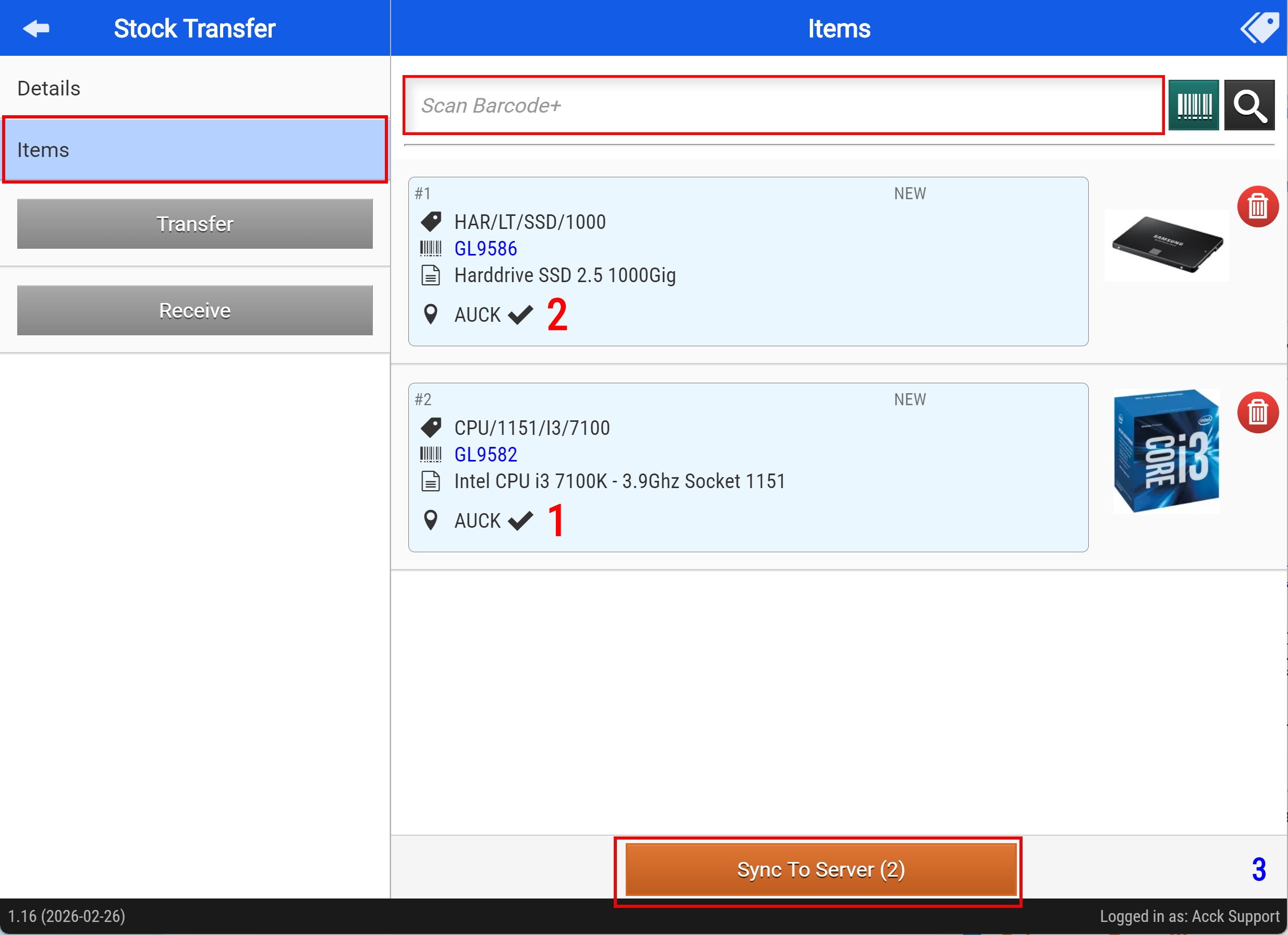
- Click on the items tab
- Scan the items you are wanting to transfer
- Sync to server