Stock Level Adjust
Adjusting stock levels from Webatar app
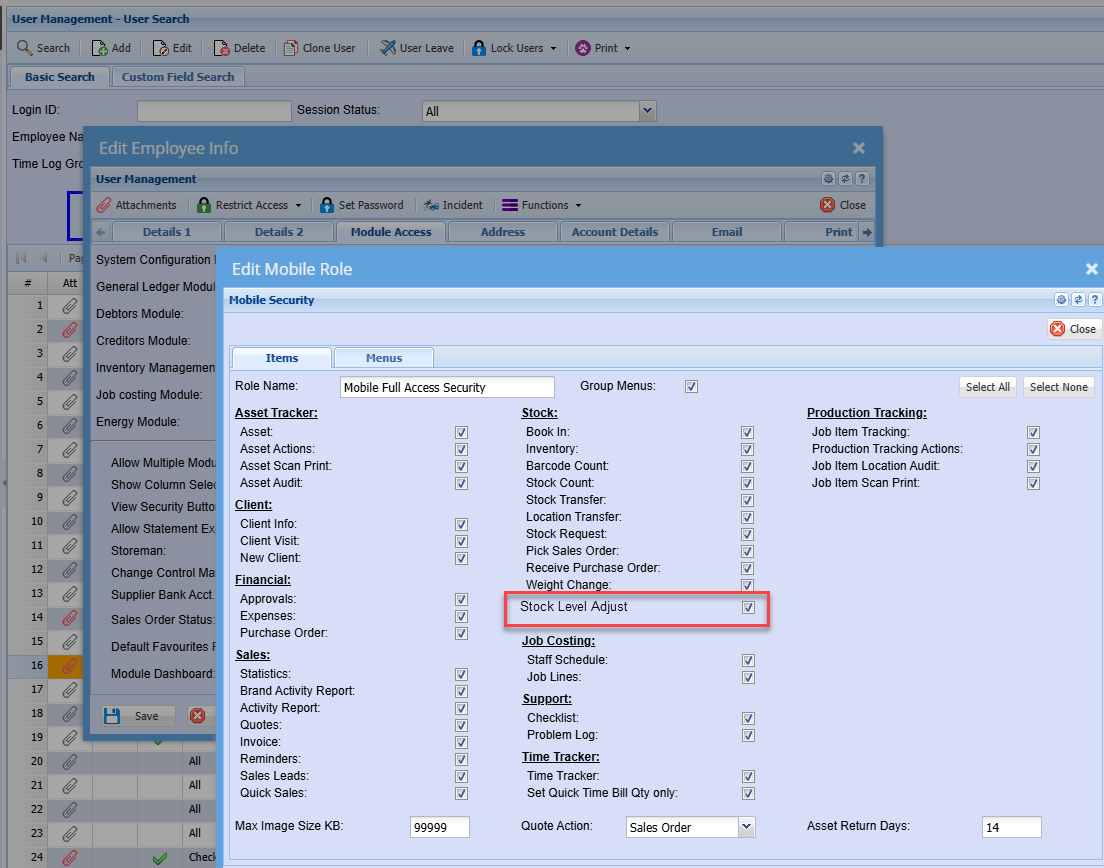
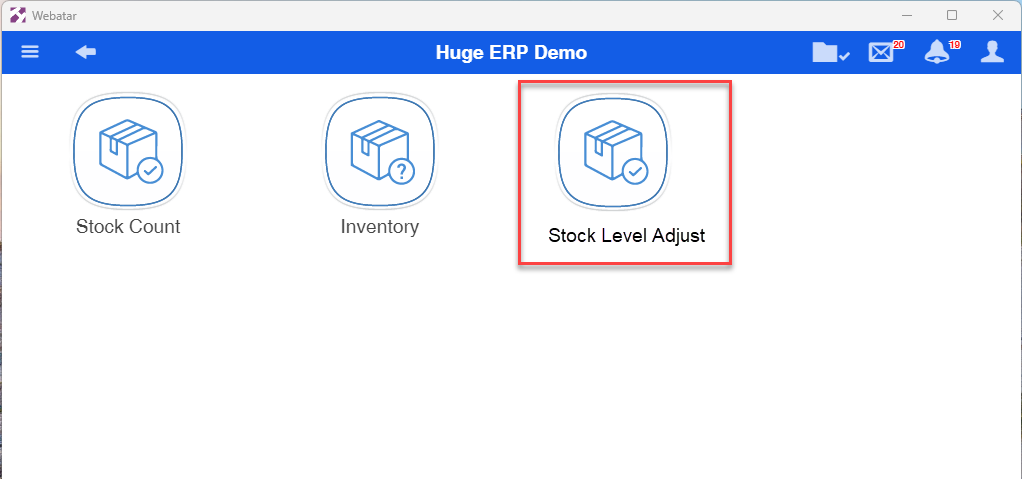
Module access setup
New module falls under the Stock Group
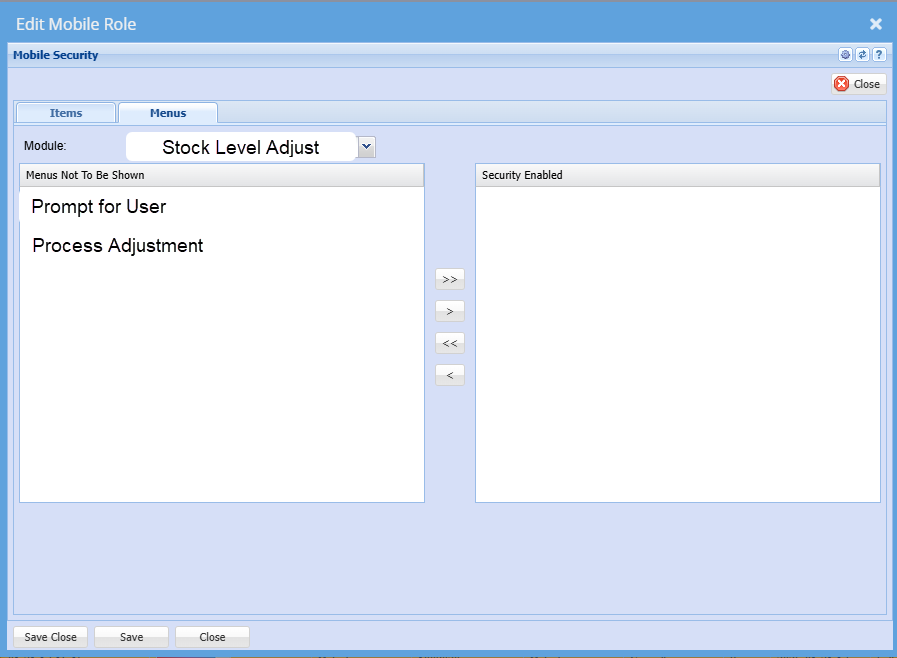
Additional security setups
| Prompt for User | Logs which user captured the stock level and processes this user as the posted user |
| Process adjustment |
Means that when we sync to server you process the adjustment at the same time
It processes adjustment is off, then only save the adjustment.
|
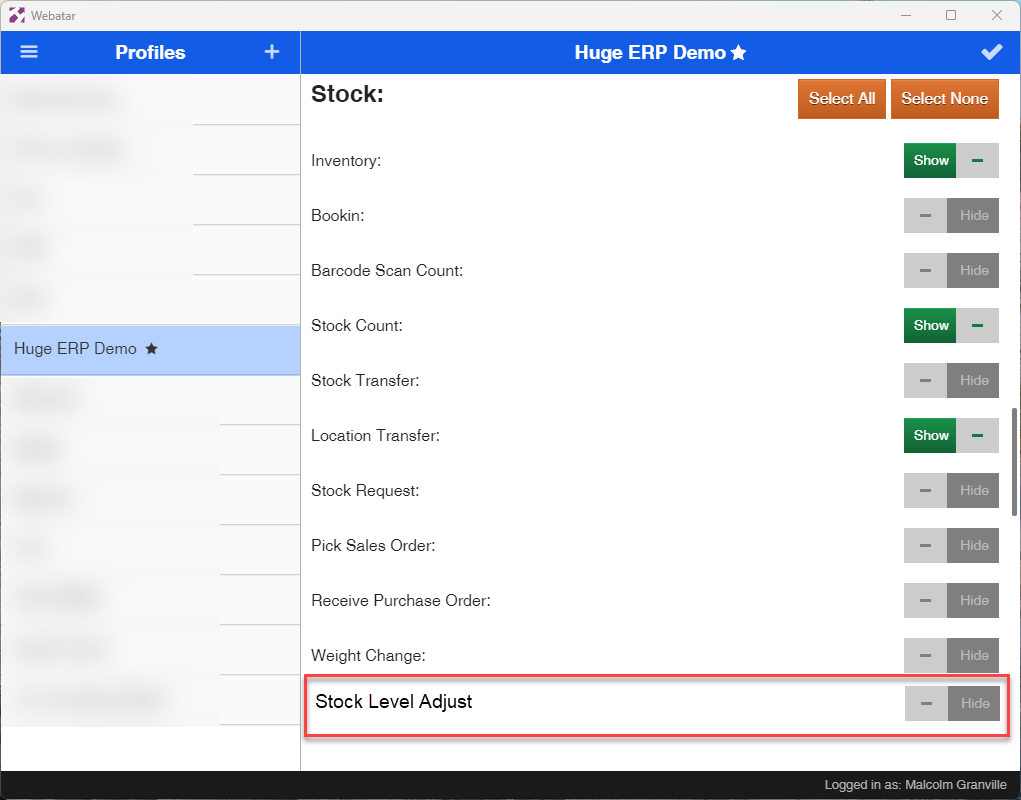
Webatar Security setup
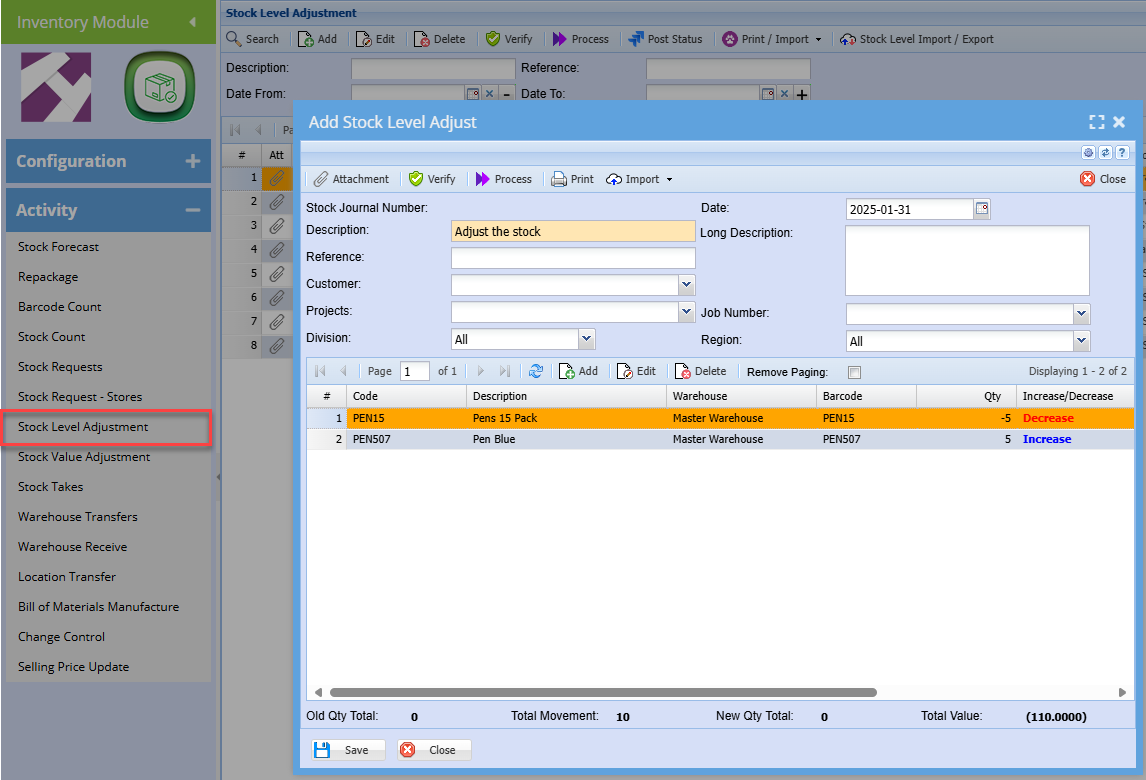
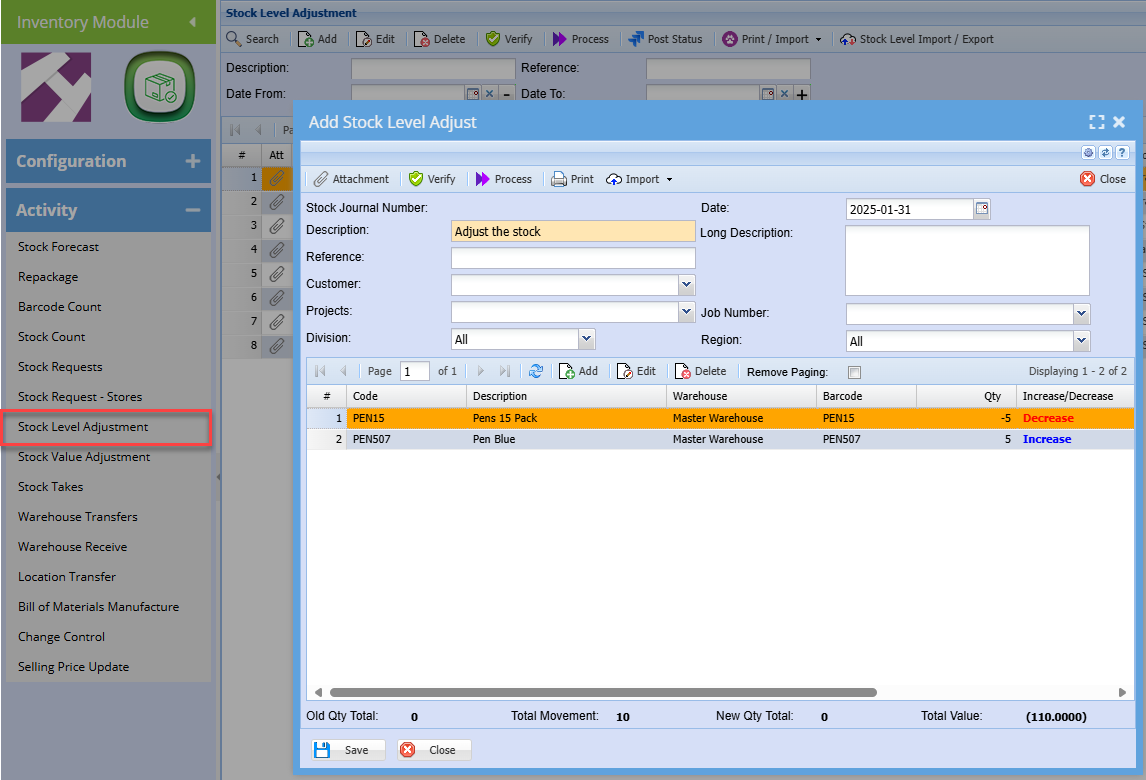
Main system stock level adjustment
The main system used is the stock level adjustment journal
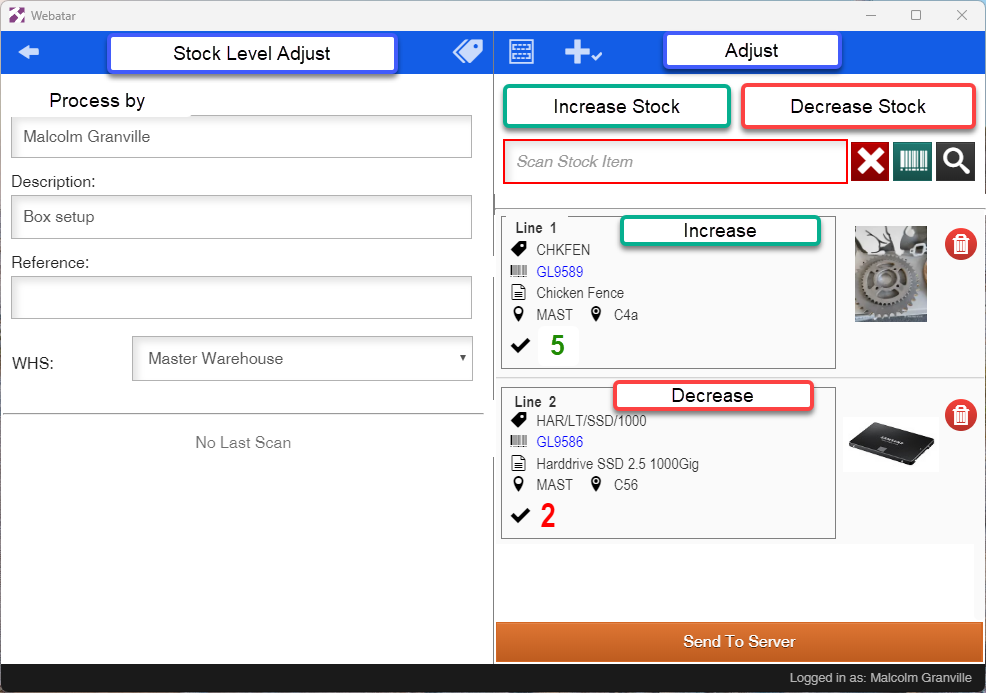
Webatar stock adjust document
| Increase stock button | This is the default setting, when this is active all scanned stock is assigned Increase |
| Decrease stock button | When clicking on Decrease stock and it is active, any stock scanned will be marked as decrease |
| Warehouse | When switching warehouses, it will apply the warehouse to the new scanned items |
| Send to Server | This will either save the stock level or process the stock level adjustment based on the security setup |
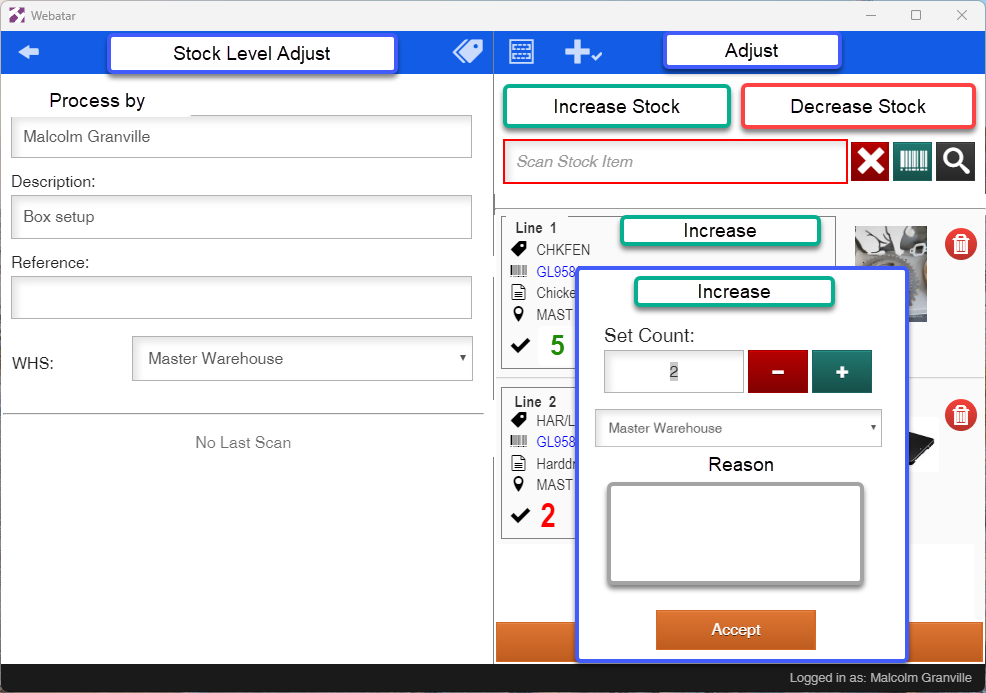
Editing an item
| Increase / Decrease | Click on the button to change increase or decrease of item |
| Set Count | Set the count by manually entering a number or using the + and - button to change count |
| Warehouse | Change the warehouse of the item |
| Reason | Enter a reason for the adjustment |
| Accept | Accept the changes |
Main system
The stock level adjustment will create a document in the main system with stock level adjustment