
User Setup Process
To setup new users to access the system, go to:
System Configuration Module >General >User Setup
The following screen will appear
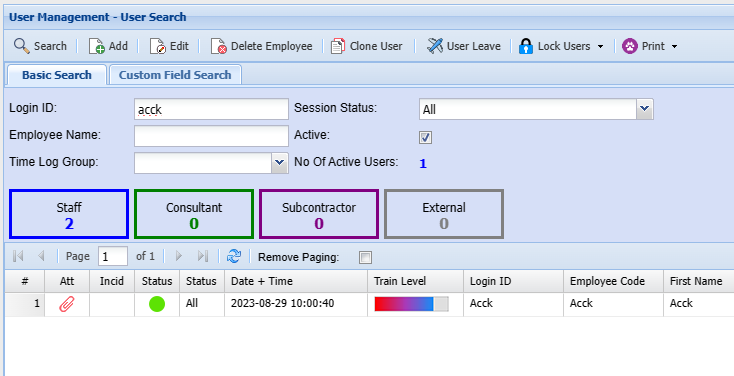
To add a new user, click on the Add button and the screen below will appear
This is where you add all necessary details about a user and setup their security
Functions Buttons
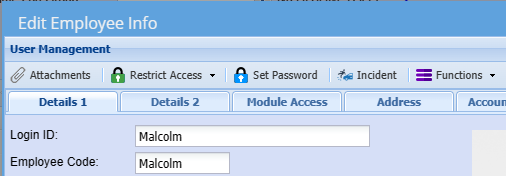
| Attachments | Here you can add any documentation or photos related to this user |
| Restrict Access | Manage the users access to certain modules |
| Debtor Access |
Restrict access to debtors |
| Asset Category Access | |
| CRM Customer Access | |
| Set Password | Set a login username and password for each user / Reset a password |
| Incident | |
| Functions Menu | |
| Branch | |
| Division | |
| Region | |
| Department | |
| Function | |
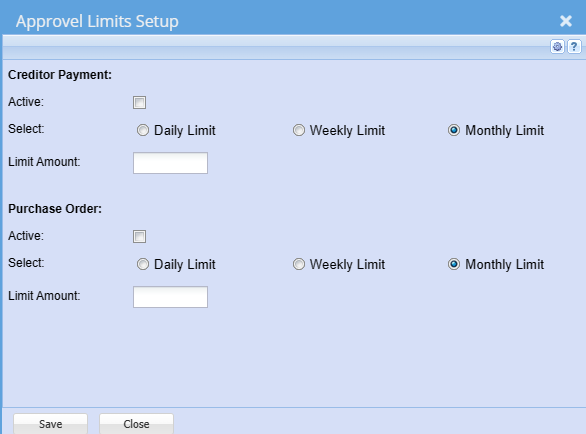
| Approval limits setup | Set approval limits per time period for user |
Approval limits
Setup approval limits by Day, Week or Month
Allowance for Creditor payment and Purchase Order
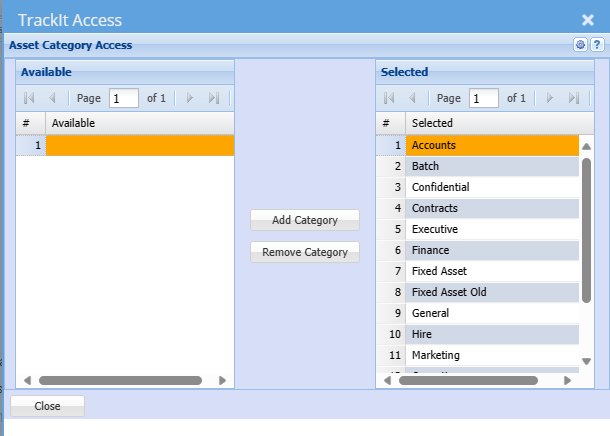
TrackIT Access
Select which categories the user will access to
Minimum should be General and Fixed Asset
CRM Customer Access
Restrict access to customers in the CRM module

Details 1 Tab
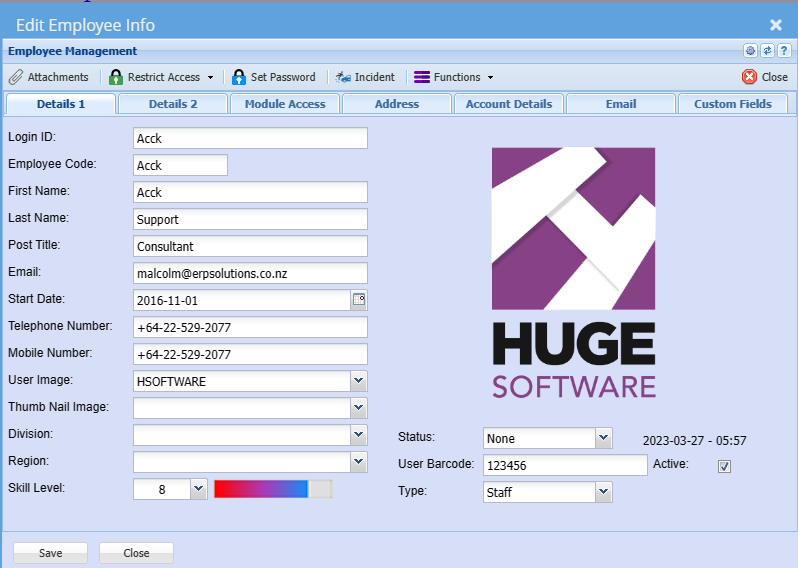
| Login ID: | This is case sensitive when the user logs in. This will be the name which is used when the user logs in. |
| Employee Code: | The users code of the company, usually the payroll code |
| First Name: | First name of the User |
| Last Name: | The Surname of the User |
| Post Title: | Enter the post title of the user |
| Email: |
Enter the work email address of the user This is used to send out emails from the user |
| Start Date: | |
| Telephone Number: | |
| Mobile Number: | |
| User Image: | This is a drop down and only shows Images which have being uploaded as attachments. You can select a default image against the user to show on the right-hand side |
| Thumb Nail Image: | |
| Division: | |
| Region: | |
| Skill Level: | |
| Status: | |
| User Barcode: | |
| Type: | |
| Active: | User is active when ticked, should you take the tick off then the user will no longer have access to the system |
Details 2 Tab
| Primary Branch: | This is the Users primary branch and branch settings will take affect based on the branch selected (see company profiles). Posting of documents will take the general ledger links of this branch. |
| Language: | The language selected here will determine what language profile the user will log onto. (default can be set at company profile level). |
| Timeout Mins: | Time out in Minutes – The default setting is 180 Minutes ( 3 hours). The timeout will log the user out after the period of 180 Minutes if he/she has not worked in the system. |
| Reminder User Prefix: | |
| Reminder Counter: | |
| Contract Default: | |
| Time Log Group: | |
| Activate Messages: | |
| GPS Device No: | |
| Creditors Process: |
| Sales Rep Link: | |
| Sales Rep Link Tick Box: | If ticked will indicate whether the user is a Sales Representative or not. |
| Hide Costs: | |
| Disable Debtors search after first save: | |
| Disable pricing Structure: | |
| Disable Sales rep pricing: | If this field is ticked then the user cannot change the selling prices when invoicing. |
| Line Discount Disabled: | |
| Disable Sales Rep Mark-Up: | If this field is ticked then the user cannot change the markup values when invoicing. |
| Line Discount Range: | |
| Over All Discount Disabled: | |
| Over All Discount Range: | |
| Enable Two Factor auth: | |
| Two Factor Renew Period: |
| Email Type: | |
| Print Page size: | |
| Fixed Layout: | |
| Fixed Print as Default: | |
| Interface User: | |
| Printer Path: |
Module Access Tab

| Allow Multiple Module Windows | When ticked this will allow the user to open multiple Module windows simultaneously for example 3 Debtors Module windows where the user is doing invoicing, adding a new debtor and doing a quote. The default is set to allow the user to open multiple module windows. |
| View Security Button | This button allows the user to set security on each form window in the system. This means you can lock down buttons and tabs per window. The default is set to not active as you do not want staff to change their security access. Only the Administrator should have this ticked. |
| Mobile Access | Tick to allow user to access Webatar mobile business app |
| Mobile Role |
Setup a mobile role for the user |
New Access
Preferred Users button
Select a preferred user, this is used in Webatar when confirming the order

Warehouse access
Setup which warehouses the user will have access to
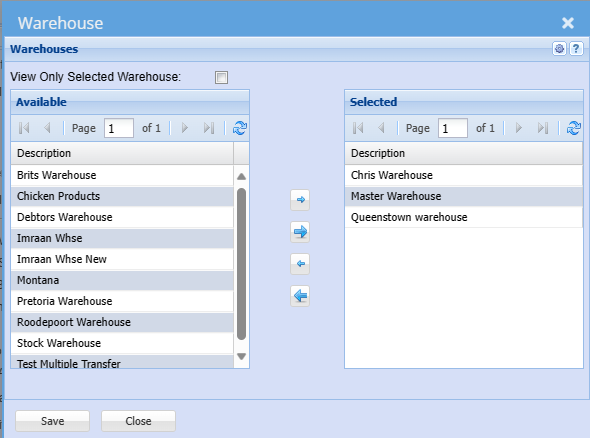
| View Only Selected Warehouse | When tick is on, warehouse searches and drop downs will be limited to selected warehouses |
| Available and Selected | View all available warehouses |
Address Tab
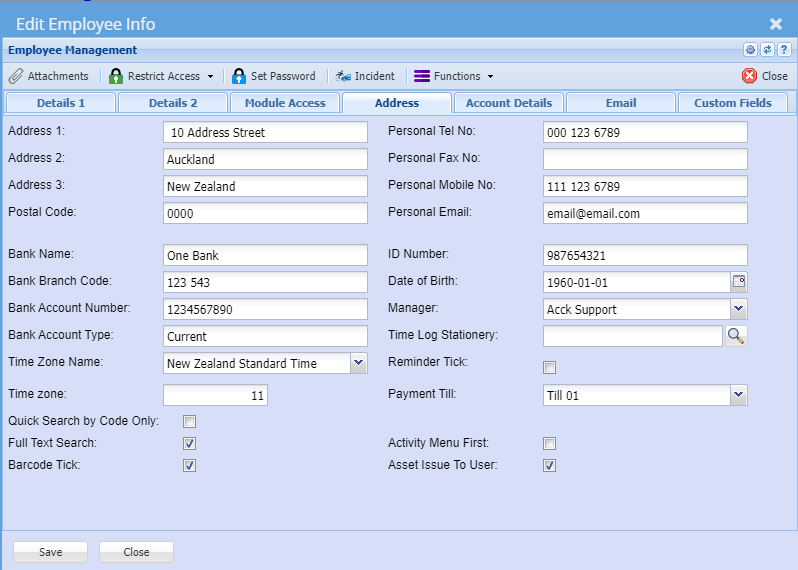
| ID Number | Identity Number of the User |
| Date of Birth | Date of Birthday of the User |
| Telephone Number | Contact Telephone number |
| Cellular Number | Contact Cellular number |
| Email Address | Email Address of the User, this email address is also used as a reply email to emails sent out of the system. |
| Primary Branch | This is the Users primary branch and branch settings will take affect based on the branch selected (see company profiles). Posting of documents will take the general ledger links of this branch. |
| Language | The language selected here will determine what language profile the user will log onto. (default can be set at company profile level). |
| Manager | Select the User’s Manager |
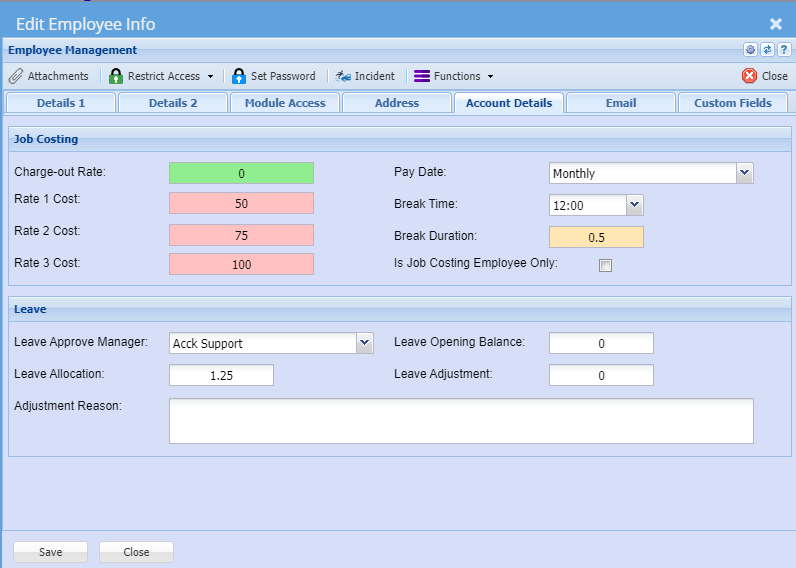
Account Details Tab
Email Tab
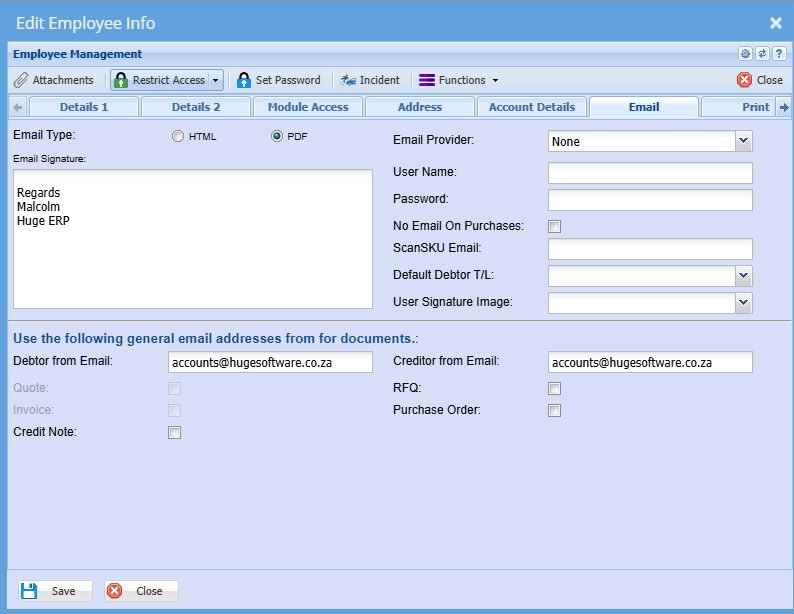
General email from address
Allow emails sent out for Credit Note, RFQ and Purchase order to be sent by a generic emails address
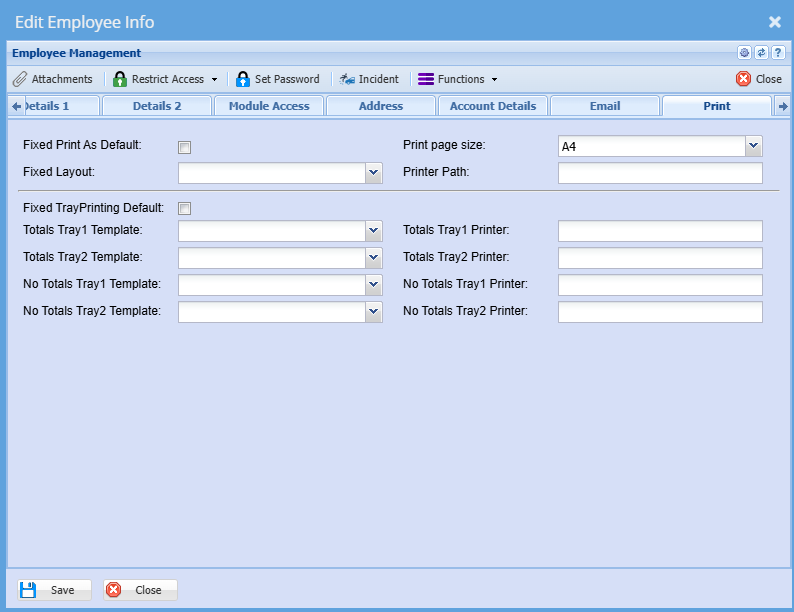
Print Tab
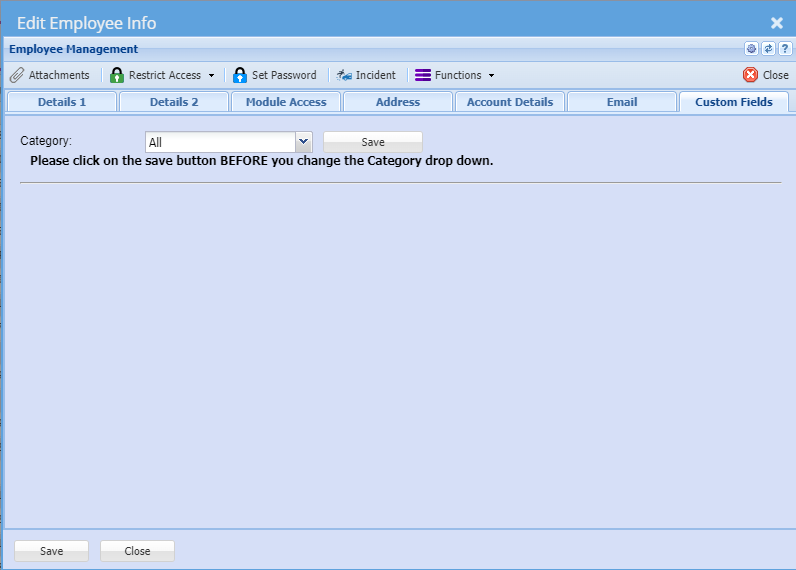
Custom Fields Tab
Original Content - Click Here
No Comments