Account Data Analyse
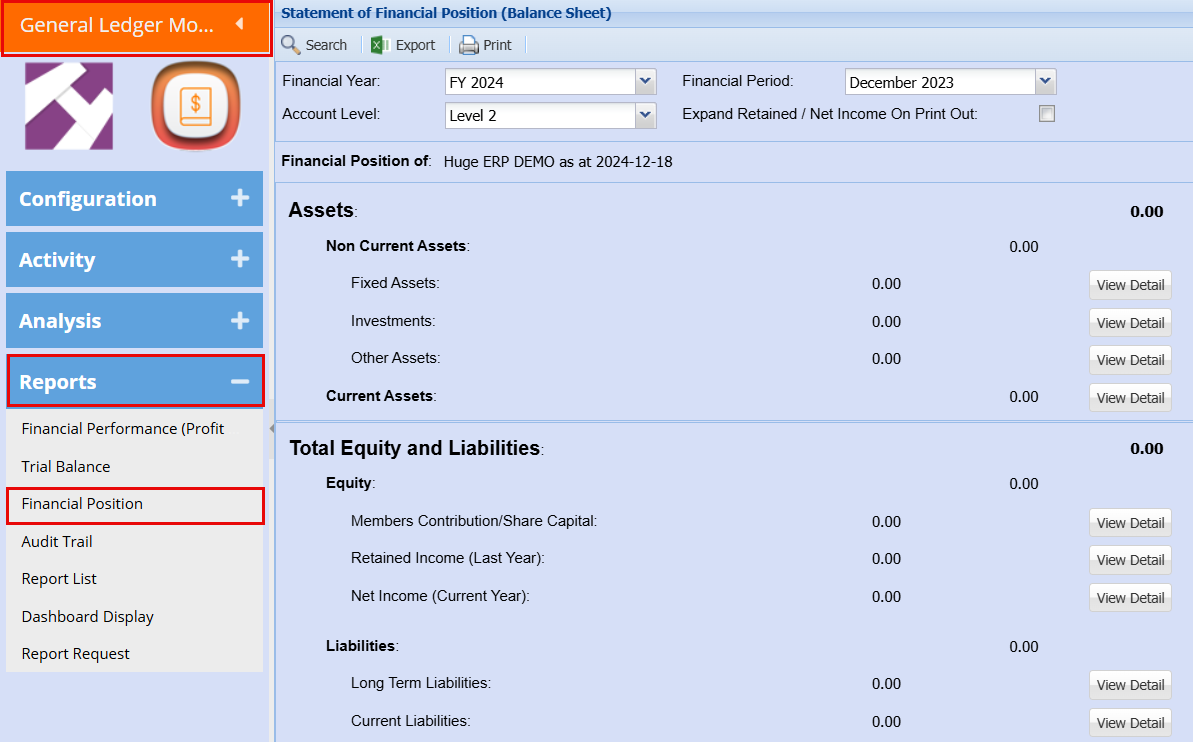
Log into the General Ledger Module > Reports > Financial Position
Search Tab
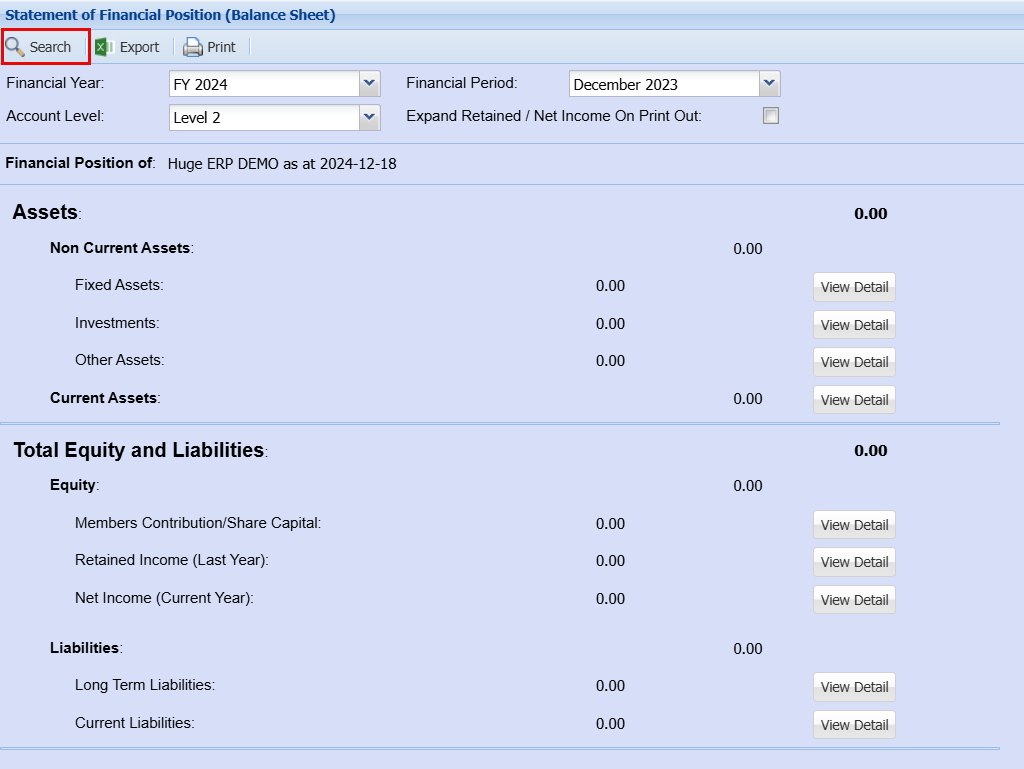
| Financial Year | Select the financial year you would like to pull the report for |
| Financial Period | Select the months you would like to pull the report for |
| Account Level | These levels each have more or less information in the report |
| Expand Retain / Net Income on Print Out | Put this tick on it you would like to include Net Income on Print Out |

Click Search once you are happy with your select criteria, this will populate the figures as shown below.
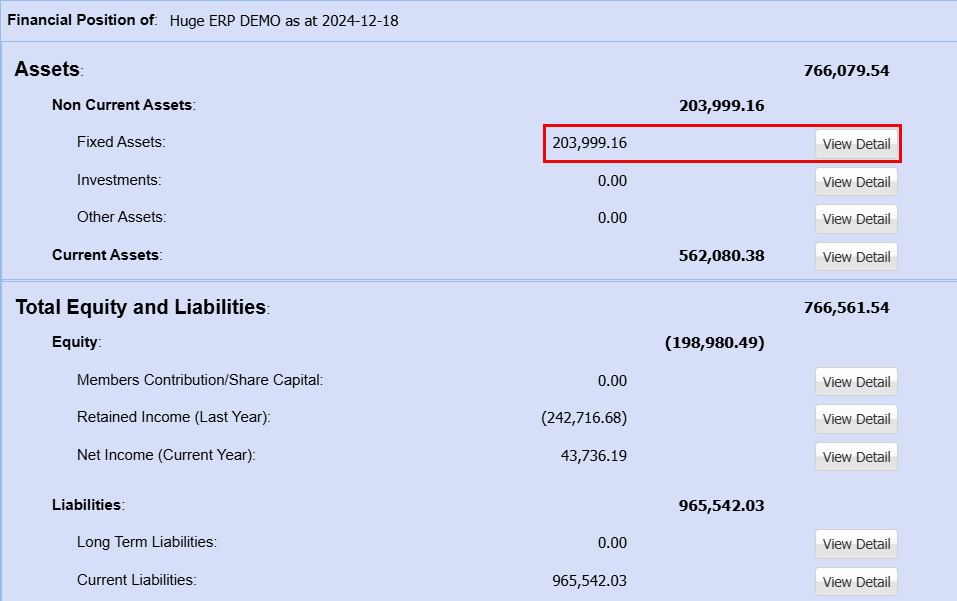
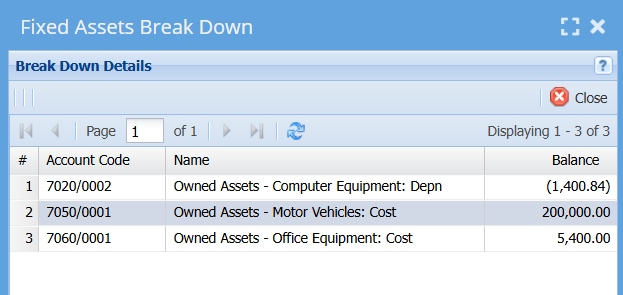
By clicking on "View Details" this will open a new window which will show you a breakdown of what these amounts are made up of.
Print Tab

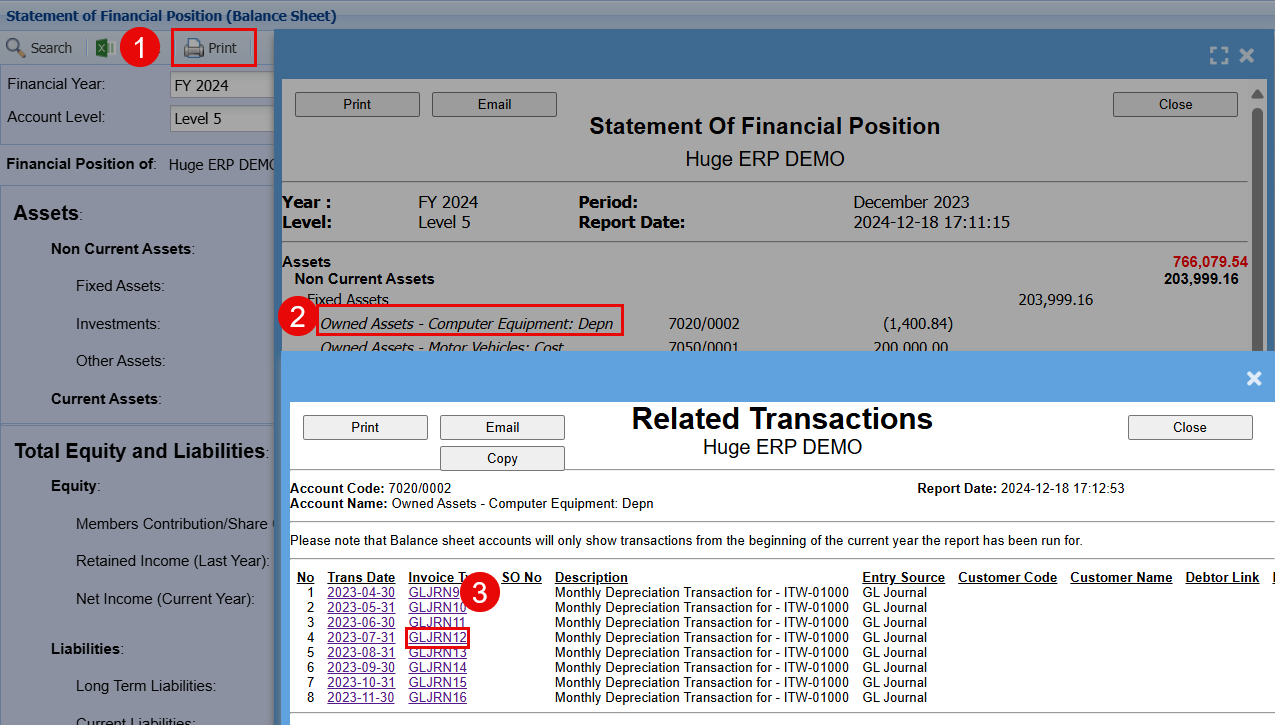
You can Print your Statement of Financial Position
- Click Print - This will open another window showing a further breakdown of the initial screen
- If you click on any of the transaction this will open another window that will expand on the information for all transactions associated with this amount.
- You can then click on the individual Invoice Type to see each transaction in details.
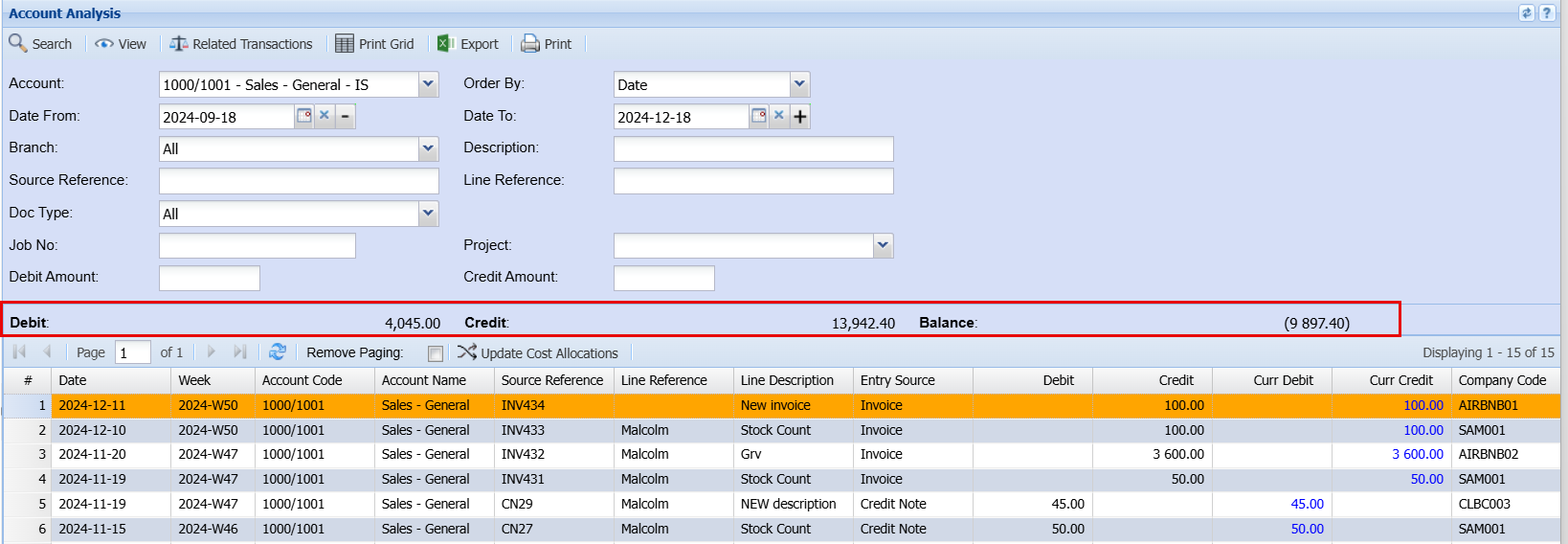
Account Analysis
General Ledger Module > Analysis> Account Analysis
Select an account from the drop-down Menu
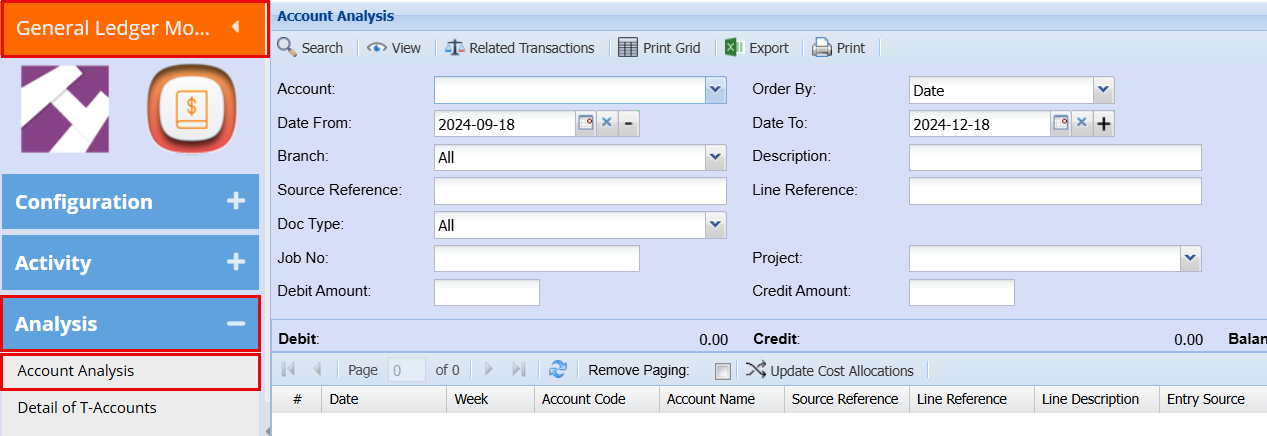
Refine your search using the filters
| Account | Select an account from the drop-down menu that you would like to pull the report for |
| Date From / Date To | Select the date range you would like to pull the report for |
| Branch | When working with multiple branches this drop-down allows the user to select a specific branch to pull a report for. |
| Source Reference | |
| Doc Type | Select a specific document type from the drop-down menu that you would like to pull the report for, Default would be All Document Types. |
| Job No | If there is a specific Job number that you would like to pull a report for, you can add this to refine your search |
| Debit Amount | If you are searching for a specific amount, you can add this to refine your report search |
| Order By | Select an option from the drop-down menu that you would like your report to be ordered by |
| Description | If there is a specific Description you are searching for you can add this to refine your report search |
| Line Reference | If there is a specific Line Reference you are searching for you can add this to refine your report search |
| Project | If there is a specific Project that you are searching for you can add this to refine your report search |
| Credit Amount | If you are searching for a specific amount, you can add this to refine your report search |
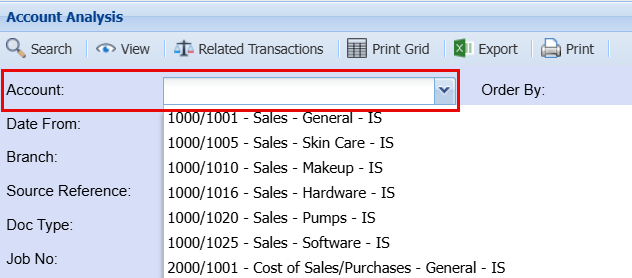
Click Search - This will bring up all the transactions with your chosen criteria.
Here you can also see your Debit, Credit and total balance.
Profit and Loss by Period
General Ledger Module > Reports> Report List
Select General Ledger as your Category
Click Search
Select the Profit and Loss b Period Report from the report list
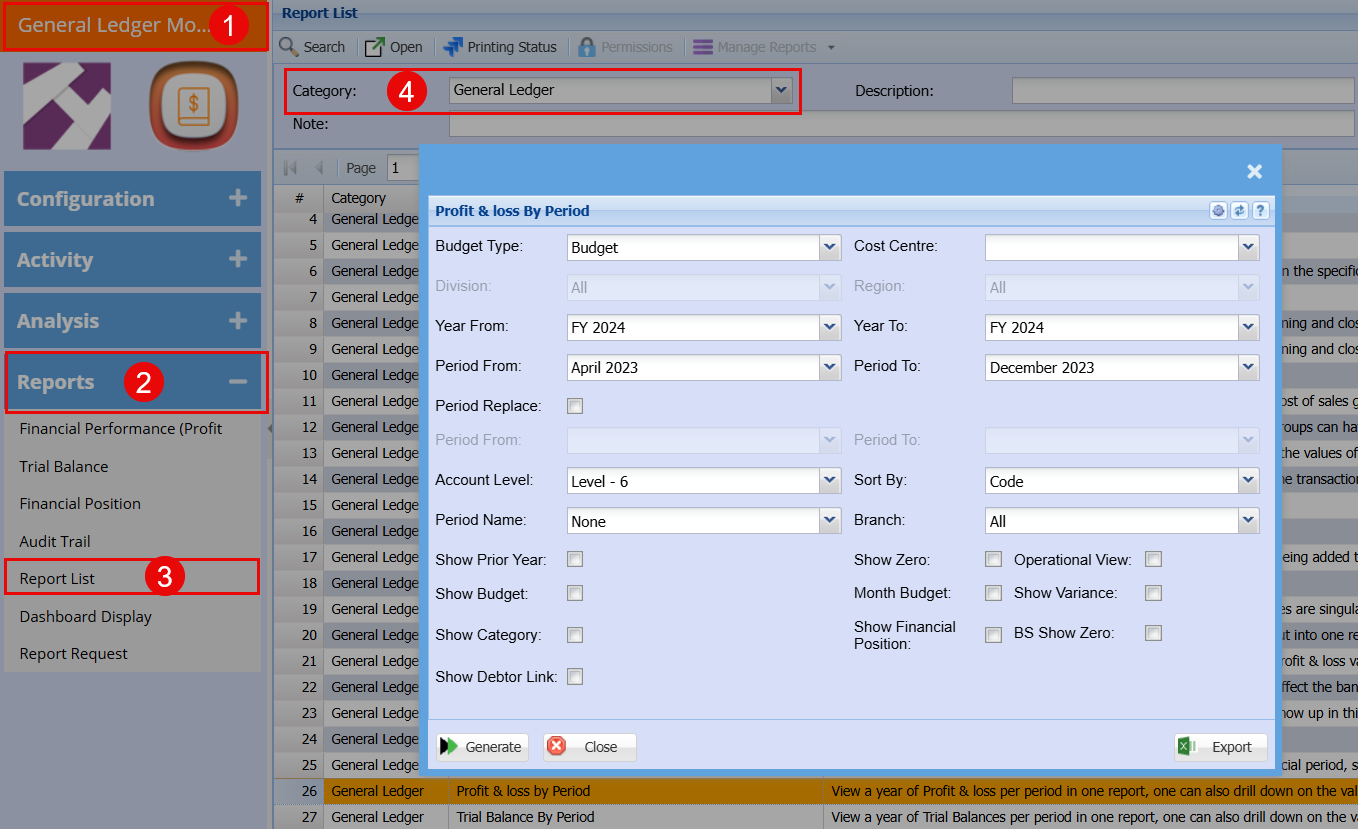
| Budget Type | Select what Budget Type you would like to pull a report for, your options here are Budget or Revised Estimate |
|
Cost Centre |
Select a Cost Centre to pull the report for, your options are Division or Region or Both. Select one or the other will open the field for you to choose a specific Division or Region or all. |
| Division | If you have set up divisions for your debtors, you can pull the report for all your debtors or you can select a specific Division from the drop-down menu. |
| Region | You can pull the report for all your debtors, or you can select a specific Region from the drop-down menu if you have set up Regions for your debtors. |
| Year From / Year To | Select the year From and Year To Dates from the drop-down menus will show results specific to the period you have selected. |
| Period From / Period To | Select the period From and the Period To from the drop-down menus |
| Account Level | These levels each have more or less information in the report |
| Period Name | |
| Sort By | Choose from the drop-down menu how you would like your report sorted, your options are by Code or Name |
| Branch | Select the brand from the drop-down menu to refine your search for your report. |
| Tick boxes | By ticking the tick boxes, you will have an extra column in your report with this added information |
| Generate | Click the "Generate" button to open the report. You will have options to copy, email, or print the report. To view the report in an Excel document, copy the report and paste it into an Excel file. |
| Close | Clicking close will close this window |
| Export | This allows you to export the report to an Excel file |
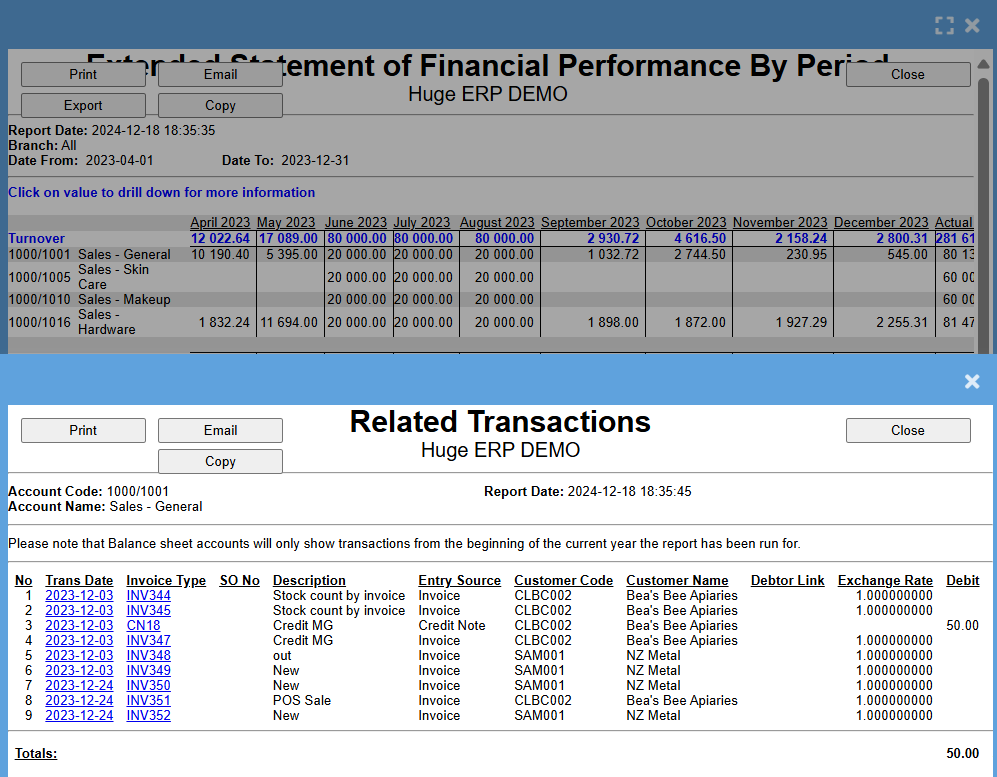
When you click Generate, the Extended Statement of Financial Performance By Period Report will open, here you will also be able to click on individual amount to see which transactions related with that amount.
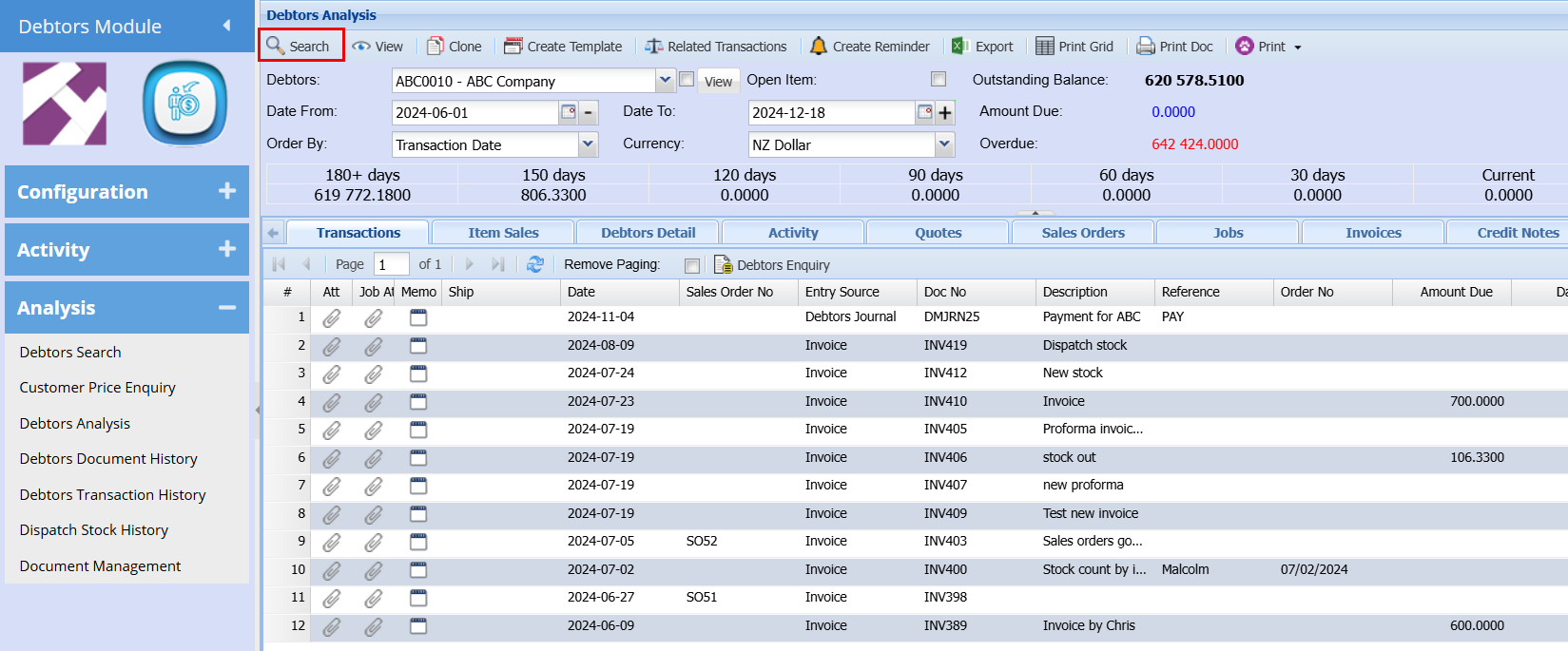
Debtors Analysis
Debtors Module > Analysis> Debtor Analysis
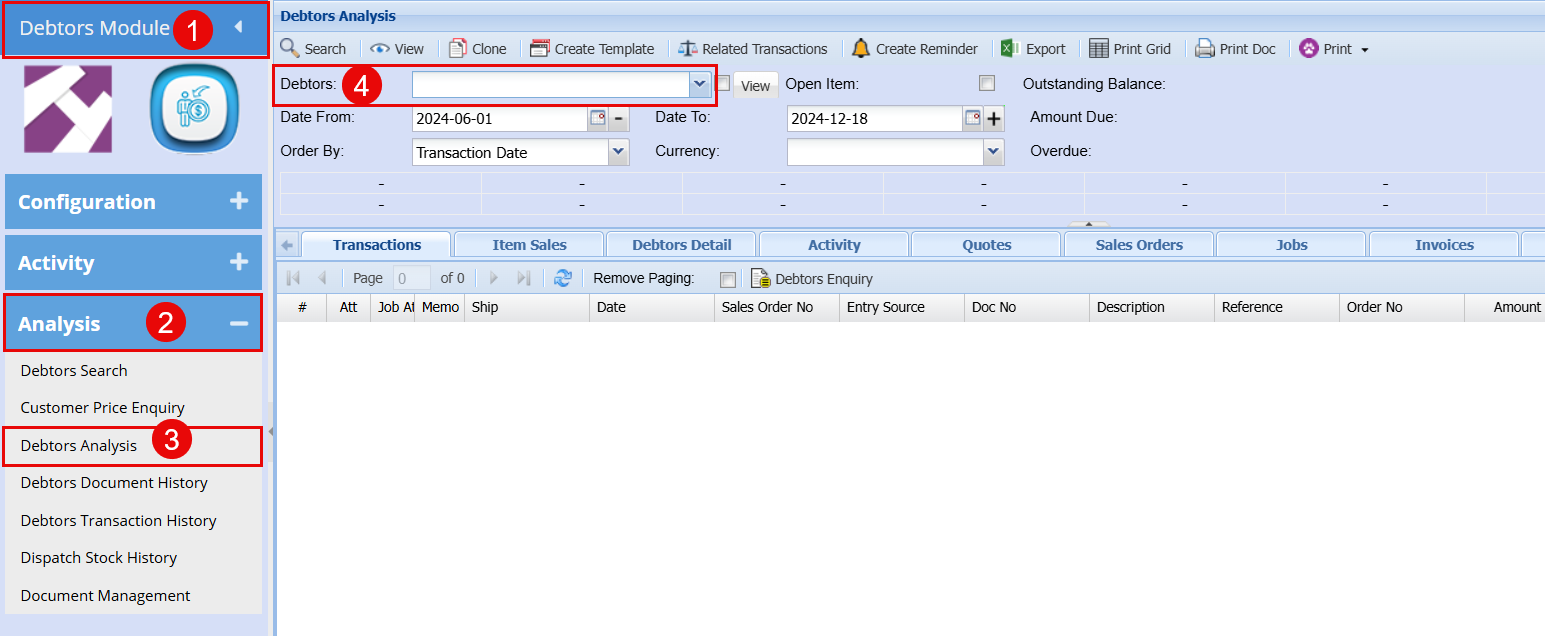
| Search | The search button will search for the items you selected for the search |
| View | The View button allows the user to see the details of a quote or invoice etc. |
| Clone | This button allows you to create a duplicate copy of a transaction |
| Create Template | Save transaction documents as a template to use for similar transactions later |
| Related Transactions | This will show the related transaction of an invoice Quote etc. |
| Create Reminder | A reminder can be created in this field for this debtor or yourself depending on what the purpose of the reminder is for. |
| Export | The export button allows the exporting of data to an Excel spreadsheet |
| Print Grid | The print button will open a quote print selection window and that will allow you to select what you want to have on your printout |
| Print Doc | Click print to print your report |
| Customer | This is where you enter the details of your customer. |
| Outstanding Balances | This is the monies owed to you by this client. |
| Date From and date to | This is the date range that governs the display of transactions against this client. |
| Order By | This is the directive in which you want the information to be displayed. |
| Currency | This is the currency used for this debtor as setup in the debtor’s setup. |
| Total, current, 30 days etc. | This displays the total monies due and at certain periods 4 |
Select the Debtor from the drop-down menu
Select your criteria from the filter options
Click Search - This will show your all the related transactions
Double click on the individual transaction to see more information
Debtor Age Analysis
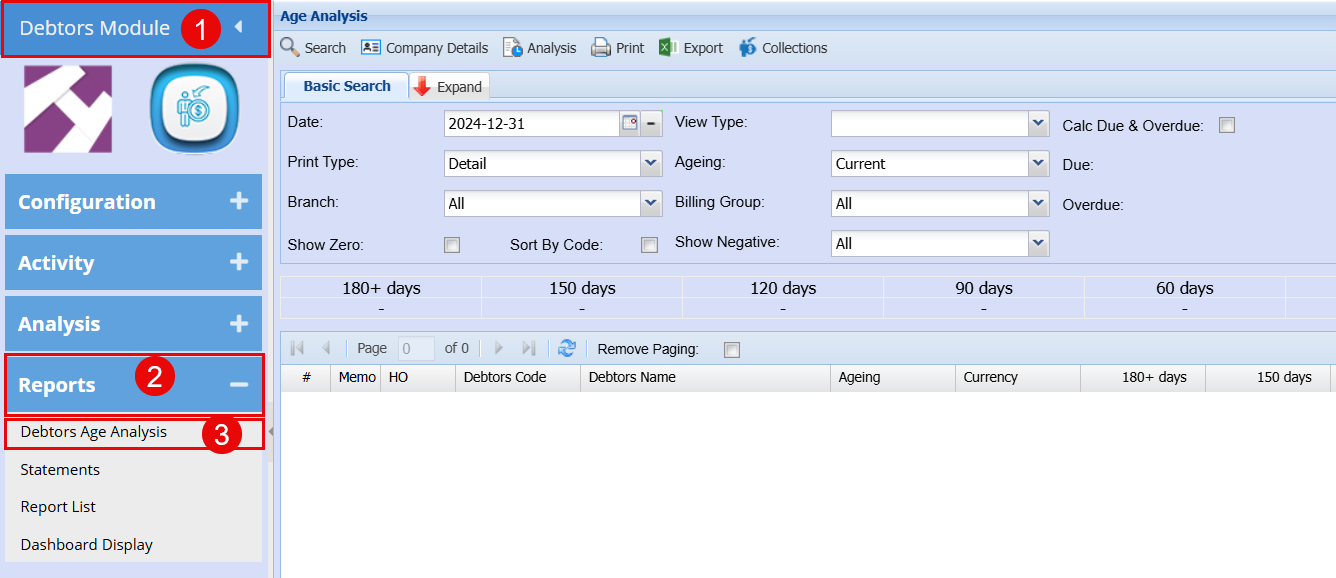
Debtors Module > Report> Debtor Age Analysis