
Stock Count
Create a stock count for stock in and stock out{{@1113}}
VideoOriginal Training 202402Content - Stock_Count_InOut.mp4Click Here
Create counts for
Stock checksStock level adjustmentsStock TakesStock Receive - GRV incoming stockStock Return - out going stock back to supplierInvoice - out going stock to a customerCredit Note - incoming stock from a customer
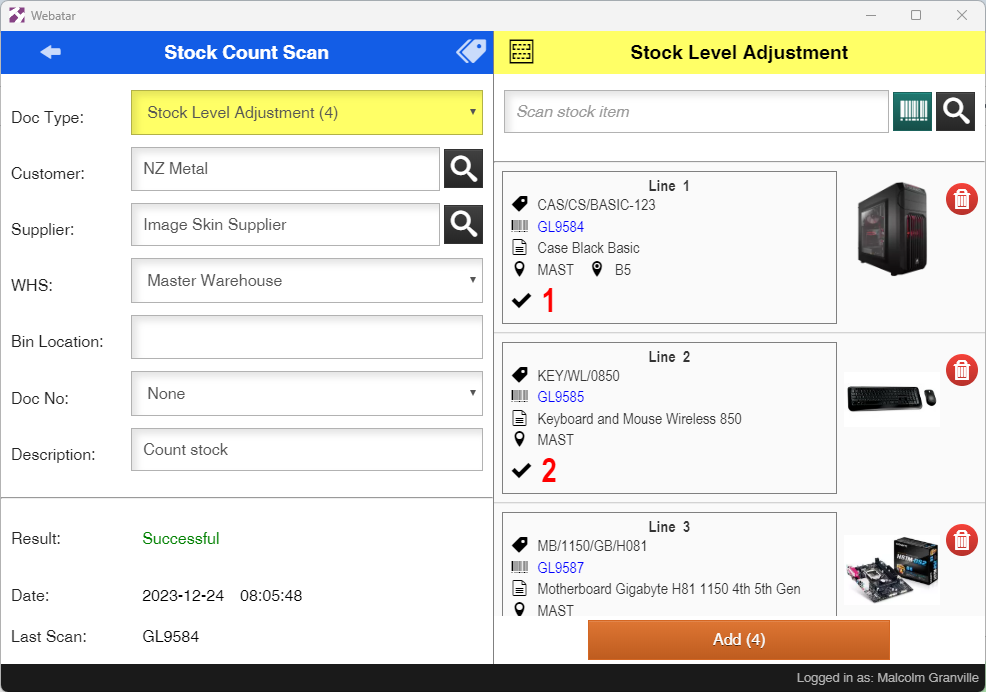
Stock Count with Pricing
Stock count caters for pricing for
Video training 2023/12 - Stock_Count_GRV_Pricing.mp4
Invoice and credit noteGRV and stock return
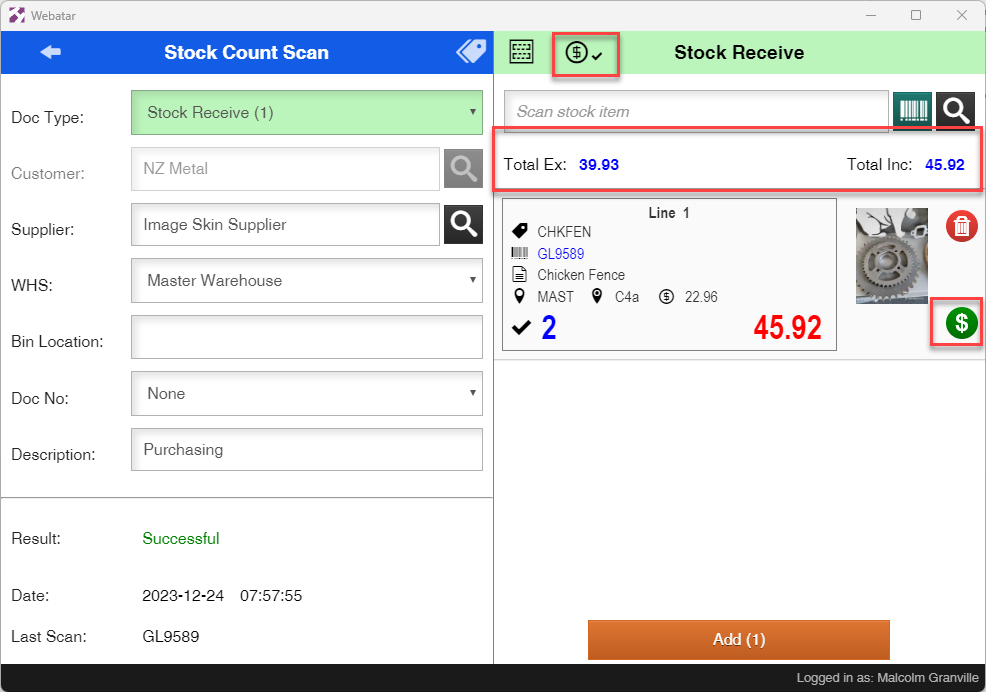
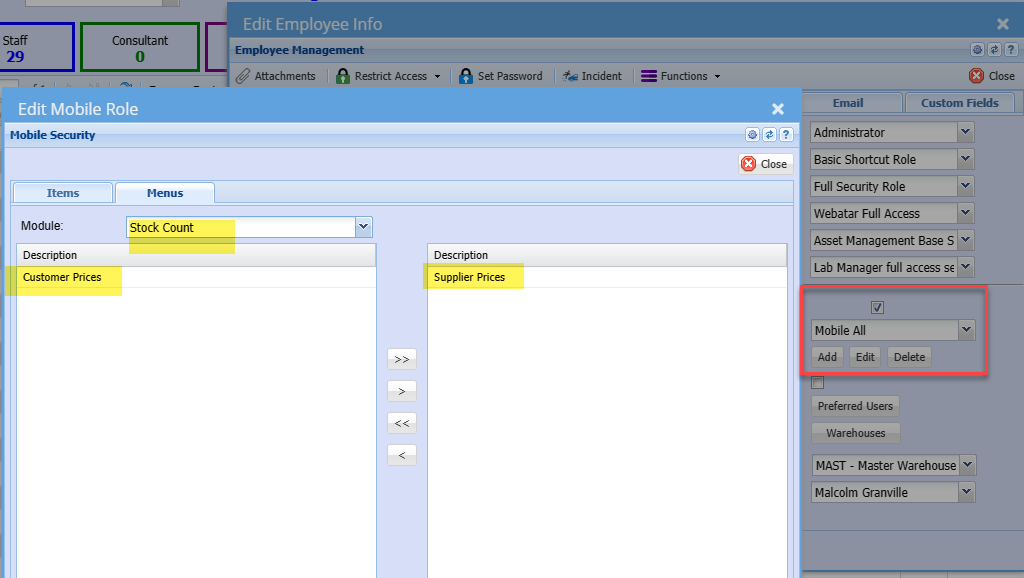
In order to see pricing, set up the security in Webatar for customer pricing and supplier cost prices
Original Content Stock Count | Huge ERP Manual (hugeerp10.co.za)
Inwards Stock - GRV
Create a Stock Count and Receive Stock
There are two methods for Receiving stock, link to each video manual 202311 below
Receive stock (Quantity only) -Stock_Count_Receive_Stock.mp4Receive stock and update prices (Quantity and price) -Stock_Count_GRV_Price.mp4
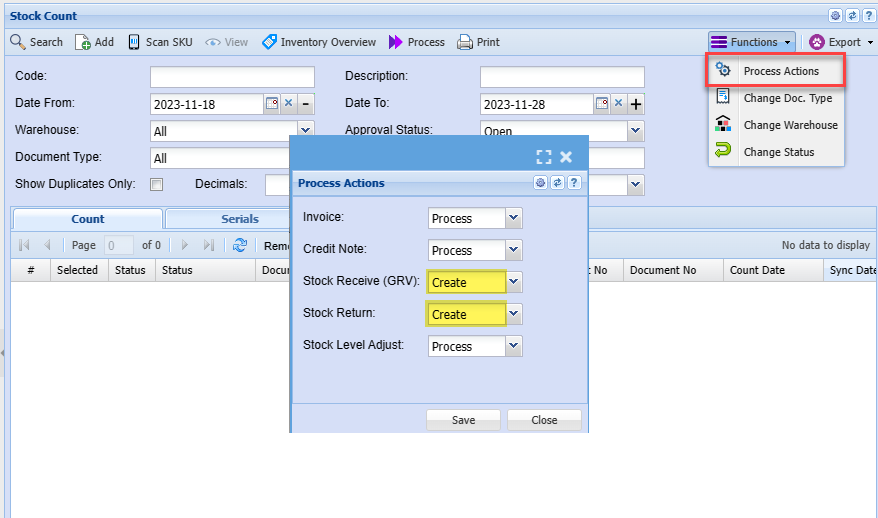
The methods above require a system change in order to run processes.
Receive stock and update prices require two steps
Process actions
Webatar App Stock Receive

{{@1329}}
Original Content Stock Count - ReceiveClick ... | Huge ERP Manual (hugeerp10.co.za)Here
Outwards Stock - Invoice
Stock Count invoice stock out
Training video - Stock_Count_Invoice_Stock.mp4
Webatar App Stock Count - Invoice
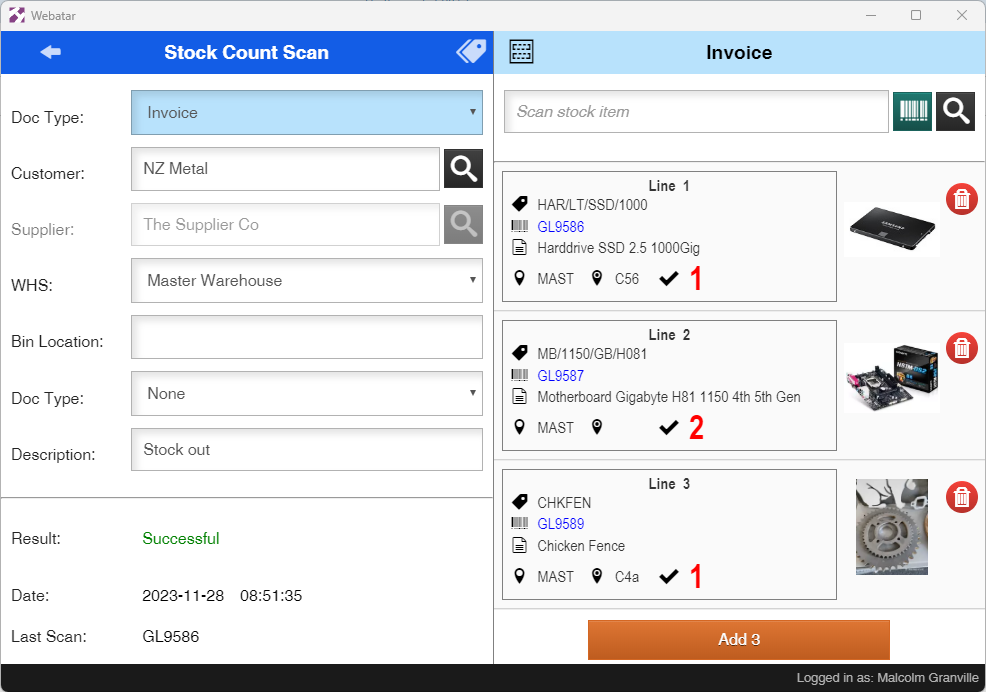
Original Content Stock Count - InvoiceClick | Huge ERP Manual (hugeerp10.co.za)Here
Outwards Stock - Back to Supplier - RTS
Inwards Stock - Return from Customer - CN
Stock Take
Running a Stock Take with the Webatar app
Video training manual 202311 - Stock_Take_Webatar.mp4
Some basic steps are required
Create and activate a stock takeOpen up the Webatar app and syncScan and count stockComplete stock takeClose and Open the Webatar app and sync
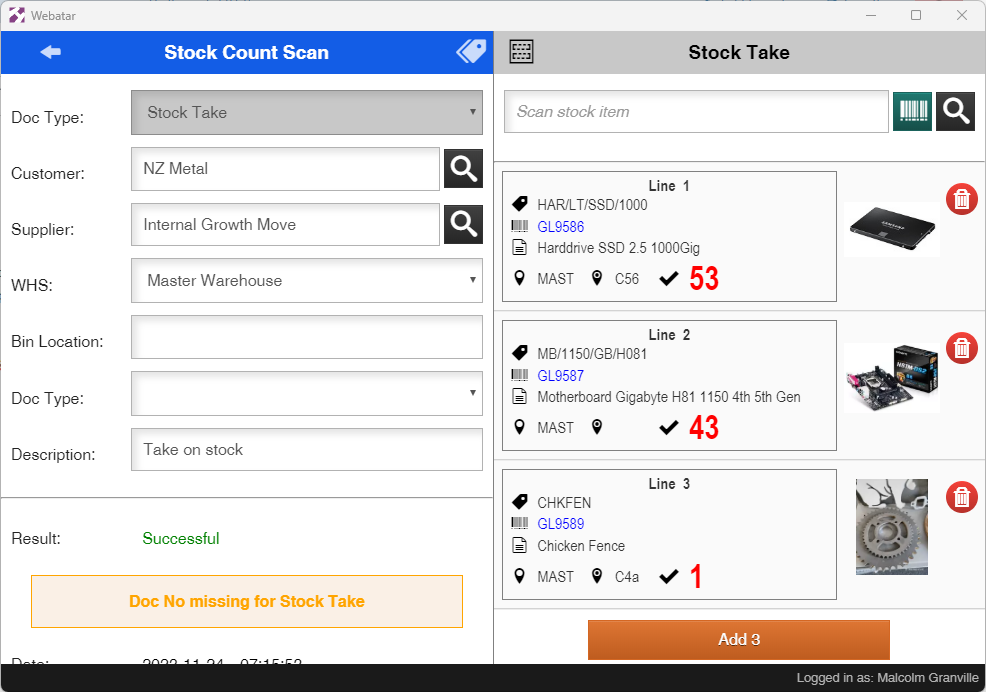
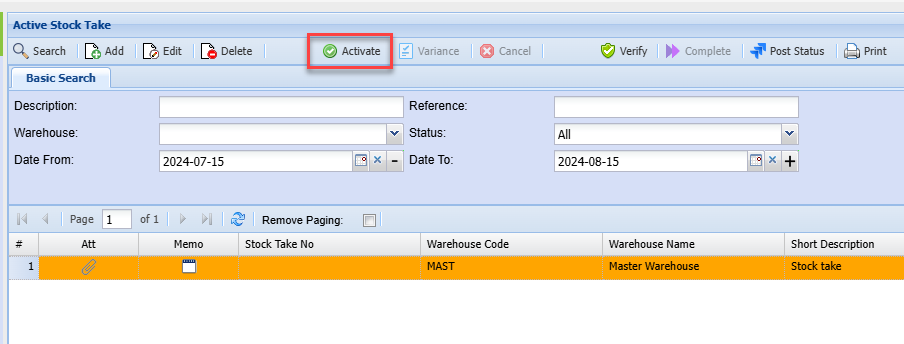
Create and activate a stock take
Go to main system to activate stock take
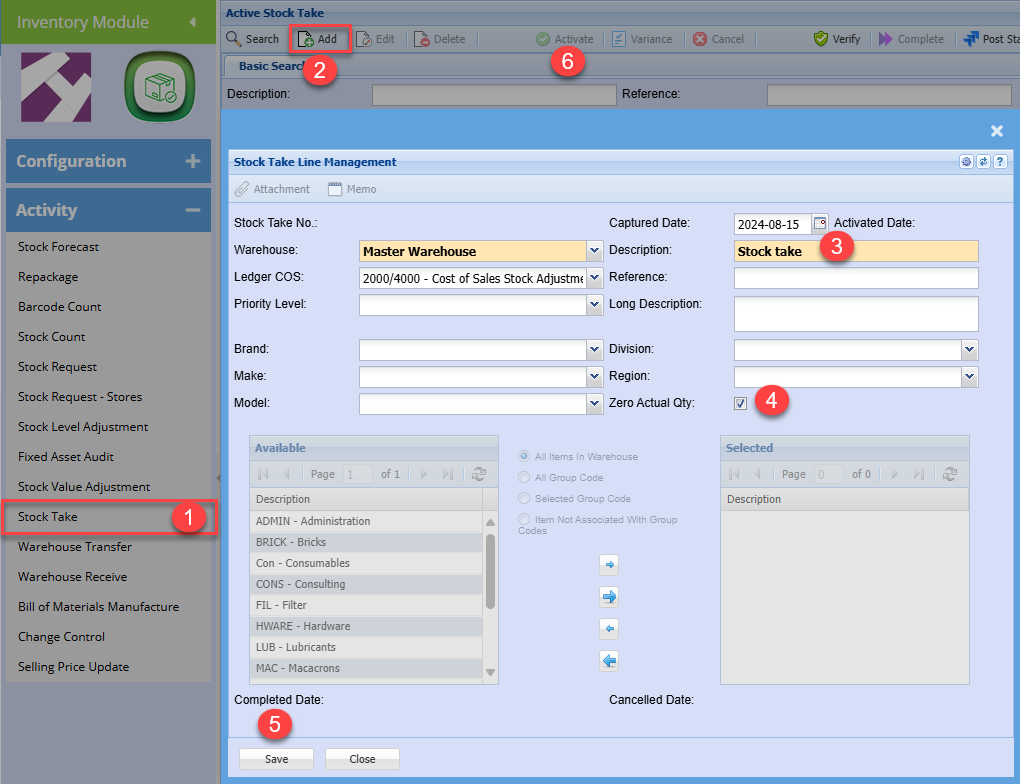
When activating the stock take in main system, it is recommended to tick the zero actual Qty.
Zero actual quantity sets all stock to zero quantity forcing one to count all stock
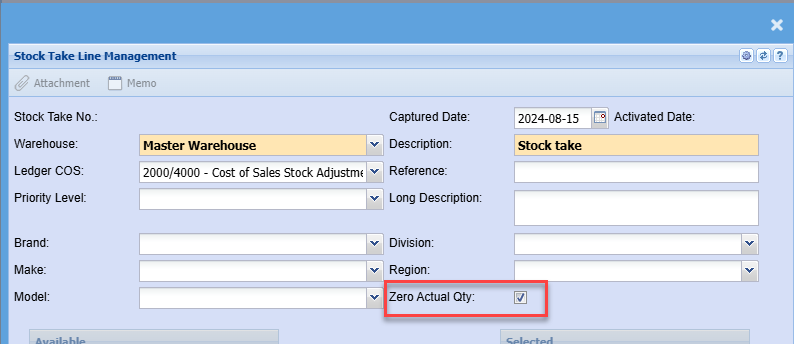
Activate the stock take
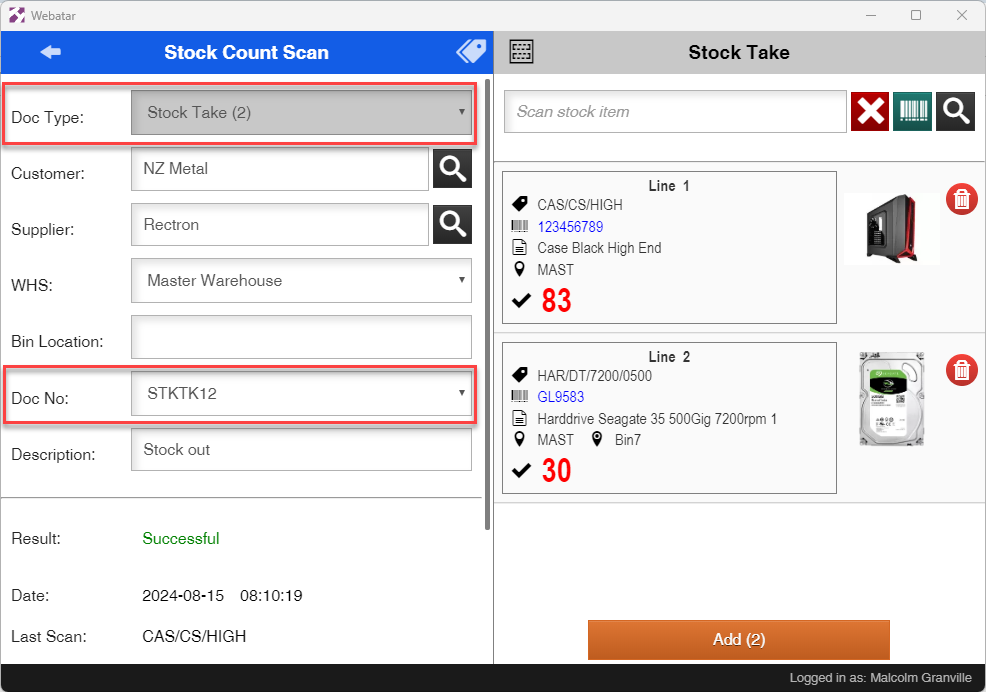
On the Webatar app, sync to server to retrieve the stock take active number
Setting a document number for stock take allows the count to update the stock take directly after sync.
stock take counts will always increment quantities on the stock take.
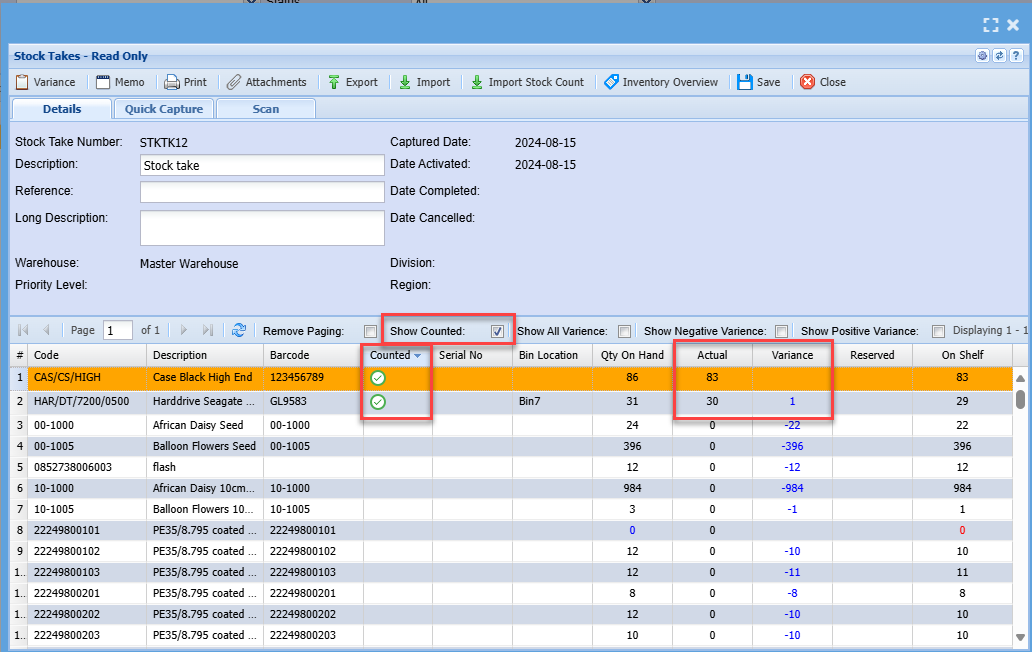
View counts in stock take
To view counts, click on show countered tick box.
By default counted items will disappear off the list.
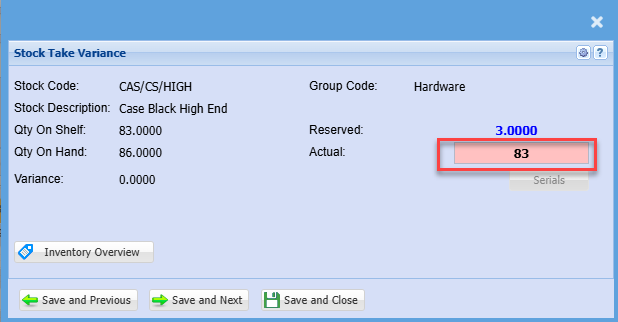
If a count is incorrect corrected in the stock take by double clicking on the line.
Correcting a count
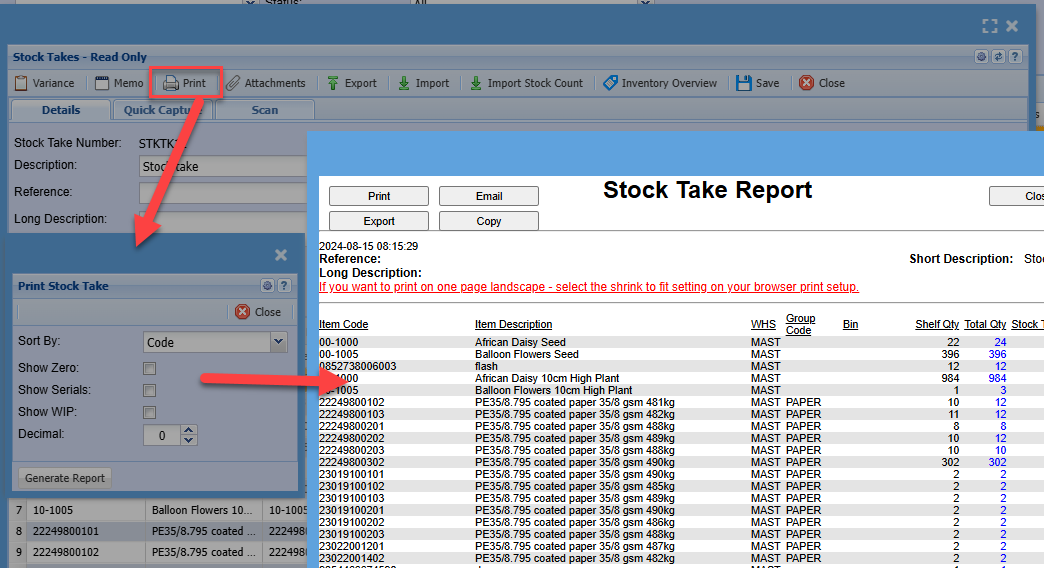
Print out the count to view what has changed
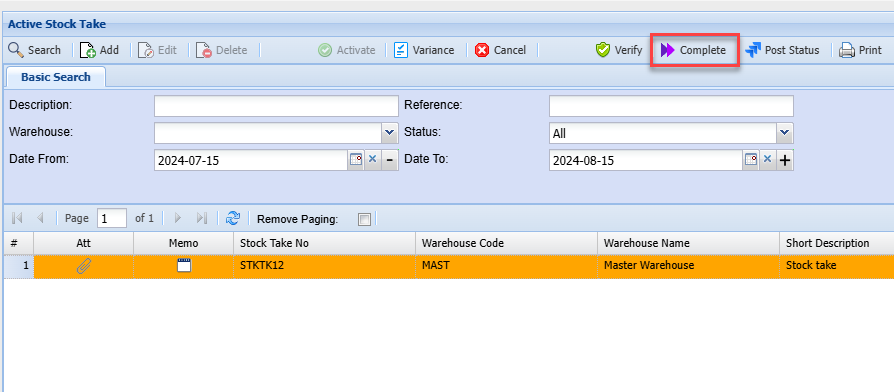
Complete the stock take by clicking on process
View all movement taken place
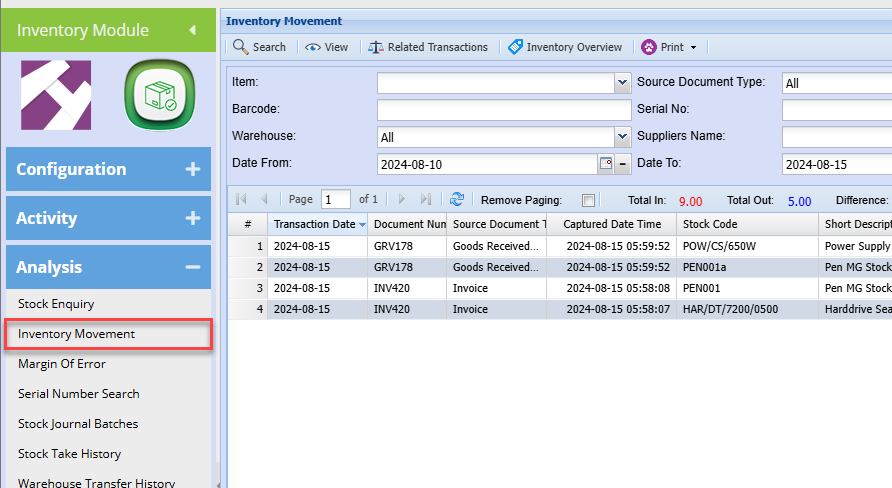
{{@1328}}
Original Content - StockClick Take | Huge ERP Manual (hugeerp10.co.za)Here