
Expense Window Search
Search Button
To search for an existing expense
Go to Financial> Expenses then click on the search icon
As shown below:

After clicking on the search icon the screen below will appear
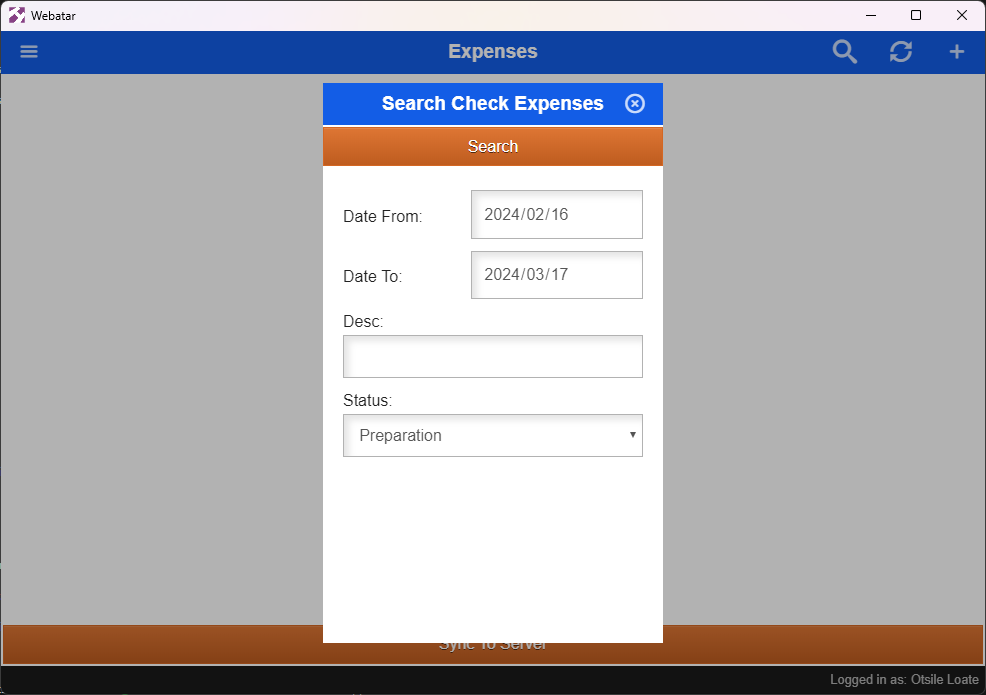
| Date From | |
| Date To | |
| Description | |
| Status | |
| Search Button |
Refresh Button
Refresh button allows you to see a list of all expenses under preparation status

After clicking a refresh button the screen below will appear:
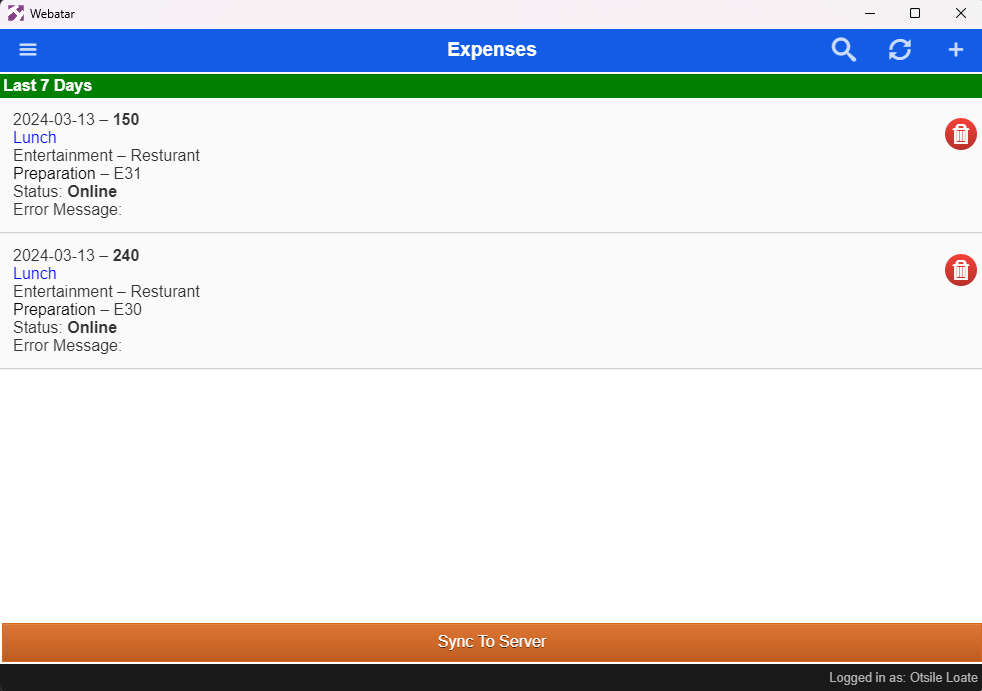
You can open the one that you want to edit or that you want to send for approval.
To add or edit expenses successfully click here