
Expense Window Search
Search Button
To search for an existing expense
You can remove the date and description blank and search by status only. This will bring up all expenses for the status that you are searching by.
Go to Financial> Expenses then click on the search icon
As shown below:

After clicking on the search icon the screen below will appear
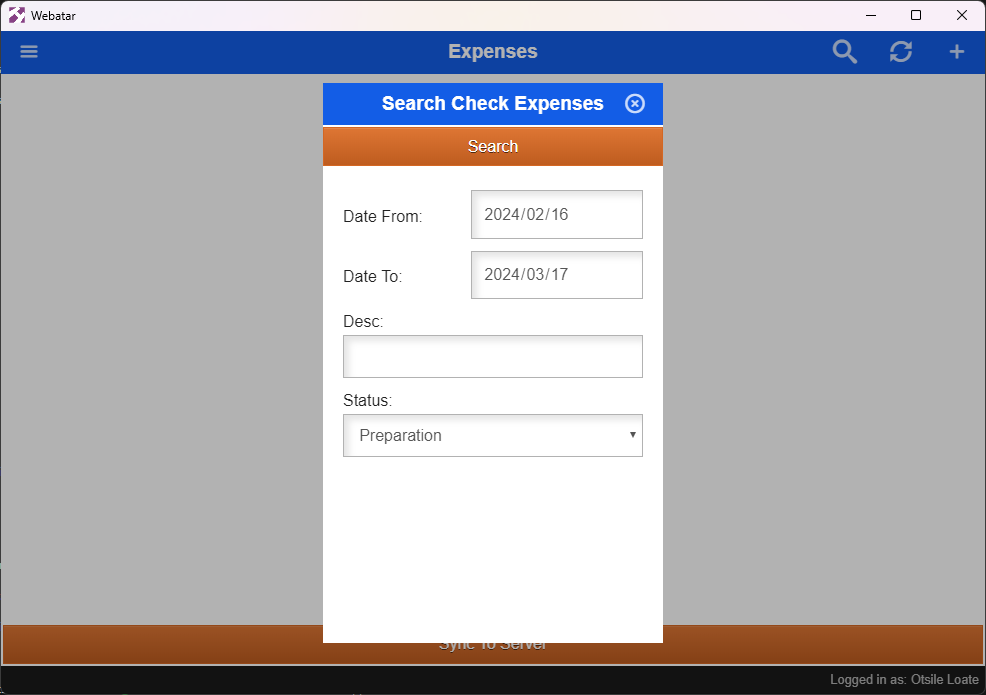
| Date From | From which date do you want to view your expenses |
| Date To | Enter until which date you want to view your expenses |
| Description | Search for Expense by capturing the description of the expense that you are looking for |
| Status | Select status on the drop down selection |
| Search Button | Click this button to search based on the criteria that you have selected |
Refresh Button
Refresh button allows you to see a list of all expenses under preparation status

After clicking a refresh button the screen below will appear:
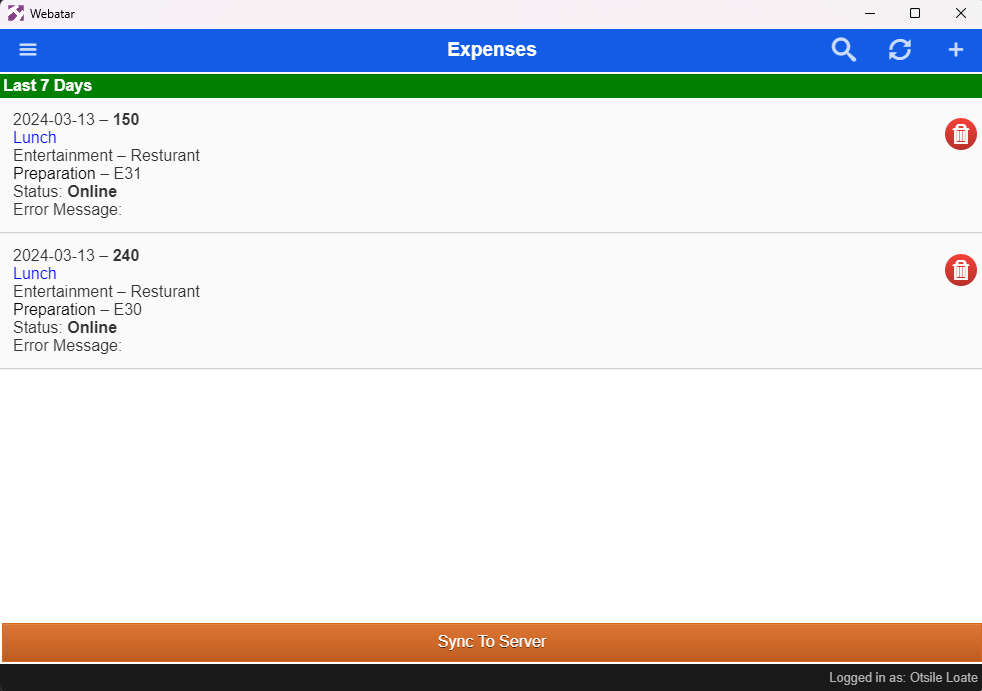
You can open the one that you want to edit or that you want to send for approval.
To add or edit expenses successfully click here
No Comments