
Inventory Costs
Inventory module> Reports> Reports List
This shows the pricing level indicated against the stock item, what cost is being utilized as well as the markup or amount on the item.
Inventory module> Reports> Reports List
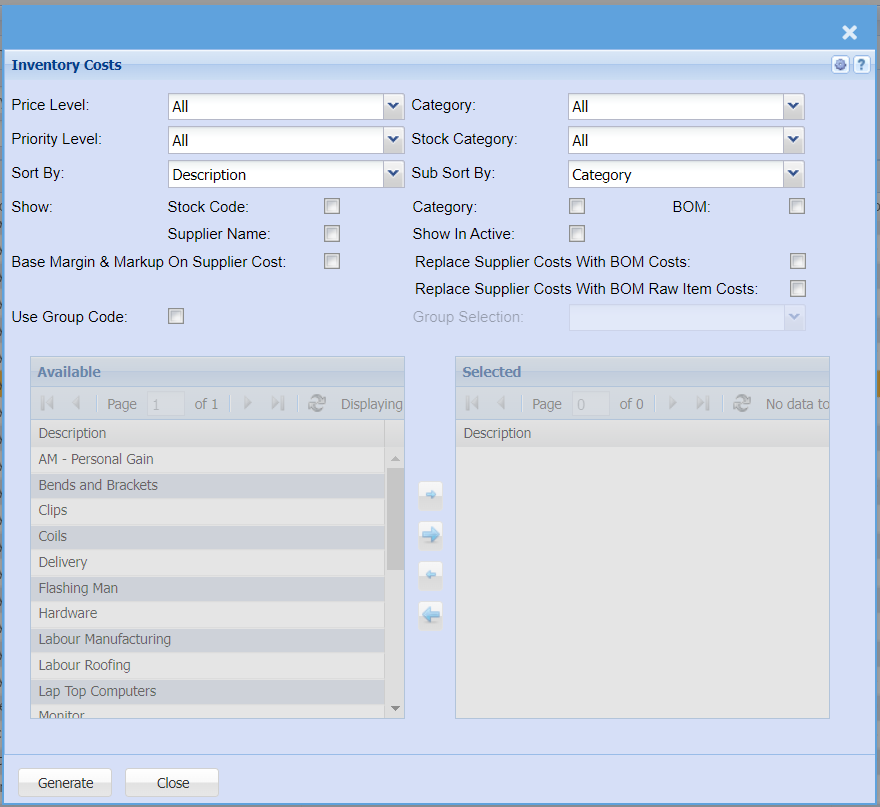
This report shows the pricing level indicated against the stock item.To run the report, ensure that the Price Level selected is ”ALL” so that all price level categories will appear on the report.
| Price Level | Select a priority level on the drop down menu selection |
| Priority Level | Count based on the Priority level of marked items |
| Sort By | Sort the report by selecting one of the options from the drop down menu |
| Show | Put a tick on to show any of the criteria with tick boxes |
| Category | Put a tick on to show the category on the report |
| Stock Category | Select a stock category on the drop down menu selection |
| Sub Sort By | Sort the report by selecting one of the sub sort options from the drop down menu |
| Use Group Code | Put a tick on if you want to pull a report by group codes |
| Generate Button |
Click the "Generate" button to open the report You will have options to copy, email, or print the report To view the report in an Excel document, copy the report and paste it into an Excel file |
Sort By – select one option from the drop-down arrow to sort out the report Select the category and the sub sort by, from the drop down arrowGroup Codes – when selecting this option, group codes will be visible and allow the user to manipulate them by using the arrows for selection Show Inactive – this option will include inactive group codes on the report when selectedGenerate button – to run the report Close button – close the form