
Purchase Orders

Creditors >Reports > Report List

Shows a report on different statuses of Purchase Orders.  This includes what has been ordered, received, processed and balances.  The criteria for this can be chosen by Creditors or date and stock. 
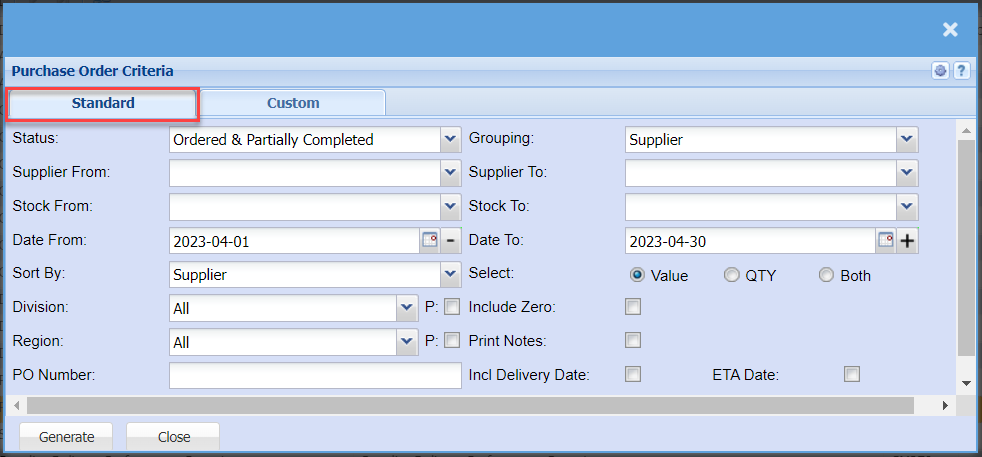
image.pngimage.png

Items,
Status If you select all the report will pull all statuses. If you want to view report by status, select the status fromon the drop drop-down arrowmenu, some choices are Closed, Created, Authorised, Ordered, Completed etc.
Supplier From / Supplier To Select a Suppliers/Creditors you wish to select the supplier from whichview the report willfrom. runSelect fromthe Suppliers/Creditors you wish to see up to in the report.
Stock From / Stock To Select Stock from and Stock to selectfields from the stockdrop-down itemmenus fromto whichlimit what will be displayed on the reportreport. will run from
Date From / Date To to selectChoose the date fromrange for which you want to view the report from / Select a date willrange runof fromwhen you want to see up to on the report.
Sort By to sort the report by selectingChoose from the drop-down arrowmenu how you would like your report sorted, your options are by Supplier, Purchase Order Number, Date
Division toIf you have set up divisions for your debtors, you can pull the report for all your debtors or you can select thea divisionspecific Division from the drop drop-down arrowmenu.
Region toYou can pull the report for all your debtors, or you can select thea regionspecific Region from the drop drop-down arrowmenu if you have set up Regions for your debtors.
PO Number
Add the Purchase Order number if you know it
Grouping toSelect a group theyou want to have your report byreflect, selectingyou fromcan thehave dropSuppliers, down arrow
Supplier Toto limit purchase order criteria report by selecting the date to
Stock To toTransaction limitDates stockon report by selecting the stock to
Date Toto enter the date to, in order to limit the reportNone.
Select
Select whether you want your report to reflect the Value, Quantity or both
Include Zero
By ticking this box, your report will include Zero balance purchase orders.
Print Notes
By ticking this box, the report will have an extra column with the Notes against the purchase orders if they have not.
Incl Delivery Date
By ticking this box, the report will have an extra column with the Delivery Dates
ETA Date
By ticking this box, the report will have an extra column with the ETA

image.pngimage.png

Category To generate the report, the user has to select the category from the drop-down menu
ColourAnimal Type
DrawnWhat ByIndustry are you in
Web Accounting Clients 
Zero Waste Handling