
User Management – User Search
Video Training Manual 2016 - Click Here
Systems Configuration Module> General> User Setup
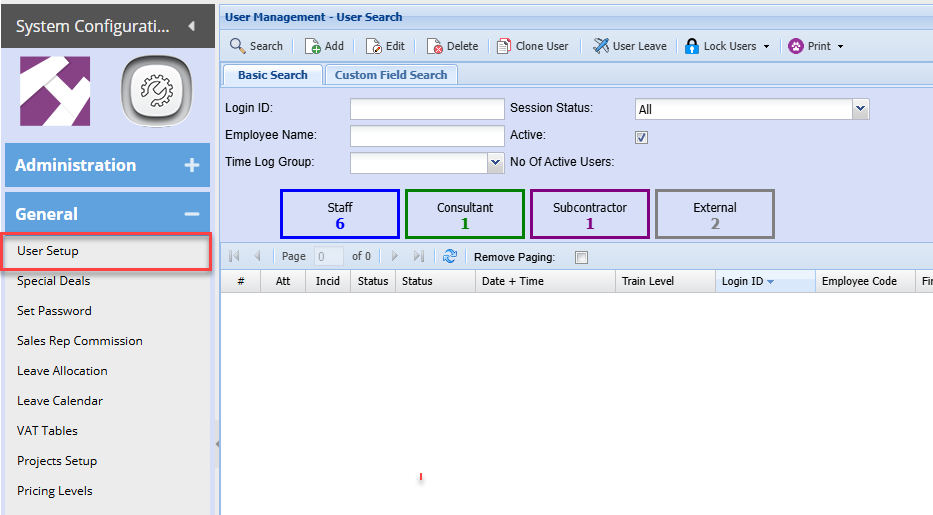
You can search for a user using the following criteria:
- Login Id
- Employee Name
- Time Log Group
- Session Status
- Or by active or inactive
Lock Users
Lock users allows you to lock and unlock a user from the system
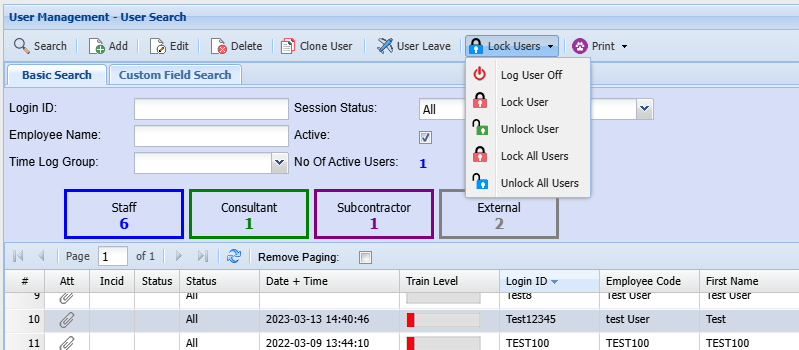
| Log User Off | |
| Lock User | |
| Unlock User | |
| Lock All Users | |
|
Unlock All Users |
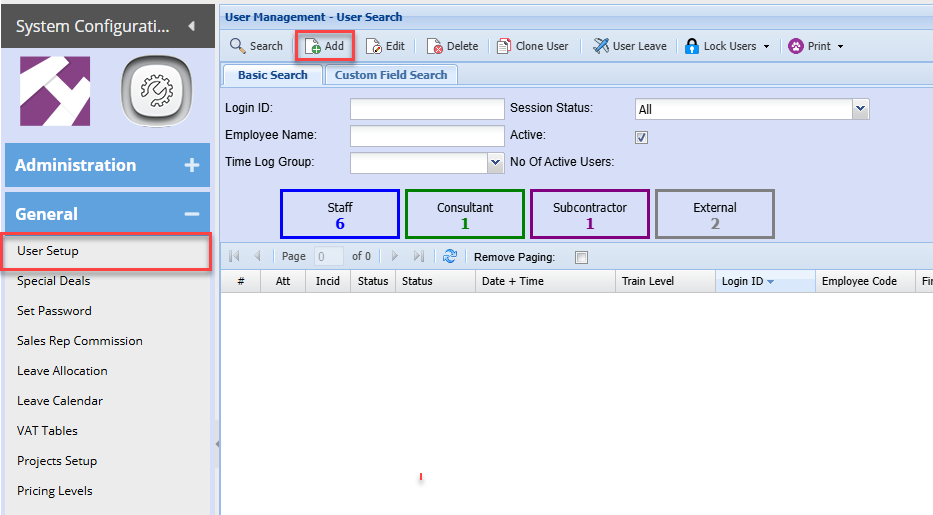
To add a new user go to
Systems Configuration Module> General> User Setup
To add a new user click Add
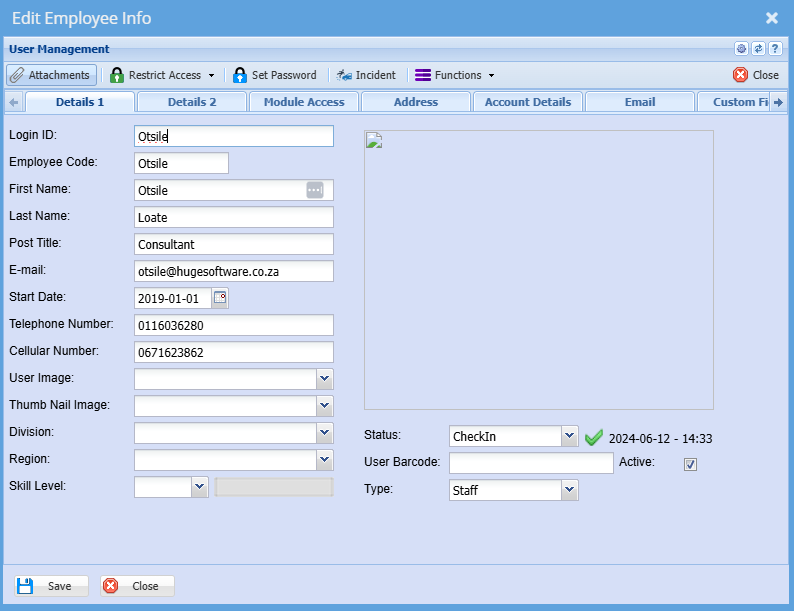
Details 1
The screen below will appear, add information as show
| |
| |
| |
|
|
Once complete click save and then click on Details 2
Details 2
| User Leave | Shows the leave allocated to that specific User. |
| Log User Off | Logs the currently selected Employee out. |
| Lock User | Locks the currently selected Employee. |
| Unlock User | Unlocks the currently selected Employee. |
| Lock All Users | Locks all Employees. |
| Unlock All Users | Unlocks all Employees. |