
User Management – User Search
Video training manual 2016 - Click Here
.png)
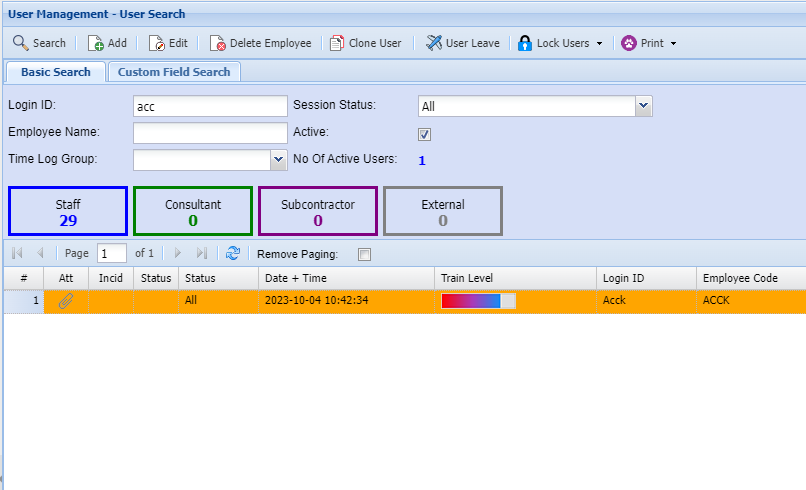
To add a new user to the system, click on Add.
Note the various Tabs on the top of the screen.
You will need to complete details on each tab.
E.g. User Details 1 will require you to insert
a user Id, The user’s name, etc.
.png)
User details 2: complete all the relevant information.
.png)
Module Access: Defines the access levels and module access a user has.
.png)
There are further help functions on each tab as well.
Note: on this tab there are a few Role permissions ticks (Purchase Supervisor, Job
Supervisor, Financial Supervisor).
These various role permissions will determine the level of access to viewing reports, seeing.
GL control accounts when processing documents, etc.
| User Leave | Shows the leave allocated to that specific User. |
| Log User Off | Logs the currently selected Employee out. |
| Lock User | Locks the currently selected Employee. |
| Unlock User | Unlocks the currently selected Employee. |
| Lock All Users | Locks all Employees. |
| Unlock All Users | Unlocks all Employees. |