Two Factor Authentication
How Two-Factor Authentication Works
Two-factor authentication is a security method that requires two different types of verification to confirm your identity when logging into an account. It’s designed to addadds an extra layer of protectionsecurity beyondby requiring not just your password, but also a password.unique code generated by an authentication app (like Microsoft Authenticator, Google Authenticator, or similar).
Time-Based One-Time Passwords (TOTP)
- The code you see in your authenticator app is time-based.
- It refreshes automatically every 30 seconds.
- You don’t need to request a new code manually, your app generates it continuously.
- Each code is valid for a short window and can only be used once.
Frequency of Use
- Depending on how your Huge ERP account is configured, you may be prompted to enter a new code:
- Every login
- Once per day/week/month
- Only when logging in from a new device or location
What You Need to Know
- Keep your authenticator app installed and accessible on your device.
- If you lose access to your app or device, you’ll need to contact support to reset your Two-Factor Authentication setup.
- The code is tied to your device and account, no one else can use it.
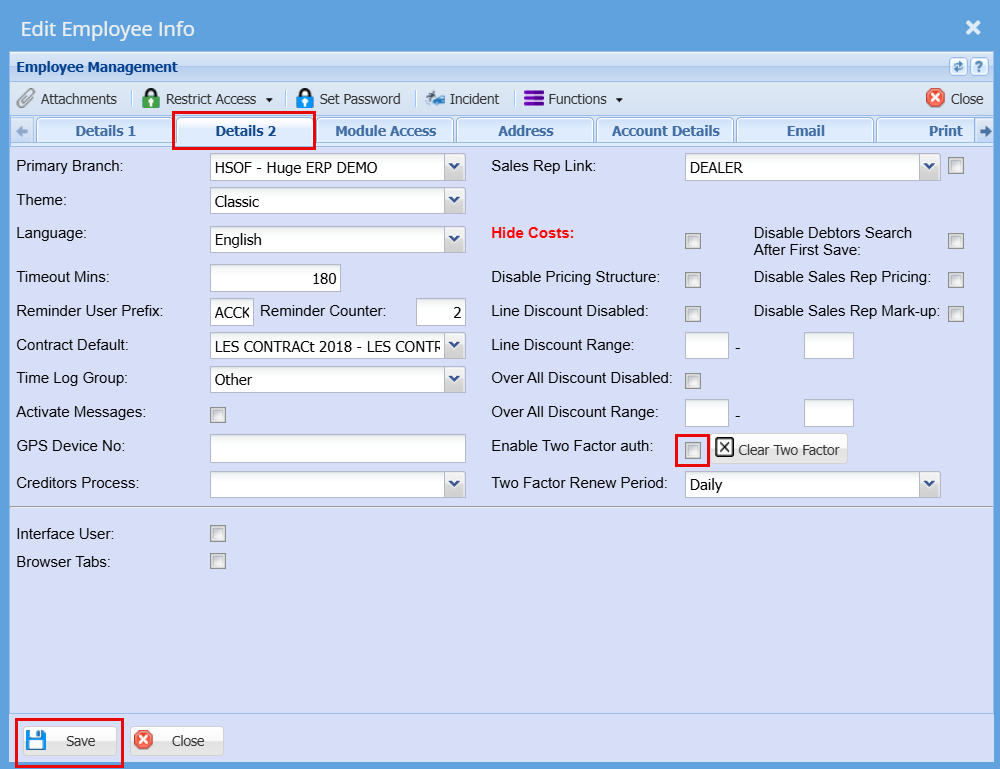
To activate the Two Factor Authentication on a user's login:
Systm configuration > General > User Setup
Double
- Double-click on the user profile you
would likewish toactivateupdate. - Navigate to
"the “Details2"2” tabTickwithin theBoxuserthatprofile. - Select
"the checkbox labeled “Enable Two FactorAuth"
Auth.” - Click
"Save"“Save” to apply the updated security settings.
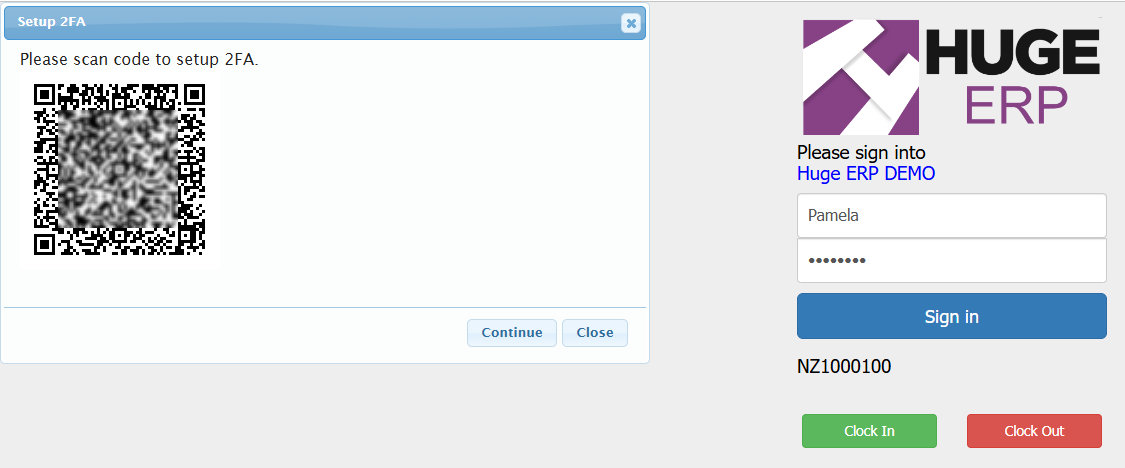
The user will need tomust close any active Huge ERP sessions and loginlog againin toagain. HugeThe ERPfollowing where theyscreen will seebe the below screen.displayed.
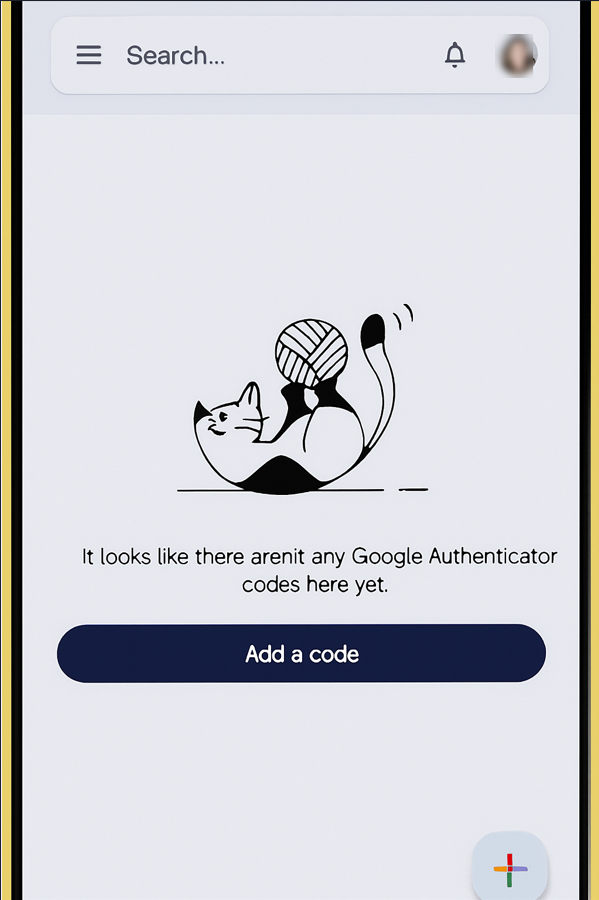
On your phonephone, they will need to findopen the Authenticator App.app.
Tap 'Add a code' or the '+' icon in the bottom-right corner, then scan the QR code displayed on your screen.
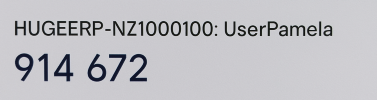
Once set up, you’ll receive a code similar to the one shown below which you will then add to the OTP block when you log in again.