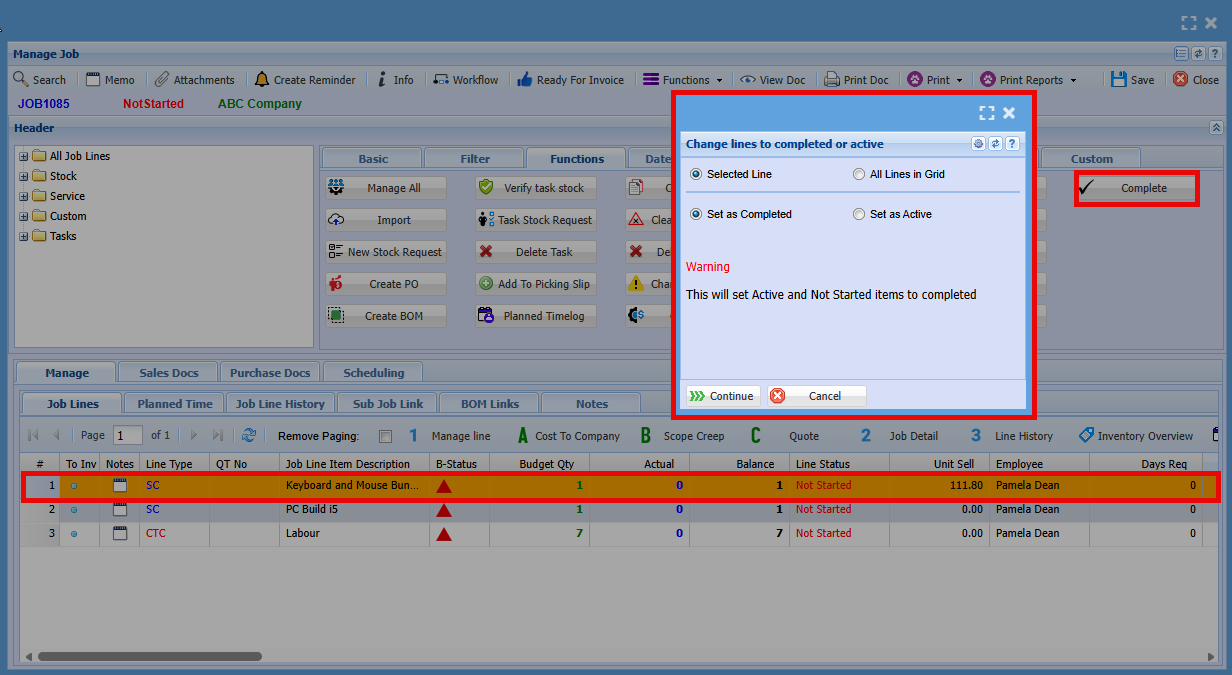
Manage Job Functions Tab Explained - Detailed
Functions Tab

| Manage All |
The Manage All button is used to manage all lines on the job at once. |
| Import |
The Import button is used to upload job lines from a file into the job. |
| New Stock Request |
The New Stock Request button is used to create a request for stock items required for a job. |
| Create PO | The Create PO screen is used to generate purchase orders for items required on a job. |
| Create BOM | |
| Verify task stock | |
| Task Stock Request | |
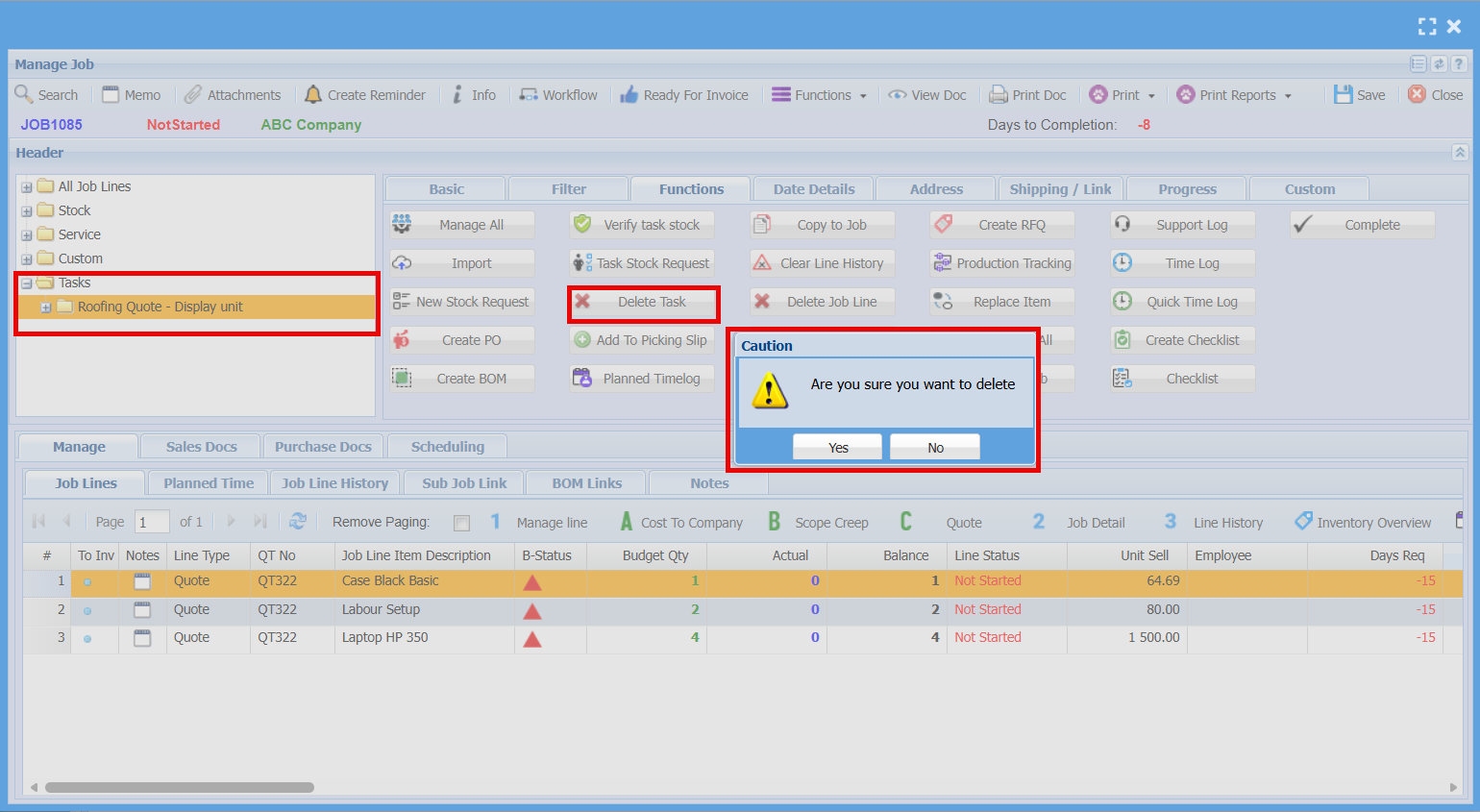
| Delete Task | |
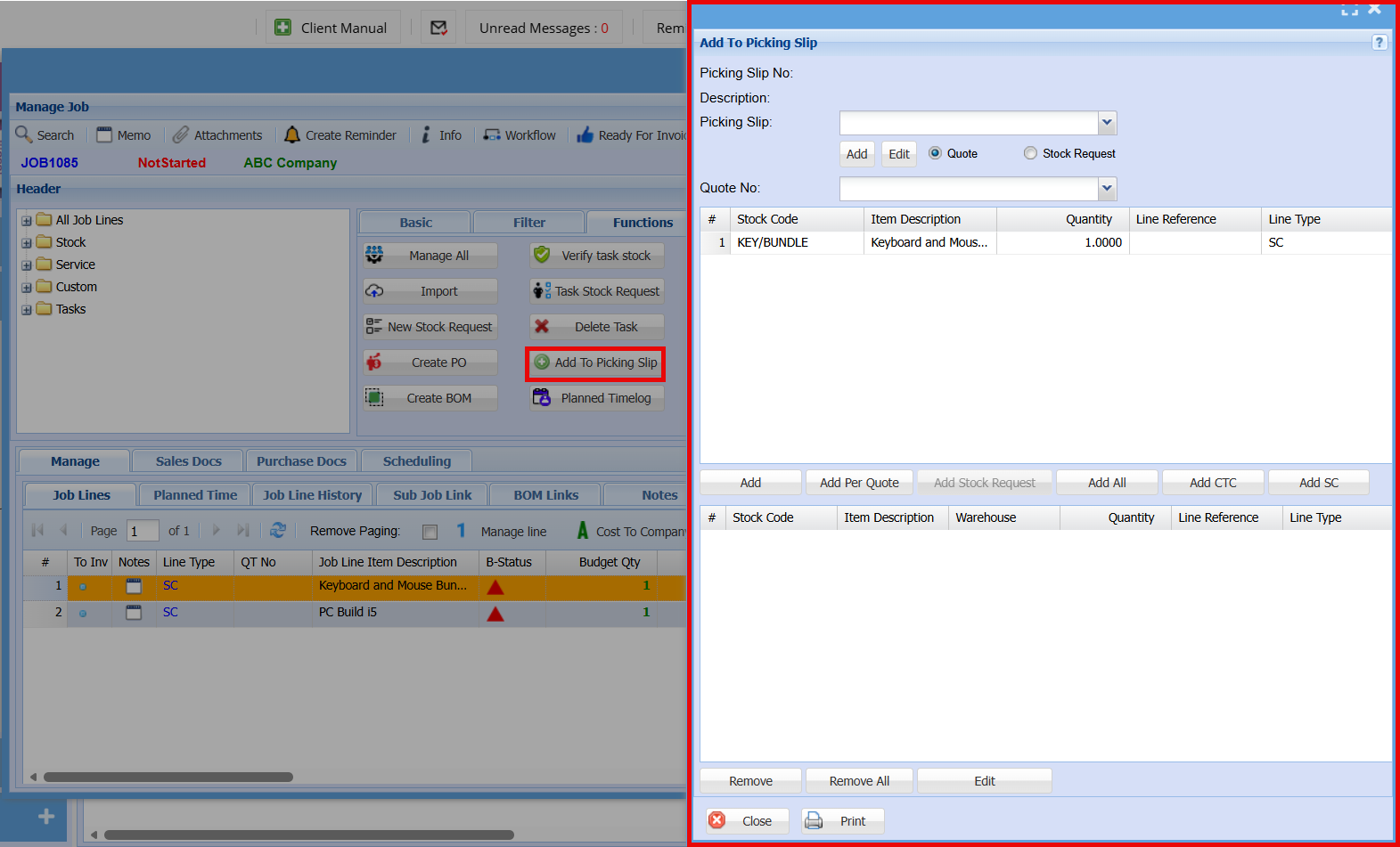
| Add to Picking Slip | |
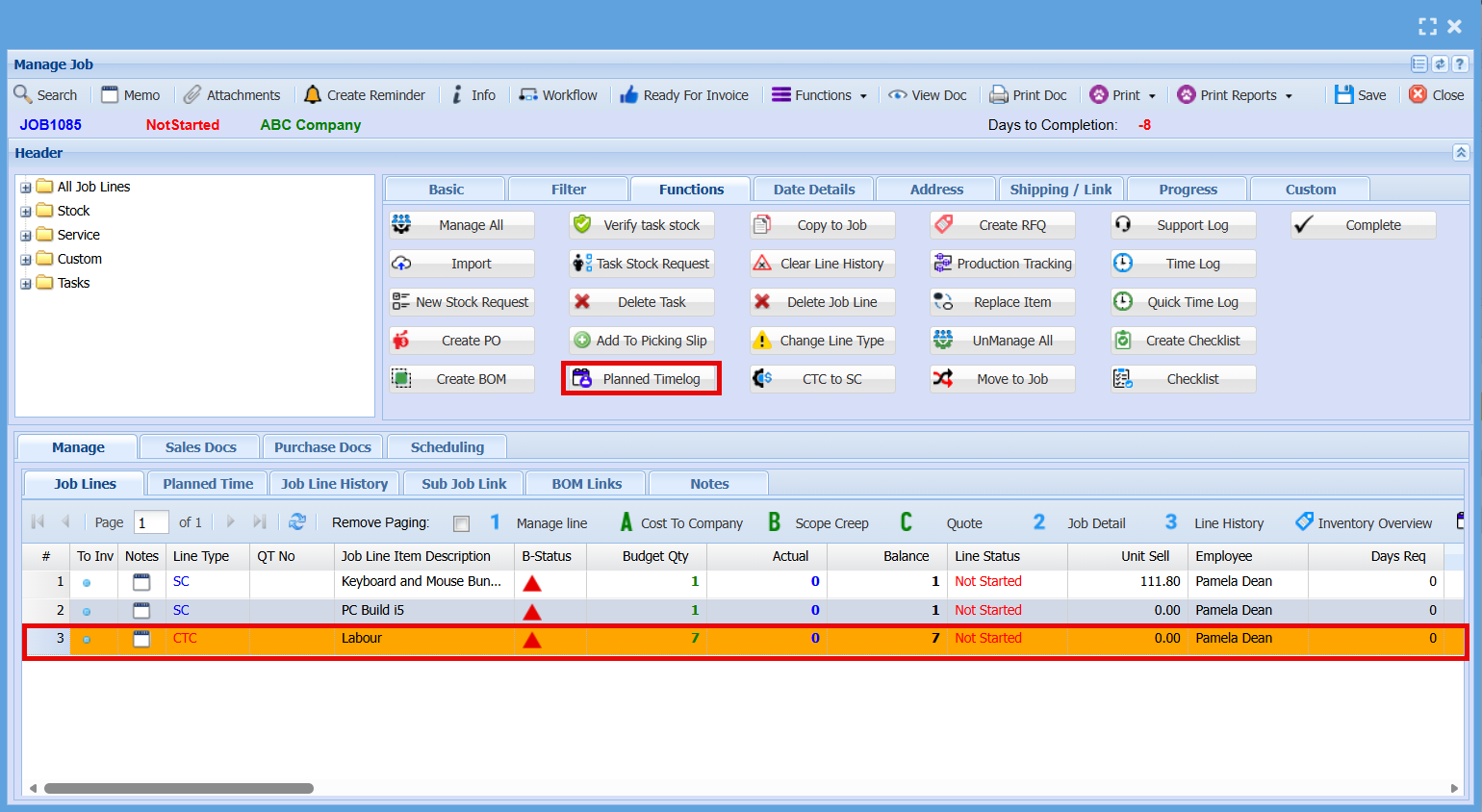
| Planned Timelog | |
| Copy to Job | |
| Clear Line History | |
| Delete Job Line | |
| Change Line Type | |
| CTC to SC | |
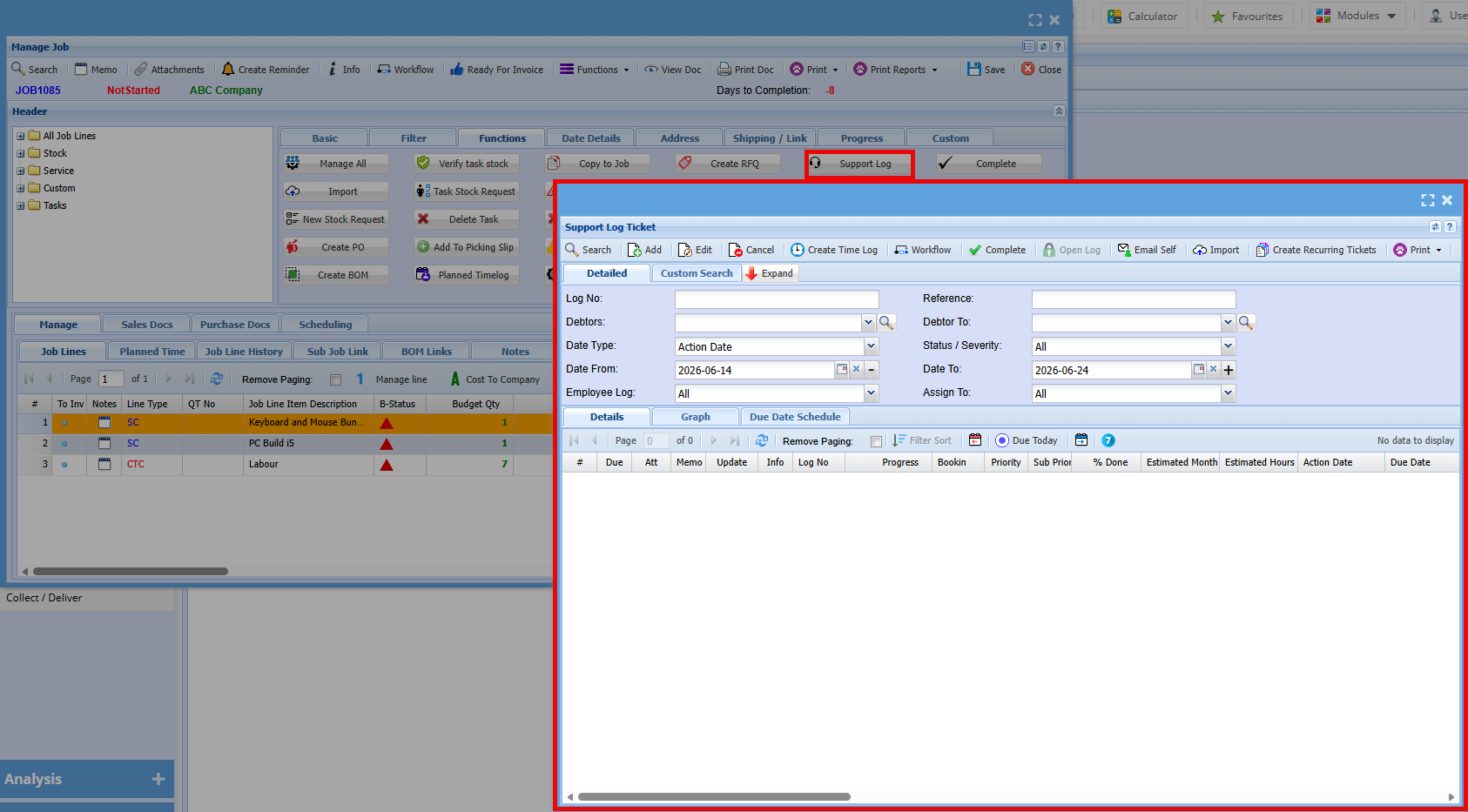
| Support Log | |
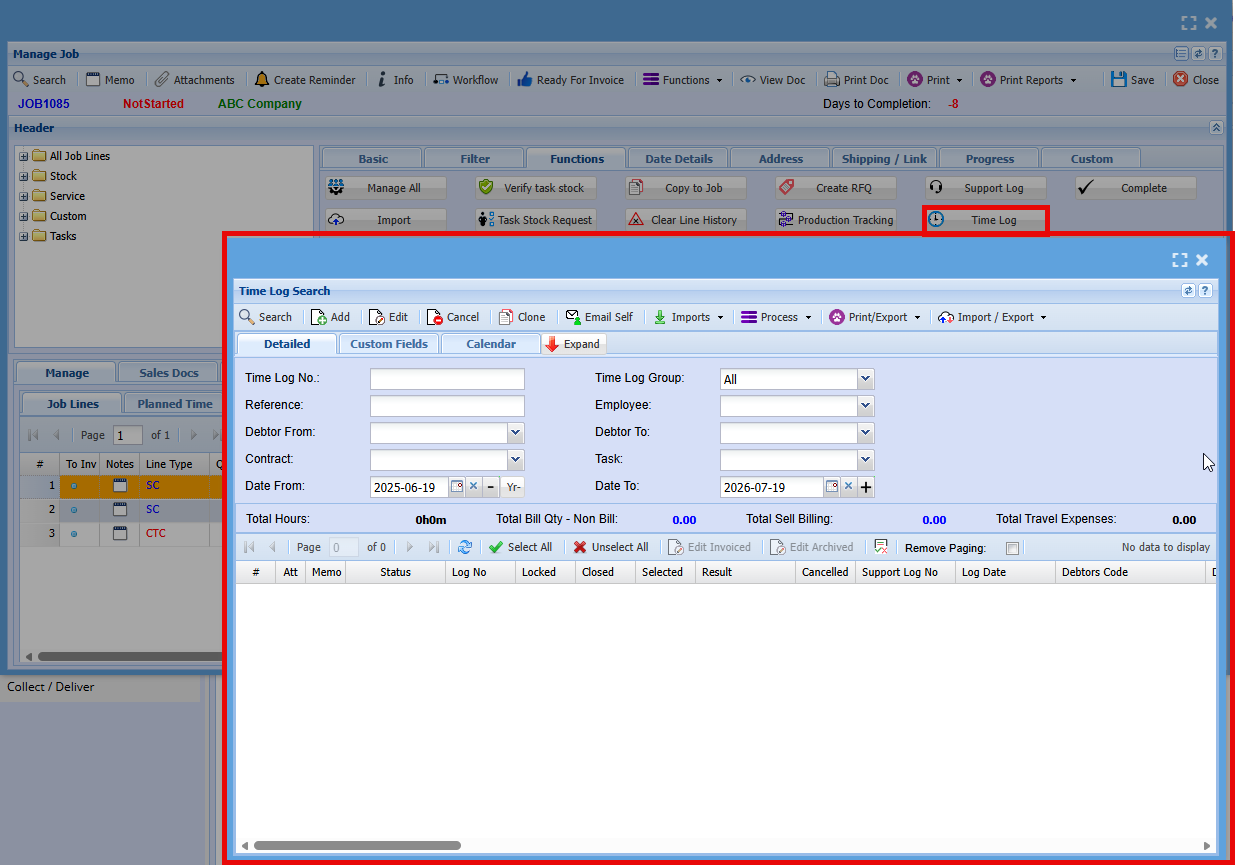
| Time Log | |
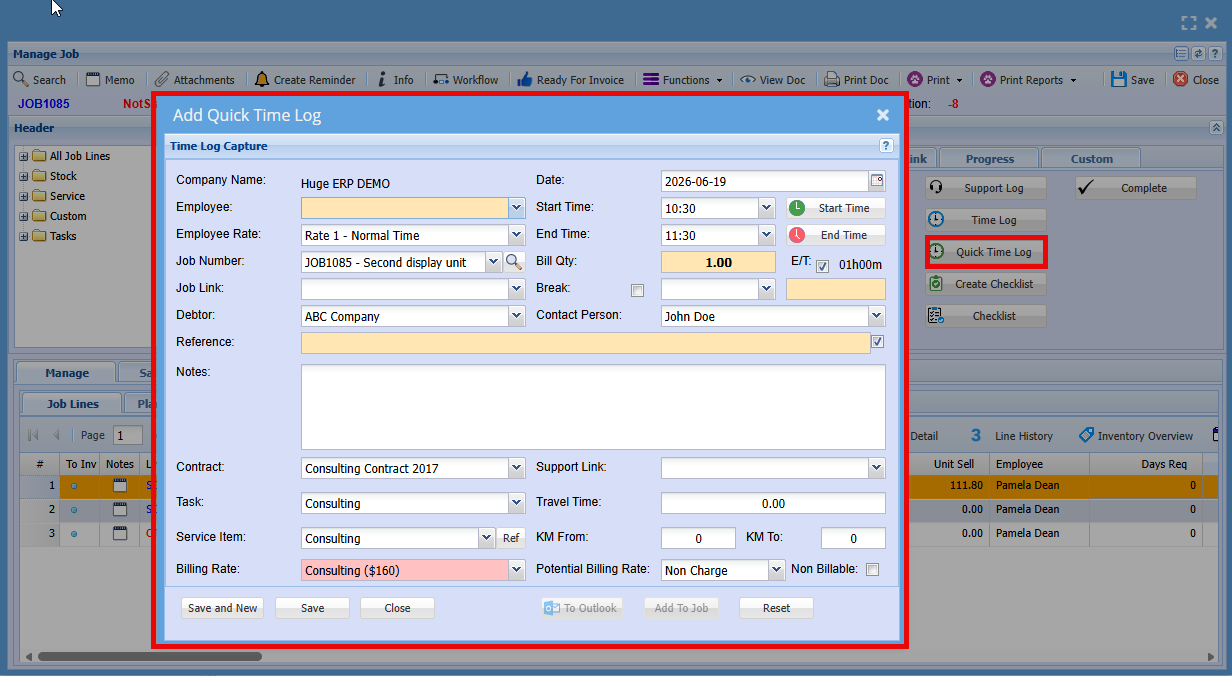
| Quick Time Log | |
| Checklist | |
| Complete |
Manage All
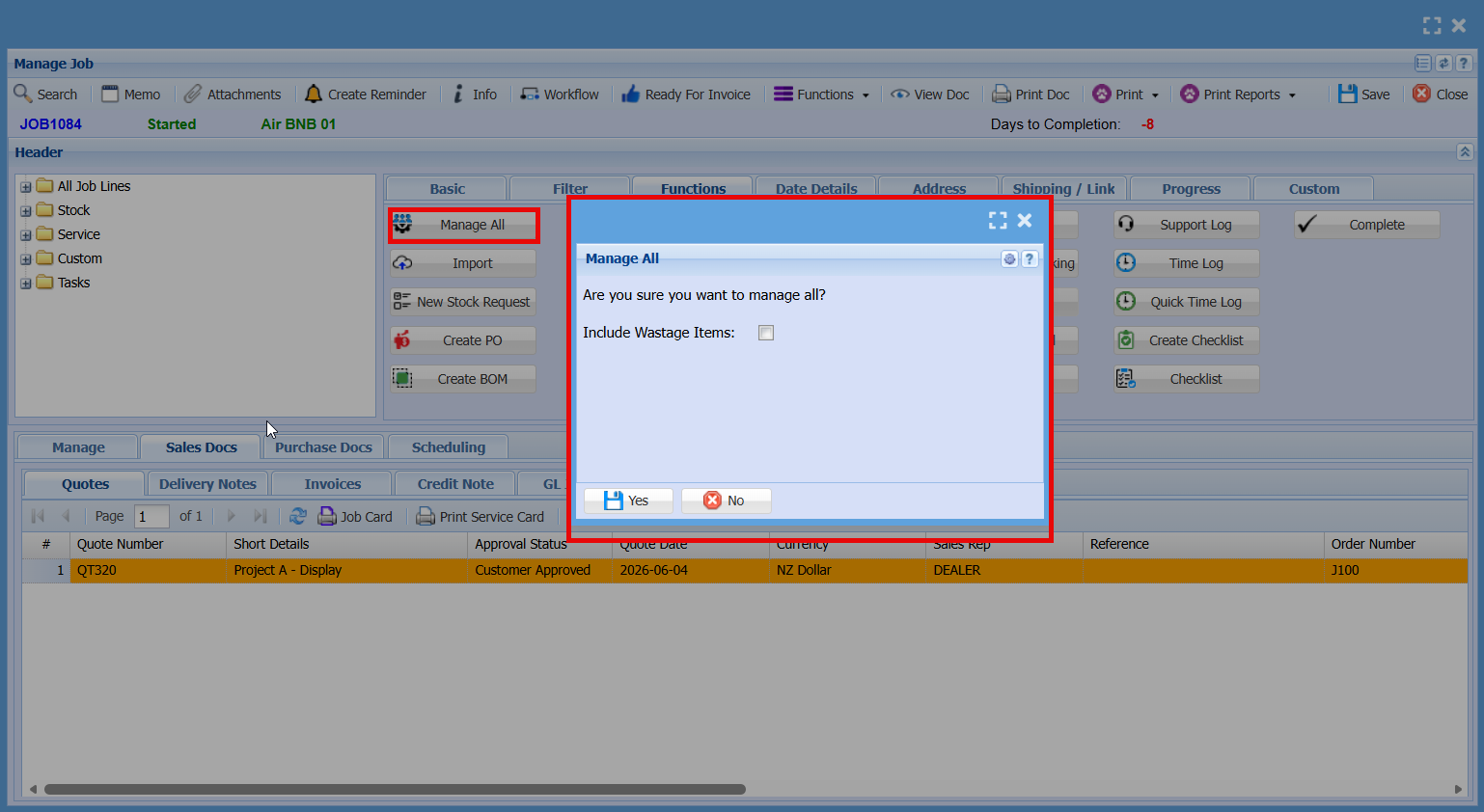
The Manage All button is used to manage all lines on the job at once.
When selected, a confirmation window will appear asking if you want to proceed. You can also choose to include wastage items.
Click Yes to continue and apply actions to all job lines, or No to cancel.
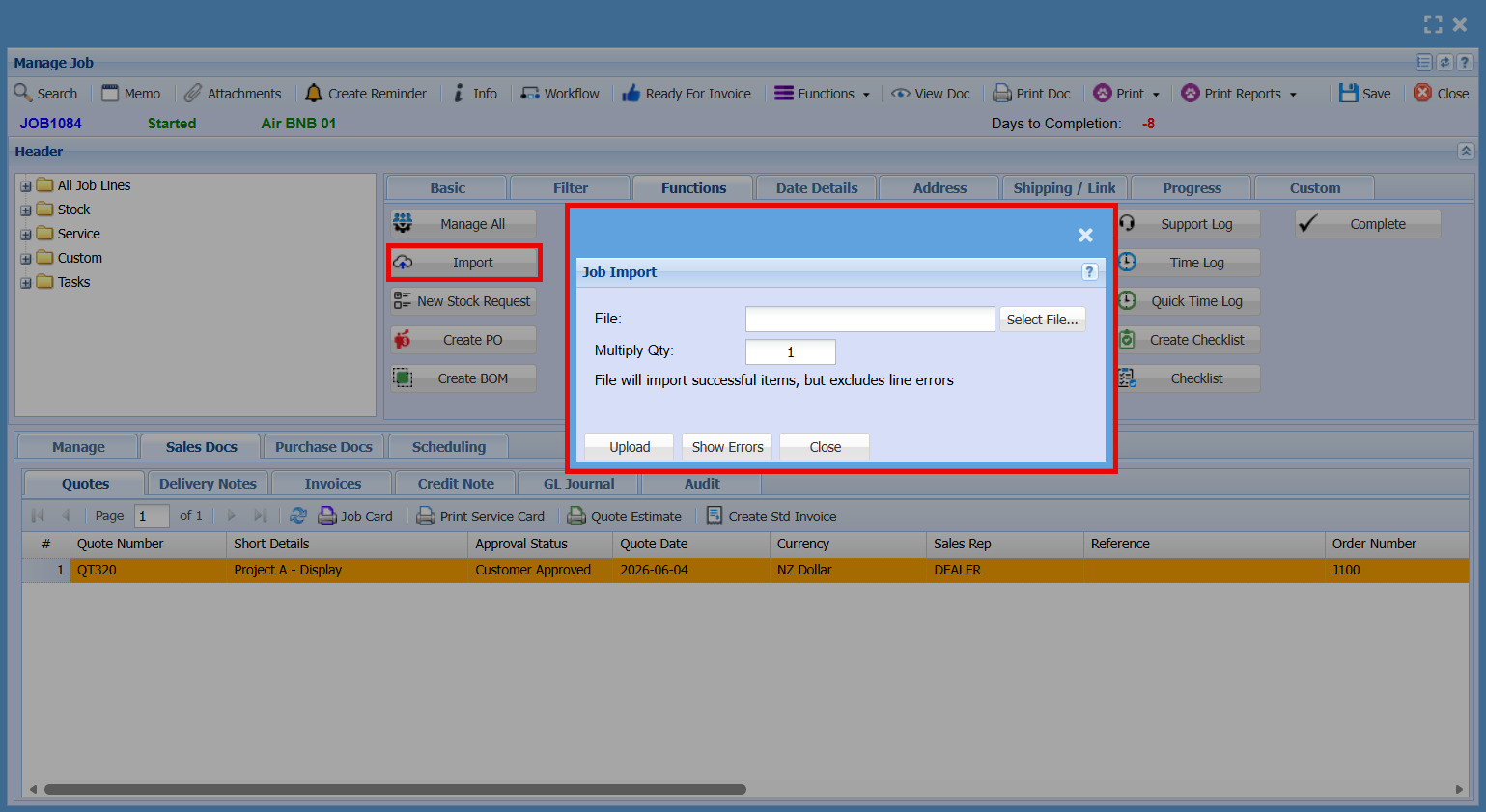
Import Button
When selected, the Job Import screen will open where you can:
- Choose a file to import
- Set a quantity multiplier (if required)
- Click Upload to import the lines
Only valid items will be imported, and any errors can be reviewed using Show Errors.
New Stock Request
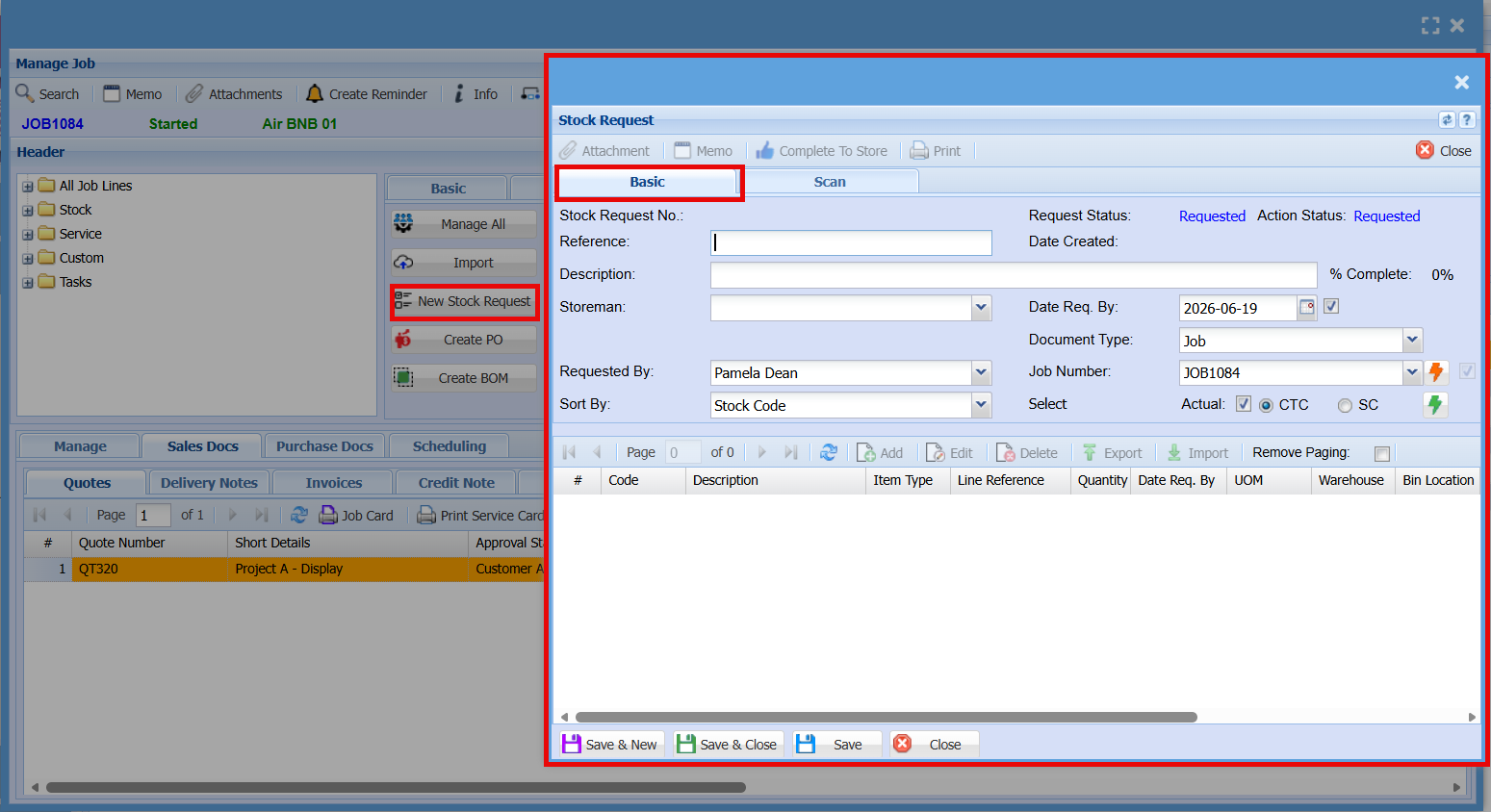
The New Stock Request button is used to create a request for stock items required for a job.
This screen allows you to:
- Enter a reference and description for the request
- Select the requested by user and required date
- Add the stock items and quantities needed
- Link the request to the job number
Once completed, the request can be saved and sent for processing, allowing the store team to supply the required items for the job.
- Basic Tab
| Stock Request No |
System-generated number for the request
|
| Reference |
Optional reference for internal tracking
|
| Description |
Brief details about the stock request
|
| Storeman |
Select the staff member responsible for the request
|
| Requested By |
Shows the current status of the request (e.g. Requested)
|
| Sort By |
How items are arranged (e.g. Stock Code)
|
|
Date Created
|
When the request was created
|
|
% Complete
|
Progress of the request
|
| Date Req. By |
Required date for the items
|
| Document Type |
Type of record (e.g. Job)
|
| Job Number |
Links the request to a specific job
|
| Select |
(Actual / CTC / SC): Determines costing/selection method
|
- Item Grid (Botton Section)
This screen ensures all required stock for a job is formally requested, tracked, and supplied by the store team.
|
Code
|
Item Code |
| Description |
Item details
|
|
Item Type
|
Type of item (e.g. stock, service)
|
|
Line Reference
|
Reference per line
|
|
Quantity
|
Number of items requested
|
|
Date Req. By
|
Required date per item
|
|
UOM
|
Unit of measure |
|
Warehouse / Bin Location
|
Where the item is stored
|
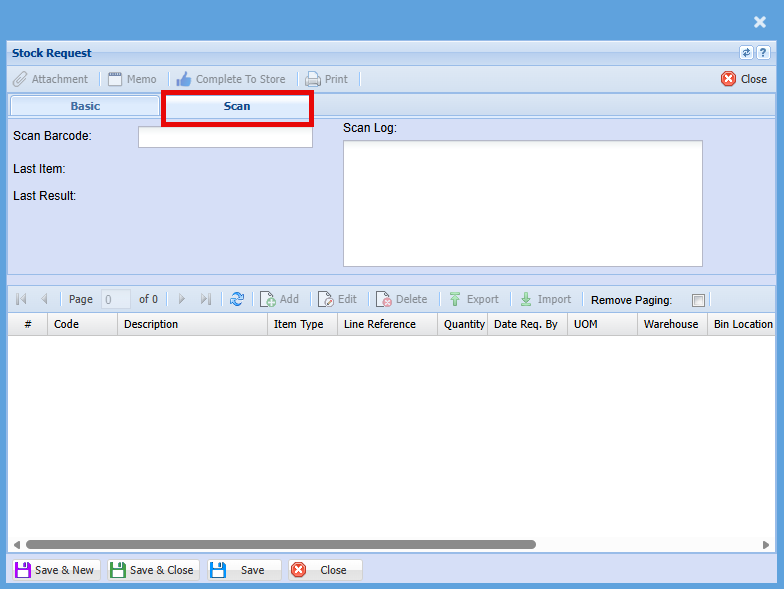
- Scan Tab
The Scan tab works the same as the Basic tab but is designed for barcode scanning.
- Scan Barcode: Scan or enter the item barcode to quickly add it to the request
- Last Item / Last Result: Displays the most recently scanned item and result
- Scan Log: Shows a history of scanned items
Items scanned are automatically added to the item grid below, removing the need to manually search and enter stock codes.
Purpose: Speeds up stock requests by allowing items to be added using a barcode scanner.
Create PO
The Create PO screen is used to generate purchase orders for items required on a job.
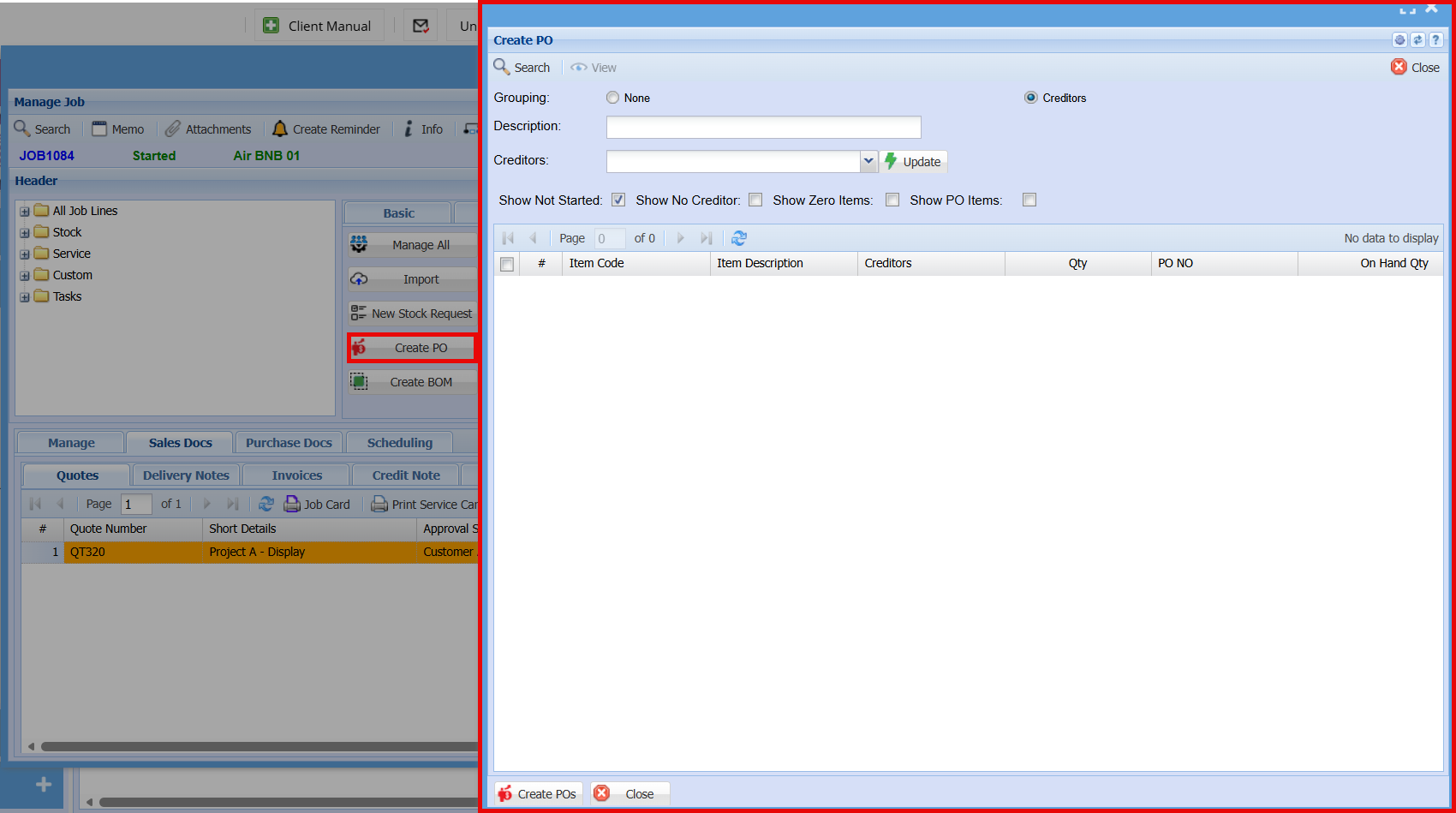
| Grouping |
Choose how items are grouped when creating POs:
|
| Description |
Enter a description for the purchase order(s)
|
| Creditor |
Select or update the supplier for the items |
| Show Not Started |
Displays items not yet processed
|
| Show No Creditor | Shows items without a supplier assigned |
| Show Zero Items | Includes items with zero quantity |
| Show PO Items | Shows items already linked to a PO |
|
Create POs/ Close |
Select the required items from the grid
Click Create POs to generate purchase order(s)
Close to exit the screen
|
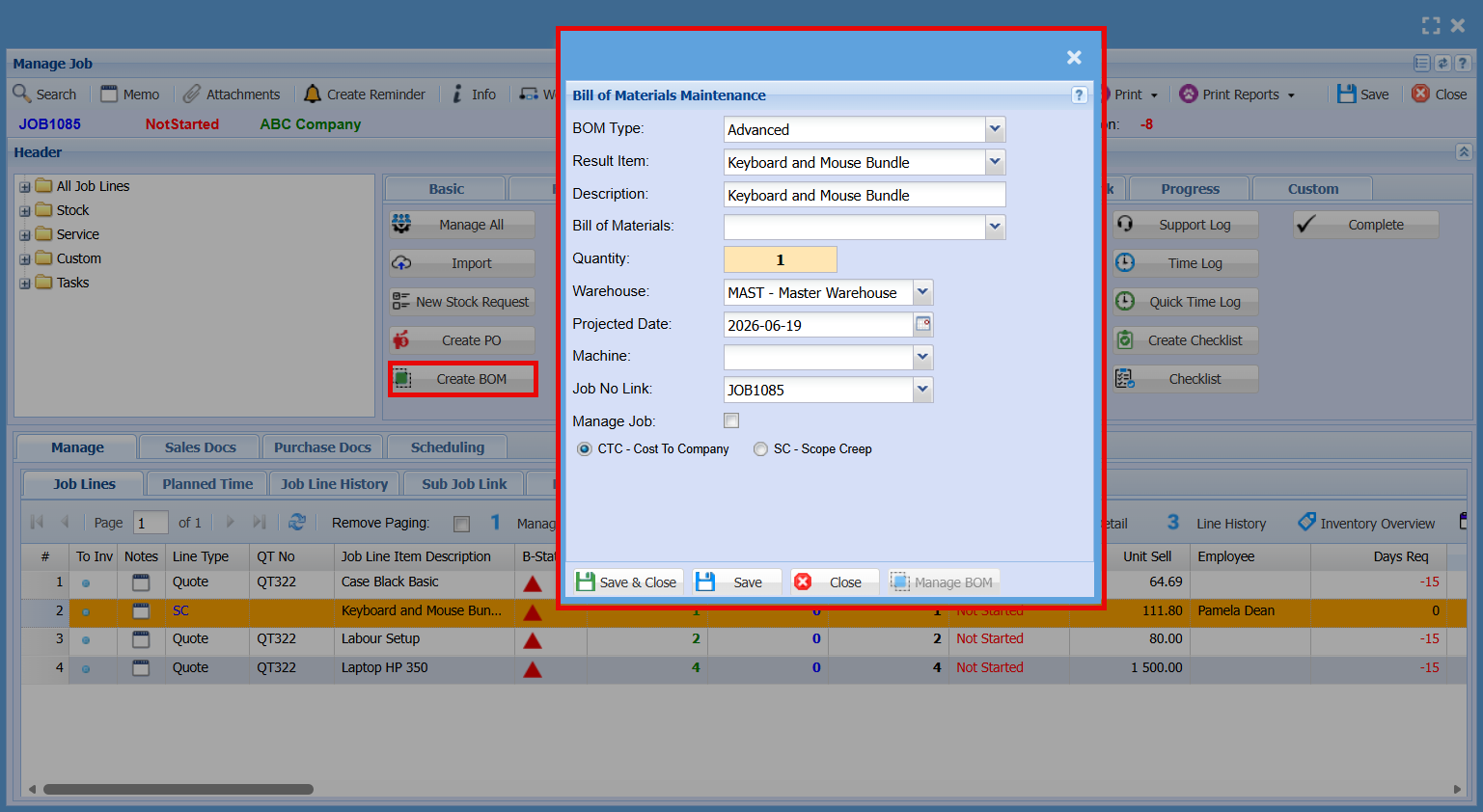
Create BOM
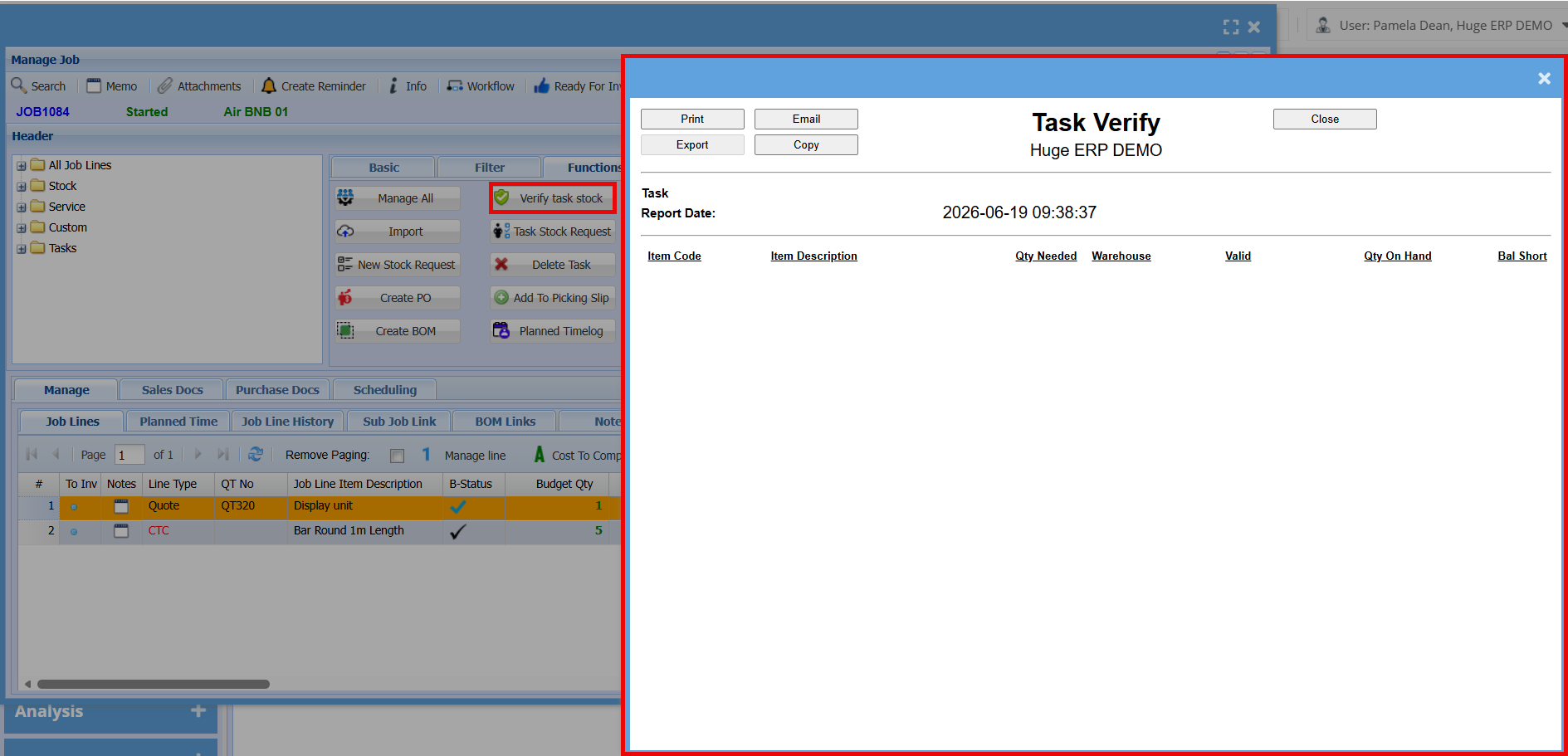
Verify Task Stock
Task Stock Request
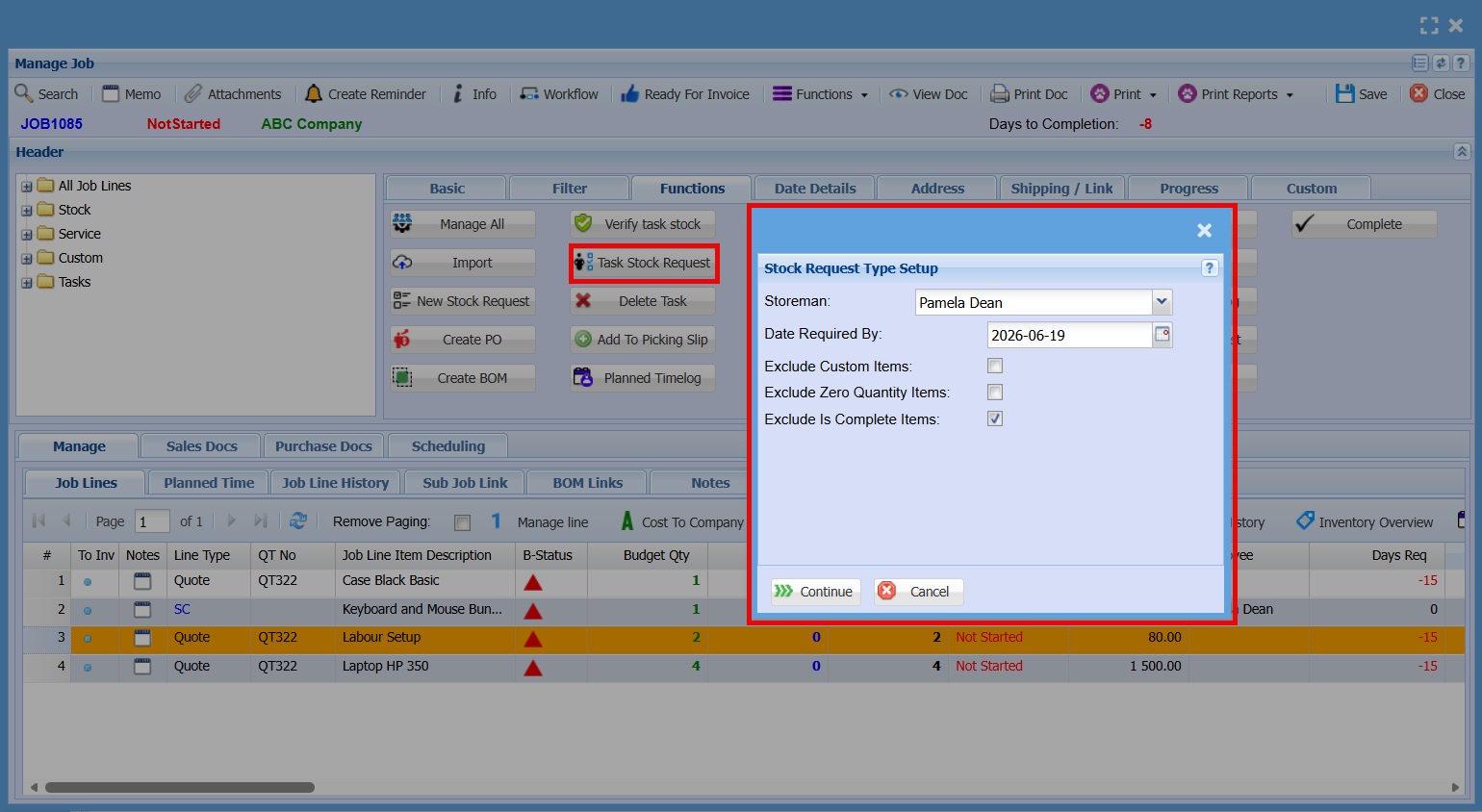
Delete Task
Add a Picking Slip
Planned Time Log
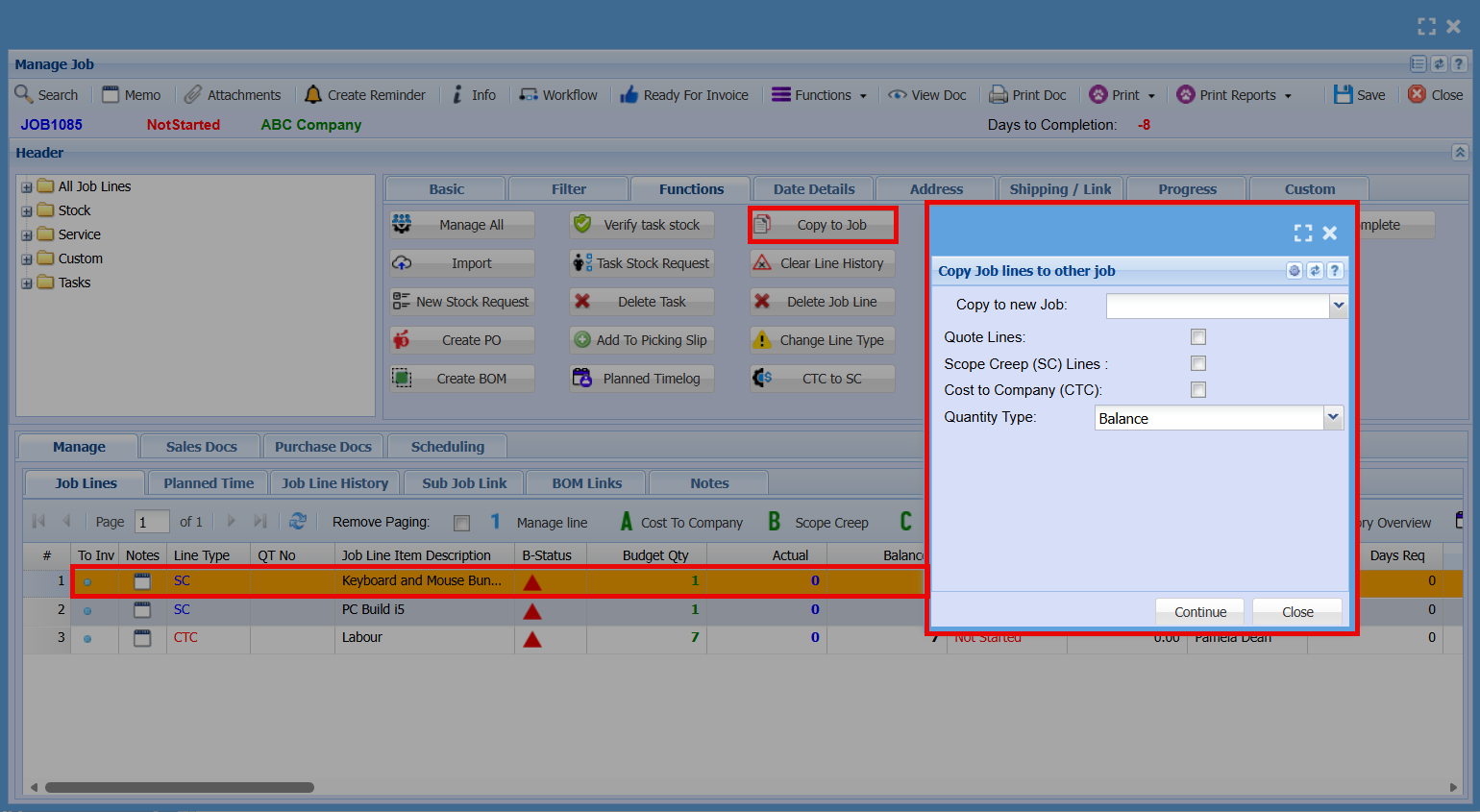
Copy to Job
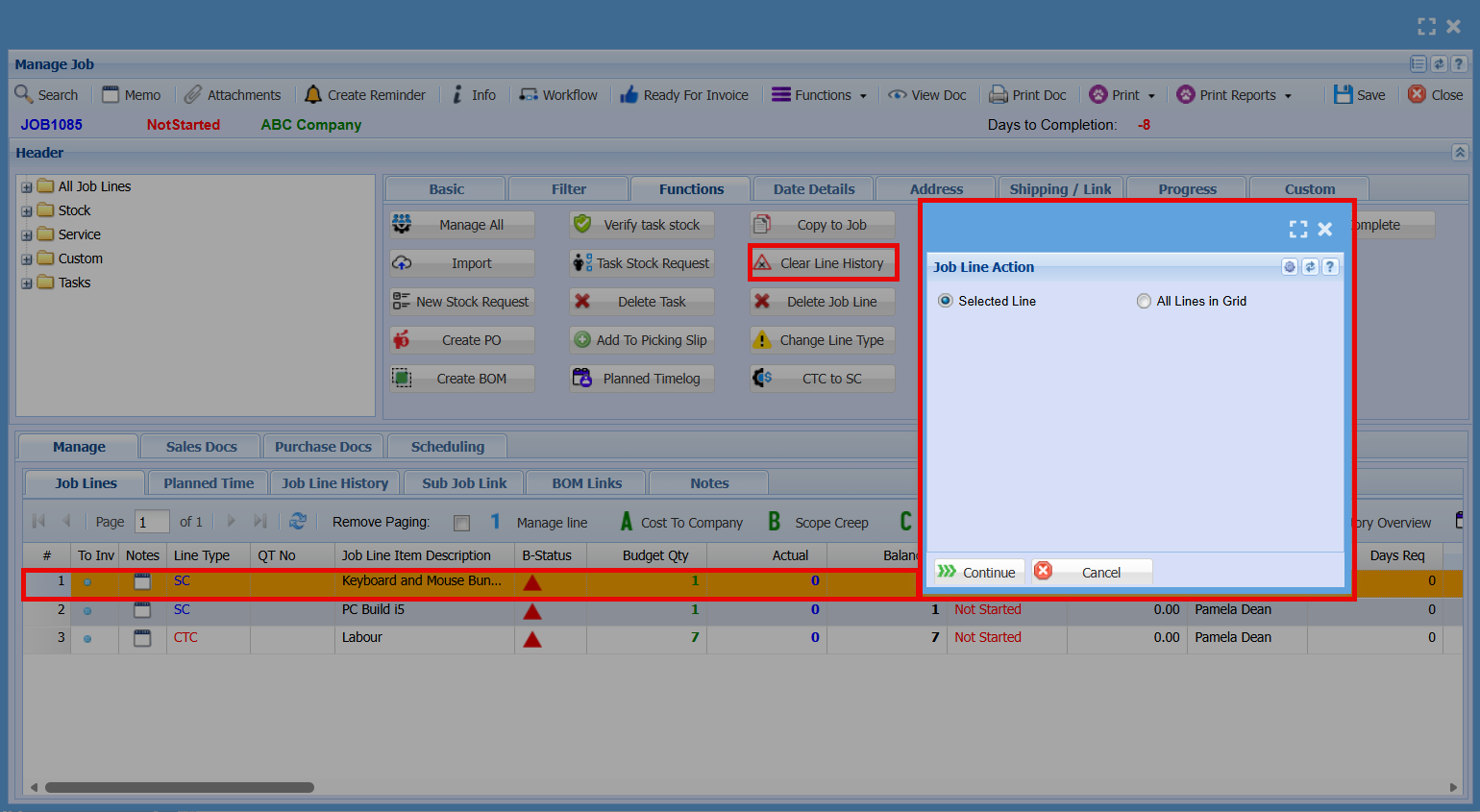
Clear Line History
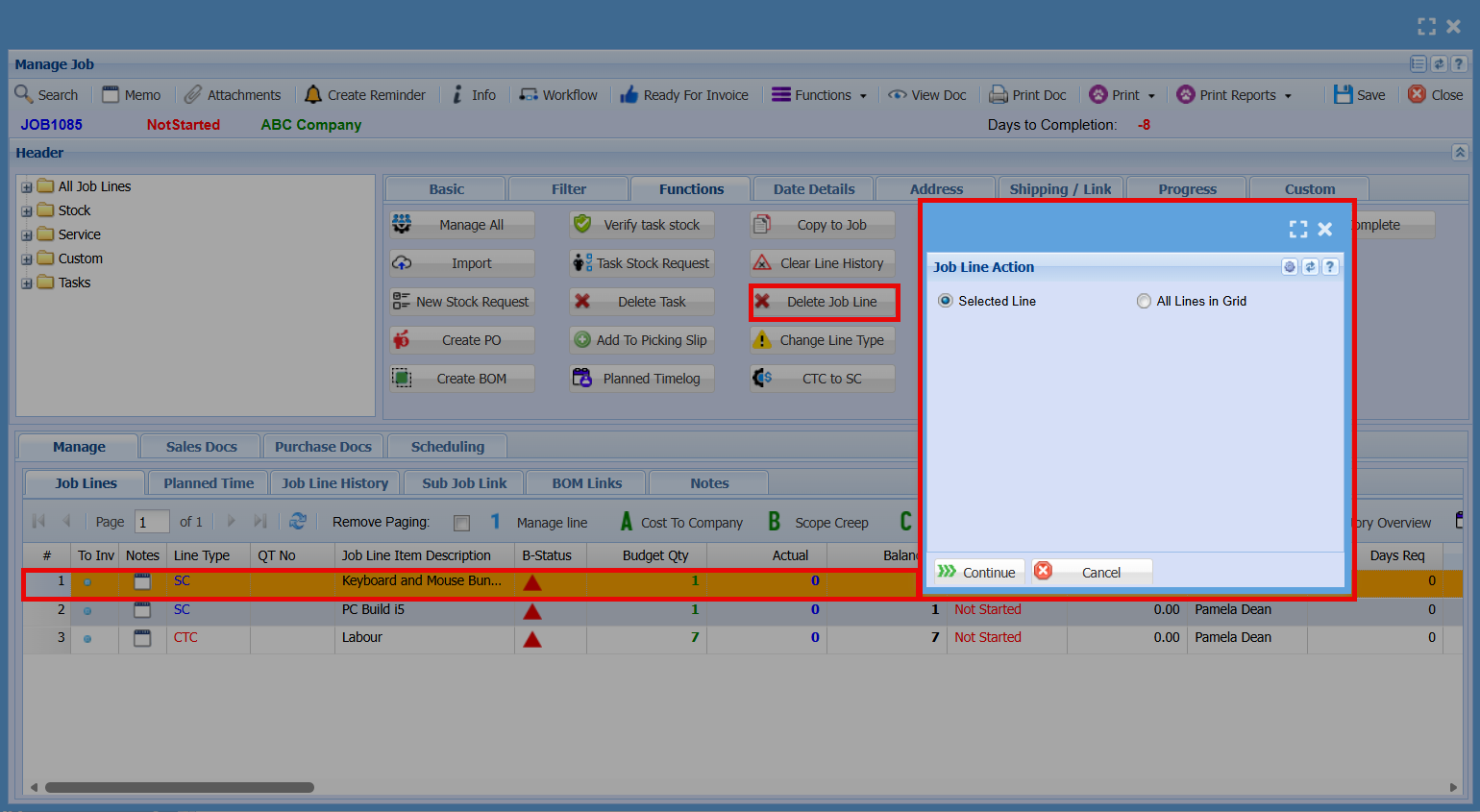
Delete Job Line
Change Line Type
?????
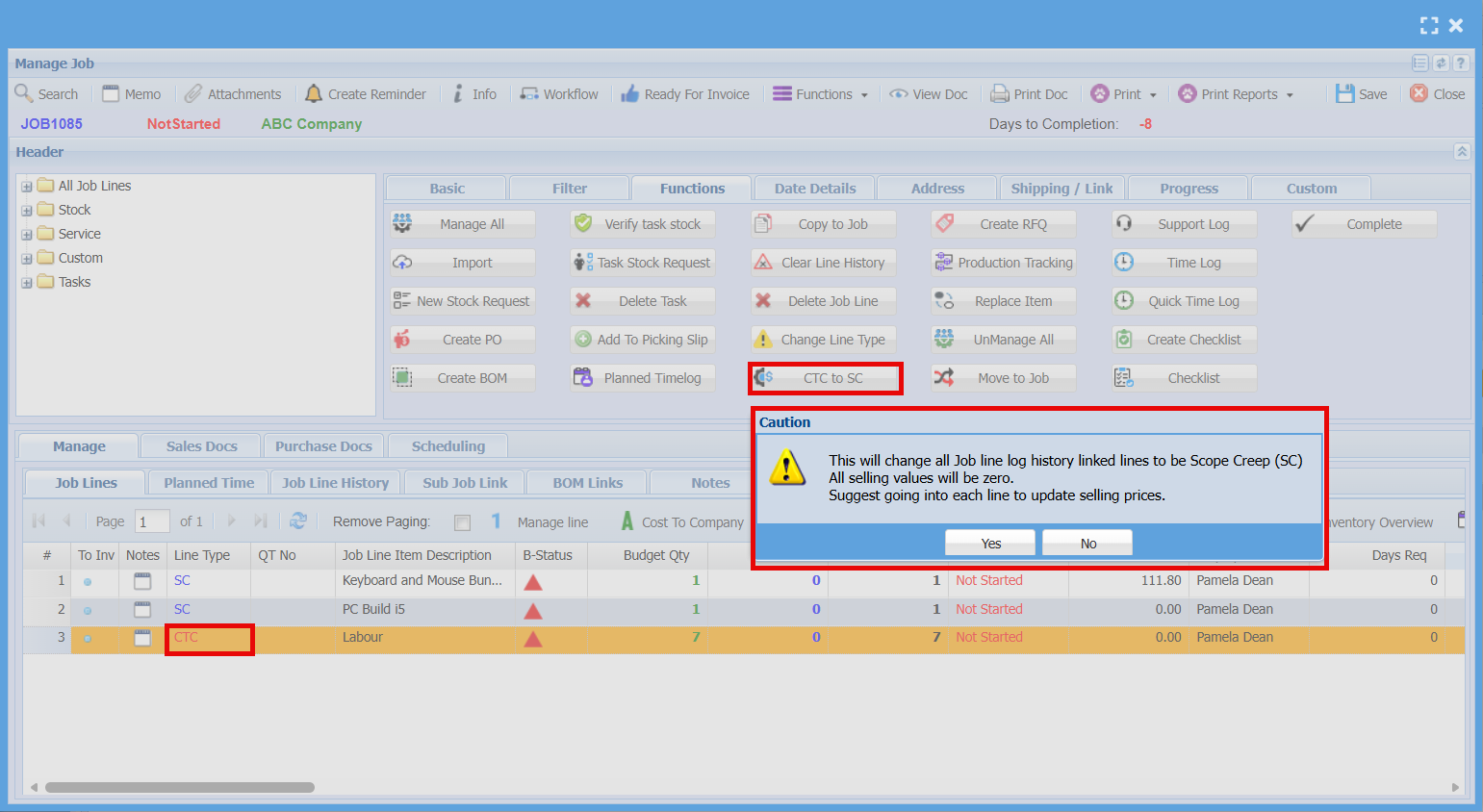
CTC to SC
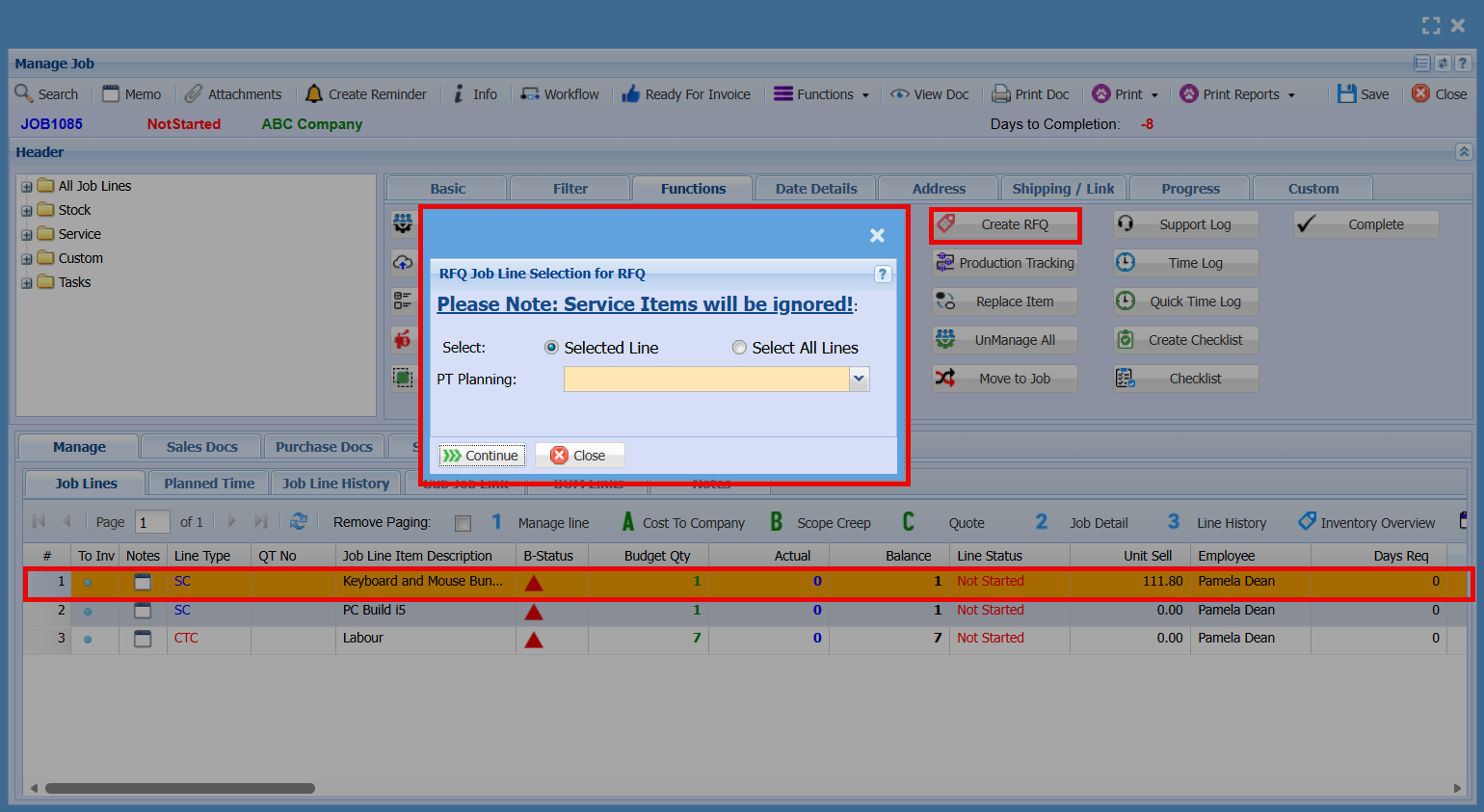
Create RFQ
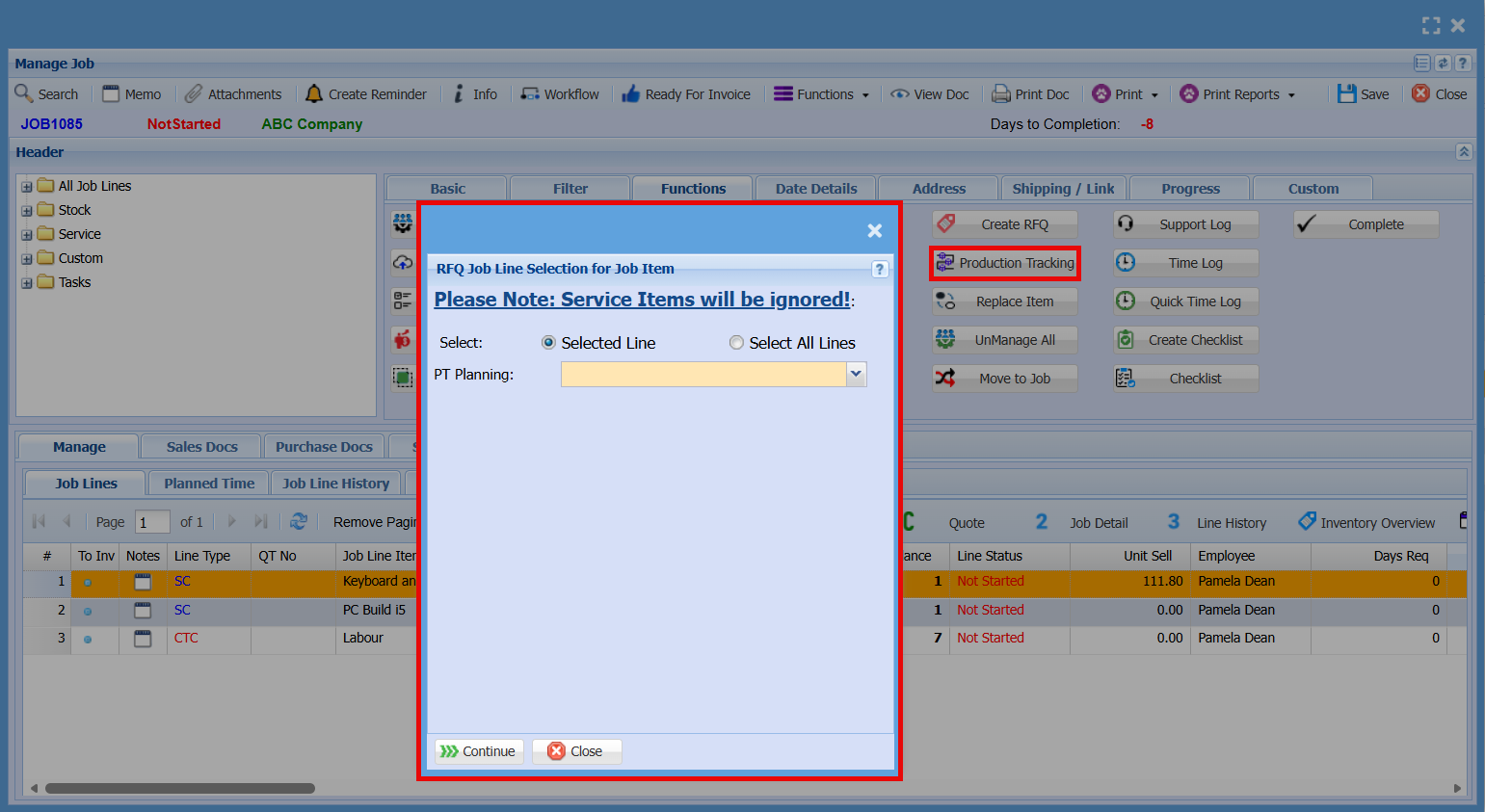
Production Tracking
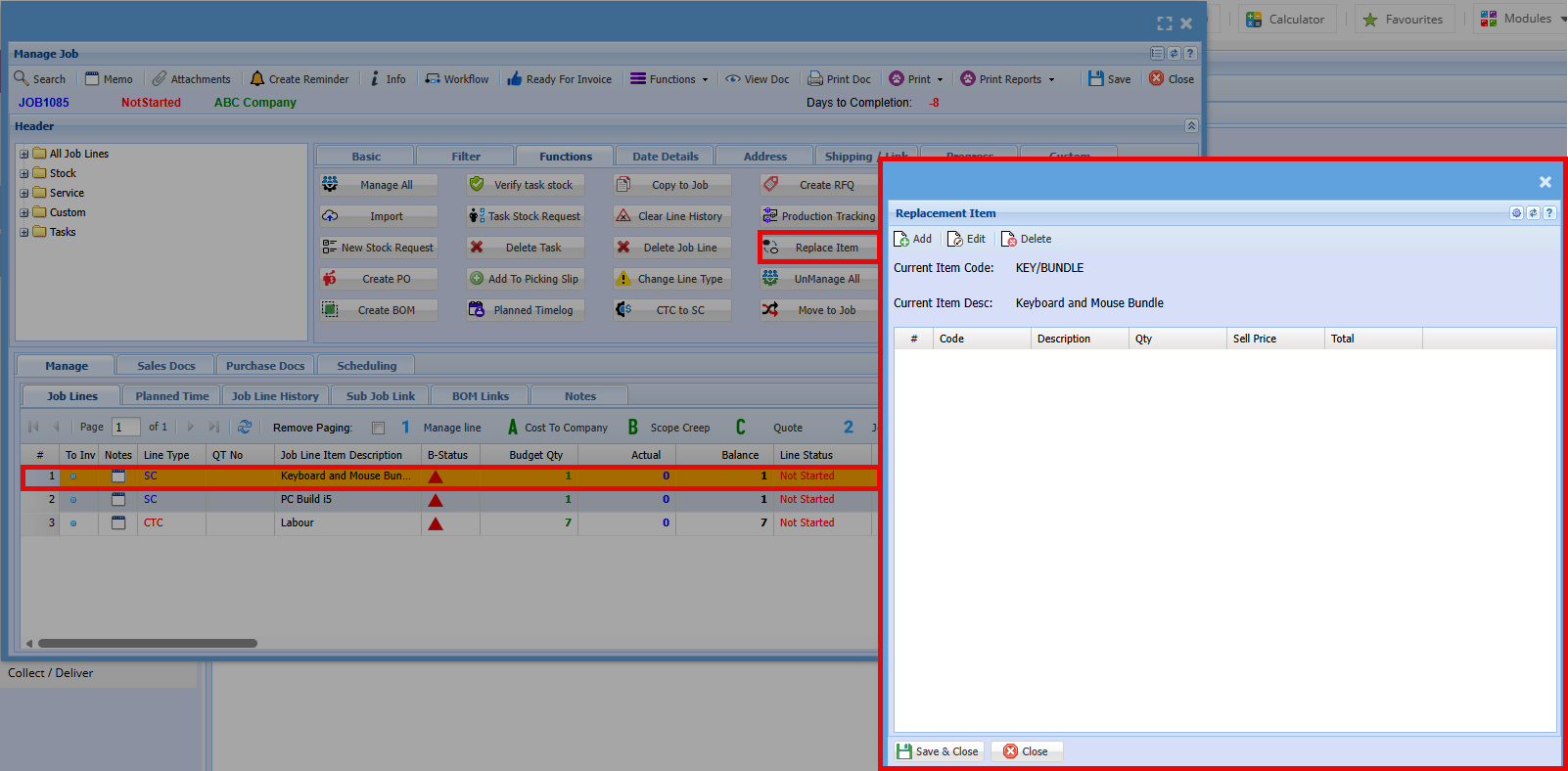
Replace Item
Manage All
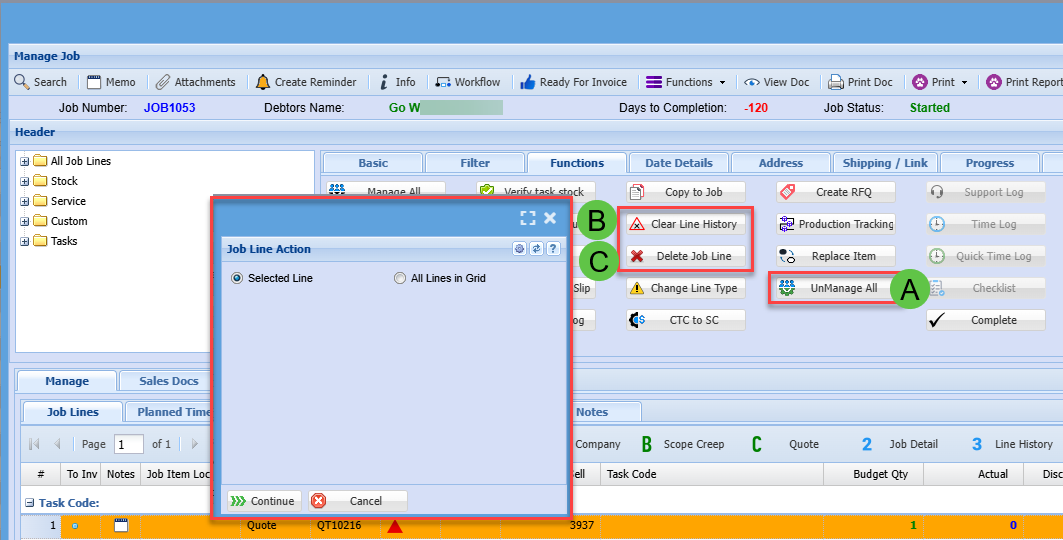
The “Unmanage All” function will reverse any managed quantities on job lines, reducing them back to an unmanaged state based on what has not yet been invoiced.
| A | UnManage All items on a job |
| B |
Clear Line History Only works if the Managed Actual quantity equals zero |
| C |
Delete Job Line Only works if there are no Line History entries |
Support Log
Time Log
Quick Time Log
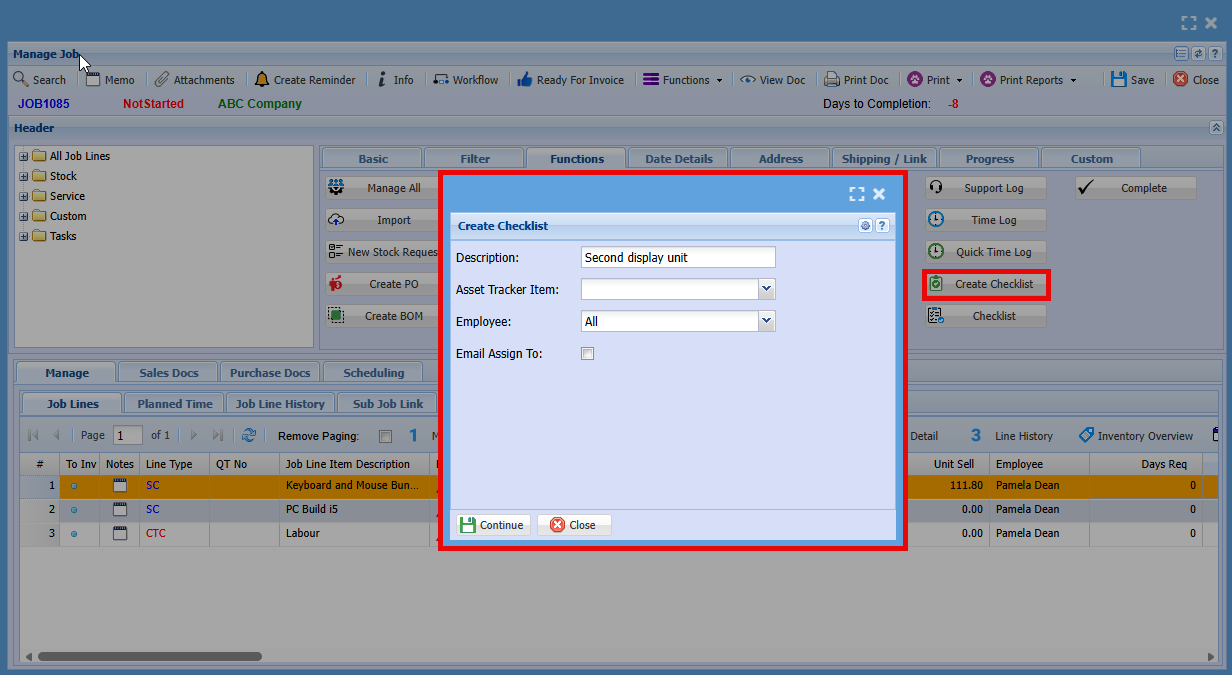
Create Checklist
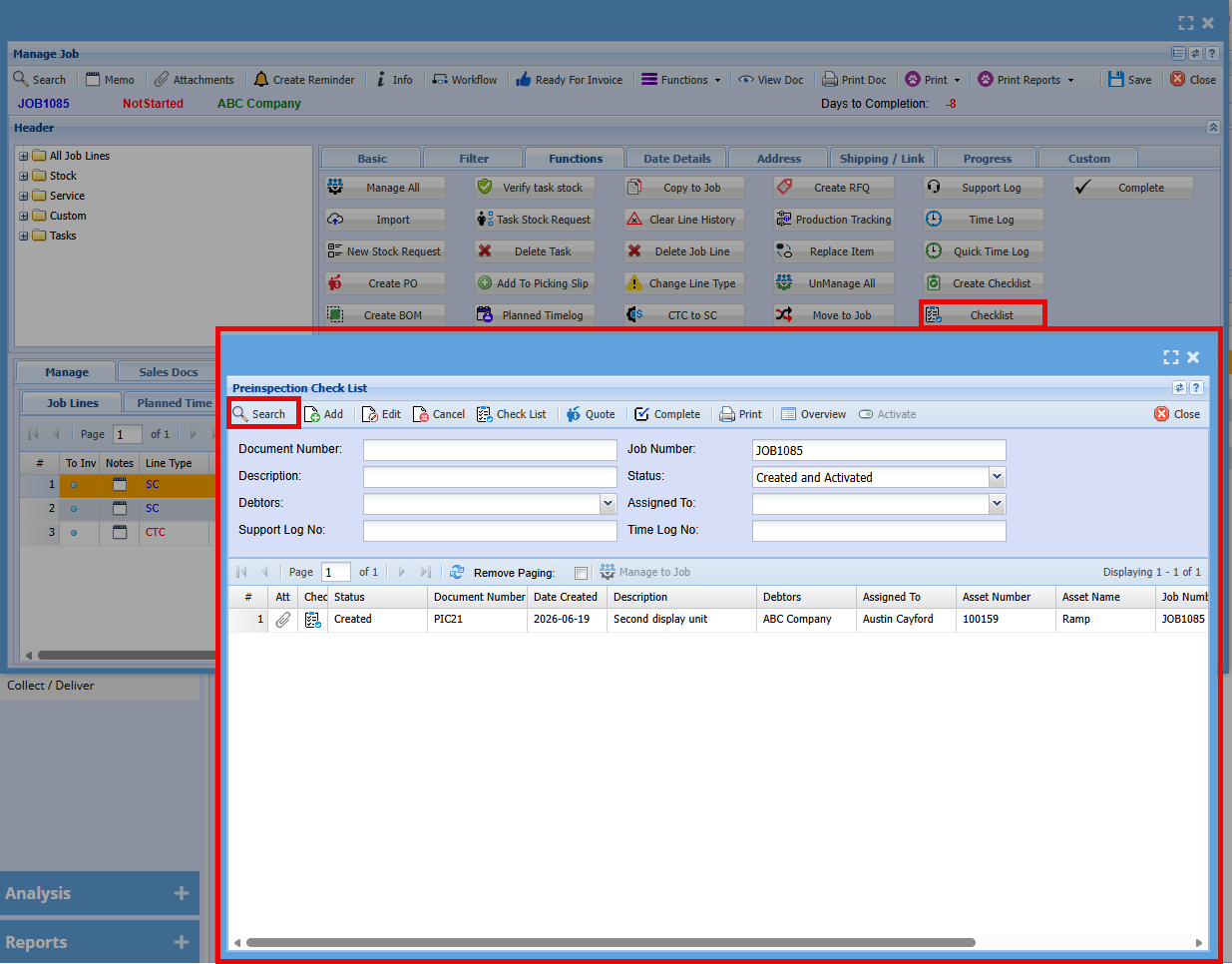
Checklist
Complete