Manage Job Functions Tab Explained - Detailed
Functions Tab

| Manage All | |
| Import | |
| New Stock Request | |
| Create PO | |
| Create BOM | |
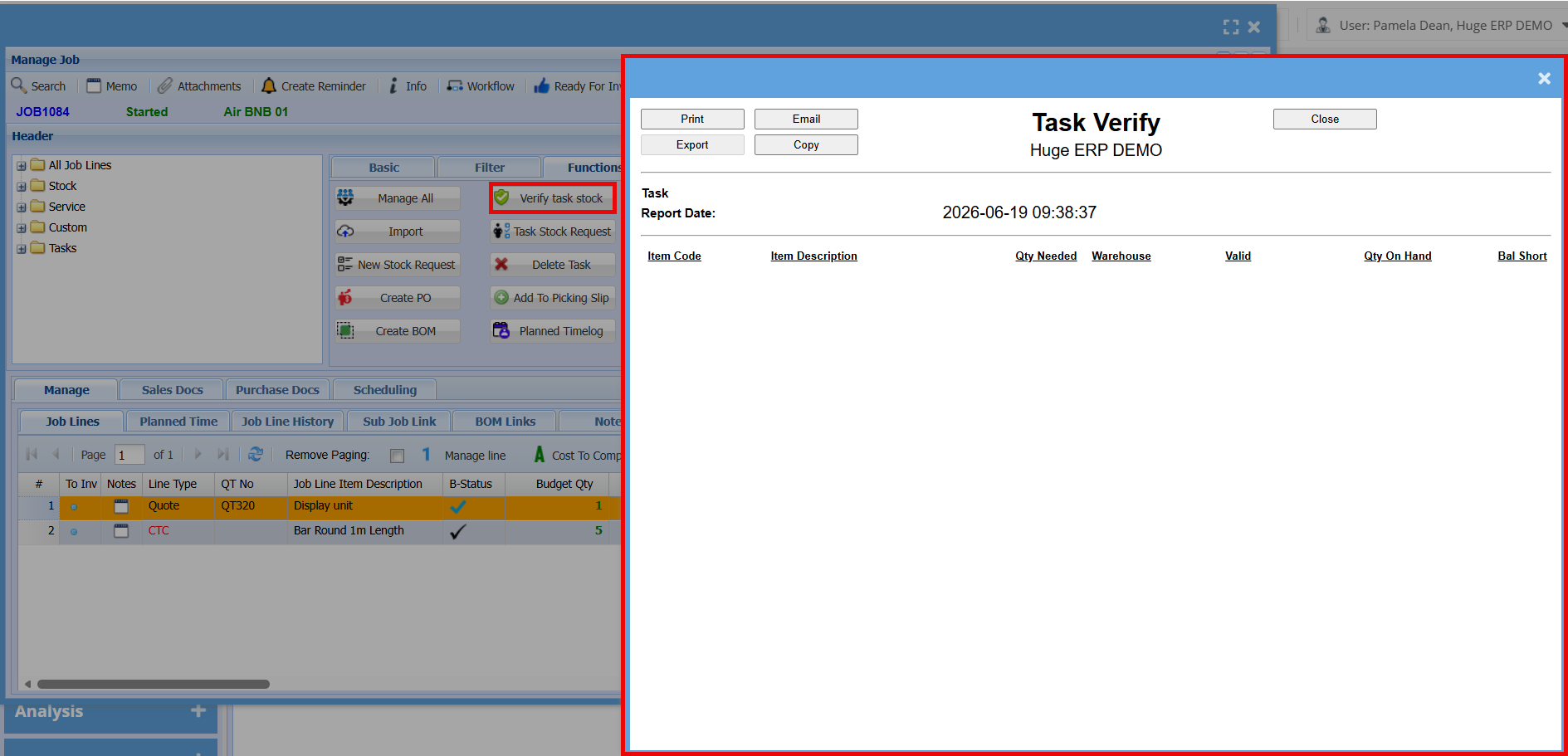
| Verify task stock | |
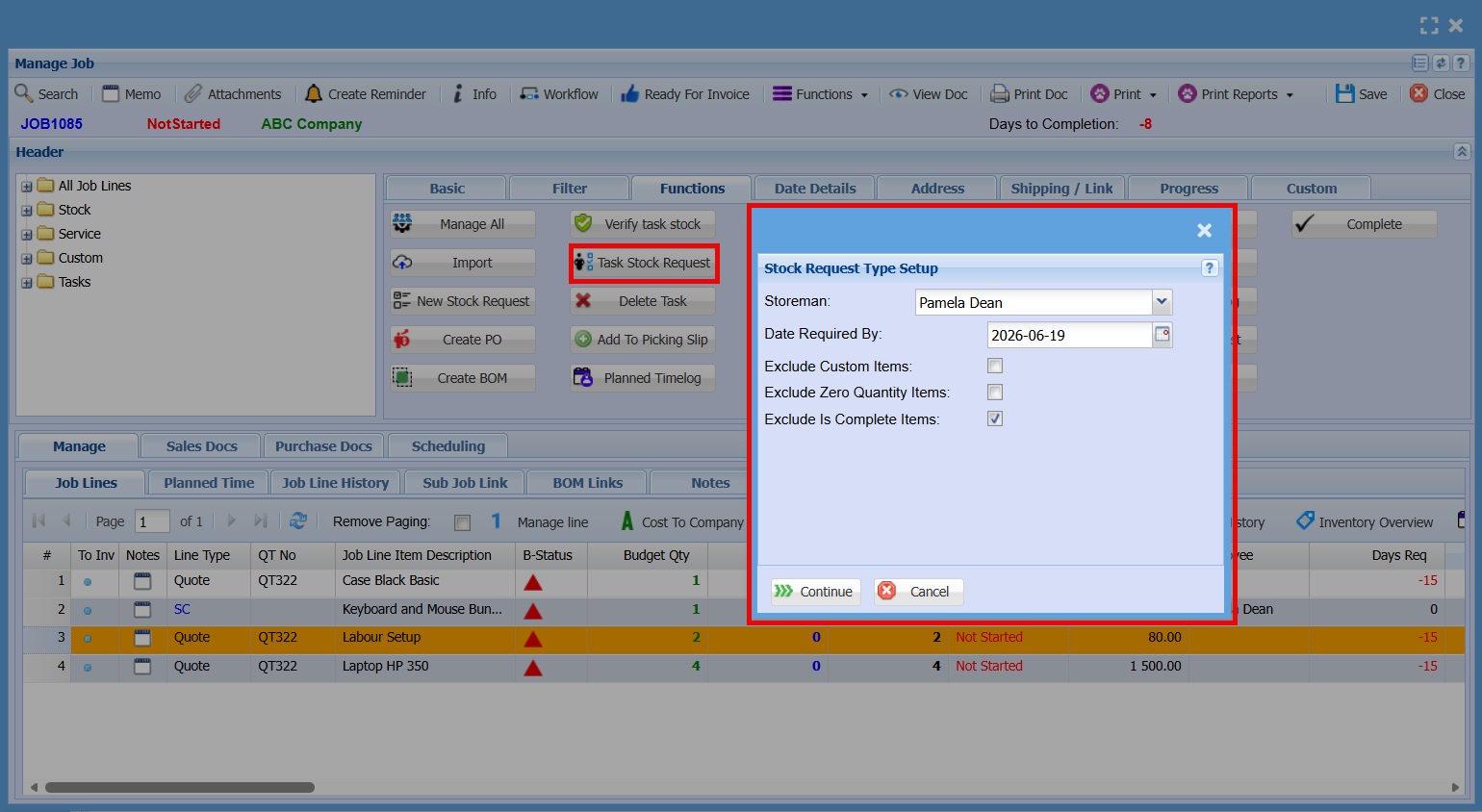
| Task Stock Request | |
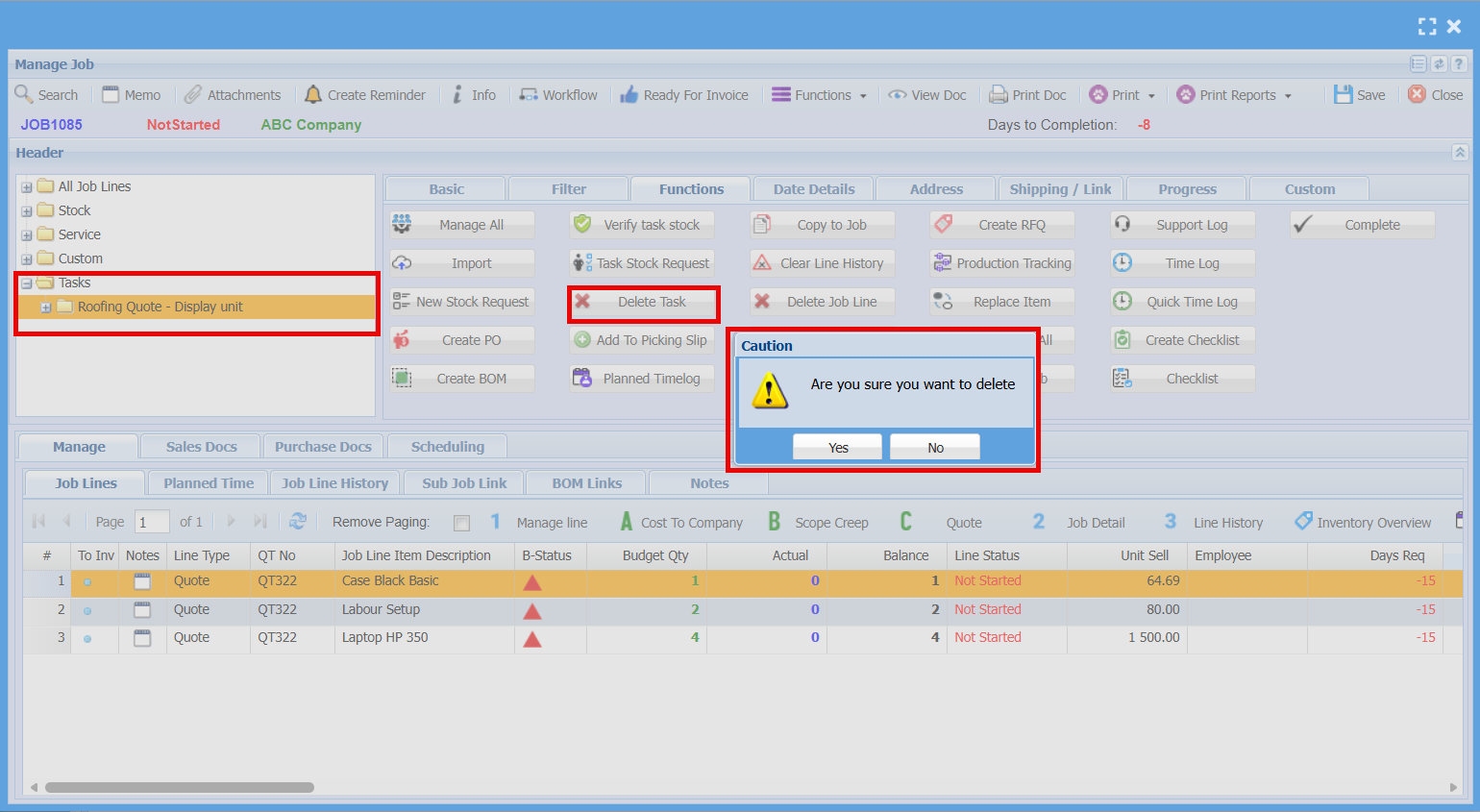
| Delete Task | |
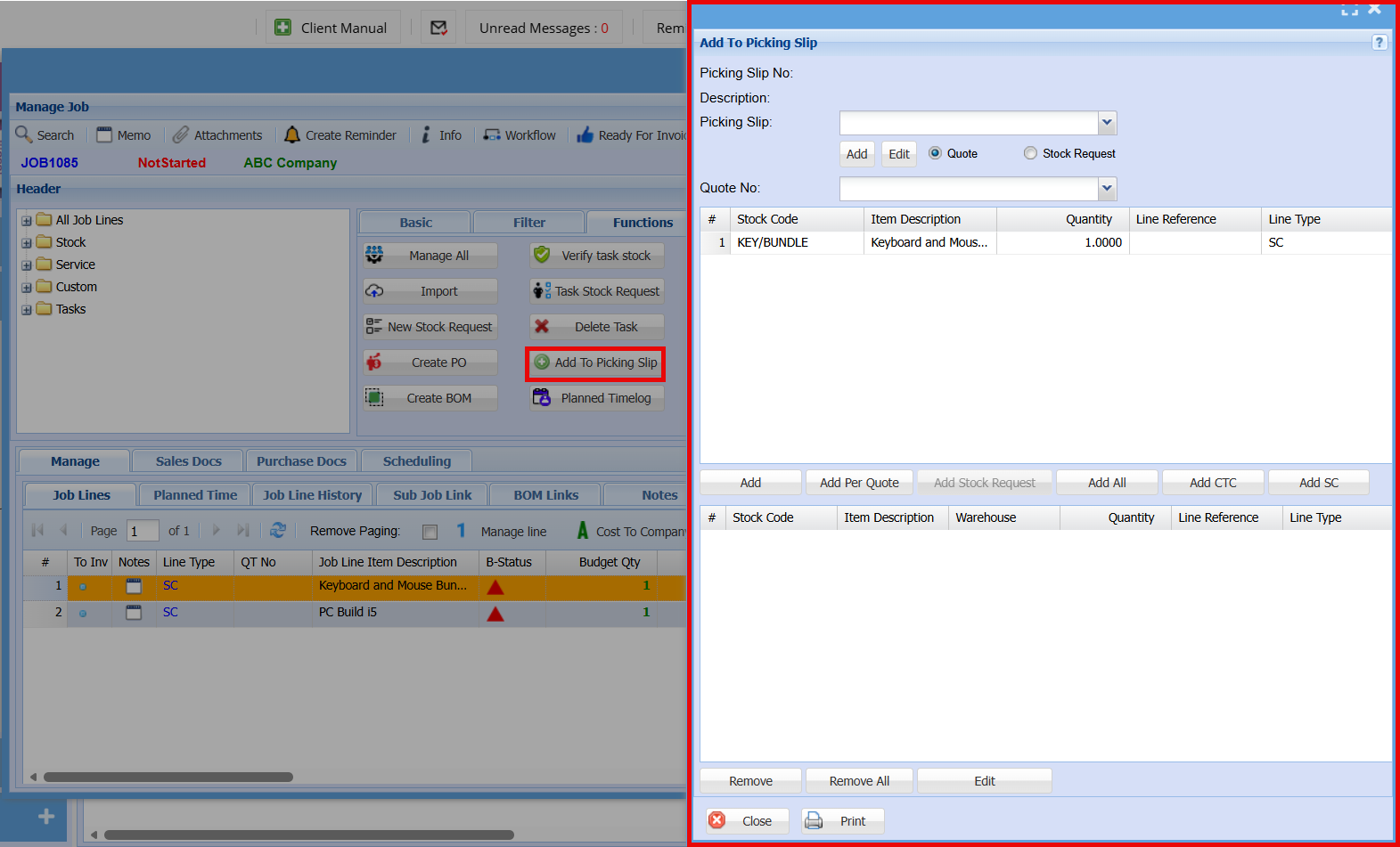
| Add to Picking Slip | |
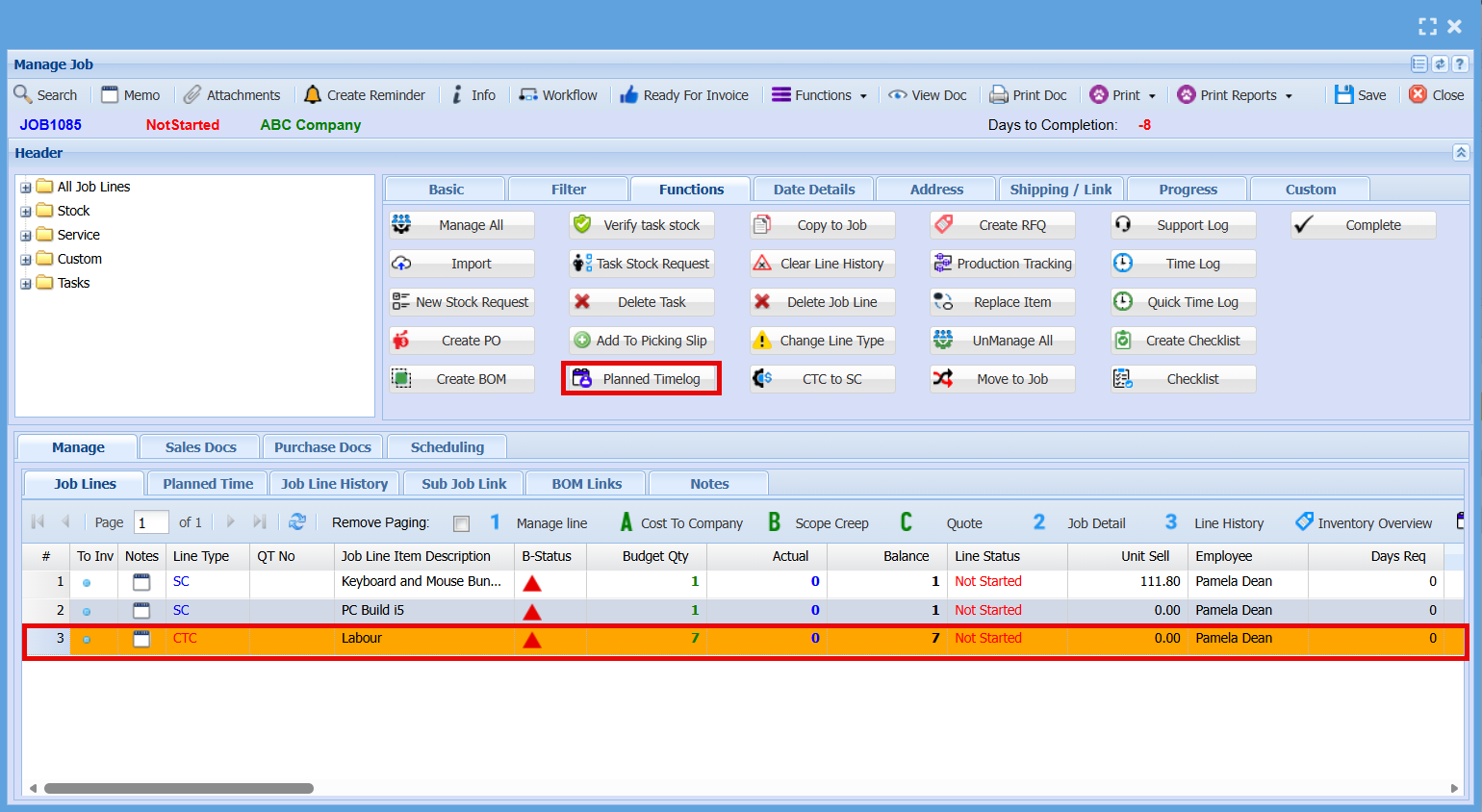
| Planned Timelog | |
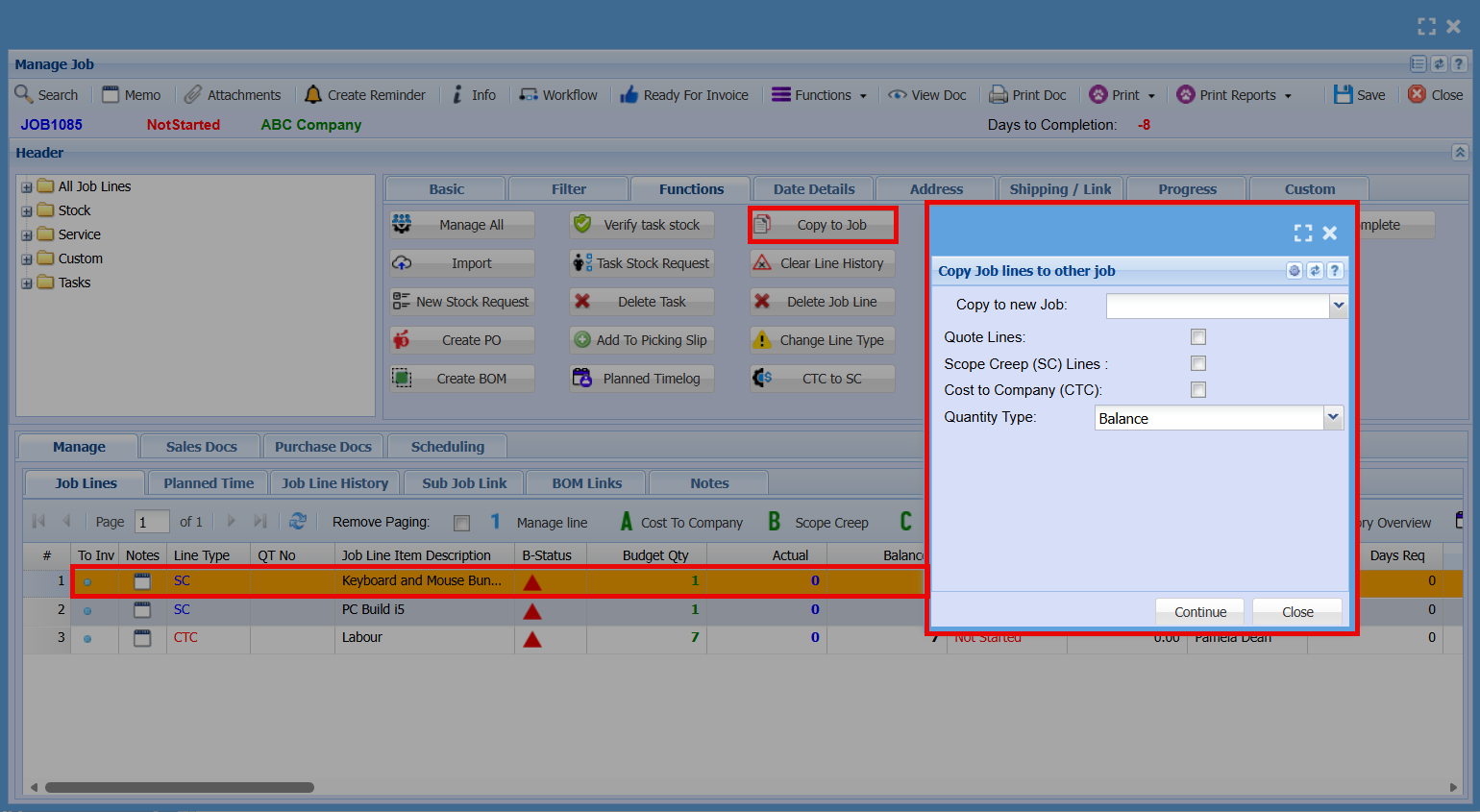
| Copy to Job | |
| Clear Line History | |
| Delete Job Line | |
| Change Line Type | |
| CTC to SC | |
| Support Log | |
| Time Log | |
| Quick Time Log | |
| Checklist | |
| Complete |
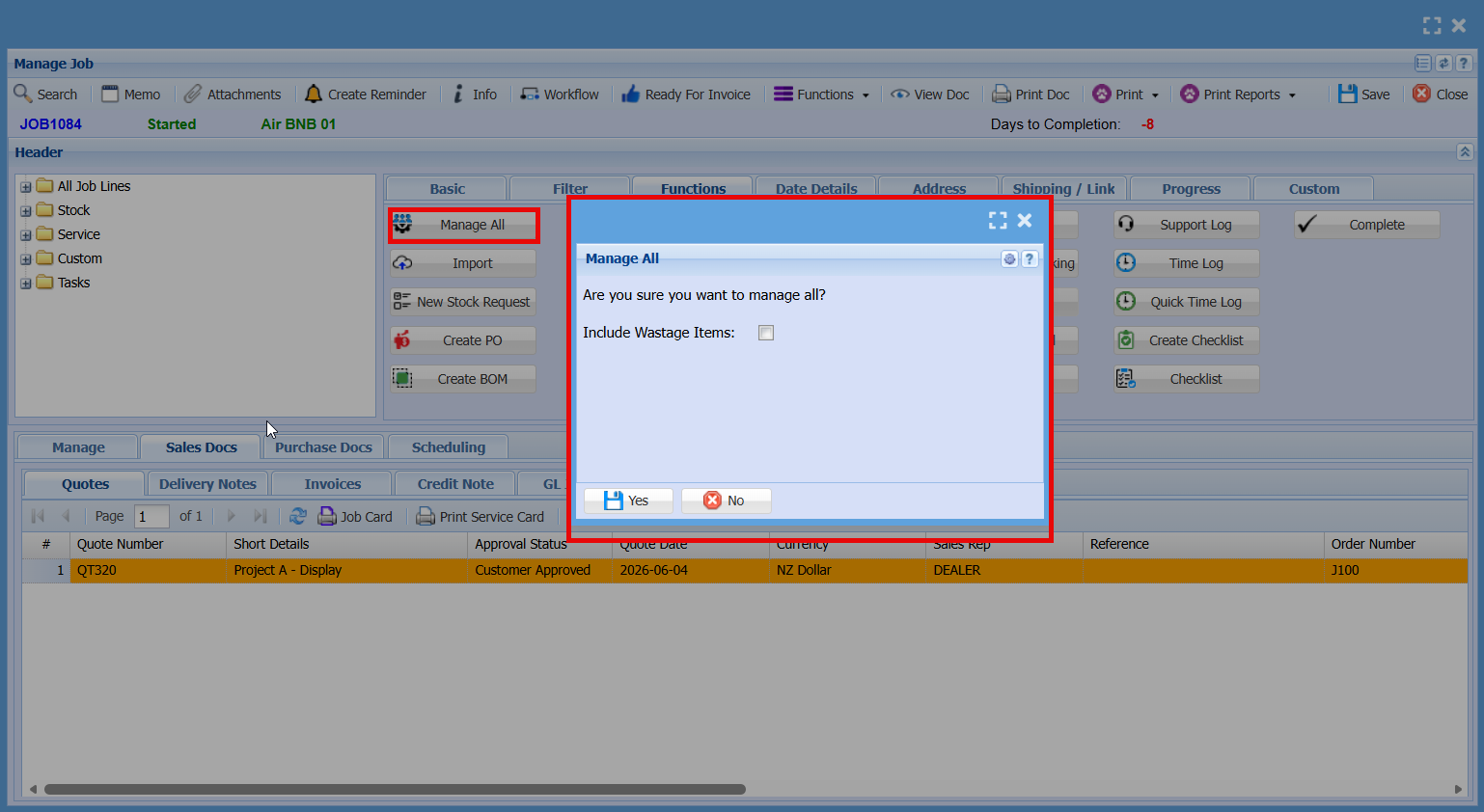
Manage All
Import Button
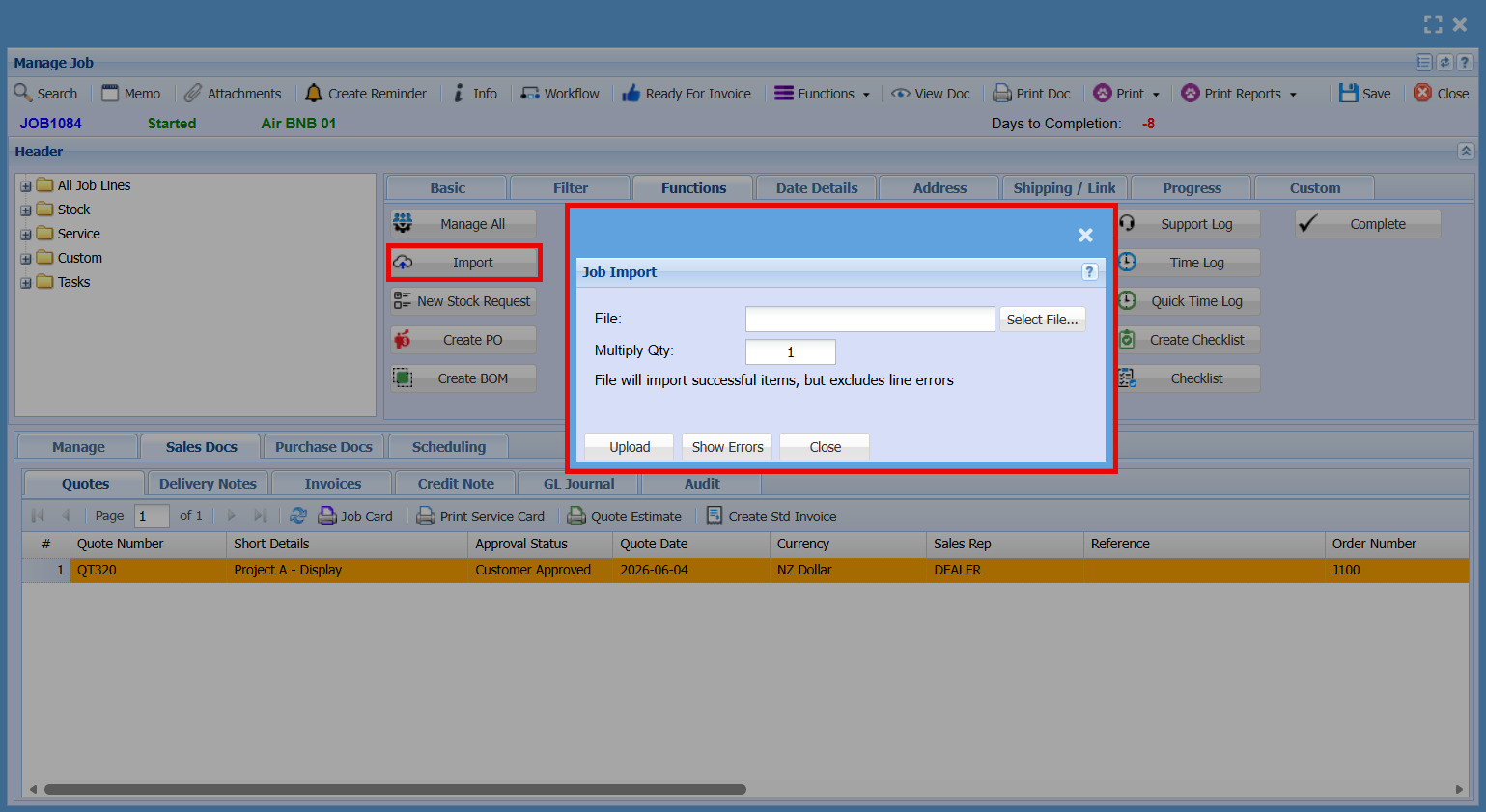
| File | |
| Multiply Qty | |
| Upload | |
| Show Errors |
New Stock Request
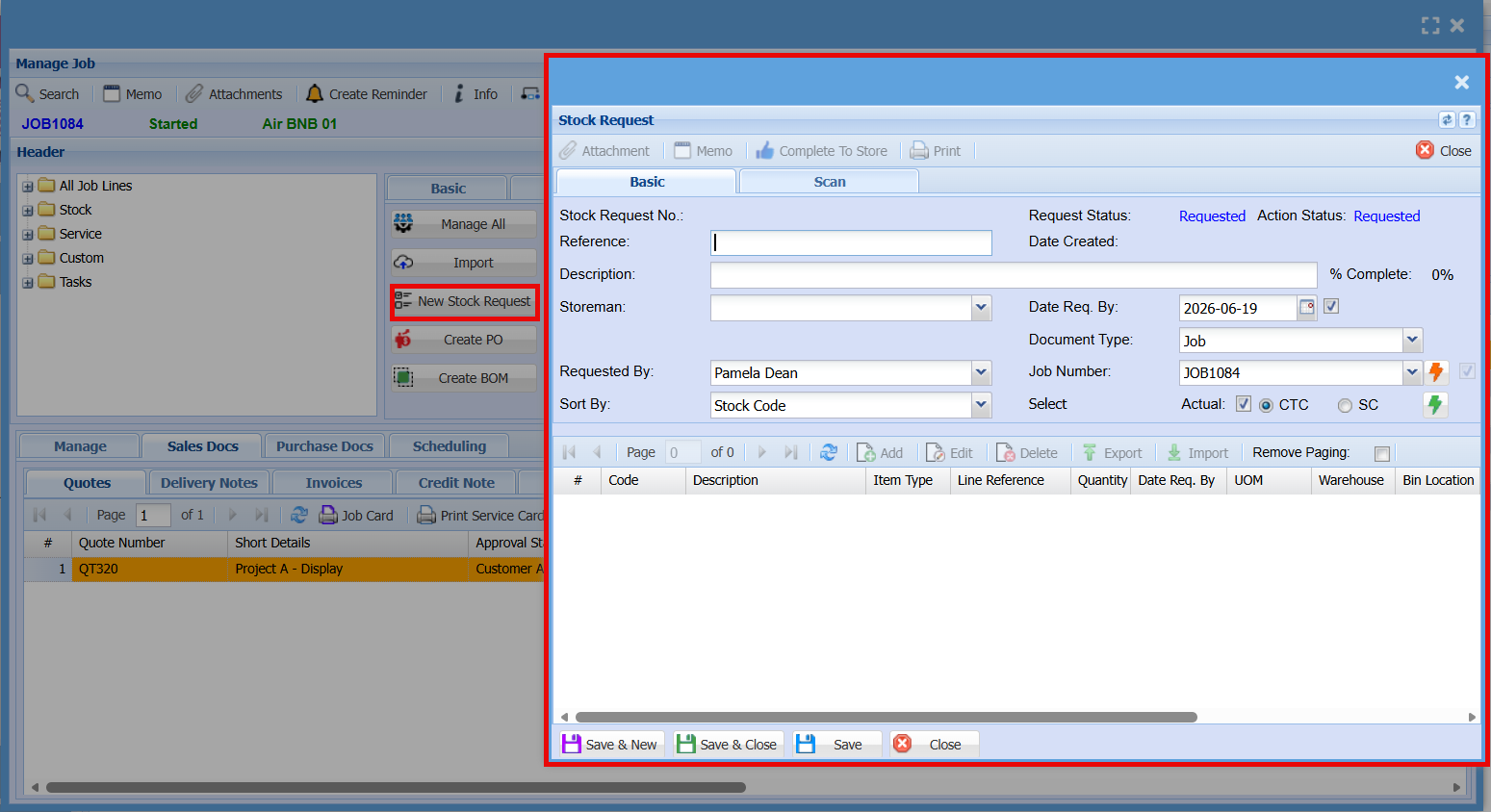
- Basic Tab
| Complete To Store | |
| Stock Request No | |
| Reference | |
| Description | |
| Storeman | |
| Requested By | |
| Sort By | |
| Date Req. By | |
| Document Type | |
| Job Number | |
| Select |
- Scan Tab
| Scan Barcode | |
| Last Item | |
| Last Result | |
| Scan Log |
Create PO
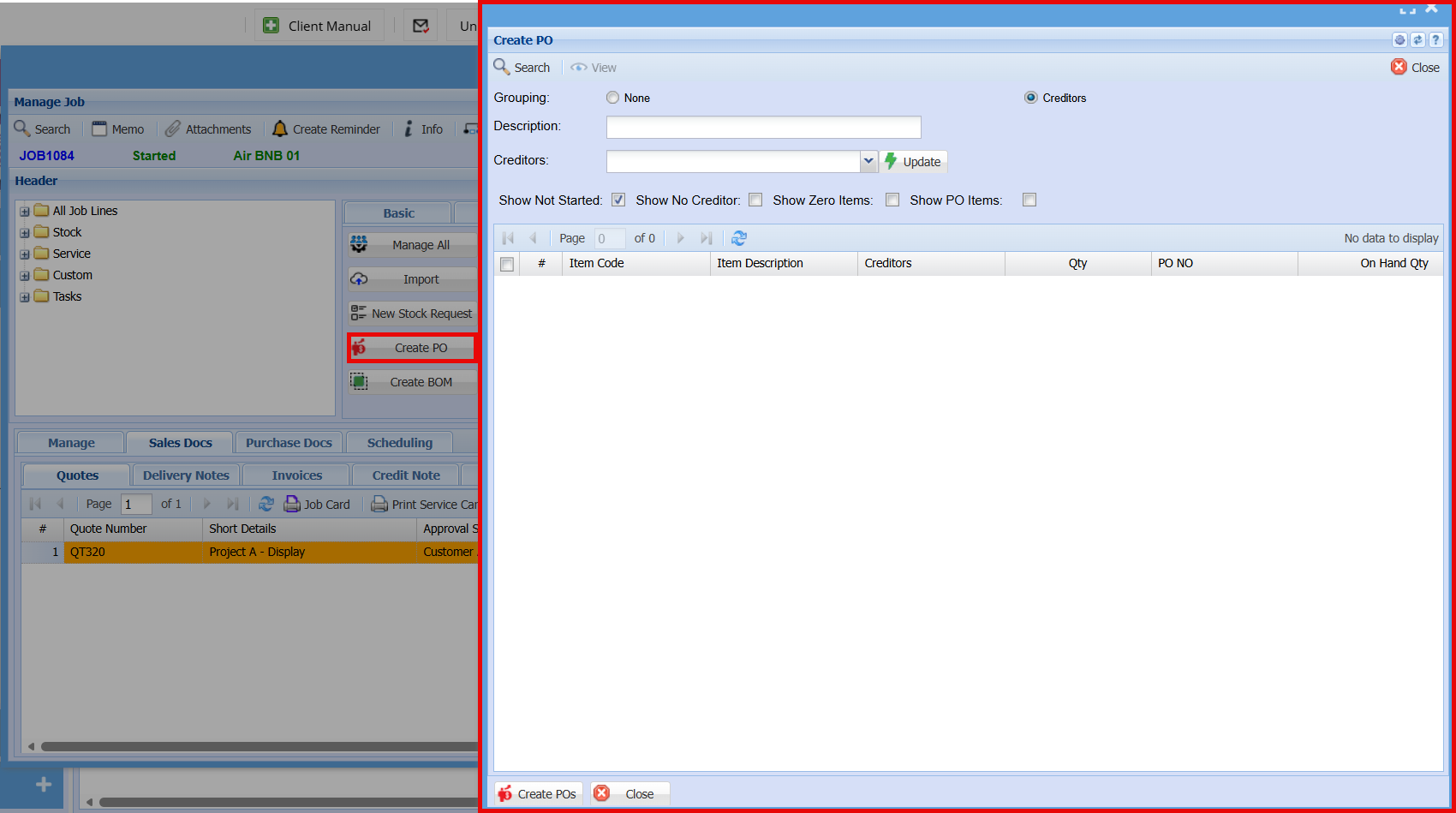
| Grouping | Select None or Supplier |
| Description | |
| Supplier | |
| Show Not Started | |
| Show No Supplier | |
| Create POs |
Create BOM
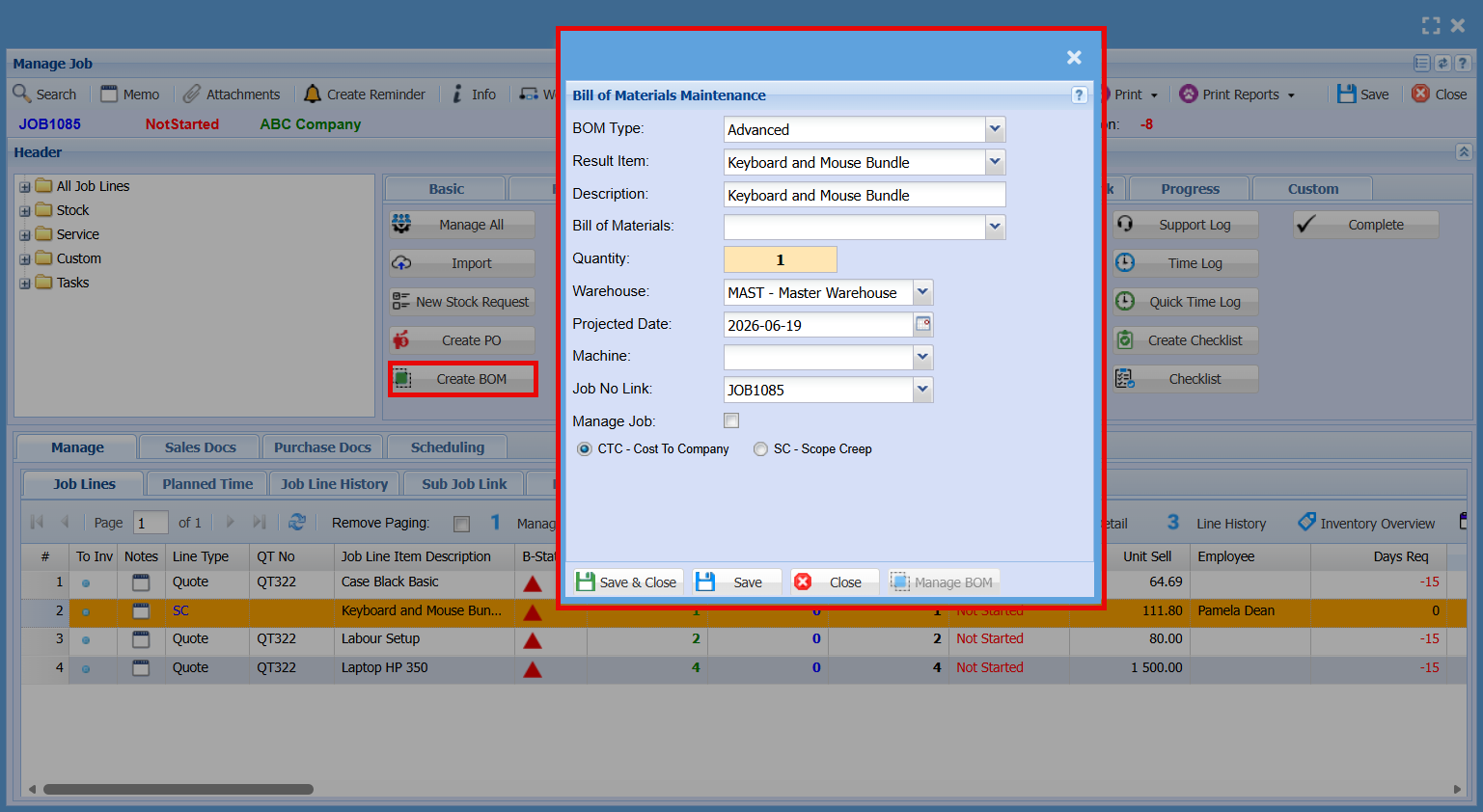
Verify Task Stock
Task Stock Request
Delete Task
Add a Picking Slip
Planned Time Log
Copy to Job
Clear Line History
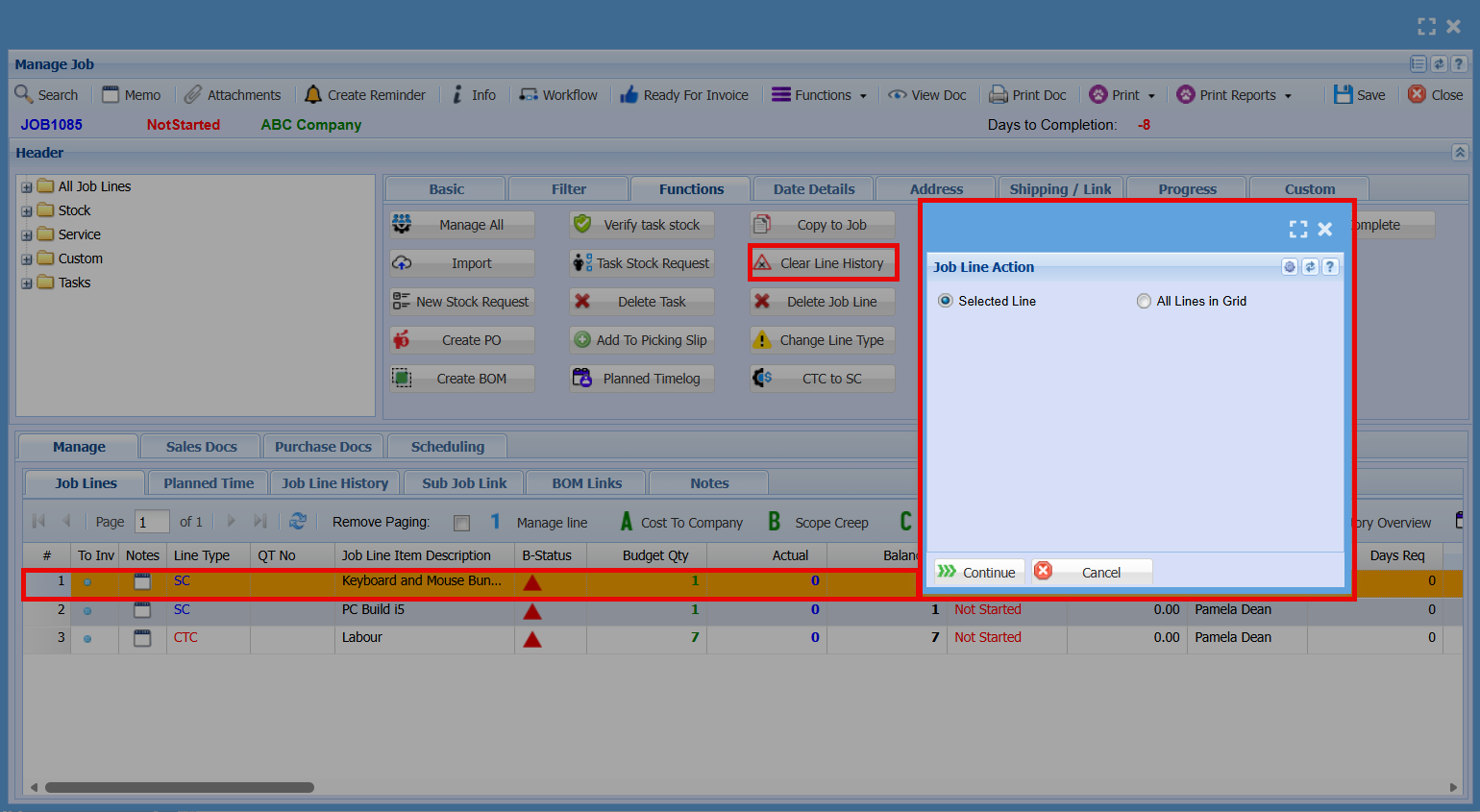
Delete Job Line
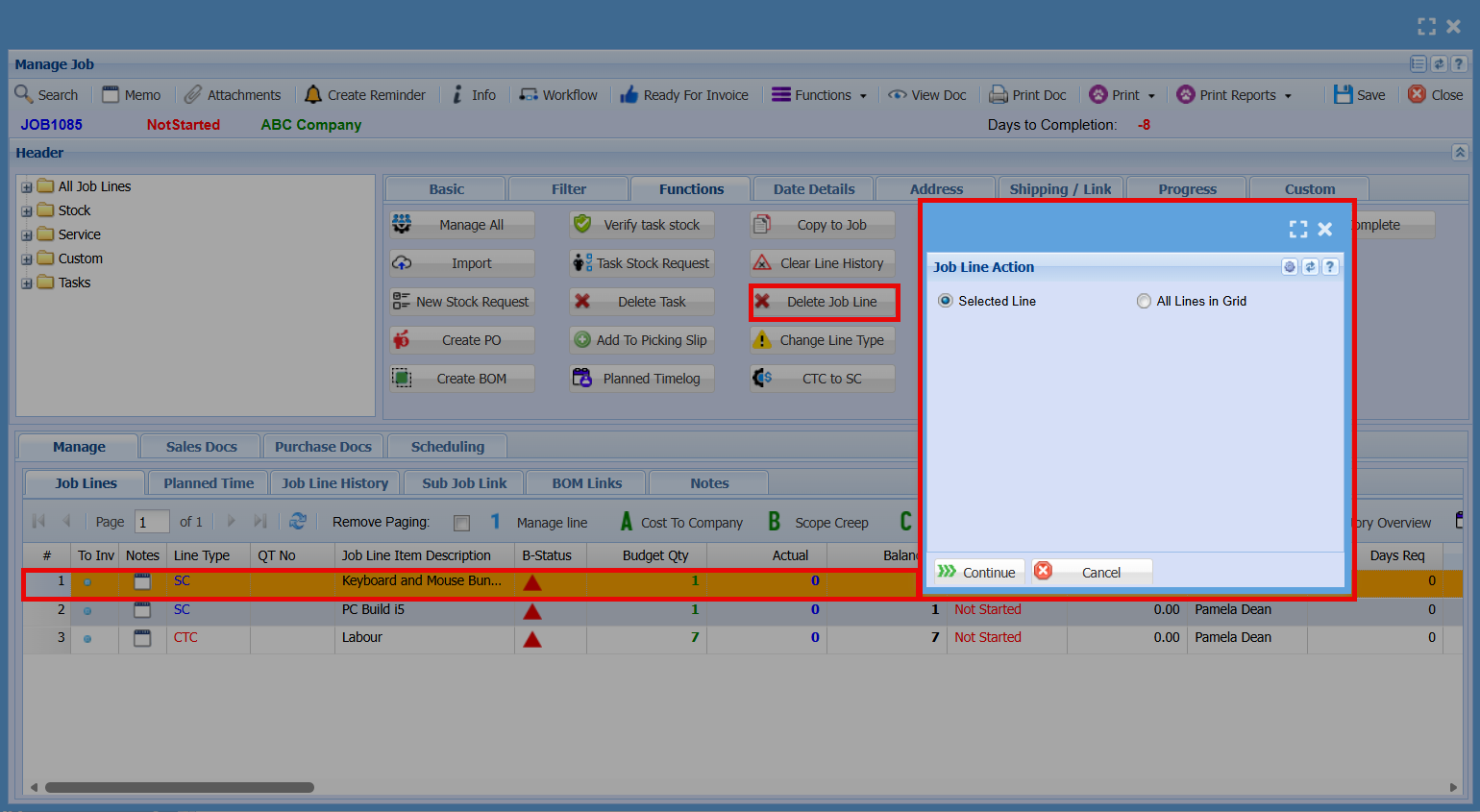
Change Line Type
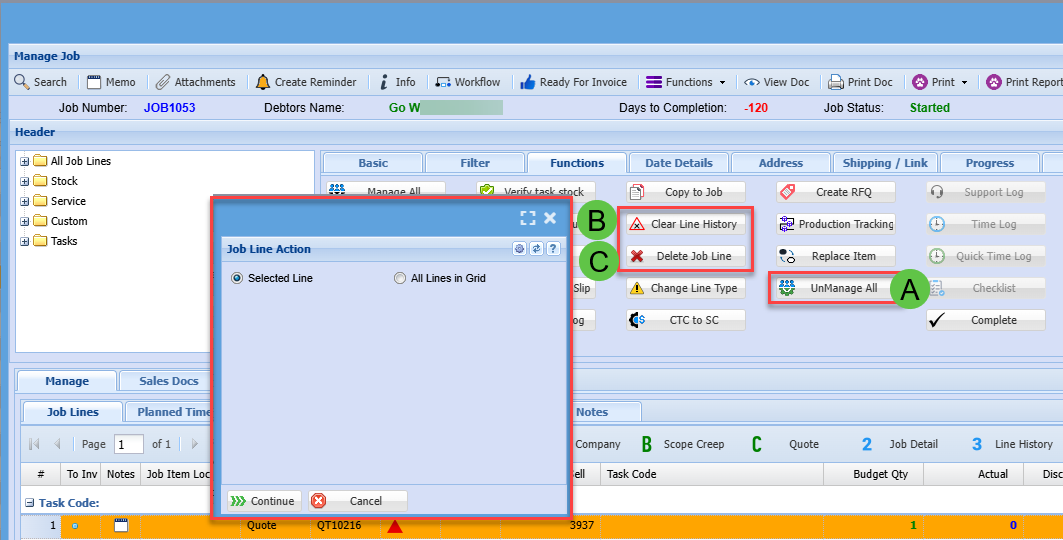
UnManage All
The “Unmanage All” function will reverse any managed quantities on job lines, reducing them back to an unmanaged state based on what has not yet been invoiced.
| A | UnManage All items on a job |
| B |
Clear Line History Only works if the Managed Actual quantity equals zero |
| C |
Delete Job Line Only works if there are no Line History entries |