Job Costing Overview (New)
Job Costing Workflow Overview
Quote
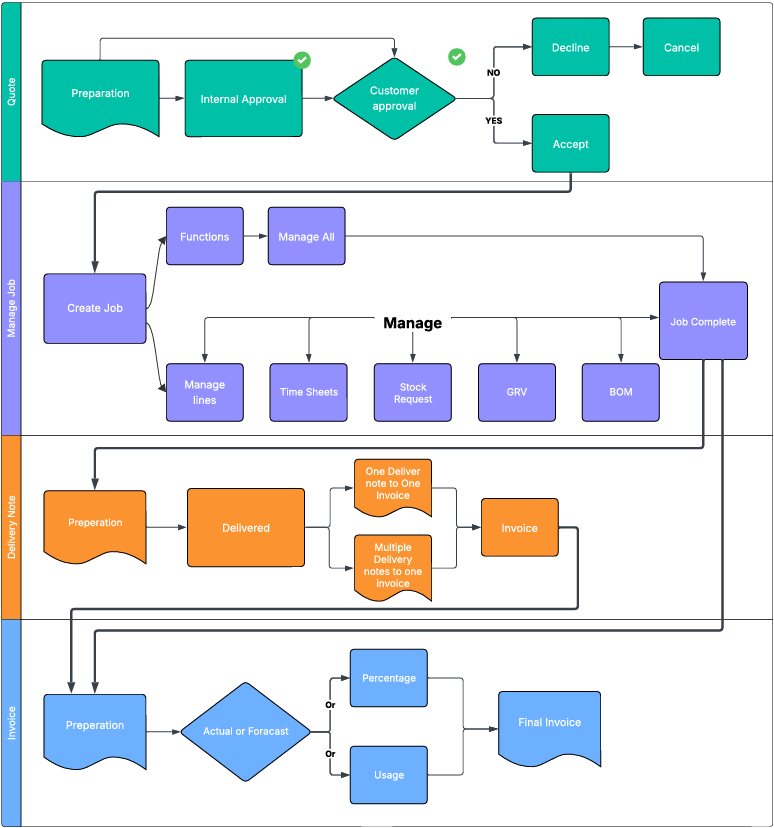
Every job begins with a Quote, which provides the estimated cost of the work and serves as the basis for customer approval. Once approved, the quote can be promoted to a Managed Job—the central stage where production activities are tracked, coordinated, and monitored.
From there, you have two workflow options:
- Option 1: Proceed to a Delivery Note if items need to be dispatched, followed by an Invoice.
- Option 2: Go directly from Managed Job to Invoice if no delivery documentation is required.
Alternatively, you can initiate a job directly from the Managed Job stage. In this case, the system will automatically generate a corresponding quote, ensuring every job remains linked to a quote—regardless of where it begins.
Invoicing can be structured in two primary formats: percentage-based or usage-based. Each format can be further refined into actual or forecasted (predicted) invoicing. Multiple invoices can be issued under either approach, depending on project needs or billing cycles.
Manage Job
The Managed Job stage is the operational heart of your workflow—where production activities are created, tracked, and coordinated. You can initiate a job directly from this stage, and the system will automatically generate a corresponding Quote, ensuring every job remains linked to a quote regardless of where it begins. This maintains traceability and financial alignment across all job types.
Once a job is created, you have two management options:
- Manage All Lines as a Single Function:
This approach is ideal for smaller jobs with limited complexity. It allows you to control all job components in one place, streamlining updates and reducing overhead. However, caution is advised for larger jobs, as this method can obscure individual line-level visibility and make it harder to track progress or isolate issues. - Manage Job Line by Line:
Recommended for larger or multi-phase jobs, this method gives you more control over each line item. You can monitor progress, allocate resources, and adjust timelines independently, ensuring better oversight and flexibility throughout the job lifecycle.
Within the Managed Job stage, you can also access and update key operational modules:
- Time Sheets: Record labour hours and assign them to specific job lines or phases. This supports accurate cost tracking and resource planning.
- Stock Requests: Generate requests for items not currently in stock. These requests trigger procurement workflows to ensure materials are available when needed.
- GRV (Goods Received Voucher): Use GRVs to document partial dispatches, especially useful when some items are ready for delivery while others remain in production.
- BOM (Bill of Materials): Manage and update BOMs to reflect the materials required for each job line. This ensures production teams have clear visibility into what’s needed and when.
Together, these tools provide a robust framework for managing jobs of any size, supporting both operational efficiency and financial accuracy
Delivery Note
Once a job, or part of a job is complete and ready for dispatch, a Delivery Note can be prepared to document the items being sent. This note serves as the formal record of what’s leaving your premises and when.
You can choose between two dispatch-to-invoice workflows:
- One Delivery Note to One Invoice: Ideal for single shipments or straightforward billing.
- Multiple Delivery Notes to One Invoice: Useful for staged deliveries that are consolidated into a single invoice for streamlined billing.
This flexibility ensures your dispatch and invoicing processes stay aligned with the pace and structure of the job.
Invoice
Invoicing can be structured in two primary formats: percentage-based or usage-based. Each format can be further refined into actual or forecasted (predicted) invoicing. Multiple invoices can be issued under either approach, depending on project needs or billing cycles.
Invoicing can be structured around two distinct approaches. Forecasted and Actual, each with its own implications for cost control and client expectations.
- Forecasted Invoicing - Forecasted invoicing is based on the original quote accepted by the client. This quote sets a fixed financial boundary for the job. Any costs incurred beyond the quoted amount are absorbed by the company, as the client has agreed to the scope and price upfront. This model is ideal for projects with clearly defined deliverables and minimal expected variation.
- Usage/Actual Invoicing - Actual invoicing reflects the real costs incurred during the job. It’s typically used for charge-up jobs, where billing is based on time, materials, or usage. If costs exceed the original quote, this is treated as scope creep, usually due to client-driven changes or additions. These adjustments are communicated and invoiced accordingly.
- Invoices reflect real item costs, similar to a traditional invoice format.
- You can compare quoted item costs and selling prices against actuals and invoiced amounts.
- This model is ideal for jobs with variable scope or evolving material requirements.
- Percentage-Based Invoicing - Percentage invoicing allows you to bill progressively over the life of a job. It’s especially useful for long-term or multi-phase projects.
- You can issue an invoice before the job starts, based on an agreed percentage.
- Costs are tracked against the quote, allowing you to compare estimated vs actuals.
- This approach helps maintain monthly profit and loss consistency, supporting smoother financial reporting.
Case Studies
Basic Job Costing Case
Quote Creation
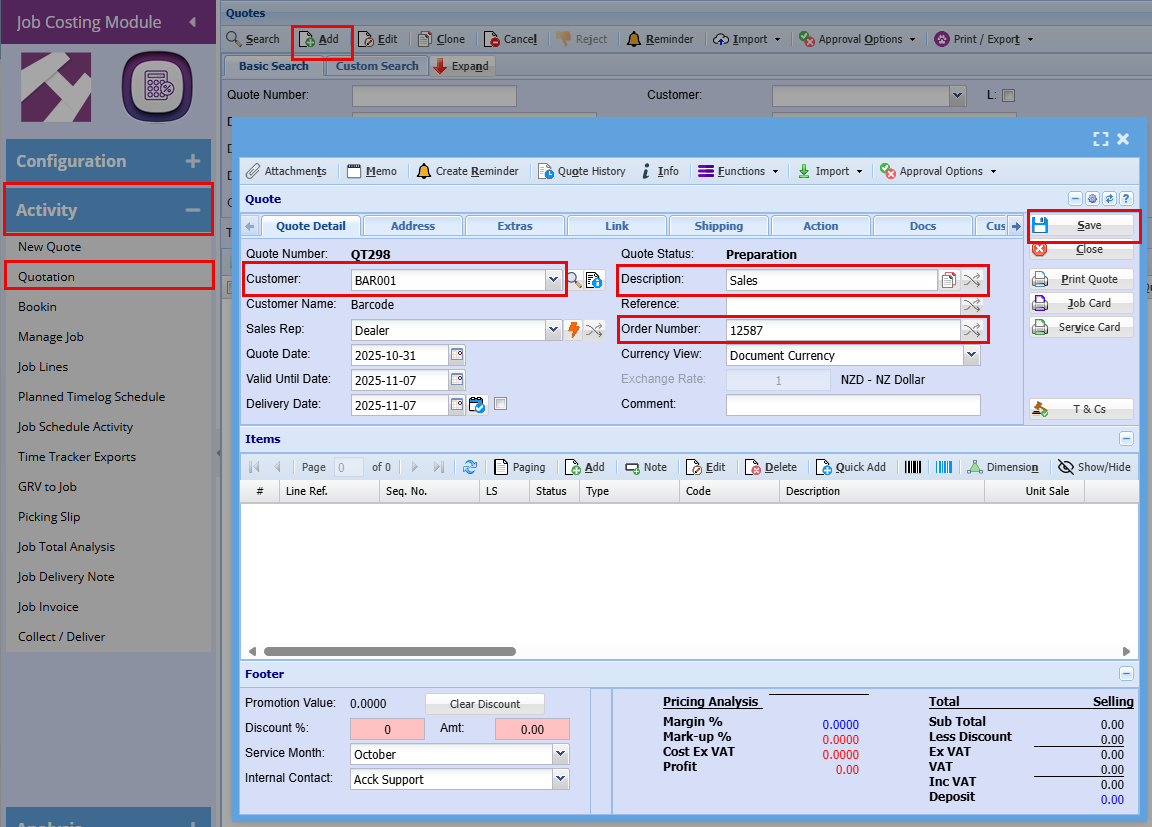
Job Costing > Activity > Quote
- Click "Add"
- Enter the Customer name, Description, and Order Number
- Click "Save"(By clicking save you activate the button allowing you to "Add" a line item.)
Before adding your line items to your quote, take a moment to review the key tabs across the top of your page, some of these tabs may contain important options you may want to configure or define first for a basic Quote.

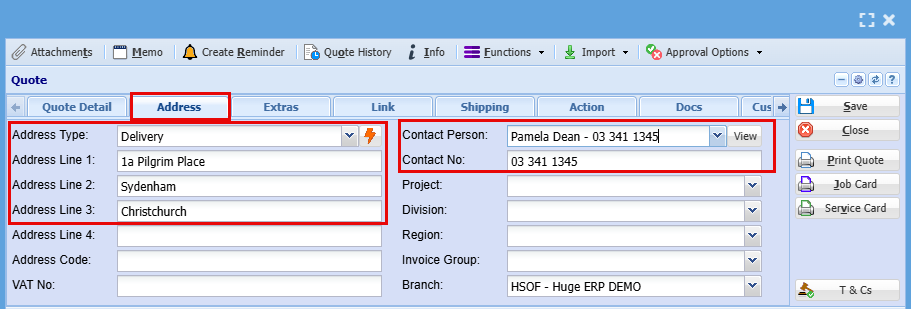
Address Tab:
- Use this tab to update the job address if required.
- Select the contact person for the quote from the dropdown list.
- If the contact does not exist yet, click the View button to add a new contact on the fly
Note: if details are edited on the quote, this will only apply to the specific quote and not update the debtor setup unless the debtor setup is access and updated as well.
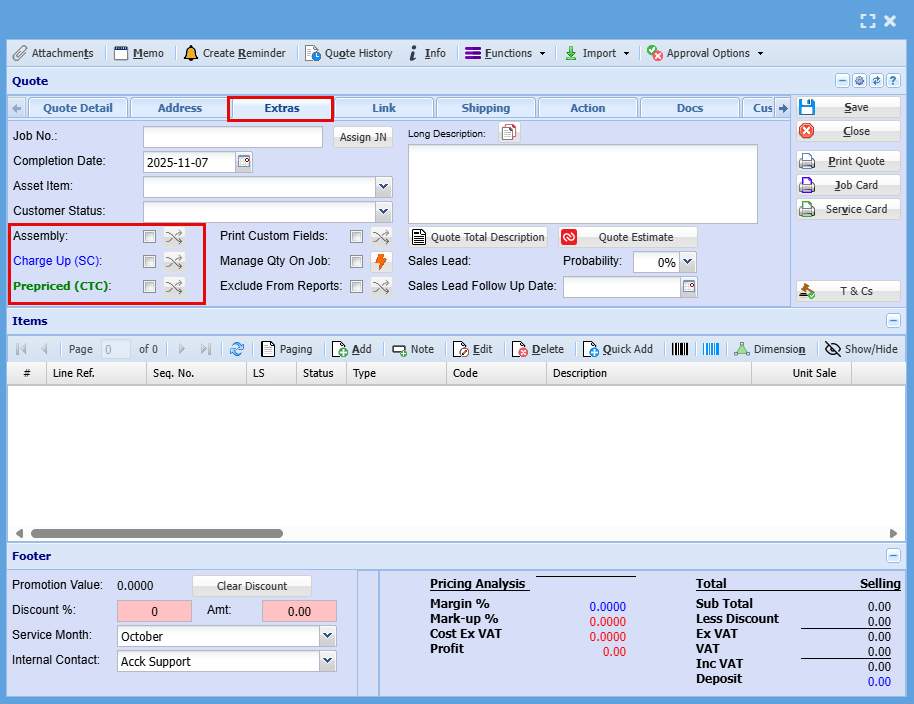
Extras Tab:
Select the billing method that applies to this job
Among the top tabs, click on the "Extras" tab.
- Tick the box that applied to your customer.
- Click "Save"
| Assembly | “Assembly” refers to an internal process where components or materials are prepared, combined, or staged before installation or delivery. It’s not billed separately to the customer but contributes to your overall job cost. |
| Charge Up (SC) | Charge Up (SC)” means the customer is billed for actual time and materials used, including any extras beyond the initial scope. Charge Up allows you to invoice for additional costs incurred during the job. |
| Prepaid (CTC) |
"Prepaid” refers to the quoted amount for the job, the fixed charge agreed to by the customer. You can’t invoice beyond this amount, so any extra time, materials, or costs that exceed the quote become your internal expense, or ‘Cost to Company (CTC) |
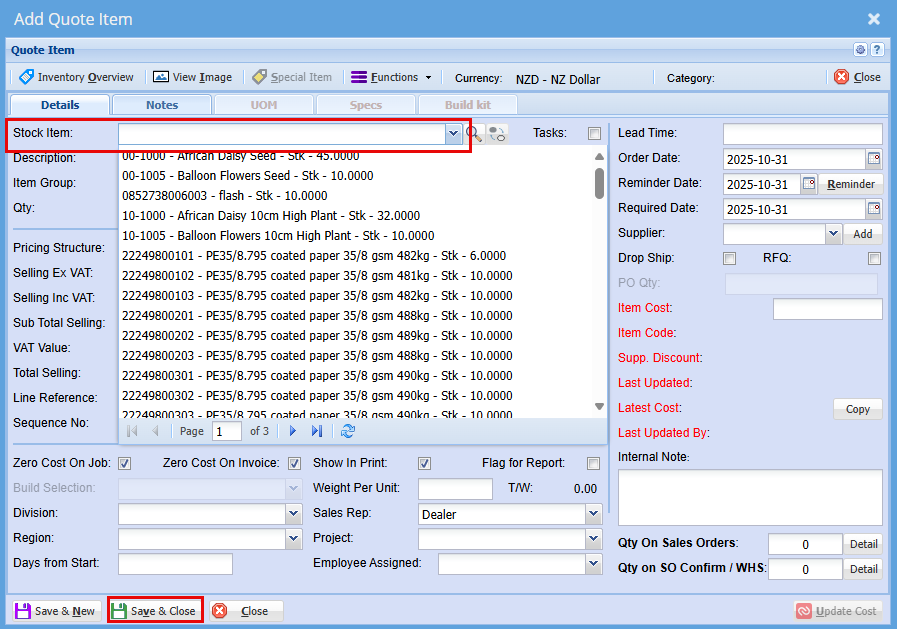
Adding Line Items to a Quote.
- Click the "Add" button located halfway down the page

- From the dropdown menu, choose the relevant item (Stock, Service, or Custom Items.)
- Once selected, click Save & Close to confirm your choice
- Add as many as desired
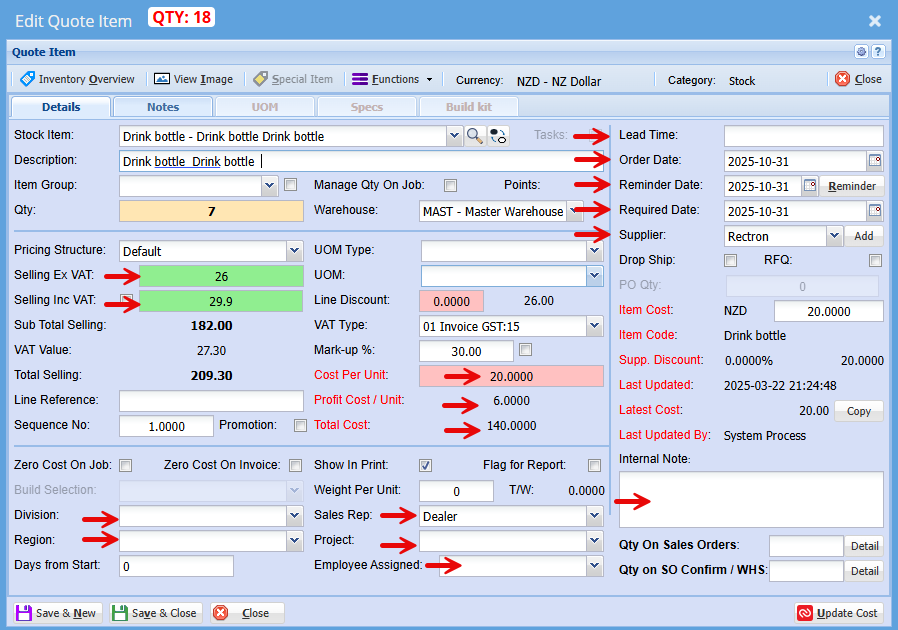
Additional Job Details
This screen also allows you to capture key information for each job or task line, including:
- Lead Time
- Order Date
- Reminder Dates
- Required Date
- Supplier
- You can link it to cost centers
- Days from Start which his useful for scheduling
- ETC.
In addition, it displays your Cost Price, Sell Price, and calculated Profit Margin (%), giving you a clear view of profitability at a glance
Job Management
Scheduling
Invoicing
Closing Jobs
Reporting & Analysis
Extra settings:
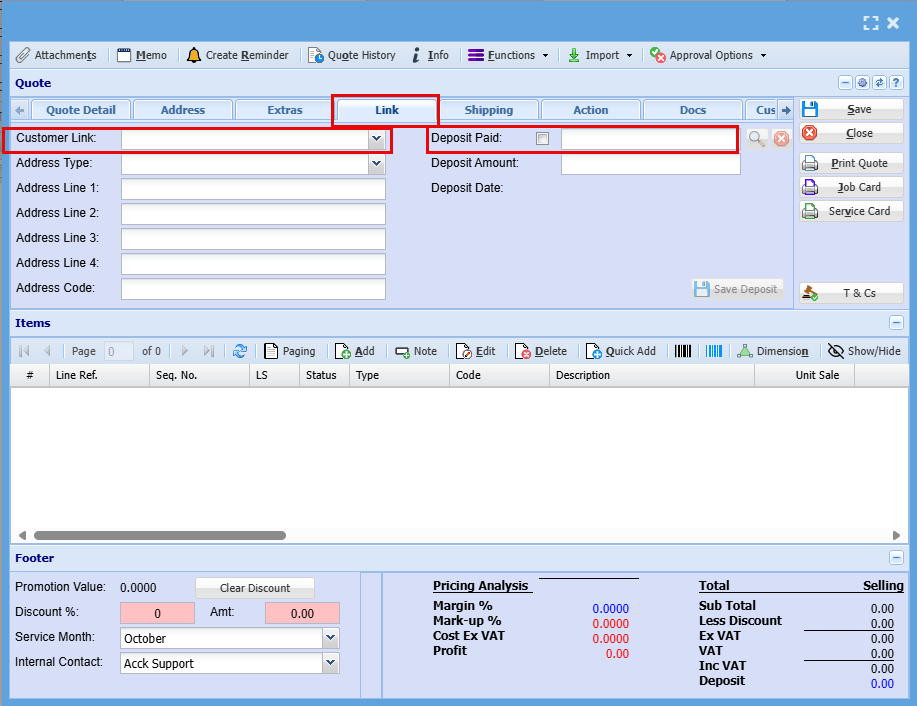
Link Tab
Customer Link: Use this tab when completing work on behalf of another company.
If you're quoting for a client of one of your customers, you can link that end client here.
When the quote is sent, your customer will see which of their clients the quote relates to.
Select the appropriate end client from the dropdown list.
Deposit Paid: If a customer has paid a deposit, this can be added to the quote and taken off of the total cost of the job.