
Job Bill of Materials (BOM)
This process enables you to produce a BOM resultant item using a job, ensuring accurate control of the final item cost, including all applicable labour and service costs.
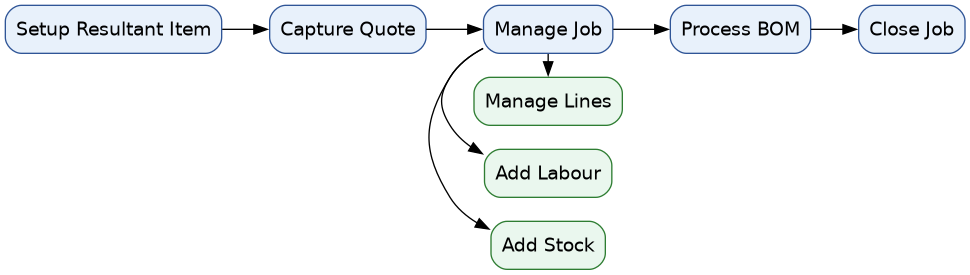
Overview
This process allows you to create a finished (resultant) item from a job while accurately capturing all material, labour, and service costs.
1. Setup Resultant Item
Define the final item that will be produced from the Job BOM.
2. Capture Quotation
Create and prepare the job quote, including materials and estimated costs.
3. Manage Job
Convert the approved quote into an active job and manage all components.
- Add Stock Items
- Record Time Logs (Labour)
- Manage Job Lines
4. Process Job BOM
Finalise the job by processing the BOM to produce the resultant item and capture actual costs.
5. Close Job
Complete and close the job once all costs and outputs are confirmed.
Process Steps
-
Quote
Create and prepare the initial job quote. -
Manage Job
Convert the approved quote into an active job and manage it accordingly. -
Add Labour and Service Costs
Include any relevant labour or additional service costs to ensure the total job cost is accurate. -
Process Job BOM and Close
Process the Job BOM to generate the resultant item, then close the job.
Navigation & Item Setup
Go to Inventory > Configuration
- Click Add
- Enter an Item Code (ensure it aligns with your existing inventory coding convention)
- Enter the required Item Description
- Select the correct Group Code
- Click Save
-
Click Save
-
Select the Add tab
-
Choose the Stock Code or enter the description for the resultant item to be produced
-
Enter the required Quantity
-
Enter the estimated Cost PriceDo not enter a selling price
(This allows quantities and values to exceed the original job budget where required)
Continue adding all items required to produce the resultant item
Inventory > Analysis > Stock Enquiry
- Close all open windows
- Return to the Job Search screen
Process Steps
-
QuoteCreateand prepare the initial job quote. Manage JobConvert the approved quote into an active job and manage it accordingly.Add Labour and Service CostsInclude any relevant labour or additional service costs to ensure the total job cost is accurate.Process Job BOM and CloseProcess the Job BOM to generate the resultant item, then close the job.