
GST Submission
General Ledger Module > Reports >Report List
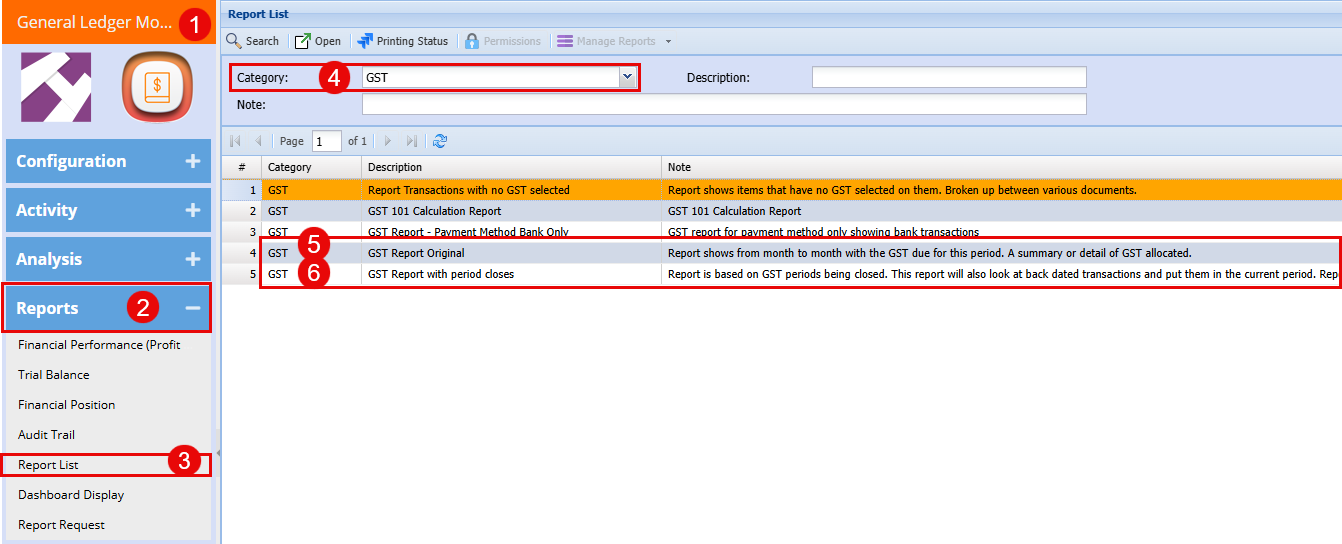
Double click on the "GST Report Original"
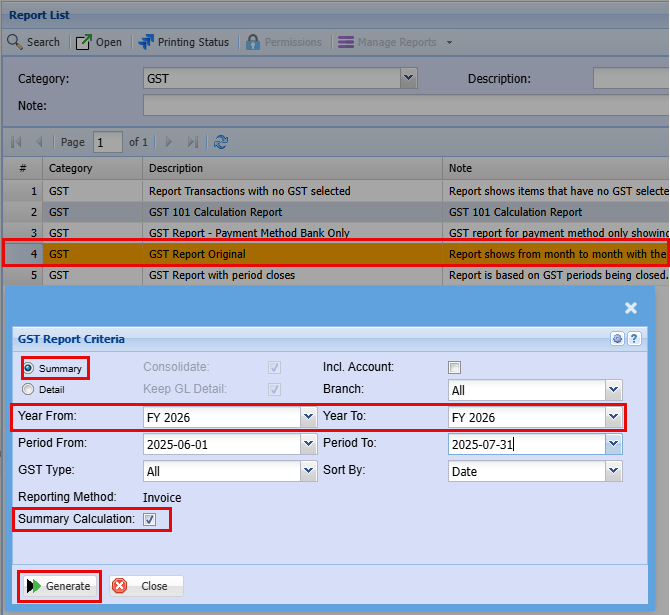
Run the Summery report
- Please choose the appropriate date range for your bi-monthly GST filing.
This ensures your submission reflects the correct reporting period and meets compliance requirements.
- Make sure the "Summery Calculation" box is ticked as this will help with the total to complete during submission
Note: Accurate date selection is essential for correct tax period calculation.
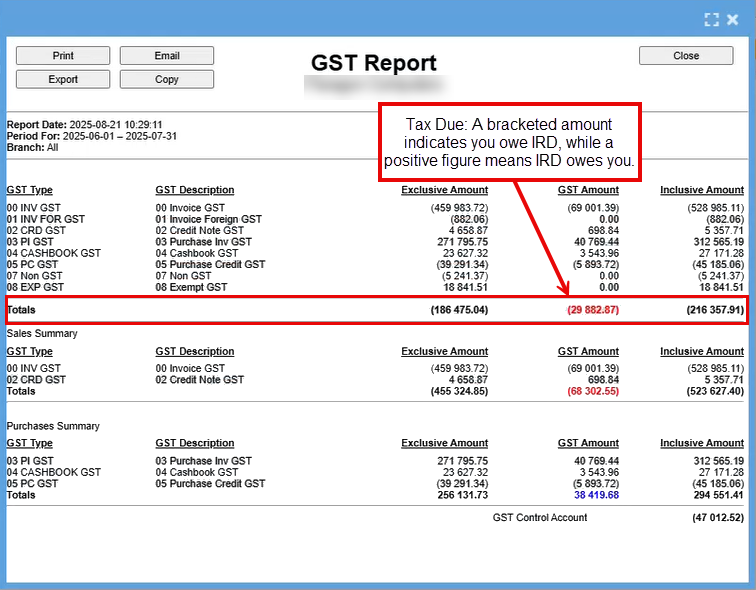
After clicking "Generate," an Excel spreadsheet will be produced, as shown below.
The figures displayed at the top represent your actual reported values, while the bottom section is formatted to assist with your IRD submission.
Print this document as a PDF and name it "GST Summery" add the date or month and year to easily identify this period.
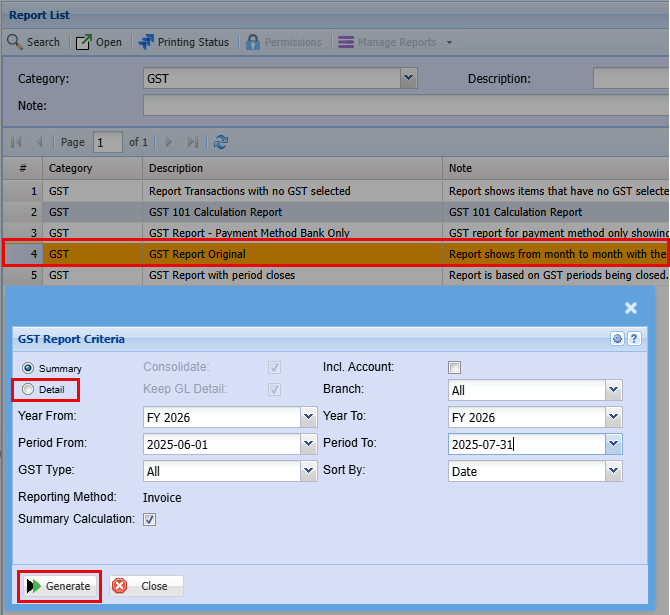
Run the detailed report
Run the detailed report for the same period
After clicking "Generate," an Excel spreadsheet will be produced, as shown below.
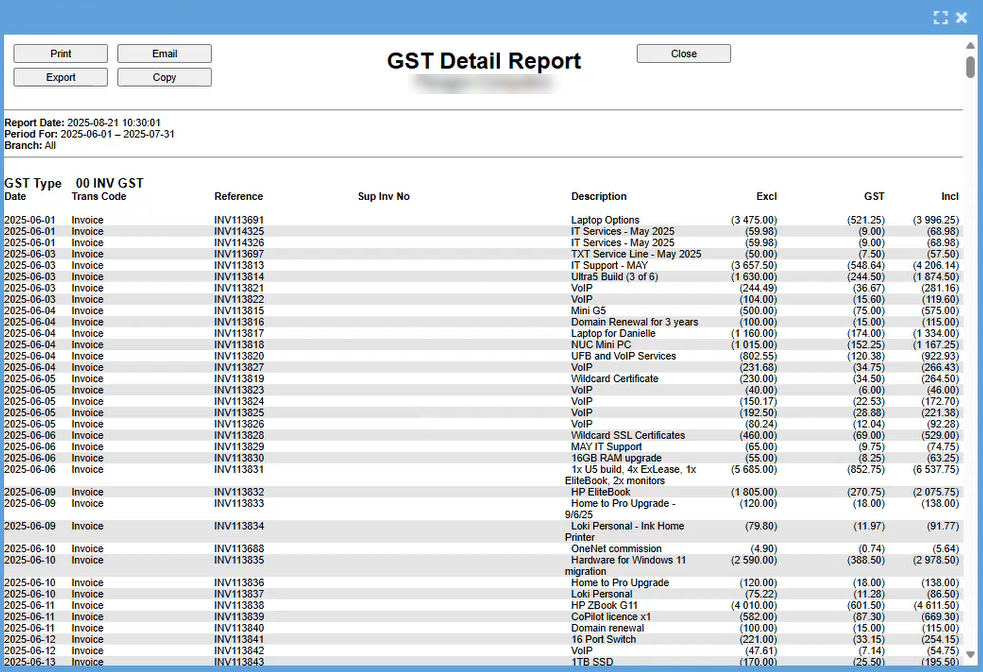
This report will give you every line of the invoice and is grouped by the different categories.
Review the report by scrolling through, and under the "Invoice" category, verify that all entries appear consistent and there are no irregularities.
The next section covers non-GST invoices.
IRD requires visibility into the total value of transactions where GST was not applied, to ensure accurate reporting and compliance.
Again, verify that all entries appear consistent and there are no irregularities.

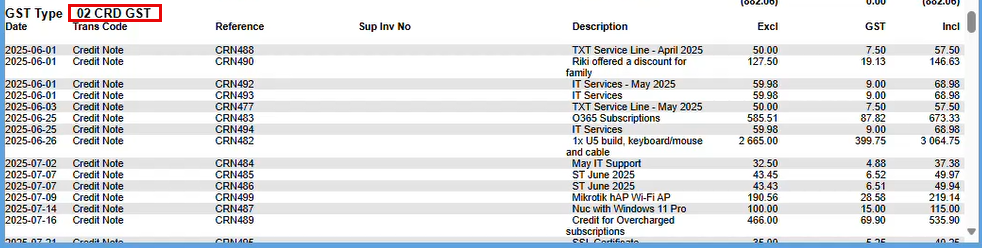
The next section covers credit notes.
Again, verify that all entries appear consistent and there are no irregularities.
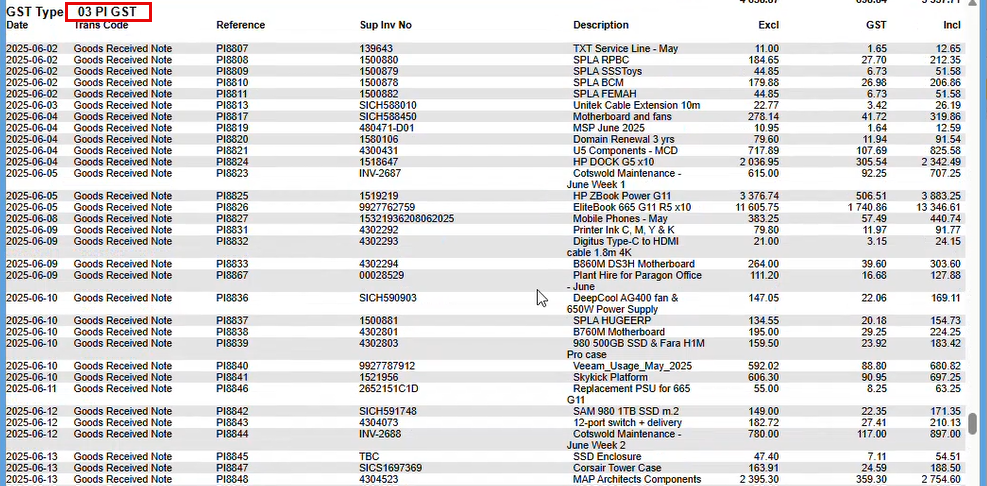
The next section covers Goods Received.
Again, verify that all entries appear consistent and there are no irregularities.
The next section pertains to the Cashbook.
As with previous sections, ensure all entries are consistent and free from anomalies.
Note: In some workflows, 'Goods Received' and 'Cashbook' may overlap, while in others they are maintained as distinct records.

Once you are happy with your report Print this document as a PDF and name it "GST Detailed" and again add the date or month and year to easily identify this period.