
Sales Order Search
Debtors Module> Activity> Sales Order
Video training manual 2016 - Click Here
.png)
Sales Order processing occurs after receipt of a sales order from a customer.
.png)
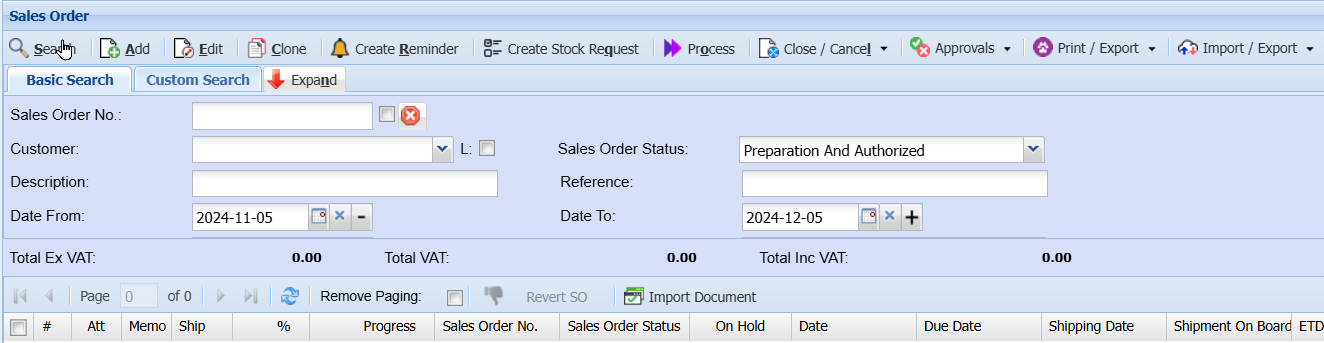
| Search | Search for an existing sales Order |
| Add | Add a new Sales Order |
| Edit | edit an existing sale Order |
| Cancel | Cancel a sales order |
| Close | Close a sales Order |
| Create reminder | Create a reminder for the sales order |
| Create Stock request | create a stock request |
| Actions | This button opens up action items that can authorize, unauthorize, confirm, confirm quantity, process a sales order |
| Print/Export | print sales order - or export sales order details to excel. |
Search options
| Customer Name | Allows a user to search by customer and the system will pull only the sales order for that selected customer |
| Date From | Select the date from which the sales order will be functional from |
| Sales Order Number | Search by selecting the sales order number |
| Sales Rep | Search by selecting the sales Rep from the drop-Down Menu |
| Date to | Search by selecting the date to |
Custom Fields Tab
.png)
Contract / Expand Tab
Search by Selecting from the category from the drop down arrow
.png)
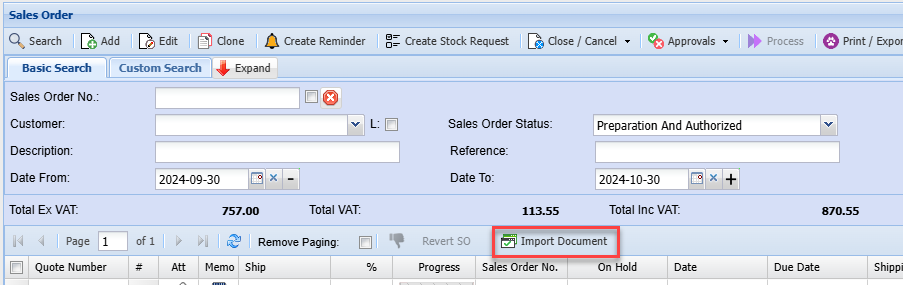
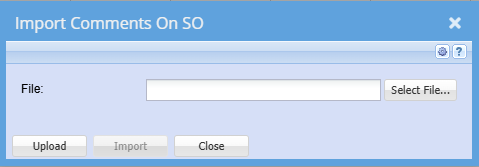
Import Document
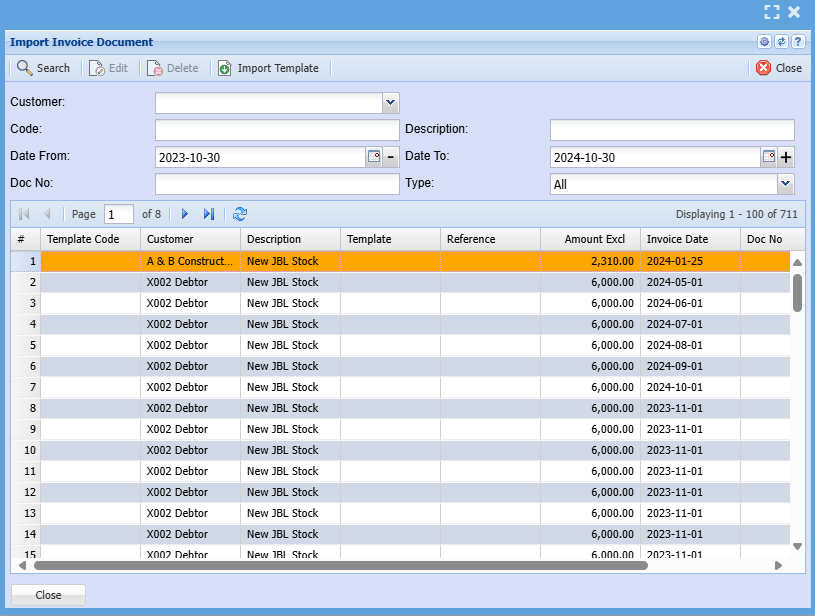
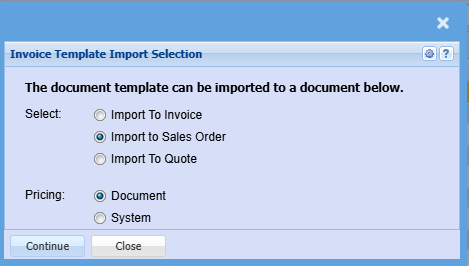
Import Template
Approvals
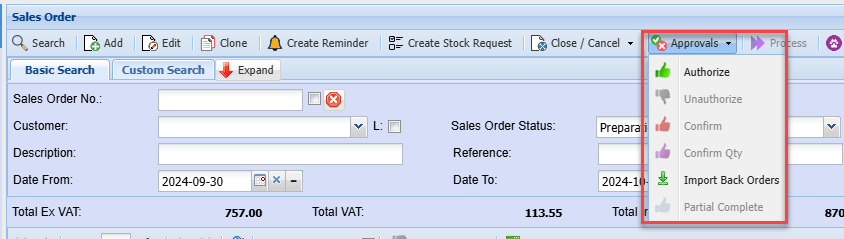
Import Back Orders
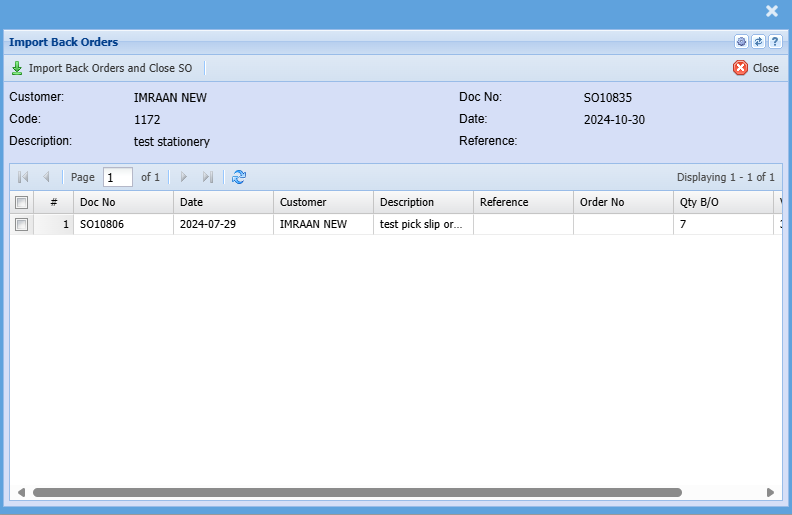
Import / Export

Keyboard quick keys
Quick keys help access functions using the keyboard
Used with Alt + Letter
| Search | Alt + s | Search for Quotes |
| Add | Alt + a | Add a new Quote |
| Edit | Alt + e | Edits the Quote that is highlighted |
| Clone | Alt + c | Clone the highlighted Quote |
| Create Reminder | Alt + r | Creates a reminder to highlighted Quote |
| Create Stock Request | Alt + q | Opens the dialog window for Stock Request |
| Process | Alt + o | Process Sales Order |
| Print Sales Order | Alt + p | Print Sales Order |
| Expand / Contract | Alt + n | Expands / Contracts the header section of the window |
| Close / Cancel | Alt + l | Focus on the Close / Cancel split button |
| Tab Basic Search | Alt + 1 | Basic Search |
| Tab Custom Search | Alt + 2 | Custom Search |