
Credit Notes Search
The correct process to reverse a posted invoice affecting stock is by raising and processing a credit note
this process will offset the original invoice.
the below demonstrates the manual capturing of this process
Video training manual 2016 - Click Here
.png)
Functions menu
.png)
| Reminder | which allows the user to create a reminder for a particular credit note. |
| Import credit Note | which takes the user to the credit note import screen, this allows the user to select a saved csv file to be imported |
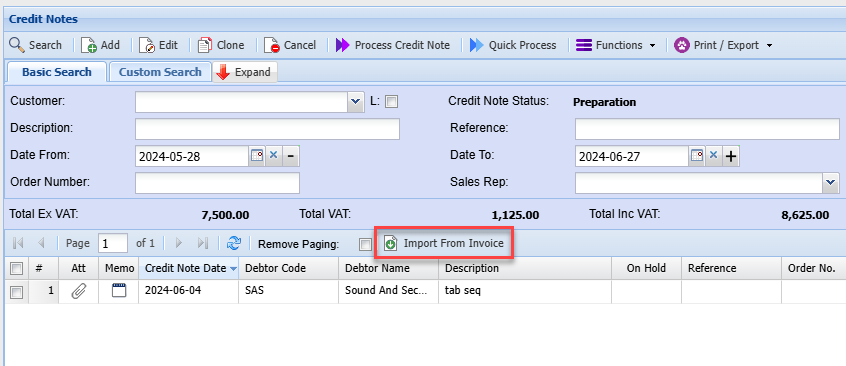
| Import from Invoice | Which allows the user to bring into the credit note the actual invoice being reversed. |
Import from Invoice
Credit Note
The simplest way of creating a credit note by simply “importing from an invoice”
You can however use the long way method of capturing.
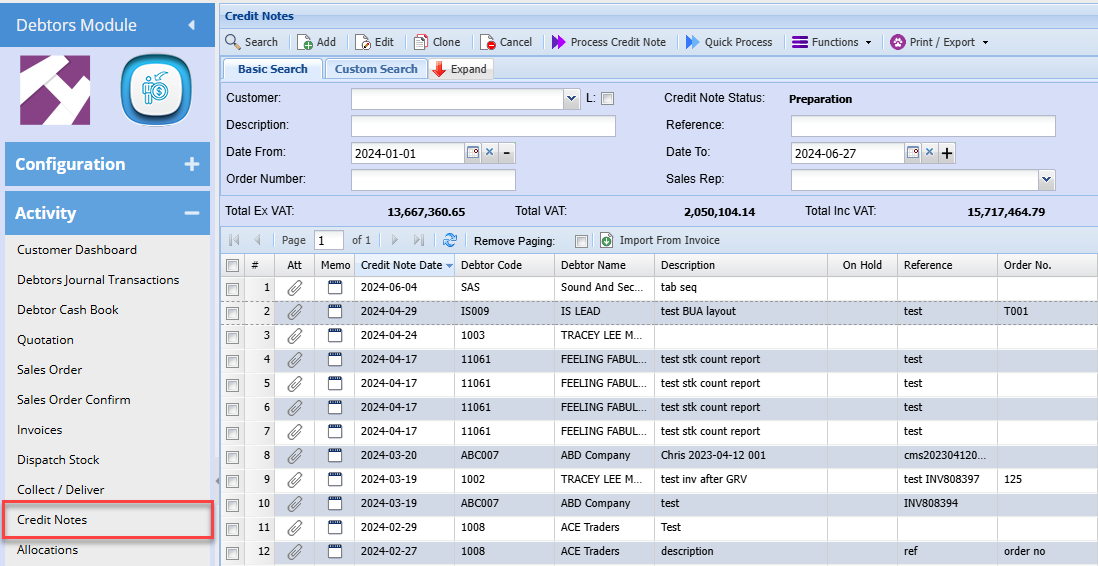
Open Debtors Module> Activity > Credit Note
Select Import from Invoice
Search by invoice number or customer, remember the date range also counts.
You can view invoice to verify that it’s the correct one you want to reverse by clicking on the view invoice button.
Click on Import button to create credit note
.png)
And Click Continue
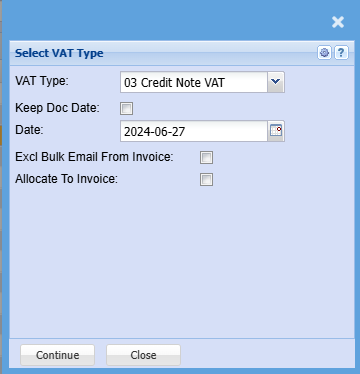
| VAT / GST Type | Select the correct Tax Type for Credit Note |
| Keep Doc Date | Enforce credit note to make date same as invoice date |
| Date | Put in a date for credit note |
| Excl Bulk Email from Invoice | Put this tick on to mark invoice to not be sent out when using Bulk email invoice function |
| Allocate to Invoice | Automatically allocate the credit note to invoice after processing the credit note |
The credit note will now be under preparation status in the credit notes waiting to be processed
.png)
Click On process Credit note to process this document
.png)
Import credit note
.png)
Click on the Select File… button, this will open a window to allow you to navigate to the location of the file to be imported.
Click on the Upload button to upload the file onto the server where the actual import will take place.
Once the Upload has been successfully completed click on the Import button to launch the actual import.
A Credit Note Import Report will open indicating any errors that may have occurred during the import or a success message if there were no errors during the import.
If there were error during the import the whole import is rolled back i.e. no Credit Notes are imported.
Please Note: The file to be imported must be in CSV format.