
Add Debtors Journal Transaction
Debtors Module> Activity> Debtors Transactions
Click Add to add a new Journaljournal
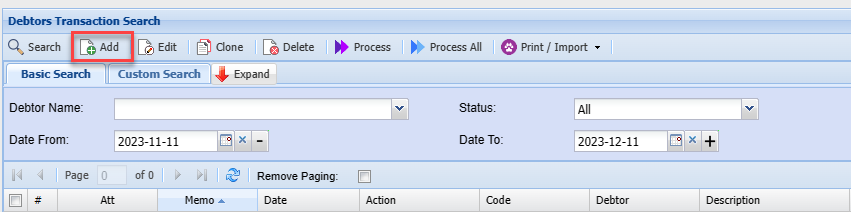
Transaction defined
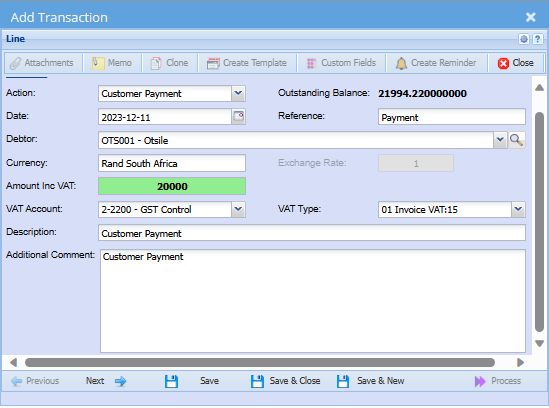
| Action |
Enter the action of the journal transaction This governs how the transaction will update general ledger accounts |
| Date | Date of the journal |
| Debtor/ Customer | Select the customer who is affected for the journal transaction |
| Currency |
Currency becomes available if the customer is a multi-currency then select currency |
| Amount Inc VAT/GST | This amount is including tax |
| VAT/ GST Account | Select the tax general ledger account |
| Description |
Enter the amount and description |
| Additional Comment | More information on the journal |
| Outstanding Balance | Displays total outstanding |
| Reference | Enter a reference for the journal transaction |
| Exchange Rate | When currency is selected, enter exchange rate |
| VAT/GST Type | If the Tax account is select enter the Tax type |
Select journal Action from the drop down list e.g debtor journal debit
.png)
Enter Journal Lines details
Reference is a required field
Select the debtor
Enter the amount and description
And save and click on Next
Next takes you to another window where extra information can be added
.png)
Select region, division, project or TrackIt item related to this journal entry
This field is not applicable to every client
You can click Next again to go to the posting window
.png)
| Region | Select region related to the journal entry on the drop down |
| Division | Enter the Division |
| Project | Select the Project |
| TrackIt | Select the TrackIt asset affected |
Contra Journal

| Contra Journal tick | Put tick on if you want an additional journal to be posted |
| Debtor | Used when you want to move values from one customer to another |
| Creditor | Used when you want to move values from one supplier to another |
Credit Card Surcharge
A credit card surcharge is an additional fee imposed by a merchant when a customer uses a credit card for a transaction
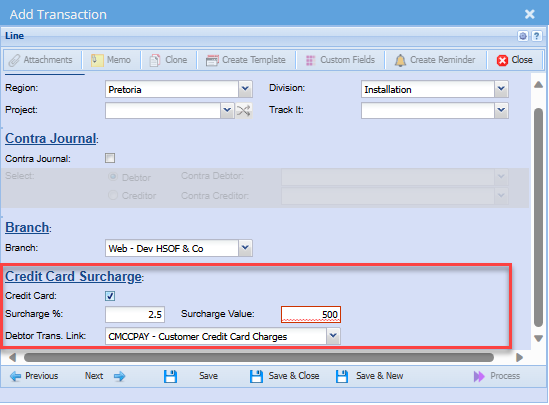
| Credit Card | Select if charging a credit card surcharge with the payment |
| Surcharge % | Populates from setup with the percentage charged for credit card |
| Debtor Transaction Link | Shows the default debtor transaction |
| Surcharge Value | Displays the surcharge value |
GL Links
The default GL Accounts will populate this window, but you have a choice to change the other leg of the posting to go to any other desired GL account
.png)
Once satisfied with the posting entries click save and next
Or alternatively save and close to process at a later stage.
Process in search window
To post transactions in the system
select it either by highlighting it or adding a tick in the tick box
.png)