Sales lead Process
A Sales Lead is a person or organisation that has shown interest in purchasing a product or service and has the authority to do so. This represents the first stage of the sales process.
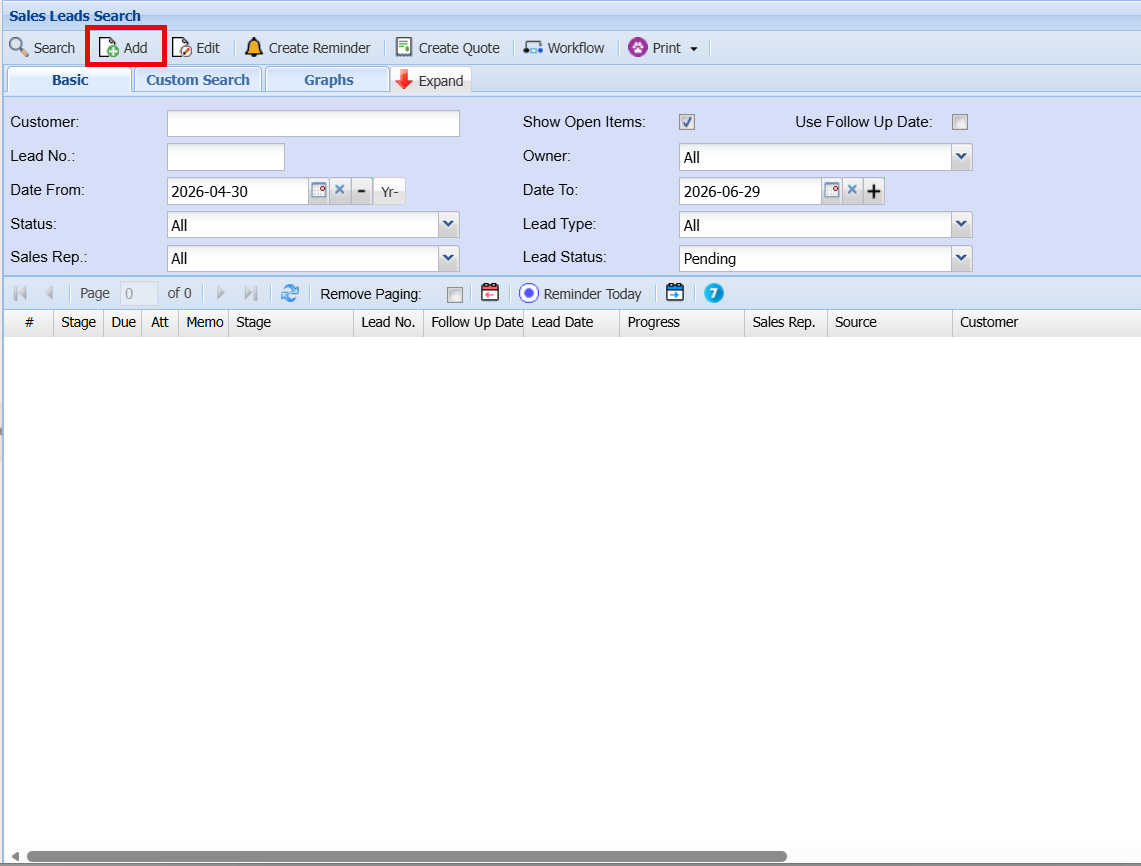
To create a new Sales Lead, click the Add button. The Sales Lead entry screen will then appear.
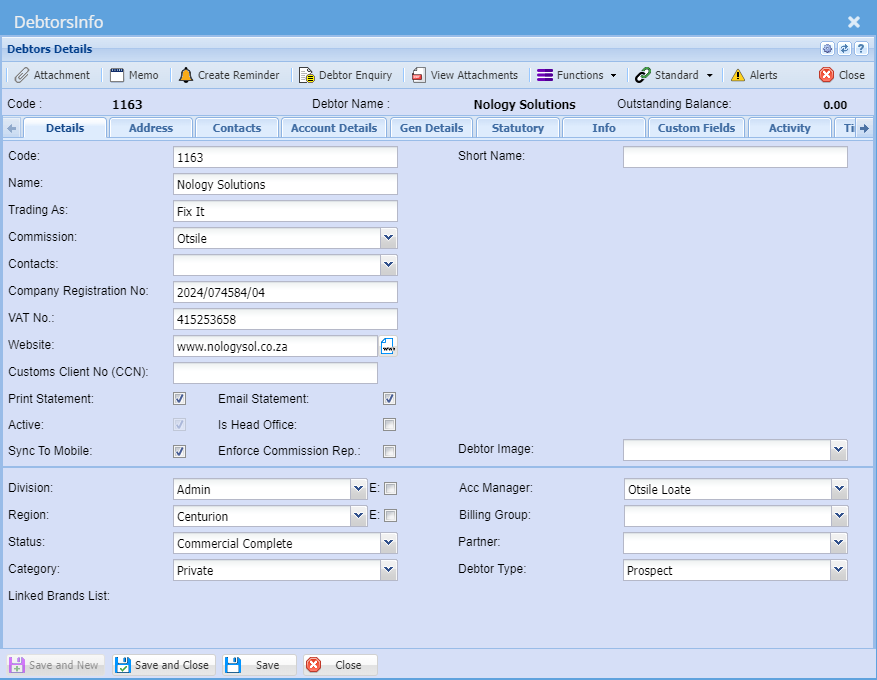
If the customer already exists and is interested in additional business, you can either enter their name or select it from the Customer dropdown list.
creatingCreating a new prospect
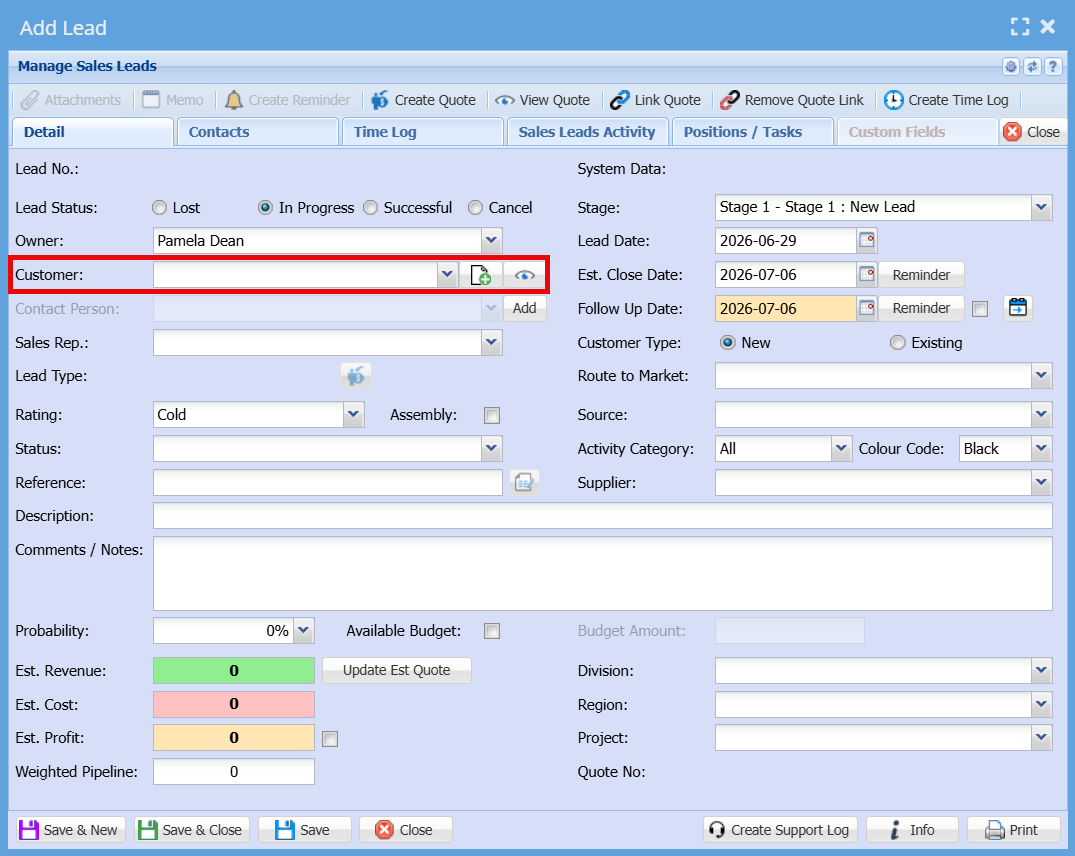
The Add Lead screen is used to capture and manage all relevant information for a new Sales Lead. Below is an explanation of each field and function.
CRM Module> Activity> Sales Leads
- Click Add
General Information
| Owner | The person responsible for managing and progressing the lead. |
| Customer |
The individual or organisation interested in your product or service.
|
| Contact Person | Displays or allows selection of the contact linked to the chosen customer. |
| Sales Rep | The sales representative responsible for the lead and associated commission. |
Lead Details
| Stage | Defines the current stage of the lead (e.g. New Lead, Qualified, etc.). |
| Lead Date | The date the lead was first identified. |
| Follow Up Date | The date scheduled for the next action or follow-up. |
| Est. Close Date | The expected date the sale will be finalised. |
| Customer Type | Indicates whether the customer is New or Existing. |
| Rating | Classifies the lead as Hot, Warm, or Cold based on likelihood. |
| Status | Specifies the current status of the lead (e.g. In Progress, Lost, Successful). |
| Reference | Enter any relevant reference number or identifier. |
| Description | Provide a brief summary of the opportunity. |
| Comments / Notes | Add detailed notes or additional information about the lead. |
Classification Fields
| Route to Market | Select how the lead was brought in (e.g. direct, partner, online). |
| Source | Indicates where the lead originated from. |
| Activity Category | Categorises the type of sales activity. |
| Colour Code | Assign a colour to visually identify or prioritise the lead. |
| Division / Region / Project | Assign organisational structure details for reporting purposes. |
Financial Information
| Probability (%) | The estimated chance of closing the deal. |
| Estimated Revenue | Expected income from the lead. |
| Estimated Cost | Anticipated cost associated with fulfilling the sale. |
| Estimated Profit | Calculated or entered expected profit. |
| Weighted Pipeline | A calculated value based on revenue and probability. |
| Available Budget | Indicates if a budget is confirmed and allows entry of the budget amount. |
Tabs
| Contacts Tab | Displays all contact persons linked to this Sales Lead. |
| Sales Leads Activity Tab |
Tracks activities related to the lead.
|
Action Buttons
| Save & New | Save the current lead and open a new blank form. |
| Save & Close | Save the lead and exit the screen. |
| Save | Save changes without closing the screen. |
| Close | Exit the screen without saving changes. |
Details Tab