
Email Mailing List Add
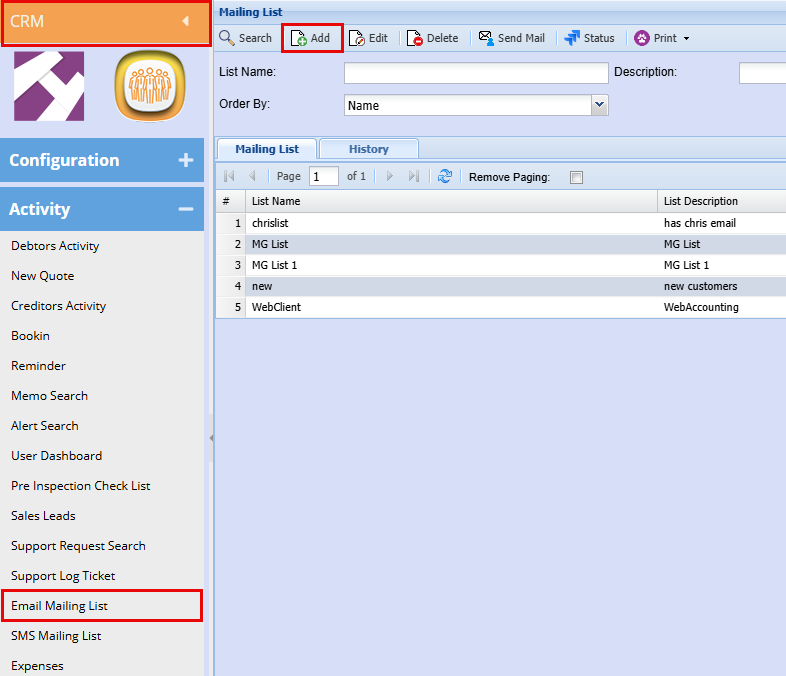
CRM Module> Activity> Email Mailing List
Click Add
Add the Mailing List Name and a Description and click Save
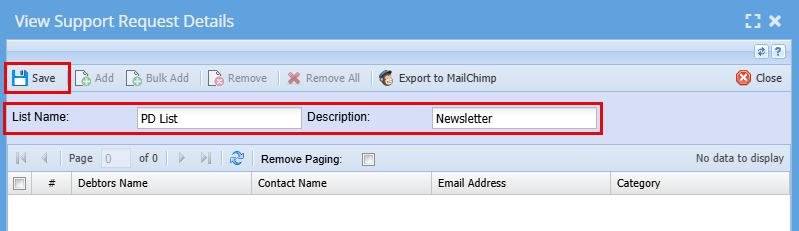
Click Save a new a window will open
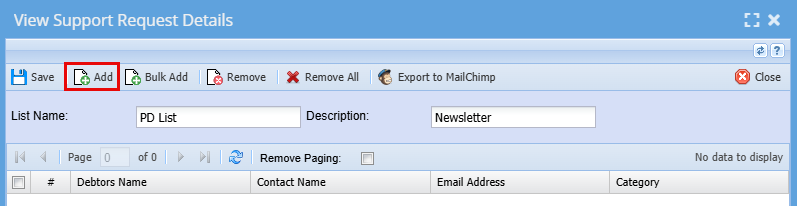
Here you can start adding your contact for the mail.
Click Add
- Use the filters to limit your search results
- Click Search - The contacts grid will populate with Contacts
- Either double click on the contact you want to add to the Selected column or use the Arrows to move these contacts over.
- Click Close when you are happy with your list
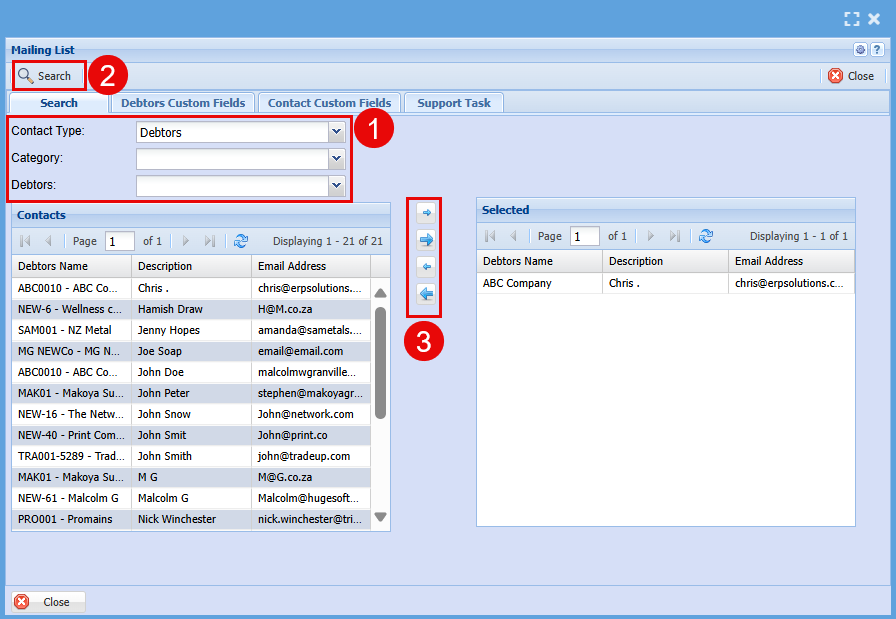
| Debtor | |
| Contact Type | |
| Category | |
| Contacts |
When you click Close, you will see your mailing list that you created in the list
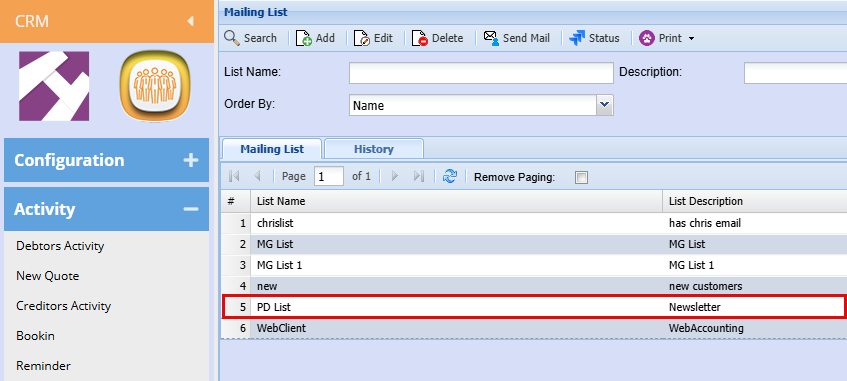
From here you can double click to open the list to make any changes needed.
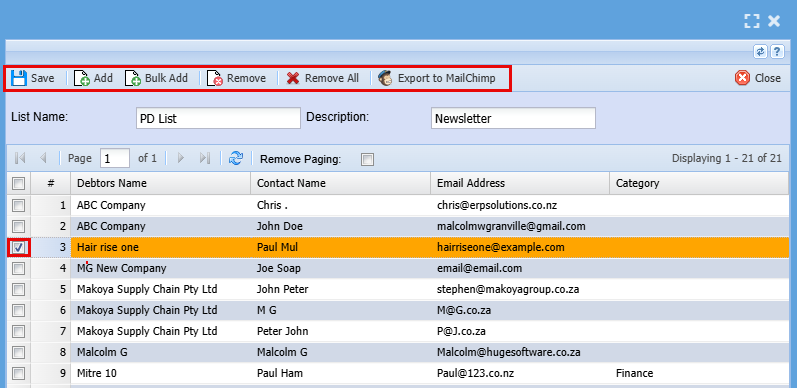
| Save | Click Save to save any changes made |
| Add | Click Add to add a contact that may have been missed |
| Bulk Add | Click Bulk Add to add a bulk amount of Contact to the mailing list (Maybe from a different Contact Type or Category.) |
| Remove | Highlight the line you want to remove by clicking on the line and clicking Remove. |
| Remove All | Click Remove All if you want to delete all contacts in the mailing list |
| Export to Mail Chimp | Click Export to Mail chimp to create this mail list in Mail Chimp. |
Bulk Add
You can add an Email mailing list in bulk by the categories below
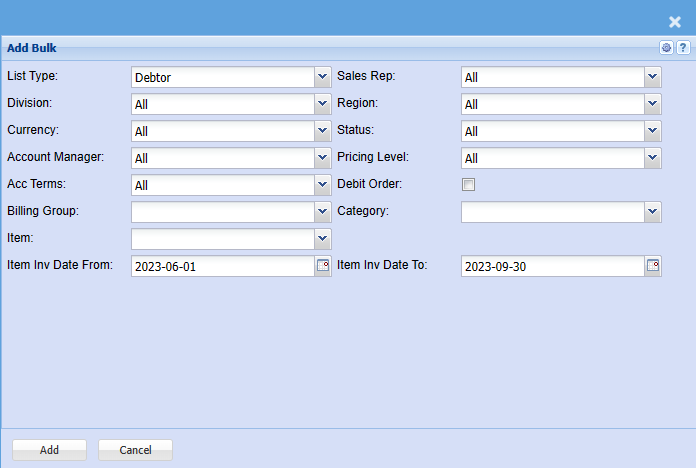
| List Type | |
| Division | |
| Currency | |
| Account Manager | |
| Acc Terms | |
| Billing Group | |
| Item | |
| Item Inv Date From | |
| Sales Rep | |
| Region | |
| Status | |
| Pricing Level | |
| Debit Order | |
| Category | |
| Item Inv Date To |