Purchase Order Search
Creditors Module> Activity> Purchase Order

| Search | Allows you to search for an existing Purchase Order, Inventory Item, Creditor or Debtor based on system fields and which module you are in. |
| Add | Allows you to create a new Purchase Order, Inventory item, Creditor or Debtor depending on the Module you are in. |
| Edit | Allows you to edit the purchase order |
| Clone | Allows you to Clone an existing Inventory Item, Creditor or Debtor depending on the module you are in |
| Reminder | You can set a reminder to follow up on a PO or to send the PO off for Authorisation etc. |
| Approval | Click the Approval button to send the PO for approval |
| Authorise | Click the Authorise button to authorise a PO |
| Order | Once the PO is Authorised the order can be placed by clicking the Order button |
| Import | If you have a really long order that you have in the excel format, you can upload this order to create the PO rather than entering them one by one. |
| Cancel | Click Cancel to Cancel a PO |
| Copy To Template | If you have templates set up for your PO you can copy one PO over to another template. |
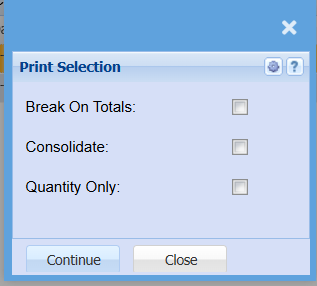
| Print/Export | You can export your PO to excel, or you can choose to print a copy. |
Basic Search

| PO Number | Use your PO number if you know it to search for a specific Purchase Order |
| Description | If you know the description of your Purchase Order you can use that to search |
| Date Type | Select the date you want to search by (Document Date, ETA date or Due Date) |
| Date From / Date To | You can search for Purchase Orders in a specific date range |
| Supplier | You can search for Purchase Orders for a specific supplier |
| Reference | If you know the reference for the Purchase Order you can search using that |
| Status | You can search for a PO in a specific status, select your status choice form the drop-down menu (All, Created, Approved, Authorised or Recurring Transactions) |
Custom Search

| Category | |
| Recurring Order |
Print/Export