
Purchase Order Process
Creditors Module>Activity>Purchase Order

| Search | |
| Add | |
| Edit | |
| Clone | |
| Reminder | |
| Approval | |
| Authorise | |
| Order | |
| Import | |
| Cancel | |
| Copy To Template | |
| Print/Export |
Basic Search

| PO Number | |
| Description | |
| Date Type | |
| Date From | |
| Supplier | |
| Reference | |
| Status | |
| Date To |
Custom Search

| Category | |
| Recurring Order |
Adding New PO
Once you have Clicked Add this window will show up
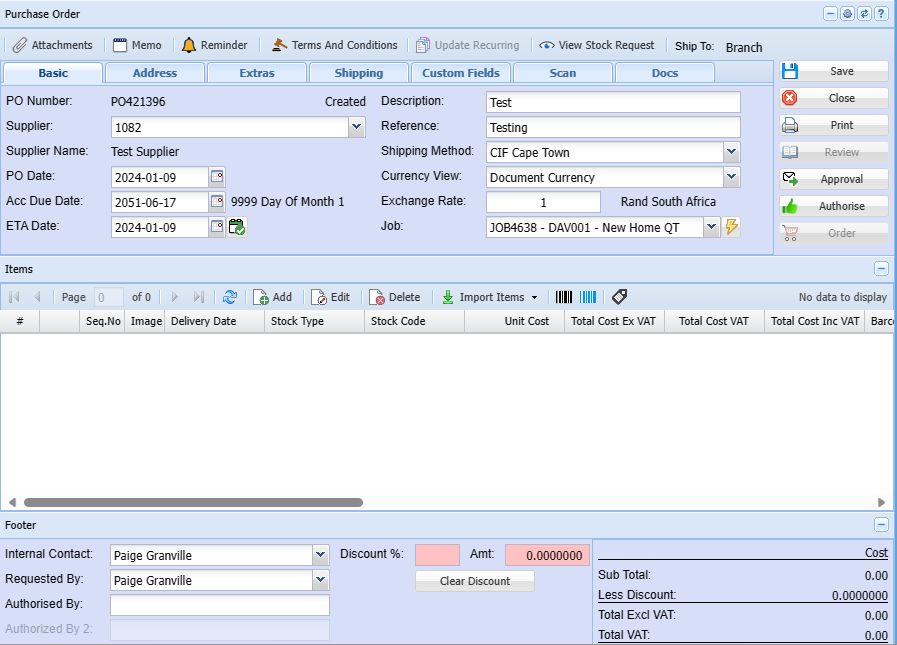
| Attachments | |
| Memo | |
| Reminder | |
| Terms And Conditions | |
| Update Recurring Order | |
| View Stock Request | |
| Ship To |
ClickBasic theTab
| PO Number | The number of your Purchase |
| Supplier | Select your Supplier from the |
| Supplier Name | Once Supplier has been selected, Supplier Name will Automatically show |
| PO Date | |
| Acc Due Date | |
| ETA Date | |
| Description | Add in a Description |
| Reference | Add in a Reference |
| Shipping Method | |
| Currency View | |
| Exchange Rate | |
| Job |
Click AddSave once information is added in
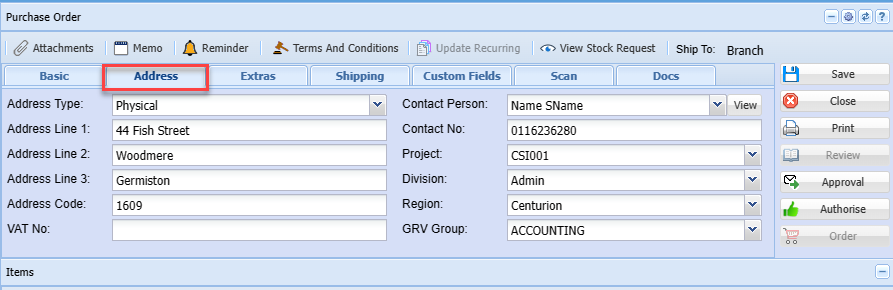
Address Tab.png)
EnterFill the Supplier Name or Account Code and press enter
Select the Supplier by clicking on it
Enter a description related to the purchase Order
Enter a reference pertaining to the Order
Check that the dates are correct
ETA is the expected date the goods are due to arrive
Click Save
.png)
Click Add
Enter the item code or part of the Item description to search forin the required item.Information
A list
Extras ItemsTab
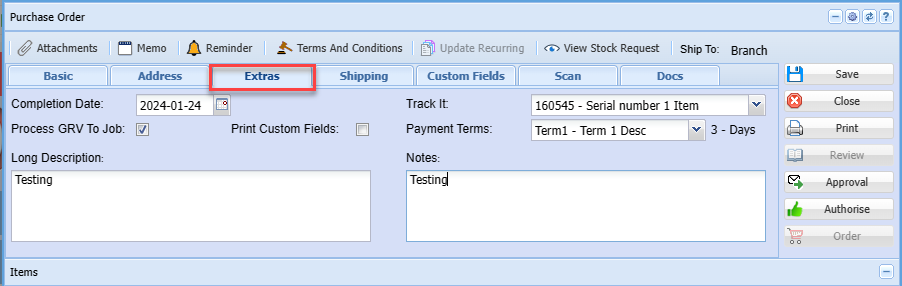
| Completion Date | |
| Process GRV To Job Tick | |
| Long Description | |
| Print Custom Fields Tick | |
| Track It | |
| Payment Terms | |
| Notes |
Shipping Tab
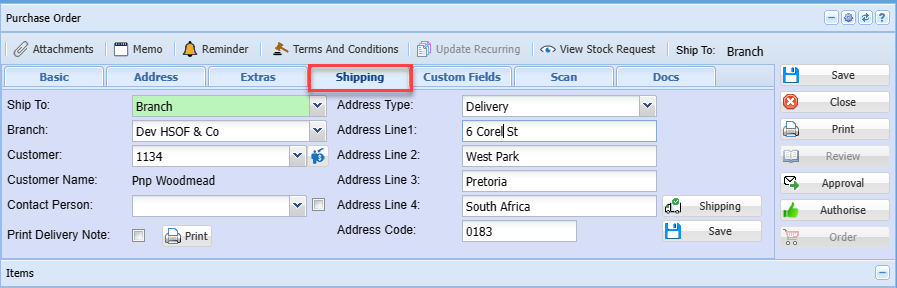
Fill in the required item.Information for shipping
Custom Fields Tab
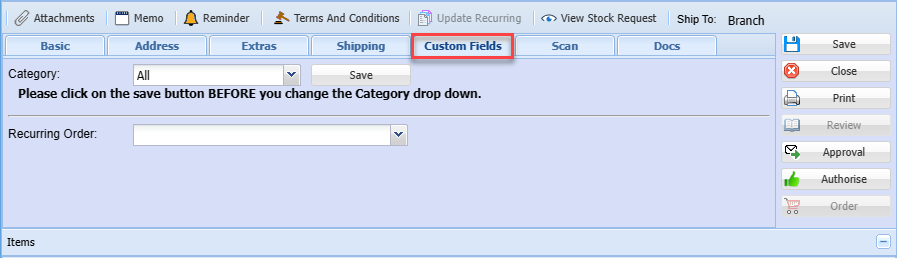
| Category | |
| Recurring Order |
Scan Tab
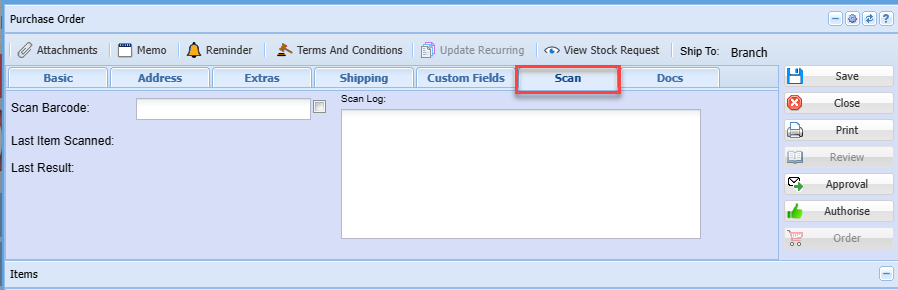
| Scan Barcode | |
| Tick | |
| Last Item Scanned | |
| Last Result | |
| Scan Log |
Docs Tab
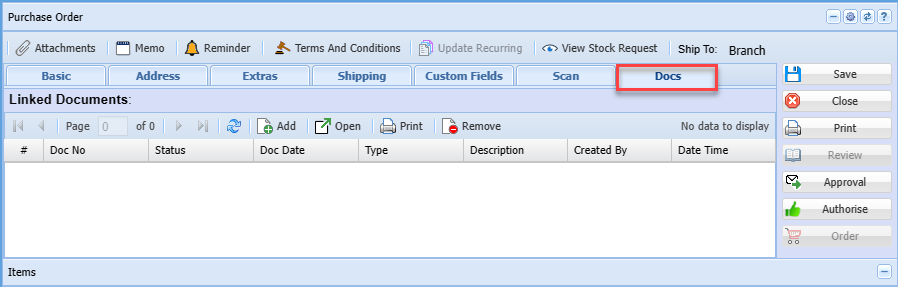
| Add | Adding in linked documents |
| Open | Open document |
| Print document | |
| Remove | Remove document |
Adding in Purchase Order Item
Once all tabs have been filled in you can click add to add in Purchase Order Item
Enter the required quantity.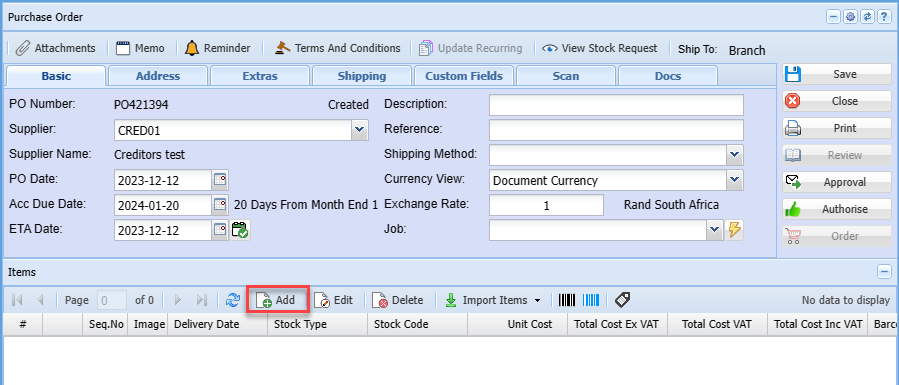
CheckThis thatscreen thewill pricethen is correct.appear
Ensure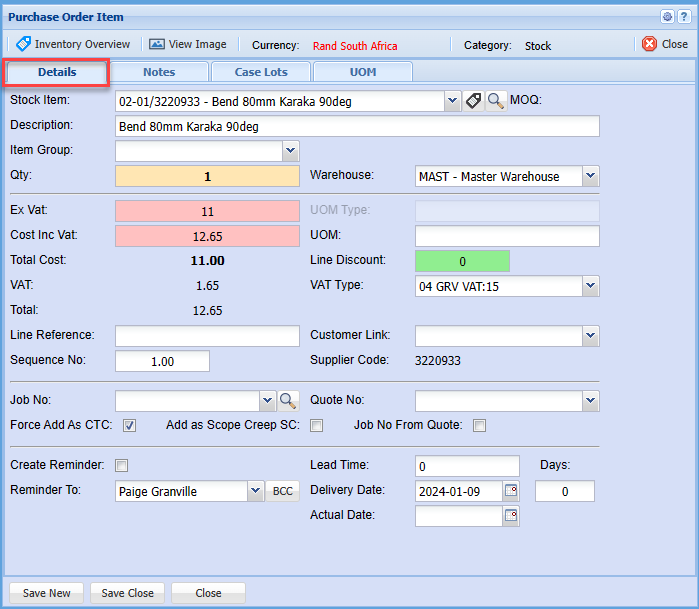
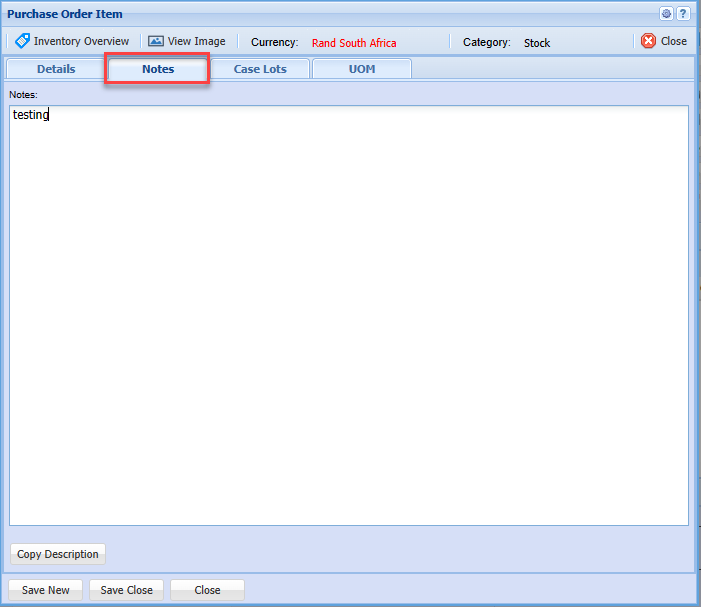
Notes yourTab
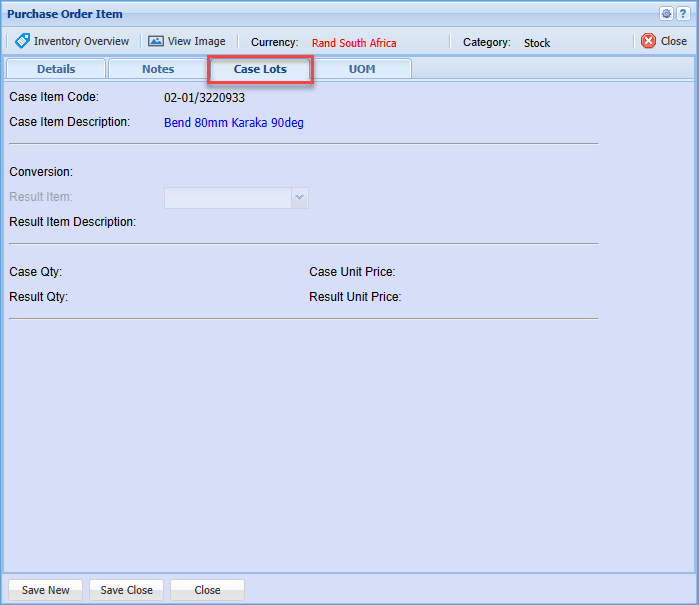
Case whichLots thisTab
UOM beingTab
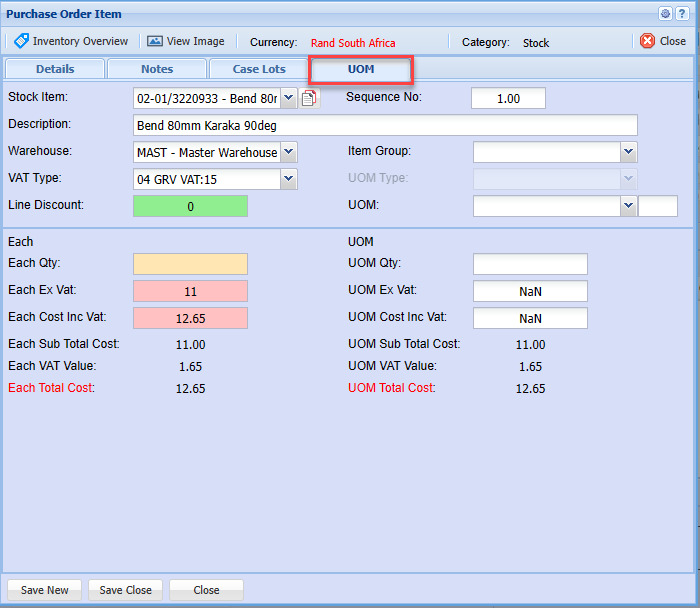
In the event of Ordering nonstock items such as Office Stationery, the warehouse is not applicable.
Click Save New to add another item.
Click Save and Close if you only ordering one item
Once you click the save button, the below screen will appear. This screen records the “default Supplier” for the item.
.png)
Click Save and Close
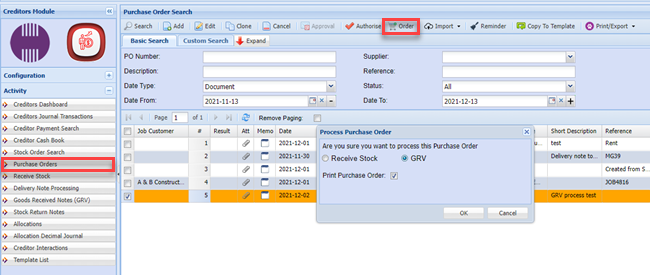
Purchase Order to GRV
Purchase Order to GRV skipping Receive Stock
Video training manual 2020 - Click Here
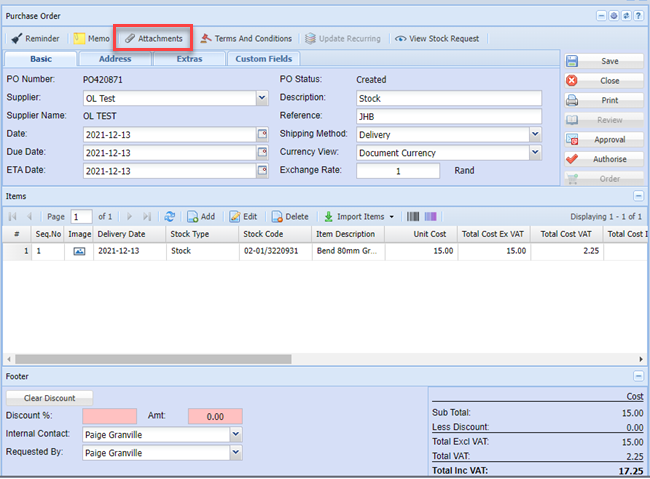
Purchase Order Attachments
Attaching the Supplier Quote
Click on the Attachment Button
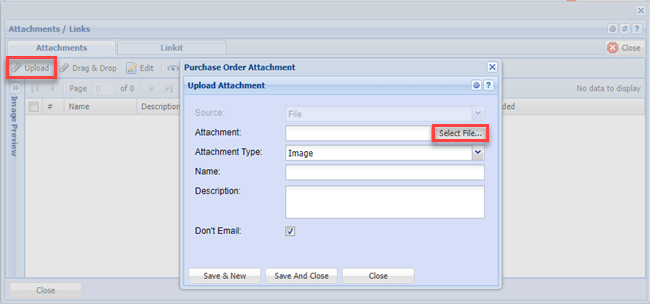
Click the Upload Button
Click Select File and browse for the quote from the Supplier that you would have saved on you PC
Retain the file name if you prefer or change the name as required
Click Ok
Click Save & New
Click Close
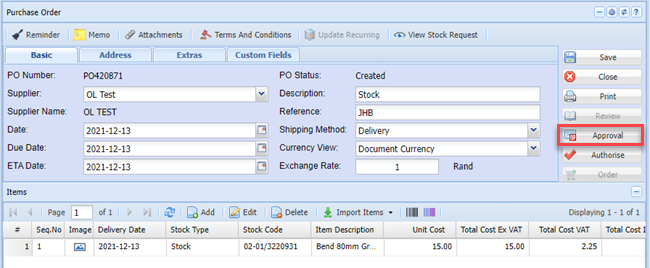
Once all items have been captured and all details checked for correctness, click the Approval Button.
To send the purchase order for approval.
Click Close.
This informs the Authorizer that a Purchase Order awaits his/her authorization.
Purchase Order Authorization
Creditors Module > Activity
Select Purchase Orders Menu Item
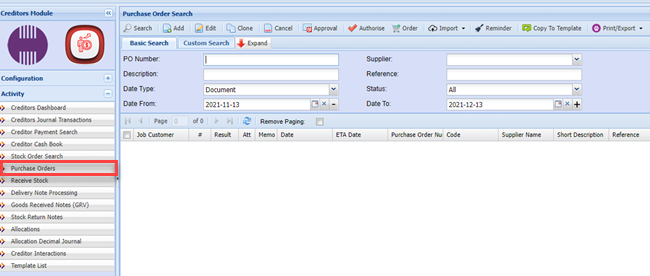
Enter the Supplier code or name
Enter the respective date range that the Purchase Order was captured
Click Search
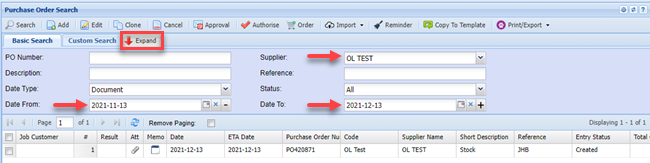
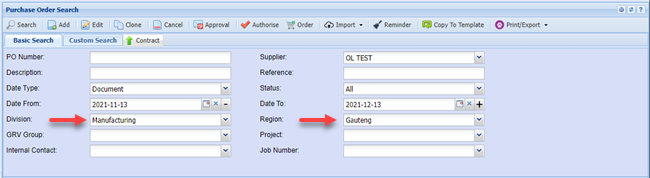
You can further filter your search by clicking on the Expand Button
And entering any of the other criteria that you may have on hand, eg. Division, Region
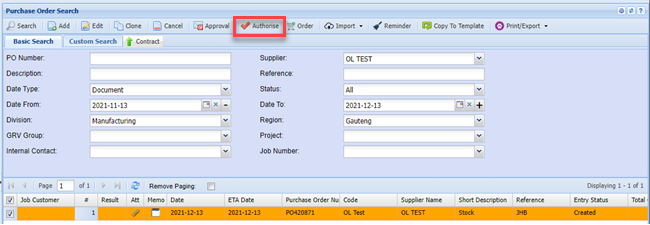
All Purchase orders within the selected criteria will be displayed.
Highlight the required purchase order and click the Authorize Button
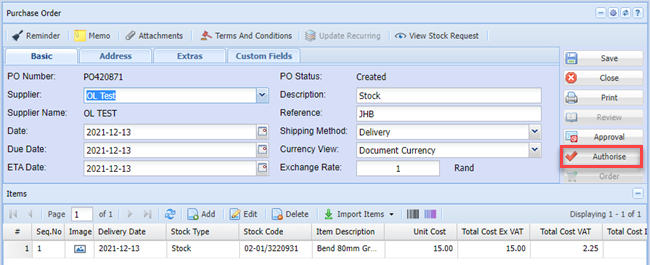
Should you need to check and verify any details of the order, double click on the required PO to open the lines.
Once you have checked all the details and are satisfied that the Order is correct, you can Authorize from the same screen.
Click Close
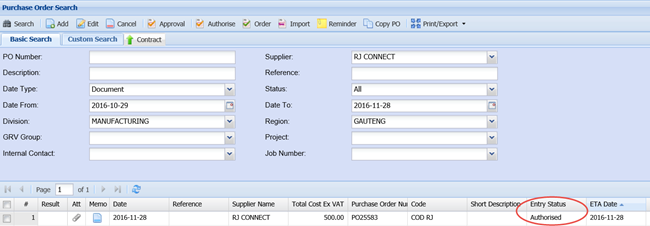
Click Search
You will notice the status has changed to “Authorized”
An email is then sent to the capturer that the PO has been authorized and he/she may proceed to order the stock