Create a new financial Year
Video Training Manual 2016 - Click Here
The creation of a new financial year occurs at the end of a financial year, and there are no new years and periods in the system.
If your financial year is not created, you will not be able to process any transactions
To create a new financial year, Follow the steps below:
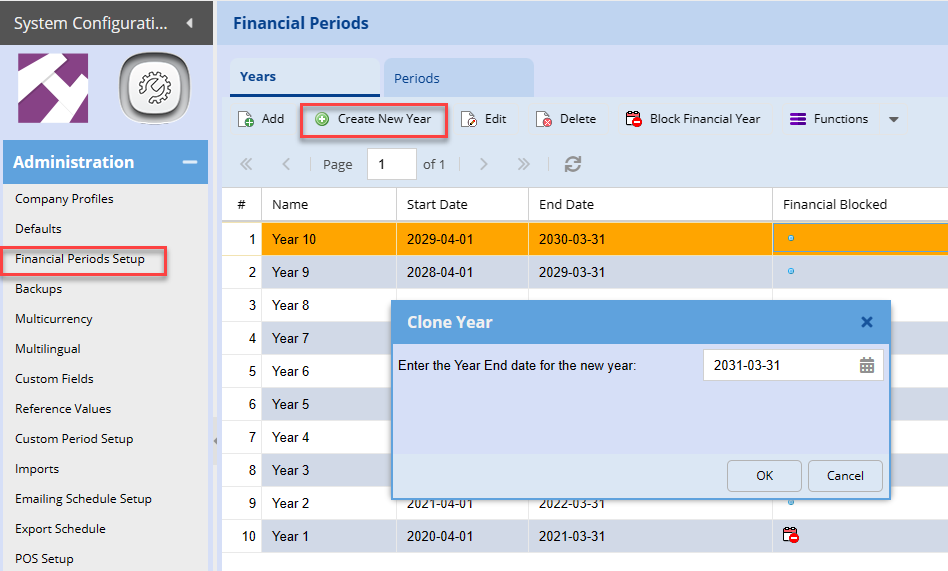
Go to System Configuration Module > Administration > Financial Periods setup
- Highlight your last year - See example below
- Click create new
- Then the window for the clone year will appear as shown below.
- Add your next financial year-end
This will take you back to the financial period setup screen. One will notice that Year 5 says Copy of Year 4.
In order to change the Name of the year, double click on the line, edit the description and Save & Close.
.png)
One will be taken back to the Financial Year Period Setup Screen. Check that your name has being successful changed.
In order to see the new Financial Period, click on the Financial Periods setup tab on the left hand side.
The new financial year will appear in the drop down
.png)
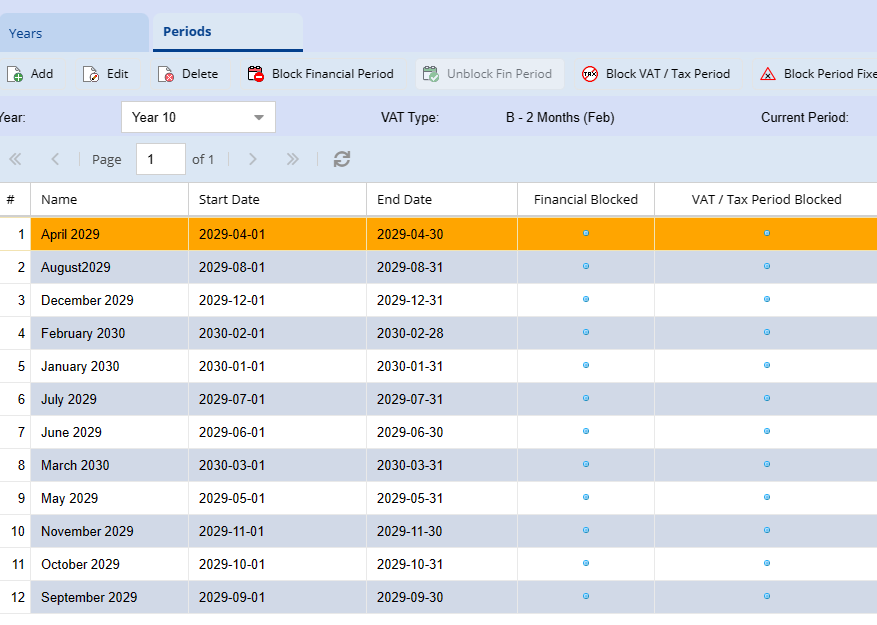
Once the year is created you havecan completedclick this,on periods to double-check if they are created correctly.
When you are done, log out of the system andthen log back in.in
LoggingWhen logging back into theyour company,company this window will appear to indicate thatthat, there are changes to the financial years or periods within the system. Click on the OK button to run the Integrity Check.
.png)

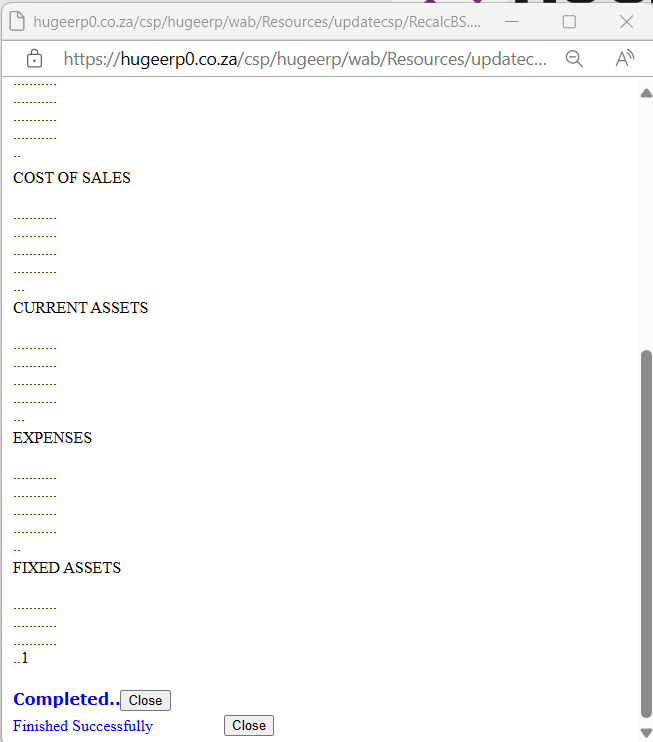
This will recalculate and integrity check all the ledger accounts in the system. Once complete click on the close button and log into the system.
Once the Login screen comes up, you can work like normal.
.png)