
Template Task Setup
Training Video 2020 - Click Here
Job Costing >Configuration >Template Task
Template Tasks are only available in the Job Costing Module. They allow the user to define a sort of Bill of Materials with an exception. This task which is created allows one to insert many stock items, service and custom type items into a Task. The task only takes the quantity of the items when setting up, but once inserted into a quote it will pull all cost and selling prices at that time.
The task that is created consists of many items, these items are broken up into individual lines within the job management. The customer only sees the name of the task but none of the line items.
The line items of the task has costs and selling prices which then make up the overall
cost and selling of the task.
One can have tasks under tasks, it does not matter as the system will always take the lowest lever of items into the managing of the job.
The example we will use to show you how a task is setup will be the making of a motor car.
Template tasks makes it easy for the users not to understand what the components are made of. It gives the user the detail list of all the items by just selecting the main task.
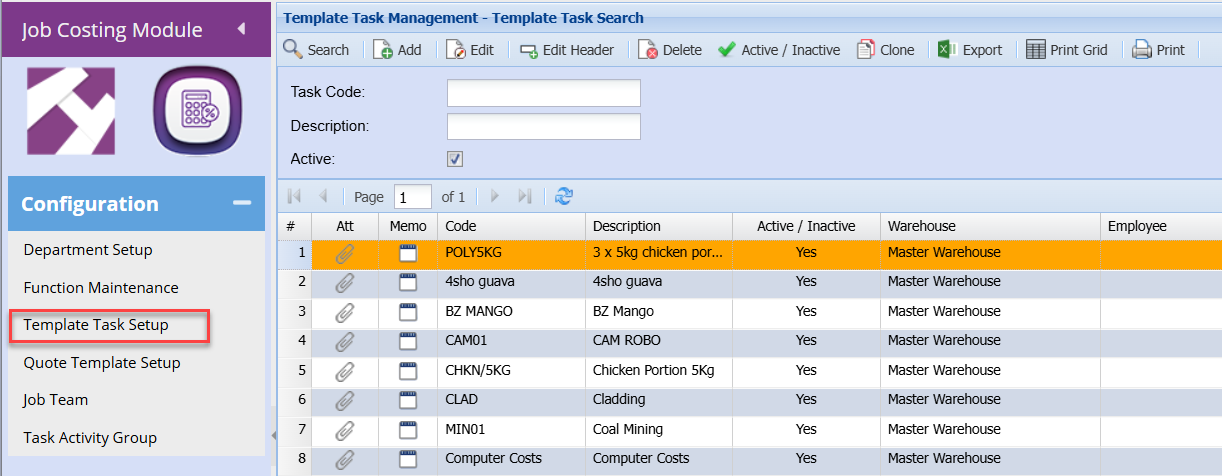
To create a template task go to the Job Costing Configuration Template Task.
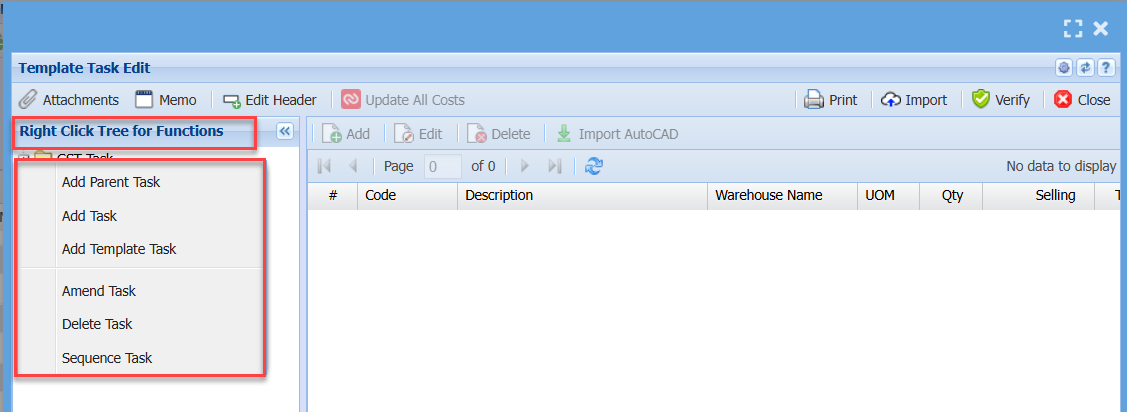
Click on the add button to create a new task.
Give a code and Description of the task
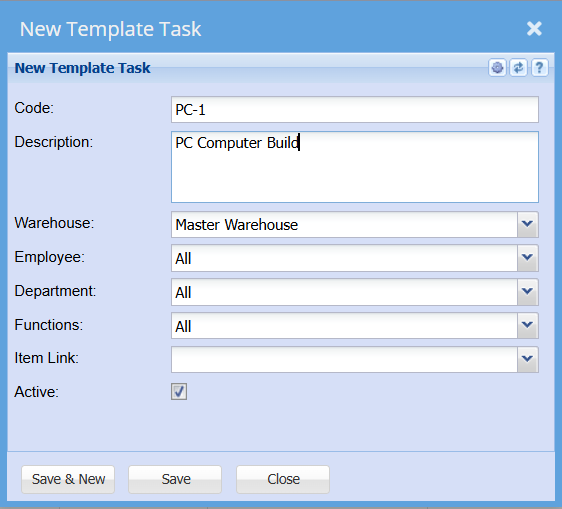
In the figure below you will notice there a small window that opens up to give you some functions to add parent tasks.
Add Parent Task - Create another header for items below the main header
Add Task - Creates a name of a header for task, this task allows the user to add stock, custom and service items below this header.
Add Template Task – This allows one to add another Template task to be
added with all of its children items below
Delete Task - Highlight the task in the tree view to delete it
After right clicking on the tree view and then selecting the Add Stock Task option the following window comes up.
When you click on the save button, you will be brought back to the Template task detail with a new heading under the Main heading.
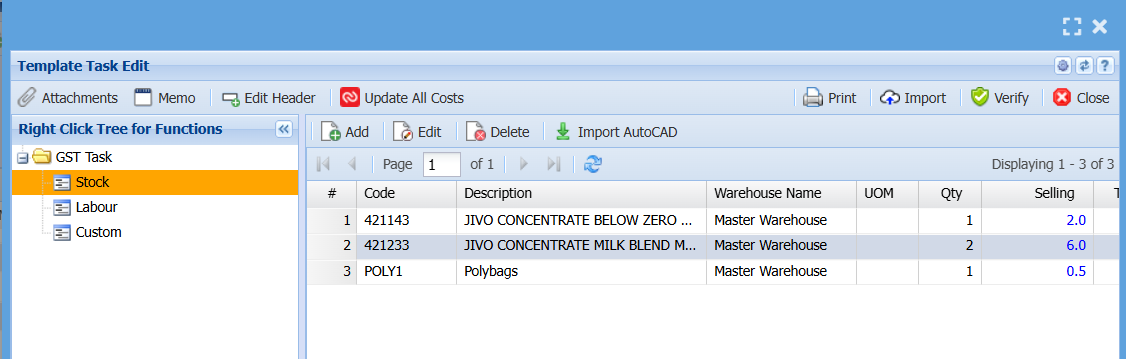
To add stock click on the "PC Stock” header.
Select your stock items and the quantity that is required to complete this task.
.png)
We have now added many stock items to the parent stock task.
After setting up your task click on the close button to be taken back to the Template task search screen.
No Comments