
Inventory Item Search
Inventory > Configuration > Inventory Setup
In Inventory setup search, you will see two search tabs
| Basic Search tab | searches for existing items based on system fields. |
| Custom Search tab | if you have setup custom fields in your inventory, you can search for the items using the custom fields linked. |
Note: If you leave the fields blank it will bring back all Inventory codes which will be sorted in inventory code order alphabetically.
If you click on the column heads they will sort A-Z or Z-A.
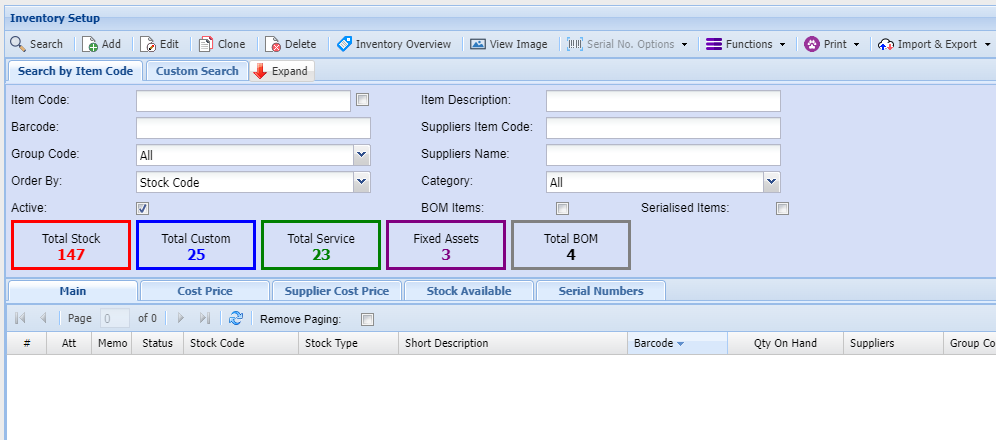
| Search Button | the search function will return Inventory Code records based on the search criteria entered. |
| Add Button | allows you to create an new Inventory item |
| Edit Button | allows you to edit an existing Inventory Code |
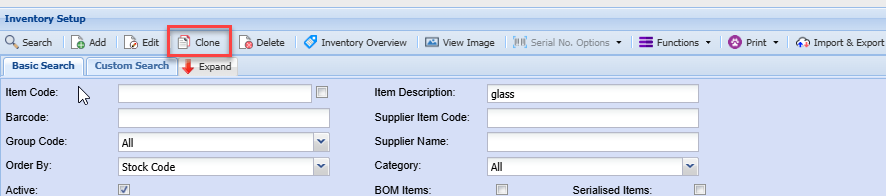
| Clone | clone an existing inventory code |
| Delete Button | allows you to delete an existing Inventory Code subject to certain rules |
| Inventory Overview button | provides an overview of all open transactions and quantity balances pertaining to the selected Inventory item |
| View Image | Displays an image of the item if one was uploaded |
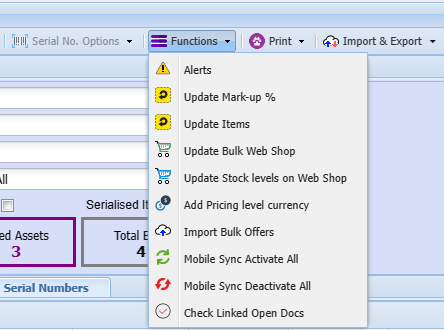
| Functions drop down | allows you to update various settings on the items selected |
| Print Drop down | Allows you to print or export details of the items displayed in the grid based on search criteria selected. |
| Import & Export | allows you to import and export various item details, including master data, properties, bin locations. |
Search options
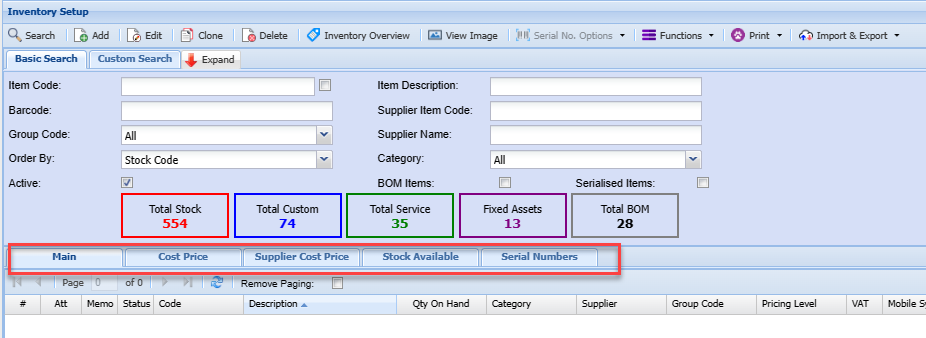
Enter any of the fields, such as the item code or part of the item description to limit your search to a specific item or range of items.
| Main tab | Displays basic information of the item within the grid |
| Cost Price tab | shows the item cost and selling price information of a selected item |
| Supplier Cost Price tab | shows various supplier cost prices of a selected item, including historic cost prices. |
| Stock Available tab | shows stock quantity levels of the item in various warehouses. |
| Serial Number tab | shows serial numbers for the selected item. This tab is only active if the item code is flagged for serial number tracking |
Inventory Clone
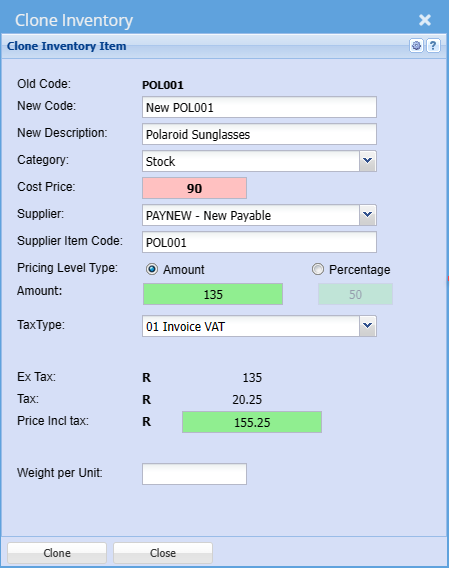
The clone feature allows one to create a new inventory item that is similar to an existing item without having to capture all the same details, such as group codes, additional properties, etc.
This feature is a quick and convenient way to add a new item to the system.
Inventory Overview Button
This is where one can view movement’s summary of the selected inventory code.
.png)
This is where one can view movement of an inventory code.
| Main Detail tab | shows summary of movements for select item code |
| Movement tab | shows all movements for the item code selected |
| Document Analysis tab | search to view all document for the item code |
| Load Totals | Loads the item information on the main details tab |
| Branch tab | shows the branch associated with this item |
| Group Code | shows the group code this item is linked to |
| WIP- Work in Progress | displays the various documents this item is used in. |
.png)
Stock Available
Displays the stock availability information
.png)
View Image
Inventory Image
.png)
A window allowing the user to view an image of the inventory item provided an image has been loaded.
On the left of the panel is a grid displaying all the attachments that have been uploaded for this stock item.
If the Primary Image is set up on the inventory item then that item will be displayed in bold blue in the grid.
By clicking in the icon in the View column the user can view the attachment.
Add To Document
This functionality allows the user to add all or selected attachments to the original document i.e. Quote, Invoice.
Either click the check box in the column header above the check boxes to Select All or Unselect All attachments.
Alternately specific attachments can be selected by clicking the specific attachment’s check box.
Once the selection has been made click the Add To Document button and the selected attachments will be
added as attachments to the original document, i.e. Quote, Invoice
Email Self
In the event of the Email Self button being disabled this will be as a result of the logged in user not having
an email address entered in the user setup detail.
Once the selection of attachments has been completed same method as in Add To Document above click
on the Email Self button and the selected attachments will be emailed to the email address as setup for the
login user in Huge ERP.
Click the Close button to close this window.
Please Note:
To load an image of an inventory item, go to Inventory Module -> Configuration -> Inventory Setup.
Enter and search for the desired inventory item. Edit the item, go to attachments and upload an image file (typically a JPG file).
Select the image name in the Primary Image drop down and click on Save.
Functions Dropdown
Functions for inventory setup
Update Mark-up %
Inventory> Configuration> Inventory Setup
Update Mark-up button: Updates the mark-up of the selected Inventory Item.
.png)
Update Mark up Percentage Help
| Group Codes | Filter the update of the percentage mark up by a selected Group Code or All Group Codes. |
| Price Levels | Filter the update of the percentage mark up by a selected Price Level. |
| New Percentage | Enter the new percentage value. |
Click Update to perform the Mark up Percentage change.
Click Close to exit the window without performing the update.