
Inventory Properties Import
This manual applies to updating the additional properties fields on the inventory item setup
To update the existing data in these fields, you will need to export the item list
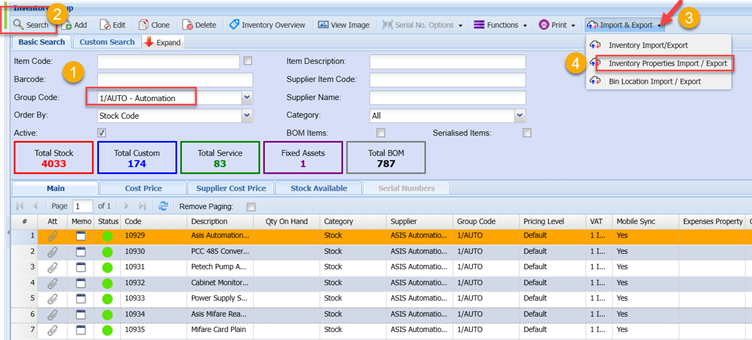
To do this, go to Inventory Module> Configuration> Inventory Setup>
Enter the filters required (if applicable) and click Search
Once the list of items is returned on screen, click the Import & Export Drop down
And select Inventory Properties Import/ Export option
Click the export button on the screen that pops up
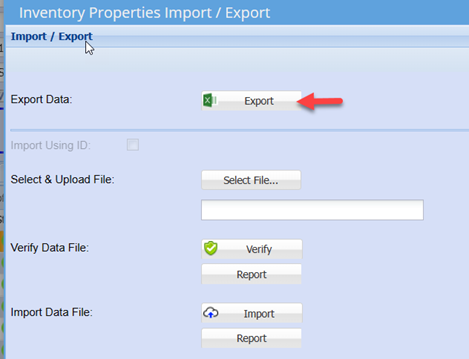
This will export the list of items in the correct import template
You can now edit the data in the respective columns
Note: Do not edit the Stock Code and Description fields
Once you have completed updating the data, save the file as a normal excel file.
Notes on edit data:
1. Existing data in the field will be overwritten
2. If you wish to remove existing data in any field, delete the existing data and enter a space in that respective field.
Once the file has been edited and saved, you can now import the file back into the system which will update the items with the changes made.
To import, click the Import & Export drop down
Select Inventory Properties Import/ Export option
Click on Select File
Search for the file you saved
Click Verify
This is to check for any errors
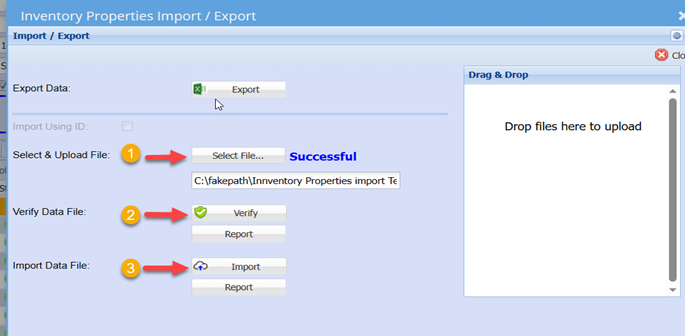
You should ideally have a successfully result on all functions
If so, click close

You can ow check random item on the system to see that the changes have uploaded successfully.