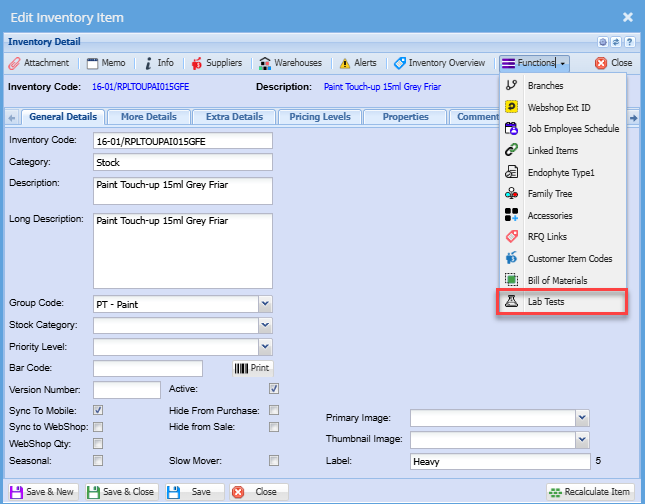
Inventory Functions Drop Down
Linked Items
Inventory Module> Configuration> Inventory Setup> Properties Tab
The primary functionality of this feature is to establish links between items.
You can connect related items, creating a web of relationships within the system.
This is particularly beneficial when dealing with interconnected stock items that require a hierarchy stracture
To do this you need to go to inventory item setup, and select an item you want to link items to.
Go to properties then linked items.
Select the item you want to link on the drop-down then click save. You can link as many as you want.
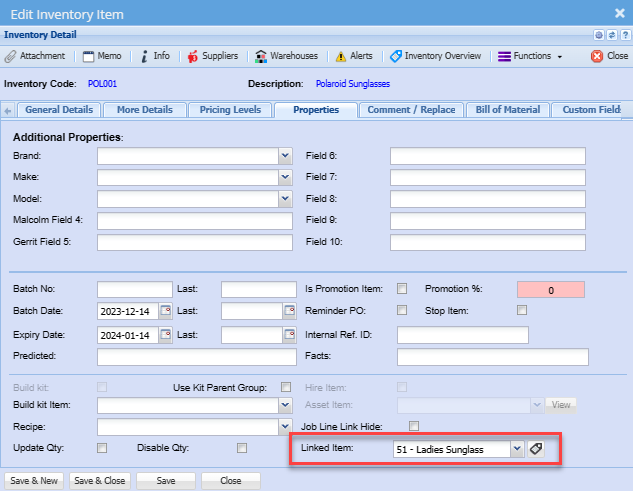
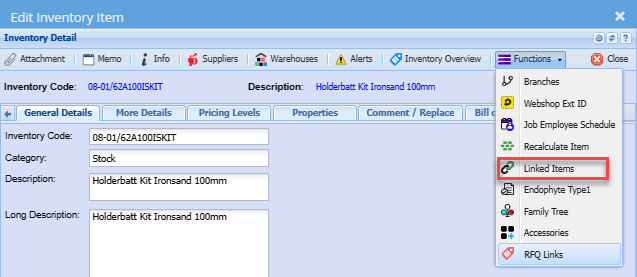
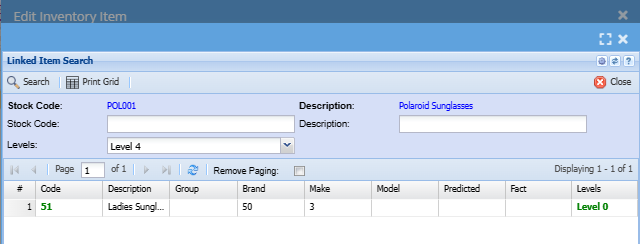
To utilize the Linked Items Hierarchy feature, follow these steps:
This will lead you to the dedicated section where you can view the linked items and the hierarchical relationships between them.
Endophyte Type1
This feature allows you to easily modify and tailor fact lists based on their specific needs.
To add facts to fact groups:
Go to Inventory Module> Configuration> Endophyte Type 1
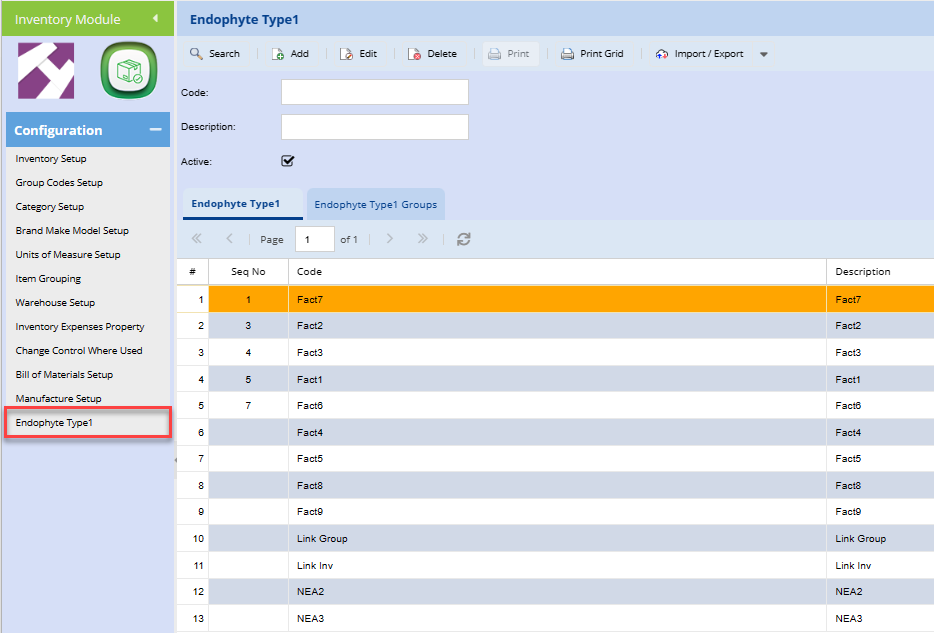
To access the Endophyte Type1/ Fact list
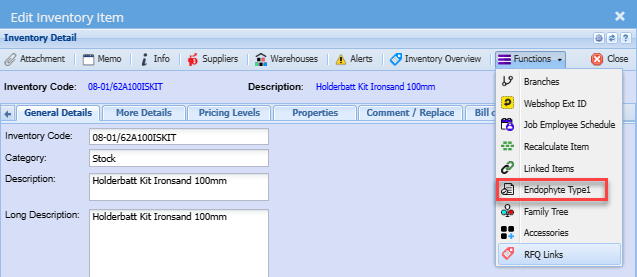
Go to
- Inventory Module
- Configuration
- Edit the Inventory Item you want to add the Endophyte Type1 to
- Functions drop down
- Select Endophyte Type 1 from the drop down.
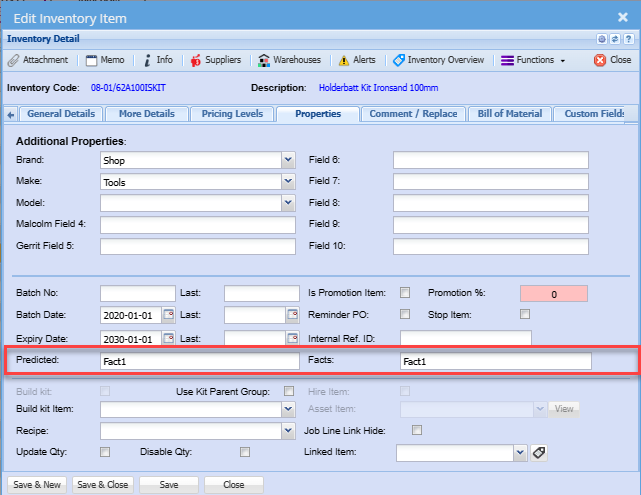
The system processes the information and dynamically categorizes it under Predicted and Facts.
Access the details to view short information about the marked facts.
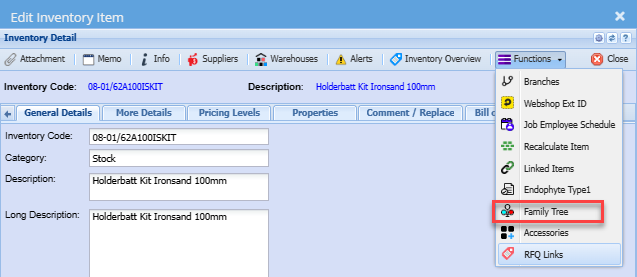
Family Tree
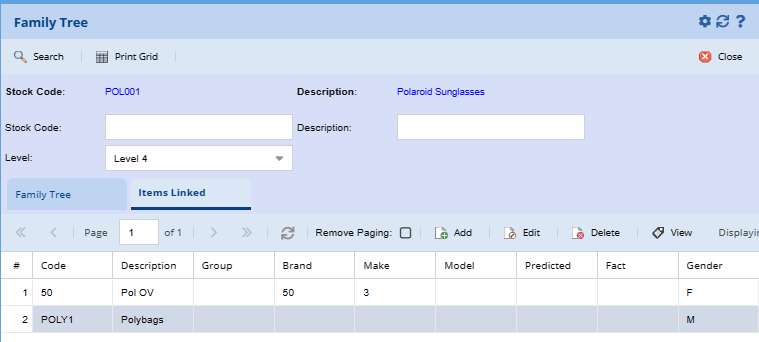
Family tree allows you to create and manage relationships among different items.
Inventory Module > Configuration> Item Setup> Edit Inventory Item>Functions Drop Down> Family Tree
When creating a family tree item, you have the option to specify whether it is male or female. This is crucial for biology.
The family tree structure allows you to create multiple levels of relationships.
Accessories
RFQ Links
Customer Item Codes
Bill of Materials
A Build kit is essentially a bill of material (BOM) that can be edited on the fly when added to transactions.
The build kit has 3 components to it:
- A stock item, which is a BOM item
- A Bill of Material Recipe
- A Custom item which is the build
Setting Up BOM Item
Go to Inventory Module> Configuration> Inventory Setup
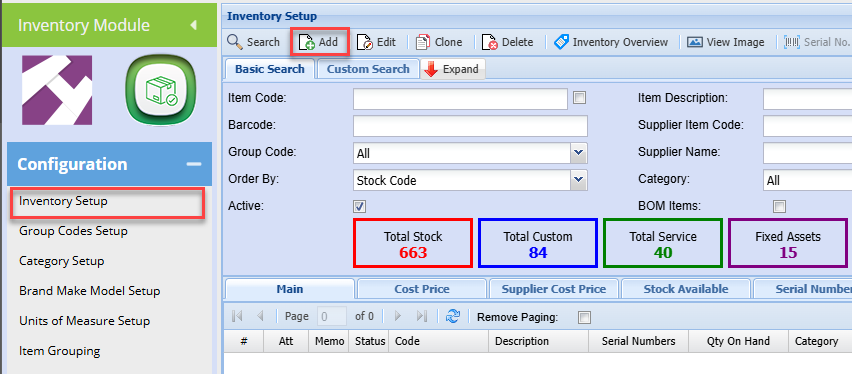
Click Add
Enter an Item code
Enter a Description
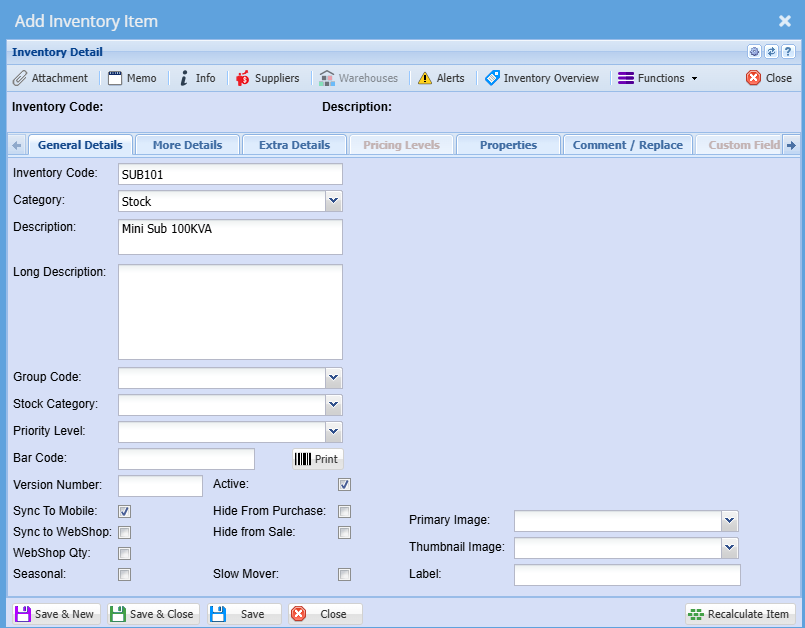
If you use group codes, for categorization and sales mapping, select the respective group code.
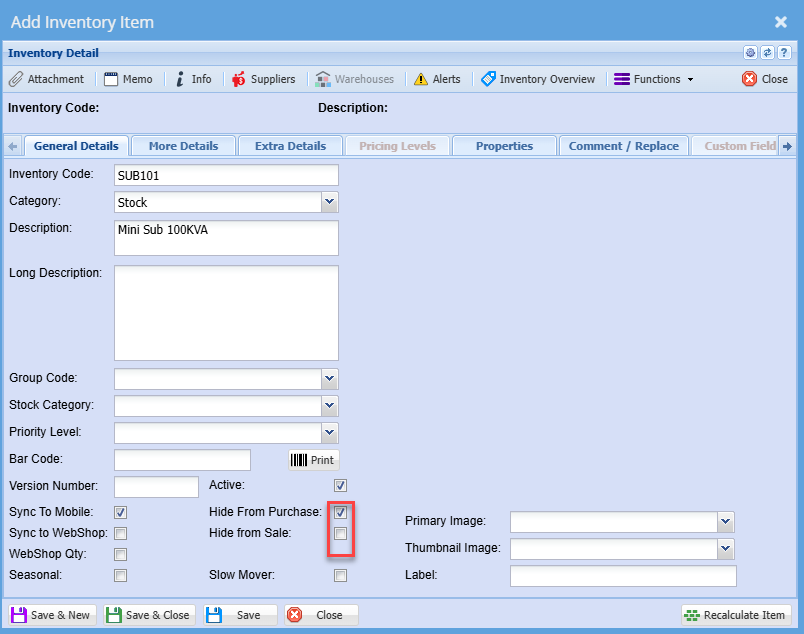
Since this is a Bill of Material (BOM) item that you, merely setting up for the Build recipe, and you are not going to be purchasing this item, you can tick the Hide from Purchases Box
Also, if most of your builds are customized and the standard BOM item is likely not to be sold then you can tick the Hide from Sales Box
Click Save
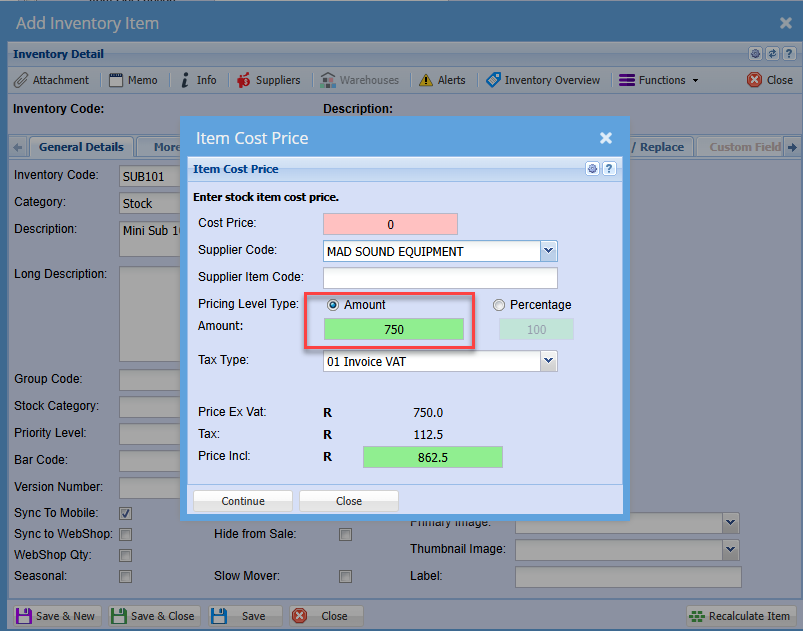
You will be prompted to enter a cost and selling price
Enter the selling price
You do not have to enter a cost price, since the cost price will be made up of the individual components
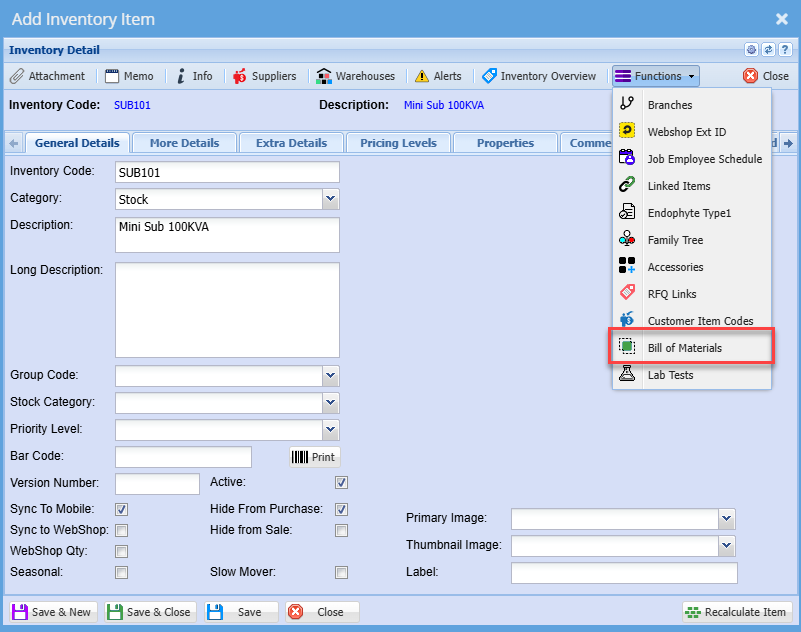
Click the Functions drop down
Select Bill of Materials
Tick the Bill of Material activation box
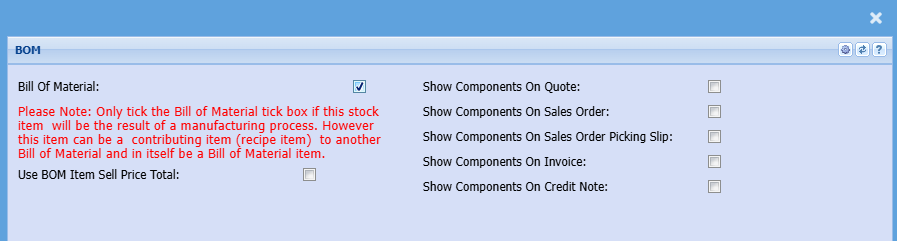
This sets the item as a BOM resultant item
Click save and close
To set up the Bill of Material (BOM) recipe click here
LabTests